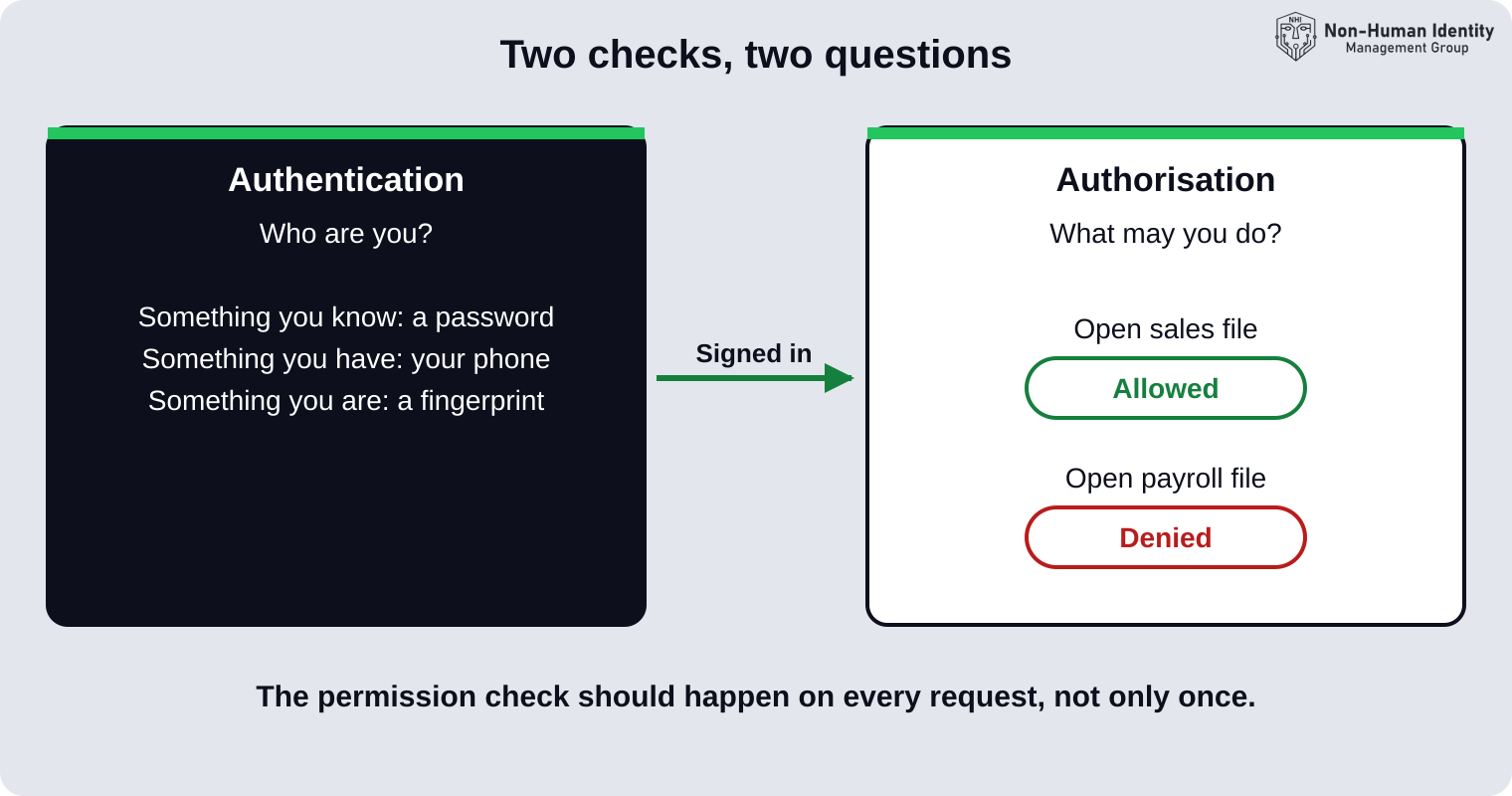
Authentication proves who you are, and authorisation decides what you are allowed to do once you are in.
This guide is for anyone who signs in to apps or work systems and wants to know what happens behind the login screen. You do not need to work in IT to be affected: every shared drive, payroll system and online account uses both checks.
In short
- Authentication is the "who are you?" check, such as a password, a code or a fingerprint.
- Authorisation is the "what may you do?" check, such as which files you can open or change.
- Authentication comes first. Authorisation should then be checked every time you ask for something.
- A strong login does not help much if everyone who signs in can see everything. Both checks matter.
What you will learn
- Explain the difference between the two checks in one sentence each.
- Spot which check has failed when something goes wrong.
- Check what your own accounts can reach, and ask for less if it is too much.
- Proving who you are (authentication)
- showing a system something only you should have, know or be, so it believes it is you.
- Being allowed to do something (authorisation)
- the system's decision about what you may see or change after it knows who you are.
- Permission
- one thing you are allowed to do, such as read a folder or approve a payment.
What is the difference between authentication and authorisation?
Think of an airport. At the passport desk, an officer checks that you are the person in the passport. At the gate, your boarding pass says which plane you may board.
The passport check is like authentication. It proves who you are. The boarding pass is like authorisation. It says what you are allowed to do. Passing the first check does not let you board any plane you like.
On a computer, authentication is the login. You type a password, enter a code or touch a fingerprint reader. Authorisation happens after that. The system looks up your permissions, meaning the list of things you are allowed to do, and opens only those doors.[1][2]
The two words look alike, so people mix them up. A short way to remember: authentication is about the person, and authorisation is about the action.
Where the comparison stops working: at an airport you show your boarding pass once or twice. A well-built system should check your permission each time you ask for something, not just once at the start.[3]
Why does it matter?
Many problems start when one of the two checks is weak or missing. Knowing which one has failed tells you what to fix.
If you use online accounts at home
What could happen: a stolen password passes the "who are you?" check, so a stranger can act as you.
Check this: turn on an extra sign-in step, such as a code or a passkey, on your email and bank.
If you run a small business
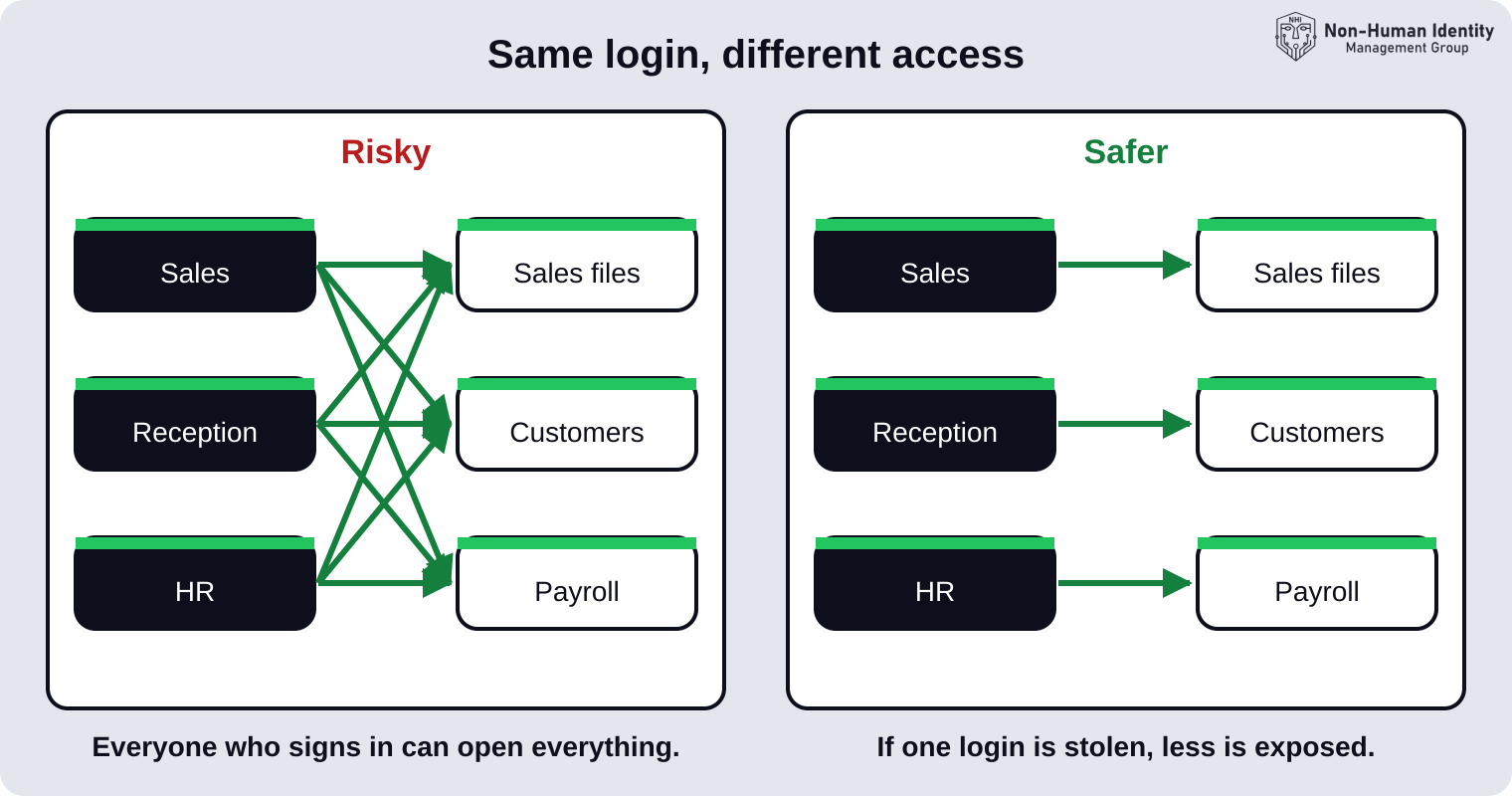
What could happen: every staff login can open payroll and customer files, so one stolen login exposes everything.
Check this: ask who can open your most sensitive folder, and remove anyone who does not need it.
If you are new to IT work
What could happen: an app checks the login but not the permission, so one user can see another user's records.
Check this: when you test an app, try opening something that belongs to a different user.
If you manage a team
What could happen: people who changed jobs keep their old access, so their permissions grow over time.
Check this: review your team's access when someone moves role or leaves.
What does it look like?
Here is a made-up record from a shared files app. It shows both checks for one person on one morning.
Example only. All values are made up.
09:01  sign-in   [email protected]   password OK   (1)
09:01  sign-in   [email protected]   code OK       (2)
09:03  open      /Sales/Price-list.EXAMPLE   ALLOWED  (3)
09:05  open      /HR/Payroll-FAKE.xlsx       DENIED   (4)
09:05  reason    group "Sales" has no access to /HR    (5)
- The first proof: the password matched. This is authentication.
- The second proof: a one-time code matched. Still authentication.
- Ali asks to open a sales file. The permission check says yes. This is authorisation.
- Ali asks to open a payroll file. The permission check says no.
- The reason: Ali's team, Sales, has no permission for the HR folder. In a real file, this line would name the rule that made the decision.
Why this is risky: if line 4 said ALLOWED, anyone in Sales could read everyone's pay. The login was fine, but the permission was wrong.
The safer way: give each team only the folders it needs, and keep a record of every yes and no, as this log does.
How does it work?
- You say who you are. You type a username or email address. This is only a claim so far.
- You prove it. You give one or more proofs. Each is something you know (a password), something you have (your phone) or something you are (a fingerprint). Using two or more kinds is called multi-factor authentication.[1][4]
- The system lets you in. It gives your browser or app a short-lived pass, so you do not have to log in again on every page.
- You ask to do something. You open a file, approve a payment or change a setting.
- The system checks your permission. It looks up what you are allowed to do, often based on your role, and says yes or no. Good systems refuse by default and check on every request.[3]
Software and AI tools go through the same two checks. A program shows a secret key or a certificate, a kind of digital ID card, to prove what it is. Then it gets only the permissions it was given.
A worked example
This story is made up to show how it can happen.
Olivia Nguyen runs a small dental practice with six staff. Everyone signs in to the practice's cloud files with a password and a code from an app. Olivia feels the logins are safe.
One Monday, the receptionist gets an email that looks like it is from the file service. It asks her to sign in again. She types her password on the fake page and reads out the code when a caller asks for it.
By lunchtime, someone else is signed in as the receptionist. The login checks passed, because the stranger had both proofs. That is an authentication failure.
Olivia's IT helper, Sam, looks at the activity log. The stranger opened the appointment diary and patient contact details. Then they tried to open the payroll folder and the bank details folder. Both said "denied".
Last year Sam had set up the folders so each role sees only what it needs. Reception can see bookings and contact details. Only Olivia and the practice manager can see pay and bank details. That narrow permission, the authorisation part, limited the harm.
Sam resets the receptionist's password and signs her out of every device. He reports what was exposed so Olivia can tell the people affected, as the law may require. Then he moves the team to passkeys, a sign-in method that does not work on a fake site.
What made the difference: the login was beaten, but tight permissions meant the stranger reached a few folders, not all of them.
Myths and mistakes
| What people think | What is true |
|---|---|
| Authentication and authorisation are the same thing. | They are two separate checks. One proves who you are. The other decides what you may do.[3] |
| If the login is strong, everything behind it is safe. | A strong login can still be tricked. Narrow permissions limit what a stranger can reach if it is. |
| Once I am logged in, the system has already checked everything. | The login only proves who you are. A good system checks your permission again for each thing you ask for.[3] |
| Giving everyone full access saves time. | It also means one stolen login opens everything. Give people what their job needs and add more when asked. |
| Only people need these checks. | Apps, scripts and AI tools also sign in and get permissions. They need the same care. |
What can I do this week?
- Turn on an extra sign-in step, or a passkey, for your email and your main work account.
- Look at the shared folders you can open at work. Tell your manager about any you do not need.
- If you manage people, list who can reach your most sensitive data and remove anyone who has left or moved.
- Check the "connected apps" page of your email account and remove apps you no longer use.
Checklist
- I can explain authentication as "who are you?" and authorisation as "what may you do?".
- My important accounts use more than a password alone.
- I only have access to the work folders and systems I need.
- Access is reviewed when someone joins, moves role or leaves.
- Sensitive areas, such as pay and bank details, are open to a small named group.
- Our systems keep a record of logins and of allowed and denied requests.
Common questions
Which comes first, authentication or authorisation?
Authentication comes first. A system needs to know who you are before it can decide what you may do. After that, authorisation is checked whenever you ask for something, such as opening a file. So the login happens once, but permission checks keep happening.
Is multi-factor authentication part of authentication or authorisation?
It is part of authentication. Multi-factor authentication asks for two or more kinds of proof, such as a password and a code, before it believes you are who you say. It makes the "who are you?" check stronger. It does not change what you are allowed to do.
Why is it spelt authorization in some places?
Authorization with a z is the American spelling. Authorisation with an s is common in British English. They mean the same thing. You will often see the z spelling in software, standards and settings screens, even on UK websites.
What do the error codes 401 and 403 mean?
They are standard web error codes. A 401 usually means the site does not yet know who you are, so you need to sign in. A 403 usually means it knows who you are, but you do not have permission for that page.[5]
Do apps and AI tools need authentication and authorisation too?
Yes. Software signs in with things like keys or certificates instead of passwords typed by a person. It should then get only the permissions it needs for its job. If a program with too much access has its key stolen, the harm can be serious.
Where next?
Ready for the detail? Read the practitioner guide: Authentication Guide. It goes further into sign-in methods and their strengths, sessions and tokens, and how organisations choose and roll out stronger logins.
Also useful:
- Authentication vs Authorisation
- Authorisation and Policy Engines for Beginners
- FIDO2 and WebAuthn for Beginners
- Non-Human Identity Authentication for Beginners
Related NHI Mgmt Group resources: Authorisation Models Guide · 2FA vs Two-Step Verification vs MFA · Least Privilege Techniques Guide
Key terms
- Authentication
- The check that proves a person or program is who it claims to be.
- The decision about what a signed-in person or program is allowed to do.
- Multi-factor authentication (MFA)
- Asking for two or more kinds of proof, such as a password and a code, before letting you in.
- Credential
- Any proof used to show who you are, such as a password, a code, a passkey or a key.
- Least privilege
- Giving each person or program only the access it needs, and no more.
- Role-based access control
- Giving permissions to roles, such as Sales or HR, and then putting people into those roles.
Sources and further reading
- Glossary: authentication (definitions from FIPS 200 and SP 800-63-4, including the three kinds of factor). National Institute of Standards and Technology (NIST), Computer Security Resource Center. https://csrc.nist.gov/glossary/term/authentication, accessed 28 Nov 2026.
- Glossary: authorization (definitions from CNSSI 4009-2022 and SP 800-162). National Institute of Standards and Technology (NIST), Computer Security Resource Center. https://csrc.nist.gov/glossary/term/authorization, accessed 28 Nov 2026.
- Authorization Cheat Sheet (authorisation is distinct from authentication; deny by default; validate permissions on every request). OWASP Cheat Sheet Series. https://cheatsheetseries.owasp.org/cheatsheets/Authorization_Cheat_Sheet.html, accessed 28 Nov 2026.
- Turn on 2-step verification (2SV). National Cyber Security Centre (NCSC), Top tips for staying secure online. https://www.ncsc.gov.uk/collection/top-tips-for-staying-secure-online/activate-2-step-verification-on-your-email, accessed 28 Nov 2026.
- RFC 9110, HTTP Semantics (sections 15.5.2, 401 Unauthorized, and 15.5.4, 403 Forbidden). Internet Engineering Task Force (IETF), June 2022. https://www.rfc-editor.org/rfc/rfc9110.html, accessed 28 Nov 2026.