An email header is the hidden record of who sent a message and how it reached you.
This guide is for anyone who has had an email that looked a bit off and wondered where it really came from. You do not need to be technical: the header is already there in every email, and your mail app can show it in a few clicks.
In short
- Every email carries a header: extra lines your mail app hides, showing the sender, the date and the route.
- The From line is typed in by the sender, so it is easy to fake.
- Mail servers add a Received line at each stop, and your own provider adds a line showing whether the sender passed its checks.
- The header is a clue, not proof. If in doubt, report the email and check with the sender another way.
What you will learn
- Open the full header of an email in Gmail or Outlook.
- Spot a From address that does not match the reply address.
- Explain which header lines you can rely on and which can be faked.
- Ask for help in the right way when an email looks suspicious.
- Hidden details (email header)
- the lines at the top of every email that record the sender, date and route.
- Stop record (Received line)
- a line a mail server adds each time it passes the email on.
- Faked sender (spoofing)
- making an email look as if it came from someone it did not.
What is an email header?
Think of an envelope that has been through the post. It has the address you wrote, plus postmarks stamped on by each sorting office on the way.
An email works in a similar way. Your mail app shows you only the short version: who it is from, the subject and the date. Behind that sits the header, a block of lines each made of a name, a colon and a value.[1] Some lines are written by the sender, like the From line. Others are added by mail servers (the computers that pass email along) as the message travels.[2]
The header tells you which computers handled the email and whether the sending address passed some basic checks. Microsoft describes it as technical details such as who sent the message, the software used to write it and the email servers it passed through.[4]
Where the comparison stops working: anyone can write any return address on an envelope, and the same is true of an email's From line. But a forger can also add fake postmarks to an email before it leaves. Only the stamps added by servers you trust, such as your own email provider, can be relied on.
Why does it matter?
Many scams rely on an email that looks like it came from someone you know. The header can show when the real sending address, the reply address and the checks do not line up. The US government's cyber security agency lists mismatched sender addresses as a common sign of phishing.[7]
If you look after money at work
What could happen: a fake "supplier" email asks you to send payment to a new bank account.
Check this: look at where replies would go, then call the supplier on a number you already have.
If you are new to IT support
What could happen: a colleague forwards a suspicious email, and the forward loses the original header.
Check this: ask for the full header or the original message as an attachment, not a plain forward.
If you use email at home
What could happen: an email that looks like your bank asks you to "confirm your details".
Check this: do not click. Report the email and contact the bank through its own website or app.
Next: Phishing for Beginners
What does it look like?
Here is a shortened, made-up header from an email claiming to be from a printing supplier. Real headers are longer and messier, but the key lines look like this.
Example only. All values are made up.
Authentication-Results: mx.your-provider.example;
   spf=fail dkim=none dmarc=fail header.from=cedar-printers.example  (1)
Received: from mail.unknown-host.example (203.0.113.50)             (2)
   by mx.your-provider.example; Mon, 2 Nov 2026 09:14:05 +0000
From: "Cedar Printers Accounts" <[email protected]>   (3)
Reply-To: <[email protected]>                        (4)
Subject: Updated bank details for your next invoice
Date: Mon, 2 Nov 2026 09:13:58 +0000
- Your own provider's verdict. In a real message, this line would show whether the sender passed the checks known as SPF, DKIM and DMARC. Here all three fail or are missing.
- The last stop before your provider. In a real message, this line would name the server that handed the email over and its internet address.
- The name and address you see in your inbox. The sender typed this in.
- Where your reply would go. It points to a different, free email address.
Why this is risky: the From line says Cedar Printers, but the checks fail and replies go somewhere else. That mix is a common pattern in payment scams.
The safer way: do not reply or pay. Check with the supplier on a phone number you already hold, and report the email.
How does it work?
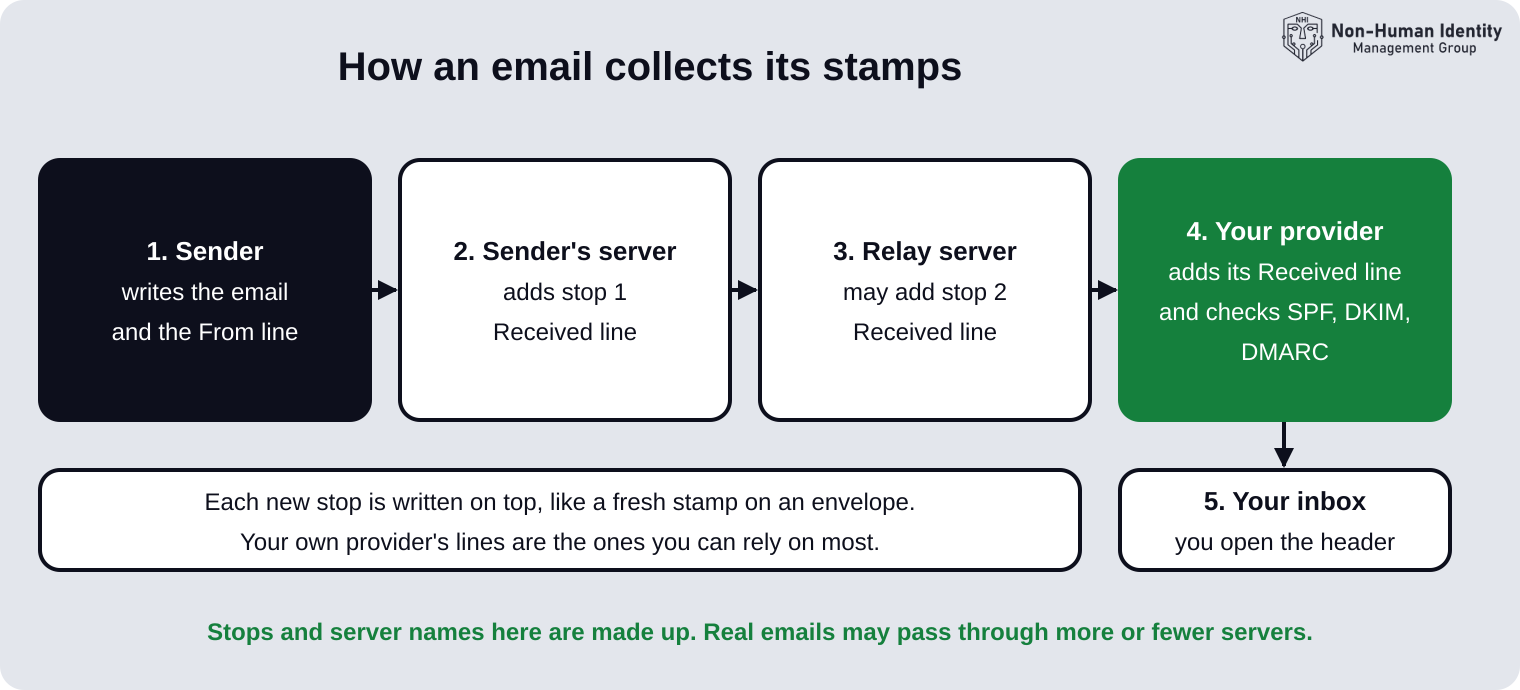
Here is the journey an email takes, and where each part of the header comes from.
- The sender writes it. Their mail app fills in the From, To, Subject and Date lines. The rules for email say only the Date and From lines are required.[1]
- Servers pass it on. Each mail server that accepts the email adds a Received line at the top, naming where it came from and when. Older lines stay in place below.[2]
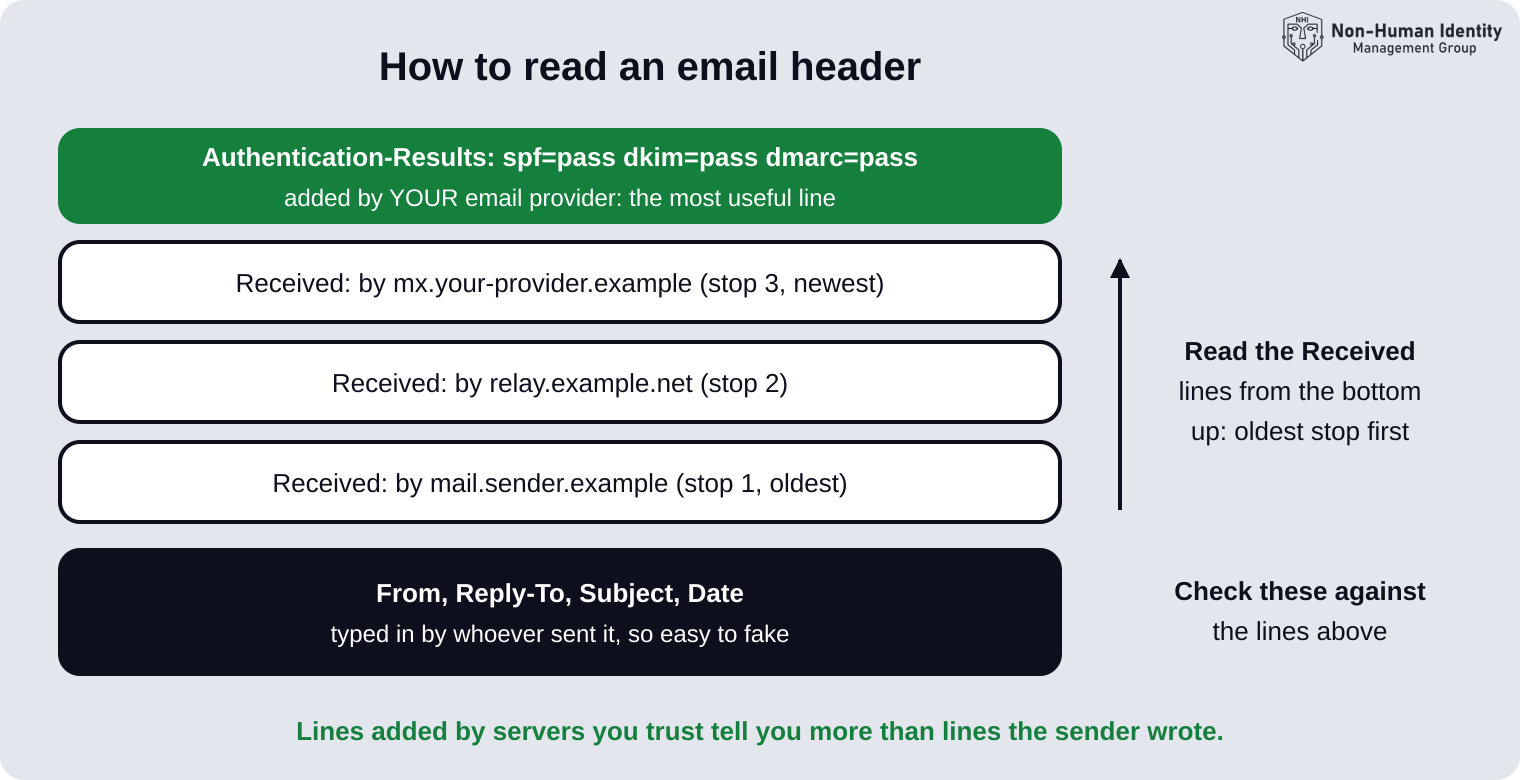
- Your provider checks it. Your email provider runs three checks. SPF asks whether the sending server may send for that address. DKIM checks a digital signature. DMARC says what the address owner wants done if the checks fail. Your provider records the results in an Authentication-Results line.[3]
- A return address is added. When the email is delivered, the last server adds a Return-Path line, the address that bounce messages go back to.[2]
- You read it. You read the Received lines from the bottom up, because the oldest stop is at the bottom.[2]
To open the header in Gmail on a computer, open the email, choose More next to Reply, then Show original.[5] In the new Outlook, choose More actions, then View, then View message details.[4] Google also offers a free header analyser that lays out the stops and any delays in order.[6]
One warning: the Authentication-Results line is only worth trusting when your own provider added it. The standard says the line being there does not prove it is true. Providers should remove copies that claim to be theirs but are not.[3]
A worked example
Sana Fairweather keeps the accounts at Quarry Bakery, a fictional family bakery with eight staff. On Monday morning an email arrives from "Cedar Printers Accounts", the firm that prints the bakery's menus and boxes.
It says the printer has changed banks and asks her to pay this month's invoice to a new account. The logo looks right and the tone is friendly. But the request is about money and a new bank account, so Sana slows down.
She opens the email in Gmail and chooses Show original. A new window shows the full header. She does not understand every line, so she looks for three things.
First, the Reply-To line. Replies would go to a free email address, not to Cedar Printers. Second, the checks near the top. SPF and DMARC both say fail. Third, the Received lines. Reading from the bottom up, the first stop is a server name she has never seen, not the printer's usual email service.
None of this proves fraud on its own. Emails can fail checks for dull reasons, such as being forwarded.[5] So Sana does not reply to the email. She calls Cedar Printers on the number printed on last year's invoice. Her contact there says they have not changed banks.
Sana reports the email to her email provider and, because she is in the UK, forwards it to the national scam reporting address.[8] She also tells the printer, so it can warn its other customers. The bakery's money stays where it is.
Myths and mistakes
| What people think | What is true |
|---|---|
| If the From address is right, the email is genuine. | The sender types the From line, so it can be faked. Check the provider's checks and the reply address too.[1] |
| Every line in the header is true. | Only lines added by servers you trust can be relied on. A forger can add fake lines lower down.[3] |
| A "pass" means the email is safe. | A pass shows the sending address was not faked. Scammers can send from their own real addresses that pass.[3] |
| A "fail" always means a scam. | Forwarding and mailing lists can make genuine email fail. Treat a fail as a reason to check, not a verdict.[5] |
| Forwarding a dodgy email to IT keeps the evidence. | A normal forward can lose the original header. Ask IT how they want it sent, often as an attachment. |
What can I do this week?
- Open the full header of one normal email you trust.
- Find the Reply-To line and the Authentication-Results line in it.
- Agree a rule at work: any change of bank details is checked by phone on a known number.
- Find out how your IT team or provider wants suspicious emails reported.
- Save the national scam reporting address for your country.
Checklist
- I know how to open the full header in the mail app I use.
- I compare the From address with the Reply-To address.
- I look at my provider's SPF, DKIM and DMARC results.
- I read the Received lines from the bottom up.
- I treat the header as a clue and check with the sender another way.
- I report suspicious emails instead of replying to them.
- Payment or bank changes are always confirmed by phone on a known number.
Common questions
How do I see the full header of an email?
Use your mail app's original or message details view. In Gmail on a computer, open the email, choose More next to Reply, then Show original. In the new Outlook, choose More actions, then View, then View message details.
Can an email header tell me the sender's home address?
No, not usually. A header may show the internet address of the servers that handled the email. That usually points to an email company, not a person's home. Tracing people is a job for the police.
What do SPF, DKIM and DMARC mean in the header?
They are three checks your provider runs on the sending address. SPF asks whether the server may send for that address. DKIM checks a digital signature. DMARC says what the address owner wants done if they fail. Our Email Authentication for Beginners guide explains each one.
Should I send the header to my IT team?
Yes, if they ask for it. The header helps them see where the email came from and whether others got it. Follow their instructions, because some teams want the email as an attachment and others use a report button. Do not click anything in the email first.
Is it safe to open an email just to look at its header?
Usually yes. Viewing the original or message details shows plain text, and you do not need to click links or open attachments. The risk comes from clicking, replying or downloading. If you are unsure, report the email without opening it.
Where next?
Ready for the detail? Read the practitioner guide: Email Forensics Guide. It goes further into collecting email evidence without changing it, provider message logs and building a timeline of an incident.
Also useful:
- Email Authentication for Beginners
- Phishing for Beginners
- Business Email Compromise for Beginners
- Email Spoofing vs Lookalike Domains
Related NHI Mgmt Group resources: Email Security for Beginners · Display Name and Exact Domain Spoofing Guide · Business Email Compromise Response Playbook
Key terms
- Email header
- The lines at the top of an email that record the sender, date, route and check results.
- Received line
- A record a mail server adds at the top of the header each time it accepts the email.
- Reply-To
- The address replies go to, which can be different from the From address.
- Email spoofing
- Making an email appear to come from a trusted sender when it does not.
- SPF
- A published list of the servers allowed to send email for a domain.
- DKIM
- A digital signature that lets the receiver check an email came from the domain and was not changed.
- DMARC
- A published policy telling receivers what to do with email that fails SPF and DKIM checks for a domain.
- Phishing
- Using fake messages or websites to trick people into giving away details, money or access.
Sources and further reading
- RFC 5322: Internet Message Format. IETF, October 2008. https://www.rfc-editor.org/rfc/rfc5322.html, accessed 28 Nov 2026.
- RFC 5321: Simple Mail Transfer Protocol, section 4.4 Trace Information. IETF, October 2008. https://www.rfc-editor.org/rfc/rfc5321.html, accessed 28 Nov 2026.
- RFC 8601: Message Header Field for Indicating Message Authentication Status. IETF, May 2019. https://www.rfc-editor.org/rfc/rfc8601.html, accessed 28 Nov 2026.
- View internet message headers in Outlook. Microsoft Support. https://support.microsoft.com/en-us/office/view-internet-message-headers-in-outlook-cd039382-dc6e-4264-ac74-c048563d212c, accessed 28 Nov 2026.
- Check if your Gmail message is authenticated; Trace an email with its full headers. Gmail Help, Google. https://support.google.com/mail/answer/180707 and https://support.google.com/mail/answer/29436, accessed 28 Nov 2026.
- Messageheader. Google Admin Toolbox. https://toolbox.googleapps.com/apps/messageheader/, accessed 28 Nov 2026.
- Recognize and Report Phishing. CISA, Secure Our World. https://www.cisa.gov/secure-our-world/recognize-and-report-phishing, accessed 28 Nov 2026.
- Report a scam email. National Cyber Security Centre (UK). https://www.ncsc.gov.uk/collection/phishing-scams/report-scam-email, accessed 28 Nov 2026.