Free cloud security tools are open-source programs that check cloud settings and code for common security mistakes.
This guide is for students, newcomers to IT and small teams who want to try cloud checks without a budget. You do not need to be an expert to start: a first scan of a test account can show the kinds of mistakes these tools look for.
In short
- Free, open-source tools can list risky cloud settings, such as public storage or switched-off logging.
- Some check a live cloud account, others check the setup files before anything is built.
- Give a scanner read-only access, and only scan accounts you own or have written permission to test.
- A tool shows what to look at. People still decide what matters and fix it.
What you will learn
- Explain what a cloud security scanner does in one sentence.
- Tell apart tools that check live accounts and tools that check setup files.
- Read a simple scan report and pick what to fix first.
- Check that a scanner has only the access it needs.
- Risky setting (misconfiguration)
- a setting that leaves something less protected than intended, such as public storage.
- Setup files (infrastructure as code)
- text files that describe cloud resources so a tool can build them the same way each time.
- Free to use and inspect (open source)
- software whose code is published under a licence that lets people use and study it.
What are free cloud security tools?
Think of a free home safety check. A volunteer arrives with a checklist and a torch. They point out the loose stair rail and the smoke alarm with no battery. You still have to do the repairs.
Free cloud security tools work the same way. They read your cloud settings, or the files that describe them, and compare what they find with a list of known good practice. Then they produce a report of what passed and what failed. Tools that check live cloud settings in this way are often called cloud security posture management (CSPM) tools.
This guide looks at four well-known open-source tools, listed alphabetically: Checkov, Prowler, ScoutSuite and Trivy. The order is not a ranking.
Where the comparison stops working: a home safety volunteer can spot a new kind of danger. A scanner only knows the checks it was built with. A clean report means "no known problems found", not "safe".
Why does it matter?
Many cloud problems start with a simple wrong setting, not a clever attack. Free tools let you find those settings early, at no licence cost. See Cloud Misconfigurations for Beginners for the common kinds.
If you are a student or learning cloud skills
What could happen: you leave a practice storage bucket public and forget about it.
Check this: scan your own practice account and fix what it finds.
If you run a small team with no security budget
What could happen: nobody checks the cloud settings, so mistakes build up over months.
Check this: agree who runs a free scan each month and who fixes the findings.
Next: Free Cyber Security Services and Tools for Small Organisations Guide
If you are new to IT or developer work
What could happen: a setup file you write creates an open server, and it is copied into every new project.
Check this: scan setup files before they are used to build anything.
What does it look like?
Here is a made-up summary of a scan report for a practice account. Real reports are longer, but they follow a similar pattern.
Example only. All values are made up.
Scan of account practice-0000 (my own test account)
Checks run: 300   Passed: 271   Failed: 29          (1)
HIGH    Storage bucket photos-FAKE is public         (2)
HIGH    Main admin account has no second sign-in step
MEDIUM  Activity logging switched off in 1 region    (3)
LOW     Server disk not encrypted (test-vm-EXAMPLE)
Report saved: report-EXAMPLE.html                    (4)
- Each check is one rule, such as "storage should not be public".
- In a real file, this line would name a bucket that anyone on the internet could read.
- Severity labels (high, medium, low) help you choose what to fix first.
- Most tools can save the report in several formats to share or compare later.
Why this is risky: a report is easy to run and easy to ignore. Twenty-nine findings with no owner will still be there next month.
The safer way: fix the high items first. Write down any you accept on purpose, and why. Then run the scan again to confirm the fix.
How does it work?
Most free cloud scanners follow the same basic steps.
- Get permission. Only scan accounts you own or have written permission to test.
- Give read-only access. The tool needs its own identity, with rights to read settings but not change them. Prowler's AWS guide, for example, points to two read-only AWS policies, SecurityAudit and ViewOnlyAccess.[3]
- Run the checks. The tool reads your settings, or your setup files, and tests each one against its rules.
- Read the report. Sort by severity, check each finding is real and decide who fixes it.
- Fix and repeat. Change the setting, then scan again to confirm. Regular scans catch new mistakes.
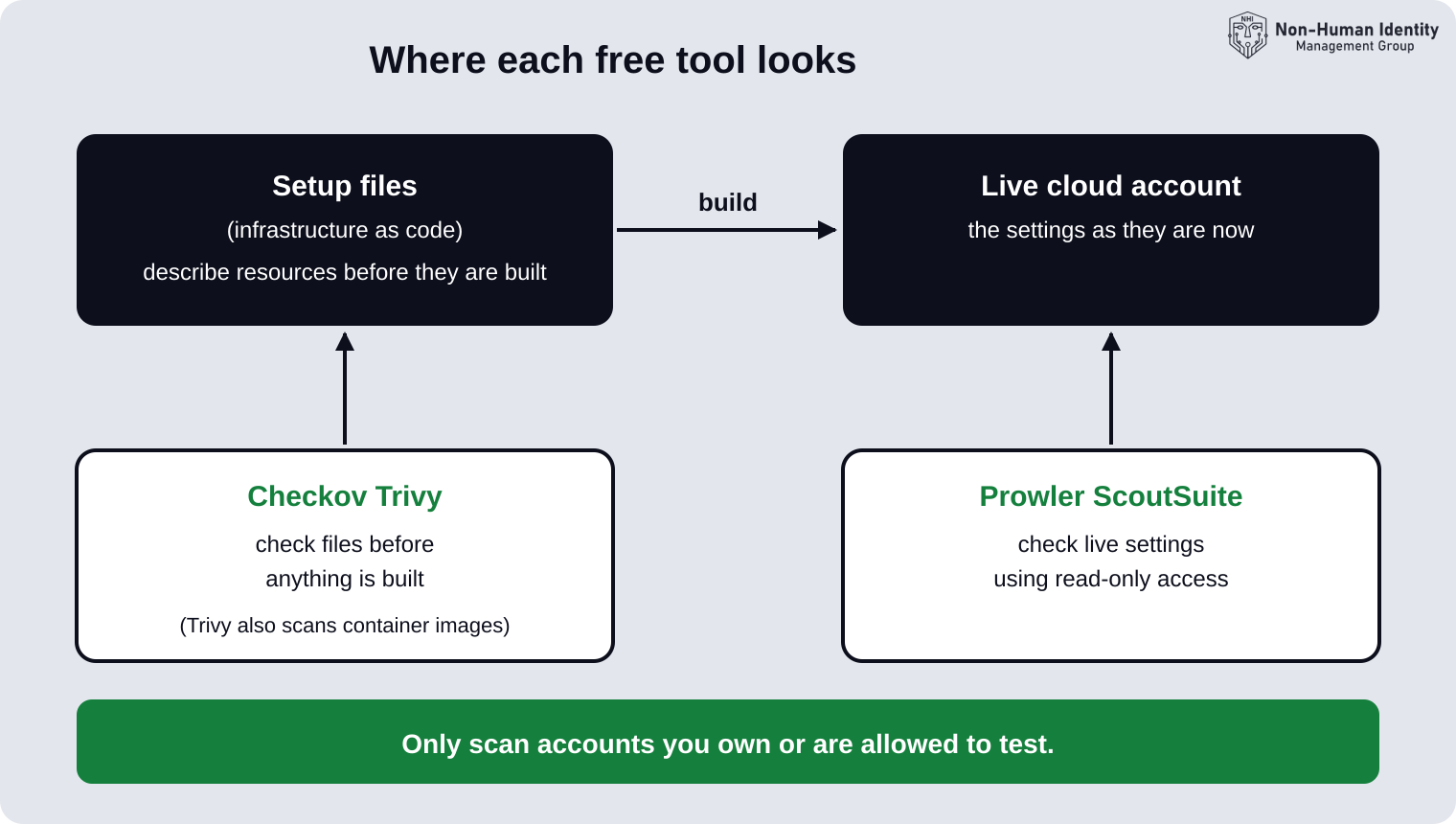
The four tools at a glance
Tools are listed alphabetically. Each one is free to download from its project page.
- Checkov checks setup files, such as Terraform and CloudFormation templates, before anything is built. Its project page says it has over 1,000 built-in rules for AWS, Azure and Google Cloud. It is released under the Apache 2.0 licence.[1]
- Prowler checks live cloud accounts. Its project page lists checks for AWS, Azure, Google Cloud, Kubernetes and other services, with reports mapped to well-known security checklists. It is released under the Apache 2.0 licence.[2]
- ScoutSuite checks live cloud accounts. It gathers settings through the cloud provider's own interfaces and shows a point-in-time view of risk areas, which can then be reviewed offline. It supports AWS, Azure and Google Cloud, with other clouds in early (alpha) support. It is released under the GPL 2.0 licence.[4]
- Trivy checks container images (packaged apps), file systems, code projects and Kubernetes. It looks for known software flaws, risky settings in setup files and secrets left in files. It is released under the Apache 2.0 licence.[5]
Open-source licences differ, so read the terms before using a tool at work. Tools also change quickly. Download them from the official project page, keep them up to date and check recent release notes before you rely on one.
A worked example
Leila Dube is in her first IT job at a fictional charity. Her manager, Juno Engel, asks her to check the charity's test cloud account before a new project starts.
Juno remembers the home safety check. The volunteer only helps if someone acts on the list. So she gives Leila written permission to scan the test account, and sets a date to review the results together.
Leila creates a separate identity for the scanner with read-only rights, so the tool can look but not change anything. She runs Prowler against the test account.
The report lists 41 failed checks. Leila sorts them by severity. Three are high: a public storage bucket, an admin account with no second sign-in step and logging switched off in one region.
She checks each one by hand. The bucket holds only old logo files, but it should still be private. She makes it private and turns logging back on. Juno adds the second sign-in step for the admin account.
The new project's developer writes setup files for the next servers. Leila runs Checkov on them before they are used, and it flags a server open to the whole internet. The developer narrows it to the charity's office network.
Leila scans again. The three high findings now pass. Juno adds a monthly scan to the team calendar, with a named owner for each finding.
Myths and mistakes
| What people think | What is true |
|---|---|
| A clean report means the cloud is safe. | It means no known problems were found by those checks. New risks and unusual setups can be missed. |
| The scanner needs admin rights to work. | Most only need to read settings. Give read-only access so the scanner itself is a smaller risk.[3] |
| Every finding must be fixed right away. | Fix the high ones first. Some findings may be accepted on purpose, as long as the reason is written down. |
| One scan is enough. | Settings change every week. Regular scans catch new mistakes. |
| Free tools are fine to point at any account. | Only scan accounts you own or have written permission to test. |
What can I do this week?
- Pick one test or practice account you own and get written permission if it is not yours.
- Create a separate read-only identity for the scanner.
- Run one free scanner and save the report.
- Fix the high findings first, then scan again to confirm.
- Agree who runs the scan each month and who owns each finding.
Checklist
- Every scan has written permission from the account owner.
- The scanner uses its own read-only identity.
- Its access keys are stored safely and removed when no longer needed.
- Tools come from the official project page and are kept up to date.
- Setup files are scanned before they are used to build anything.
- High findings have a named owner and a fix date.
- Accepted findings are written down with a reason.
- Scans run on a regular schedule, and results are compared over time.
Common questions
Which free cloud security tool should I start with?
Start with what you want to check. For a live cloud account, a posture scanner such as Prowler or ScoutSuite fits. For setup files before they are built, a file scanner such as Checkov or Trivy fits. Try one on a test account first.
Is it legal to scan a cloud account?
Scanning an account you own, or one you have written permission to test, is normal practice. Scanning someone else's account without permission is not acceptable and may break the law or the provider's rules. When in doubt, get permission in writing first.
Will a scanner change my cloud settings?
Not if you give it read-only access. The tools in this guide report what they find, and fixes are made by people. A read-only identity makes sure the scanner cannot change settings, even by accident.[3]
Do free tools replace paid cloud security products?
For learning and small setups, free tools can cover a lot. Larger teams often want features such as dashboards, alerting and help with fixes, which some free projects also offer. Compare what you need, not just the price.
What does a "finding" mean?
A finding is one check that failed, such as "this storage bucket is public". Each finding names the resource, the problem and usually a severity. Some findings turn out to be harmless on inspection, so always check before you act.
Where next?
Ready for the detail? Read the practitioner guide: Prowler and Cloud Posture Scanning Guide. It goes further into safe deployment, scanner permissions, running scans across many accounts and other posture tools.
Also useful:
- Checkov and IaC Scanners Guide
- Trivy Guide
- CSPM for Beginners
- Free Digital Forensics Tools for Beginners
Related NHI Mgmt Group resources: Cloud Security Posture Management (CSPM) Guide · Steampipe and CloudQuery Guide · Cloud Misconfigurations for Beginners
Key terms
- Cloud security posture management
- Tools and processes that find risky settings and drift in cloud accounts.
- Misconfiguration
- A setting that leaves a resource less protected than intended, such as public storage.
- Security scanner
- A tool that checks systems or files for known weaknesses and risky settings.
- Container image
- A packaged app with everything it needs to run.
- CIS Benchmark
- A published list of secure settings for a product, which many scanners check against.
- False positive
- A finding that looks like a problem but turns out to be harmless.
Sources and further reading
- Checkov README and licence. Checkov project, GitHub. https://github.com/bridgecrewio/checkov, accessed 28 Nov 2026.
- Prowler README and licence. Prowler project, GitHub. https://github.com/prowler-cloud/prowler, accessed 28 Nov 2026.
- AWS authentication in Prowler. Prowler documentation, GitHub. https://github.com/prowler-cloud/prowler/blob/master/docs/user-guide/providers/aws/authentication.mdx, accessed 28 Nov 2026.
- ScoutSuite README and licence. NCC Group ScoutSuite project, GitHub. https://github.com/nccgroup/ScoutSuite, accessed 28 Nov 2026.
- Trivy README and licence. Trivy project, GitHub. https://github.com/aquasecurity/trivy, accessed 28 Nov 2026.