A cloud storage bucket is an online folder, rented from a cloud provider, that holds files for apps and people.
This guide is for anyone whose business keeps files in the cloud, or who has been asked to set up a bucket. You do not need to be technical to be affected: if a supplier stores your customer files in a bucket, its settings decide who can read them.
In short
- Buckets on the big cloud services start private, but one changed setting can open them to anyone online.
- Files usually end up public through a quick fix: a sharing setting, a broad rule or a test that was never undone.
- Each provider has a safety switch that blocks public access across many buckets at once. Turn it on.
- To share a file, use a link that expires, not a public bucket.
What you will learn
- Explain what a bucket is and how it can become public.
- Spot a sharing setting that lets anyone read your files.
- Check that the public access safety switch is on.
- Ask your supplier how they share files safely.
- Online folder (bucket)
- a named store in the cloud that holds files, which the provider calls objects.
- Open to anyone (public access)
- a setting that lets people read files without logging in.
- Link that expires (signed URL)
- a web link to one file that works only for a set time.
This guide covers the three largest cloud storage services. Platforms are listed alphabetically: Amazon S3, Azure Blob Storage and Google Cloud Storage. Settings are taken from each provider's public documentation as of November 2026.
What is a cloud storage bucket?
Think of a garden shed with a good lock. It keeps your things safe while the door is shut. Prop the door open "just for a minute", and anyone walking past can look inside.
A bucket is a store for files, rented from a cloud provider. Apps put photos, invoices, backups and reports in it. Each file inside is called an object. Amazon says every object sits in a bucket, and each one can have its own web address.[1]
Different providers use different names. Amazon S3 and Google Cloud Storage say "bucket". Azure Blob Storage uses a "storage account" that holds "containers". They work in a similar way.
Where the comparison stops working: you would notice a shed door left open. A public bucket looks the same from the inside as a private one, and the files can be found and copied from anywhere online.
Why does it matter?
When a bucket is public, anyone with the address can read the files. Microsoft says that if a container is open to all, anyone can read the data in it.[4] If those files hold customer details, one wrong setting can lead to a data breach.
If you run a small business
What could happen: scanned invoices or customer forms sit in a public bucket that your web supplier set up.
Check this: ask your supplier to confirm, in writing, that public access is blocked.
If you are new to cloud work
What could happen: you make a bucket public to fix a test, then forget to change it back.
Check this: use an expiring link for sharing, and never open the whole bucket.
If you handle sensitive data
What could happen: personal or health data is stored next to public website images, under the same rules.
Check this: keep sensitive files in their own private buckets, away from anything public.
What does it look like?
Here is a made-up settings screen for a bucket. The labels are simplified so they make sense across providers.
Example only. All values are made up.
Bucket: example-coop-invoices-0000
Region: EXAMPLE-REGION-1
Block all public access:   OFF                (1)
Access rule:  Everyone on the internet: Read   (2)
Contents:     invoices/2026/FAKE-0001.pdf ...  (3)
Web address:  https://example-coop-invoices-0000.storage.example.invalid/
- In a real screen, this line would show the safety switch turned off, so public rules are allowed.
- In a real screen, this line would show a rule letting anyone read the files without logging in.
- In a real screen, this line would list invoices with names, addresses and amounts.
Why this is risky: anyone who finds the web address can open and copy every invoice. They do not need a password.
The safer way: turn the safety switch on and remove the "everyone" rule. When a customer needs one invoice, send a link that expires.
How does it work?
Here is how files usually end up public, step by step.
- The bucket starts private. On the big providers, new buckets do not allow public access unless someone changes it.[2][4]
- Someone needs to share. A customer, a partner or a website needs to see a file stored in the bucket.
- A quick fix opens the door. Someone turns off the safety switch, or adds a rule that lets everyone read.
- The fix stays. The need passes, but nobody changes the setting back, so new files added later are public too.
- Someone finds it. People and automated tools look for open buckets, and the files can be copied.
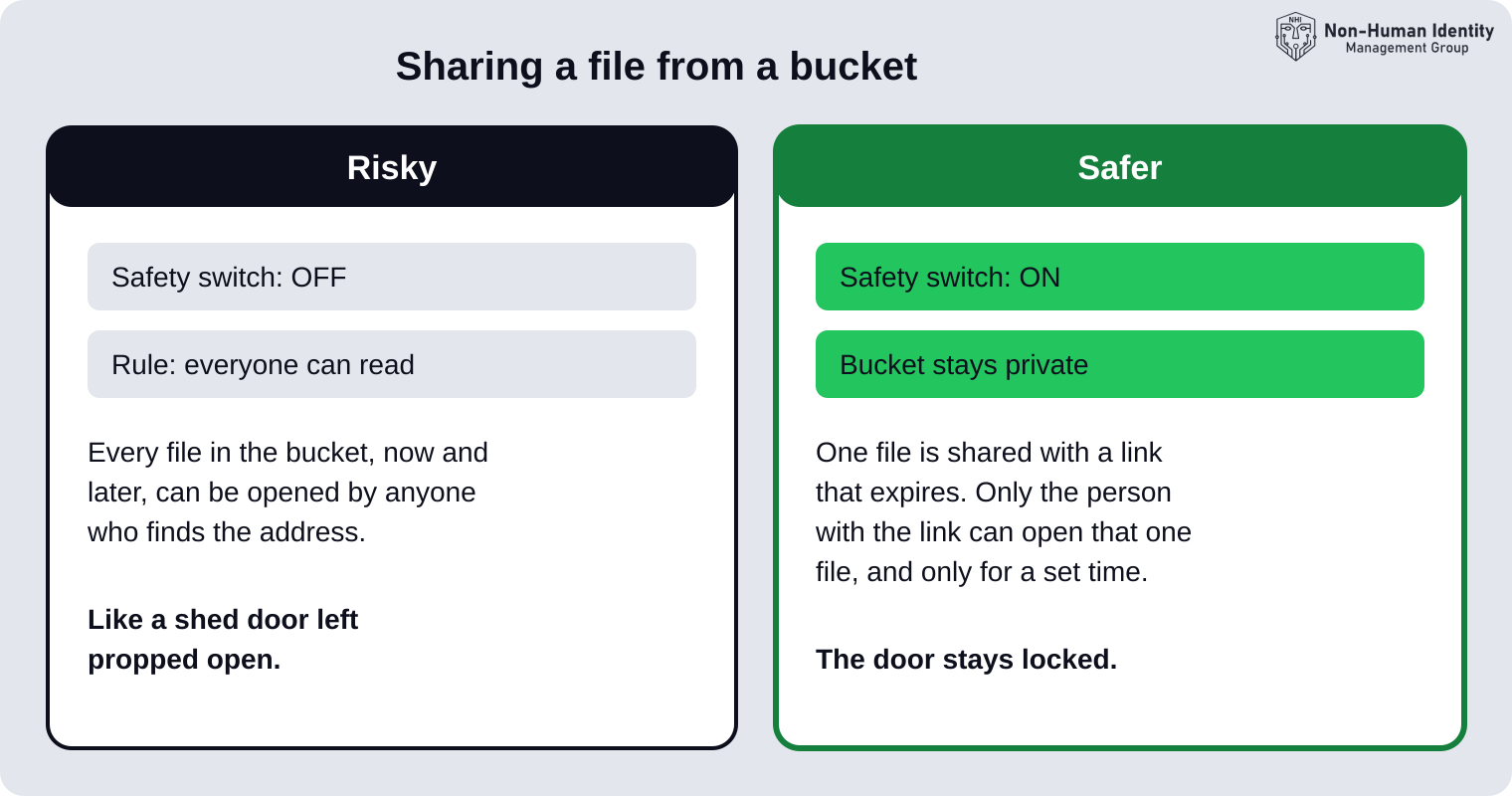
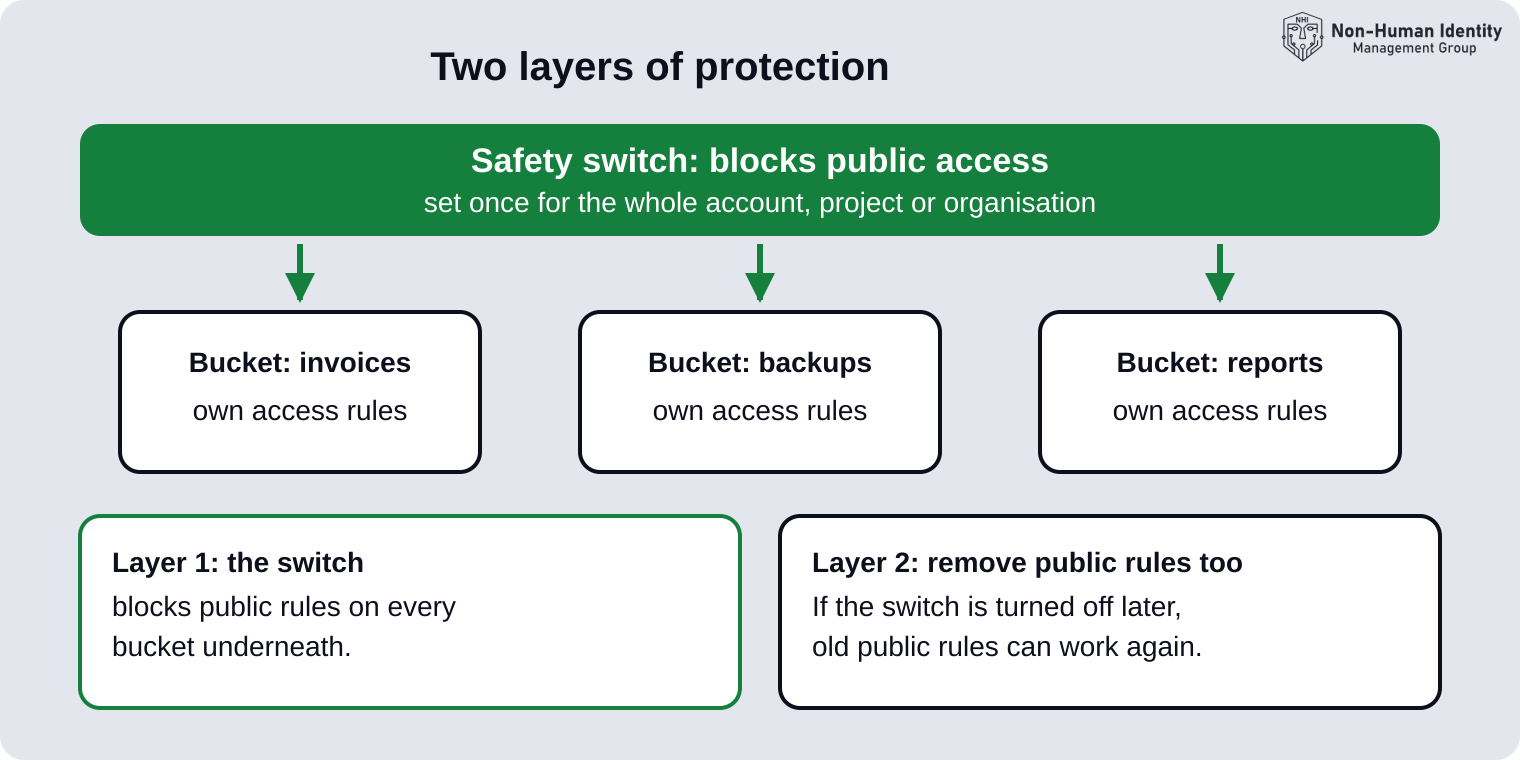
Each provider has a safety switch that blocks public access. It can be turned on for one bucket, or across many buckets at once:
- Amazon S3: Block Public Access. It has four settings that override public rules. Amazon recommends turning all four on for the whole account.[2]
- Azure Blob Storage: disallow anonymous access. Set on the storage account, it overrides the settings of every container inside. Microsoft recommends disallowing anonymous access.[4]
- Google Cloud Storage: public access prevention. It blocks access for "all users" on a bucket, and can be set for a whole project or organisation through a policy.[5]
One detail matters with all three. The switch blocks public rules, but it may not delete them. If someone turns the switch off later, old public rules can take effect again.[2][5] So remove the public rules as well as turning the switch on.
A worked example
Logan Pierce is the office manager at Prairie Grain Co-op, a fictional farm co-operative. Members get monthly statements as PDF files. A freelance developer, Wendy Larsen, set up the website two years ago.
One morning a member emails. "I typed my statement link wrong and got someone else's statement. Is that normal?"
Logan thinks of the shed with the door propped open. He calls Wendy straight away.
Wendy looks at the bucket. Two years ago she added an "everyone can read" rule, so members could open statements without logging in. It worked, but it meant anyone could open any statement if they guessed the address.
First, she turns on the safety switch for the whole cloud account. Then she removes the "everyone" rule, so it cannot come back if the switch is ever turned off.[2]
Next, she changes the website. Members now log in, and the site sends each one a link to their own statement. The link expires after a short time.[3]
Then she checks the bucket's access records to see who opened which files. Logan asks for advice on whether the co-op needs to tell members or a regulator, and they write down what happened and when.
Last, Wendy sets a reminder to check the switch every quarter. Logan adds a line to Wendy's contract: no public buckets for member data.
Myths and mistakes
| What people think | What is true |
|---|---|
| Nobody will guess our bucket's address. | Addresses can be guessed, shared or found by scanning tools. A hard-to-guess name is not a lock. |
| The cloud provider keeps our files private for us. | The provider gives you the settings. Choosing them is your job, or your supplier's. |
| Turning on the safety switch fixes everything. | It blocks public rules but may leave them in place. Remove the old rules too. |
| Making one folder public is fine if the rest is private. | Files added to that folder later become public too. Share single files with expiring links instead. |
| Once I make it private, the files are no longer out there. | Copies may already exist. Some providers note that cached copies can stay online for a while.[5] |
What can I do this week?
- Ask your team or supplier for a list of every bucket you use, and what is in each.
- Check that the public access safety switch is on for the whole account.
- Remove any "everyone" or "all users" rules that are not needed.
- Replace public sharing with links that expire.
- Keep sensitive files in buckets that are never used for public content.
Checklist
- We have a list of our buckets and an owner for each one.
- The public access safety switch is on at the highest level we control.
- No bucket holding personal or business data has an "everyone can read" rule.
- Files are shared with links that expire, not public buckets.
- Public website files are kept apart from private data.
- Access records are turned on for buckets with sensitive data.
- Suppliers agree in writing not to make our buckets public.
- Someone checks the settings on a regular schedule.
Common questions
How do I know if my bucket is public?
Look at the bucket's settings page in your provider's console. Each one shows whether public access is blocked and lists the access rules. Many also show a warning label on public buckets. If you use a supplier, ask them to send a screenshot of these settings.
Are new buckets public by default?
No, not on the big providers. Amazon says new buckets and objects do not allow public access by default, and Azure prohibits anonymous access unless someone changes it.[2][4] Buckets usually become public because a person changes a setting, often as a quick fix.
What is a link that expires?
It is a web address for one file that works only for a set time. The provider calls it a signed or presigned URL. Anyone with the link can open the file until it expires, so send it only to the right person.[3]
What should I do if I find a public bucket with private data?
Block public access first, then remove the public rules. Next, check the access records to see who opened which files, and tell the data owner. Ask for advice on whether you need to report it. See Data Breach Notification for Beginners.
Can a website use a bucket safely?
Yes. Websites often use buckets for public images and pages. We suggest keeping those files in their own bucket, with nothing private in it. Customer data, backups and reports should sit in separate private buckets, so one public setting cannot expose them.
Where next?
Ready for the detail? Read the practitioner guide: Amazon S3 Security Guide. It goes further into bucket policies, encryption and logging settings for Amazon S3.
Also useful:
- Azure Storage Security Guide
- Google Cloud Storage Security Guide
- CSPM for Beginners
- Accidental Data Leaks for Beginners
- Secure File Sharing for Beginners
Related NHI Mgmt Group resources: Cloud Misconfiguration Guide · Misconfiguration exposures · Shared Responsibility Model for Beginners
Key terms
- Object storage
- Cloud storage that keeps files as objects inside buckets or containers.
- Public access
- A setting that lets anyone read something, rather than a named list of people.
- Public access block
- A cloud setting that stops storage from being opened to the internet unless it is allowed.
- Access control list
- A list attached to a file or bucket that says who can use it and how.
- Signed URL
- A web link to one file that works only for a set time, without sharing a password.
- Security misconfiguration
- An unsafe setting, such as a public bucket, that leaves data or systems exposed.
Sources and further reading
- General purpose buckets overview. Amazon S3 User Guide, Amazon Web Services. https://docs.aws.amazon.com/AmazonS3/latest/userguide/UsingBucket.html, accessed 27 Nov 2026.
- Blocking public access to your Amazon S3 storage. Amazon S3 User Guide, Amazon Web Services. https://docs.aws.amazon.com/AmazonS3/latest/userguide/access-control-block-public-access.html, accessed 27 Nov 2026.
- Sharing objects with presigned URLs. Amazon S3 User Guide, Amazon Web Services. https://docs.aws.amazon.com/AmazonS3/latest/userguide/ShareObjectPreSignedURL.html, accessed 27 Nov 2026.
- Remediate anonymous read access to blob data. Microsoft Learn, Microsoft. https://learn.microsoft.com/en-us/azure/storage/blobs/anonymous-read-access-prevent, accessed 27 Nov 2026.
- Public access prevention. Google Cloud Storage documentation, Google. https://docs.cloud.google.com/storage/docs/public-access-prevention, accessed 27 Nov 2026.