Search Console security alerts are Google's warnings that your website may be hacked or harmful to visitors.
This guide is for anyone who owns or looks after a website and has seen, or wants to understand, a warning from Google. You do not need to be technical: if your business has a website, a warning like this can turn customers away, so it helps to know what it means and what to do first.
In short
- Google Search Console is a free Google tool that shows how Google sees your website.
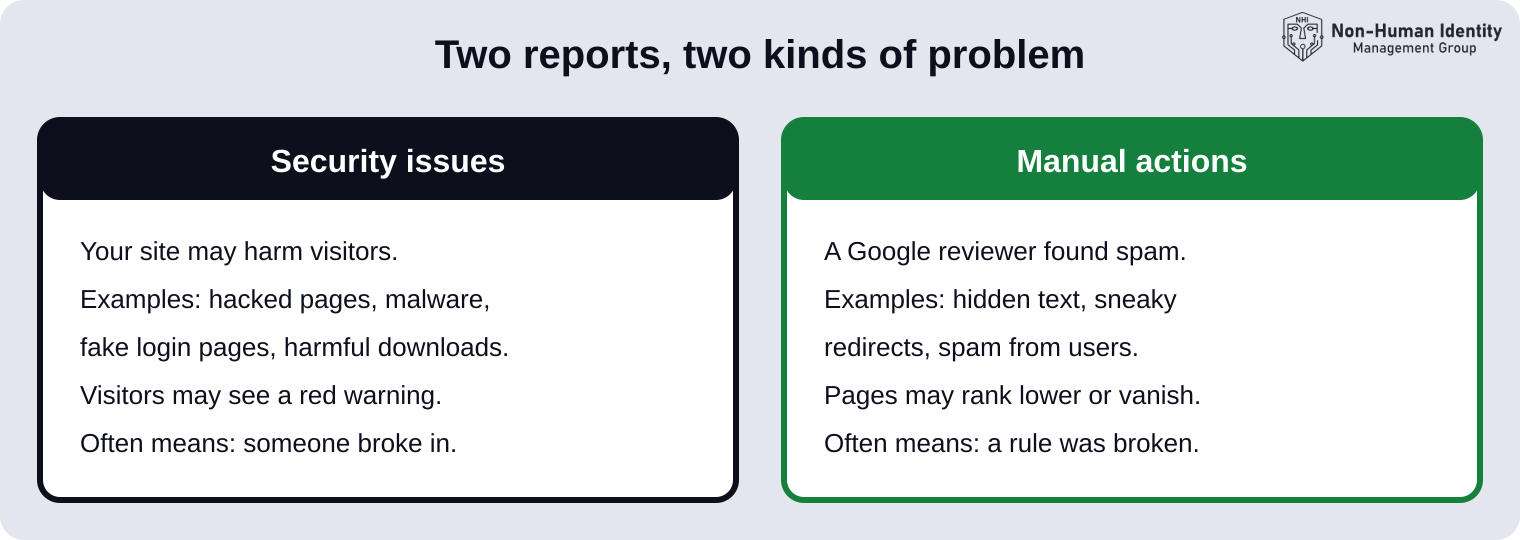
- Its Security issues report says when Google thinks your site is hacked, spreads malware or tricks visitors.
- Its Manual actions report is different: it says a Google reviewer found spam that breaks Google's rules.
- Fix the whole site and the way in first, then ask Google for a review.
What you will learn
- Explain the difference between a security issue and a manual action.
- Spot the main types of hacked site warning in Search Console.
- Check who has access to your site's Search Console account.
- Ask for a review the right way, at the right time.
- Google's site dashboard (Search Console)
- a free Google tool that shows site owners how Google sees their site and any problems it found.
- Hacked site warning (security issue)
- a notice that Google thinks the site has been broken into or could harm visitors.
- Spam penalty (manual action)
- a notice that a person at Google found pages that break its spam rules.
What are Search Console security alerts?
Think of a food safety inspector who puts a notice on a café door. The notice warns customers, and it tells the owner exactly what the inspector found. It comes down only after the owner fixes the problem and asks for a fresh check.
Search Console works in a similar way for websites. When Google finds that a site is hacked or could harm people, it can warn visitors. Those warnings can appear next to the site in search results, or as a full-page warning in the browser.[1] In Search Console, the owner sees the details: what kind of problem it is and some example pages.
There are two reports to know about. The Security issues report covers hacking, harmful software (malware) and tricks to fool visitors. The Manual actions report covers spam that breaks Google's rules, found by a person at Google.[1][2]
Where the comparison stops working: you can see a notice on a café door. You may not see a Google warning yourself. What visitors see can depend on how they arrive at your site.[1]
Why does it matter?
A warning can stop visitors reaching your site. A manual action can push pages down the search results or remove them, often with no notice to the people searching.[2] And a hacked site may be harming your customers right now.
If you run a small business website
What could happen: customers see a red warning and go to a rival instead.
Check this: make sure you, not only your web designer, have owner access to Search Console.
If someone else looks after your site
What could happen: Google's warning emails go to a former supplier's inbox and nobody acts.
Check this: ask who receives Search Console messages for your site, and update the list.
If you are new to web work
What could happen: you delete the spam pages, ask for a review and the warning stays.
Check this: find and close the way the attacker got in before asking for a review.
What does it look like?
Here is a made-up summary of what the Security issues report might show for a hacked site.
Example only. All values are made up.
Security issues                           2 issues    (1)
Site: https://www.example.com

Hacked: URL injection                     error       (2)
  Sample: https://www.example.com/cheap-pills-0000
Hacked: Code injection                    error       (3)
  Sample: https://www.example.com/index-EXAMPLE

[ Request Review ]                                    (4)
- The count of problems Google found. A site with none shows a green tick instead.
- New pages added by the attacker, often selling pills or fake goods. In a real screen, this line would contain an example page Google found.
- Hidden code added to existing pages, for example to send visitors to another site.
- The button to ask for a check, once every problem is fixed across the whole site.
Why this is risky: the sample pages are only examples. There may be many more, and the attacker may still have a way back in.
The safer way: treat the report as a starting clue. Clean the whole site, close the way in, then ask for a review with a clear note of what you did.
How does it work?
- Prove you own the site. Before you can see these reports, Search Console asks you to verify the site. You do this by adding a small file, a tag or a domain setting it gives you.[3]
- Google spots a problem. If it finds hacked content, malware or tricks to fool visitors, it lists them in the Security issues report with example pages.[1]
- Check who has access. Attackers sometimes add themselves to Search Console. Google's advice is to check that every user and owner listed is someone you allowed. For an unknown owner, remove both the owner and their verification file or tag.[4]
- Fix the whole site. Google asks owners to fix each issue across the site, not just on some pages, and to test the fixes.[1]
- Ask for a review. Press Request Review and explain the problem, the steps you took and the result. Google says a security review can take from a few days to a few weeks.[1]
- Warnings come down. If Google finds the site clean, its guidance says warnings in browsers and search are removed within 72 hours.[5]
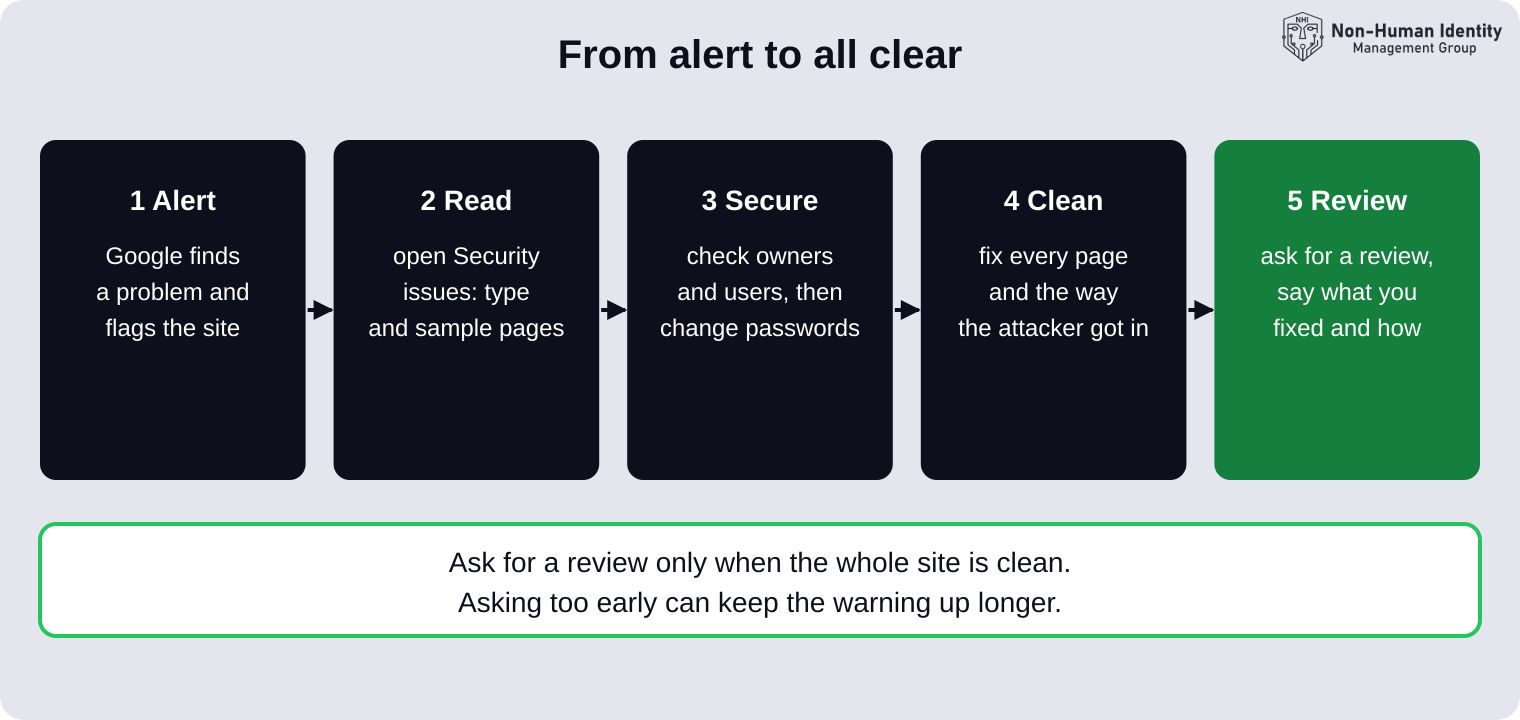
Asking too early can backfire. Google says asking for a review before the problem is fully fixed extends the time the site stays flagged.[5] Sending more requests while one is waiting can slow things down, or lead Google to treat the site as a repeat offender.[1]
A worked example
Rania Zamora runs Cedar Kitchens, a fictional kitchen fitting firm. Nils Grover, a freelancer, built and looks after its website.
One Monday a customer phones. "Your website says it might be dangerous," she says. Rania checks on her phone and sees nothing odd. She calls Nils.
Nils opens Search Console. The Security issues report shows "Hacked: URL injection", with sample pages selling cheap watches that Rania has never seen.
Rania remembers the café notice. Taking the sign down will not help if the kitchen is still dirty. So they agree to find the cause before asking for a review.
First, Nils checks the list of users and owners in Search Console. There is an owner neither of them knows. He removes it and deletes the extra verification file it relied on.
Next, he finds an old website add-on that had not been updated for two years. He changes every password for the site, the hosting account and the database. With help from the hosting company, he restores a clean copy from before the attack and updates everything.
He checks that the spam pages are gone and that Google can reach the real ones. Then he presses Request Review and writes a short note: what was found, what was fixed and how.
About a week later, Search Console reports that the review passed. Rania adds herself as an owner, so the next warning reaches her too.
Myths and mistakes
| What people think | What is true |
|---|---|
| I cannot see the warning, so Google must be wrong. | Warnings can depend on how a visitor arrives. Search Console shows Google's view, so start there.[1] |
| Deleting the sample pages fixes it. | The samples are examples. Fix every affected page and the way the attacker got in. |
| Asking for a review straight away is fastest. | Asking too early can keep the site flagged for longer.[5] |
| A manual action means my site was hacked. | Not always. Manual actions are about spam rules. Hacking shows up in the Security issues report.[2] |
| Only my web designer needs access. | If they leave, warnings may go unread. The business should hold owner access too. |
What can I do this week?
- Check that your business has owner access to Search Console for its website.
- Look at the list of users and owners, and remove anyone you do not recognise.
- Open the Security issues and Manual actions reports to see if anything is listed.
- Make sure Google's messages go to an inbox someone reads.
- Ask whoever runs your site how they keep add-ons and passwords up to date.
Checklist
- The business is a verified owner in Search Console.
- Every user and owner listed is known and still needs access.
- Old verification files or tags from former suppliers are removed.
- Someone checks the Security issues and Manual actions reports regularly.
- Search Console messages reach a monitored inbox.
- There is a plan for who to call if a warning appears.
- Reviews are requested only after the whole site is clean and the way in is closed.
Common questions
Is Google Search Console free?
Yes. Search Console is a free Google service for site owners. You need to verify that you own or manage the site before you can see its reports, including the Security issues and Manual actions reports. Verification uses a small file, a page tag or a domain setting.
How long does a security review take?
Google says a security review can take from a few days to a few weeks. Its guidance suggests hacked spam reviews take longest, malware reviews a few days and phishing reviews about a day. Avoid sending a new request while one is still waiting.
What is the difference between a security issue and a manual action?
A security issue means Google thinks the site is hacked or could harm visitors. A manual action means a person at Google found pages that break its spam rules. They sit in separate reports, and each has its own review button.
Why are there strange owners in my Search Console?
An unknown owner may be a former supplier, or it may be an attacker. Google's hacked site guidance says to check that every user and owner is authorised. For an unknown owner, remove the owner and their verification file or tag, then change your site passwords.
Do I need to tell my customers?
Sometimes, yes. If customer details could have been taken, data protection rules may apply. This guide is not legal advice, so check with your regulator's guidance or an adviser. Clear, honest updates to customers usually help keep their trust.
Where next?
Ready for the detail? Read the practitioner guide: How to Clean Up a Hacked Website. It goes further into containing the hack, keeping evidence, removing backdoors and writing a review request.
Also useful:
- Hacked Website Recovery for Beginners
- SEO Spam Hacks for Beginners
- Website Security for Beginners
- WordPress Security for Beginners
- Website Defacement for Beginners
Related NHI Mgmt Group resources: How to Clean Up a Hacked Website · WordPress Security Checklist · Website Defacement Playbook
Key terms
- Malware
- Harmful software designed to damage, spy on or take over a computer or website.
- Phishing
- A trick that fools people into giving away passwords or details, often through a fake page.
- Spam
- Unwanted content made to game search results or reach people who did not ask for it.
- SEO poisoning
- Using hacked or fake pages to push harmful links up the search results.
- Safe Browsing
- Google's service that warns people before they visit sites it believes are harmful.
- Domain verification
- Proving to a service that you control a website or domain, often with a file, tag or DNS record.
- Backdoor
- A hidden way back into a system that an attacker leaves behind.
Sources and further reading
- Security Issues report. Search Console Help, Google. https://support.google.com/webmasters/answer/9044101, accessed 28 Nov 2026.
- Manual Actions report. Search Console Help, Google. https://support.google.com/webmasters/answer/9044175, accessed 28 Nov 2026.
- Verify your site ownership. Search Console Help, Google. https://support.google.com/webmasters/answer/9008080, accessed 28 Nov 2026.
- Use Search Console (hacked sites). web.dev, Google. https://web.dev/articles/use-search-console, accessed 28 Nov 2026.
- Request a review (hacked sites). web.dev, Google. https://web.dev/articles/request-a-review, accessed 28 Nov 2026.