Website security means keeping your website, its logins and its data safe from people who want to misuse them.
This guide is for small business owners and staff who look after a website, or pay someone else to. You do not need to write code to be affected: if your site has a login page and add-ons, it needs regular care.
In short
- Many small business sites are not picked out by hand. They are often found by tools that scan the web for old software and weak logins.
- Keep the site's software, add-ons and themes up to date, and remove the ones you do not use.
- Give each person their own login with the lowest level of access that lets them do their job, and turn on a second sign-in step.
- Keep a recent backup stored away from the site, and check that you can restore it.
What you will learn
- Explain the main ways small business websites get hacked.
- Spot the warning signs on your site's admin screen.
- Check who can log in to your site and what they can do.
- Ask your web supplier the right questions about updates and backups.
- Website builder (content management system)
- the software you use to edit your site's pages, such as WordPress.
- Add-on (plugin)
- a small extra program that adds a feature to your site, like a booking form or a shop.
- Update
- a new version of software from its maker, often fixing security weak spots.
What is website security?
Think of a shop on a busy high street. You lock the door at night, fix a broken window quickly and only give keys to staff who need them. A website needs the same kind of care.
Many small business sites run on a content management system, or CMS. That is the software you log in to so you can edit pages. Most sites also use plugins (small add-on programs) and a theme (the design). Each of these is software, and software can have weak spots.
Website security is the routine that keeps those weak spots closed. It covers updates, logins, backups and the choice of what you install. Updates matter most, because they fix weak spots that criminals could use to break in.[4] It also covers the basics your hosting company looks after, such as the server your site runs on.
Where the comparison stops working: a shop gets a handful of passers-by. A website can be tried by automated tools from around the world, day and night.
Why does it matter?
A hacked site can send visitors to scams or spread harmful software. It can leak customer details, or just go offline. A clean-up can take days, and search engines may warn people away while it lasts.
If you own a small business
What could happen: your site starts sending visitors to a fake shop, and customers blame you.
Check this: ask who updates your site, how often, and where the backups are kept.
If you edit the website
What could happen: your login is reused from another site, and a stranger gets into your site's admin area with it.
Check this: use a unique password from a password manager and turn on a second sign-in step.
If you take bookings or payments online
What could happen: an old shop add-on lets someone read customer details or change your checkout page.
Check this: keep shop and payment add-ons updated first, and ask your payment provider what it handles for you.
What does it look like?
Here is a made-up summary of a small business site's admin screen. Each marked line is a common weak spot.
Example only. All values are made up.
Site: www.example-garden.example     Dashboard
Updates available: 7 plugins, 1 theme        (1)
Plugins: 23 installed, 9 not in use          (2)
Users with Administrator role: 6             (3)
  - "admin"        last login 2019           (4)
  - "webagency-old" last login 2021
Two-step sign-in: off                        (5)
Last backup: 14 months ago                   (6)
- Waiting updates often include security fixes. The longer they wait, the bigger the risk.
- Add-ons you do not use are still software on your site. Removing them cuts the risk.
- Six people with full control is more than most small sites need.
- Old accounts from past staff or suppliers are easy to forget, and still open the door.
- Without a second sign-in step, a stolen password may be enough to get in.
- A backup this old could mean losing more than a year of changes.
Why this is risky: automated tools look for just these gaps, such as known weak add-ons and easy logins.
The safer way: updates applied, unused add-ons removed, two or three named admins, second sign-in step on and a recent, tested backup.
How does it work?
This is a simple view of how many small sites get broken into, so you can see where to put your locks.
- A tool scans the web. Automated programs visit many sites looking for software with known weak spots, or for login pages.
- It finds a gap. That might be an add-on that has not been updated, or an admin login with a weak or reused password.
- It gets in. The attacker uses the gap to log in or to run their own code on your site.
- It changes the site. They may add hidden links, send visitors elsewhere, or copy data.
- You recover. With a clean backup, updated software and changed passwords, you can put the site right again.
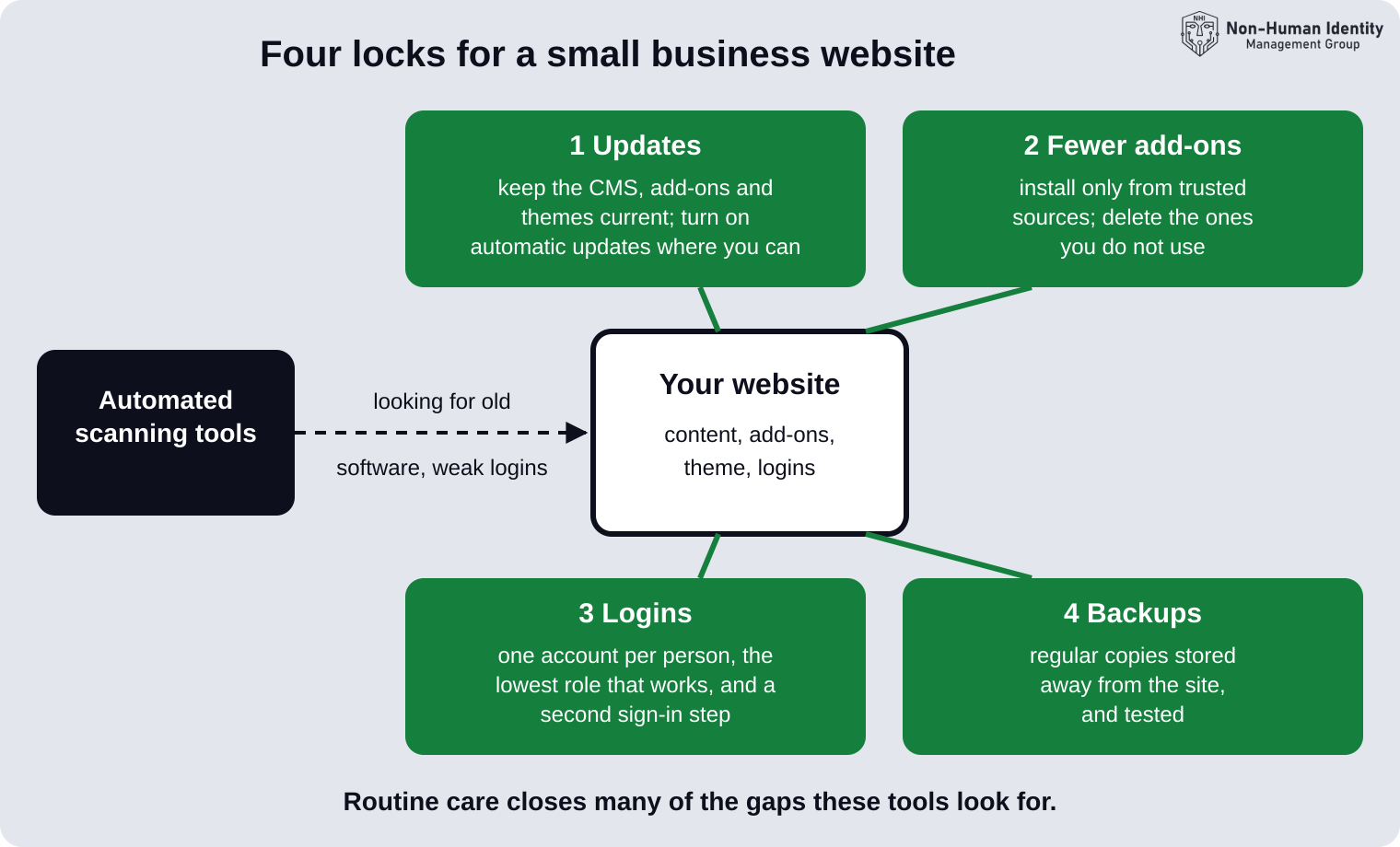
WordPress, one popular CMS, gives the same basic advice in its own security guide. It says to keep the core software and plugins up to date and to use strong passwords with two-step sign-in. It also says to avoid plugins from untrusted sources, delete plugins you do not use and back up regularly.[1] Since version 5.5, site admins can turn on automatic updates for each plugin and theme.[2]
WordPress also has user roles. An Administrator has full control of the site, while a Contributor can write posts but cannot publish them.[3] Giving people the lowest role that lets them do their job limits the harm one stolen login can do.
A worked example
This story is made up to show how it can happen.
Bilal Chaudhry runs Bluebell Nursery Garden, a family plant shop with a small website. A local web agency built it five years ago. It has a booking form for garden visits and a page of seasonal offers.
One Monday a customer emails to say the site sent her to a page selling cheap designer bags. Bilal checks on his phone and sees the same thing.
He calls the agency. They find that an old booking add-on had a known weak spot. A fixed version came out months earlier, but nobody had updated the site since the build.
The agency puts back a backup from before the change and updates every add-on. They delete the six that were not in use. They also find two admin accounts from staff who had left, and they remove them.
Bilal changes his own password to a unique one from a password manager and turns on two-step sign-in. He asks the agency to turn on automatic updates where they are safe, and to send him a short monthly note. The note says what was updated, when the last backup ran and when a restore was last tested.
What made the difference: a recent backup let the site come back quickly. The monthly note means the gaps should not quietly build up again.
Myths and mistakes
| What people think | What is true |
|---|---|
| My site is too small for anyone to bother with. | Automated tools scan sites of every size. Being small does not make you hard to find. |
| The padlock in the browser means my site is secure. | The padlock shows the connection is encrypted. It says nothing about old add-ons or weak logins. |
| Deactivating an add-on is as good as deleting it. | The files can stay on the site. If you do not need it, delete it. |
| My web host takes care of all of it. | Hosts usually look after the server. Your add-ons, logins and content are often your job. Check your contract. |
| One shared admin login is simpler. | Shared logins are hard to track and hard to remove. Give each person their own account. |
What can I do this week?
- Log in to your site and apply any waiting updates, or ask your supplier to do it.
- Delete add-ons and themes you do not use.
- Look at the list of users. Remove old accounts and lower anyone who does not need admin rights.
- Turn on a second sign-in step for every admin account.
- Ask where your backups are kept, and when one was last restored as a test.
Checklist
- The CMS, add-ons and themes are up to date.
- Automatic updates are on where they are safe to use.
- Unused add-ons and themes are deleted.
- Add-ons come only from trusted sources.
- Each person has their own login with the lowest role that works.
- Every admin account uses a unique password and a second sign-in step.
- Backups run regularly, are stored away from the site and have been tested.
- We know who to call, and what to do first, if the site is hacked.
Common questions
How do I know if my website has been hacked?
Watch for visitors being sent to other sites, and for pages or links you did not add. New admin users and browser or search engine warnings are signs too. Your host may also email you. If you see any of these, contact your web supplier or host straight away.
Are automatic updates safe to turn on?
For most small sites, yes, and they close gaps sooner. Now and then an update can break a feature, which is one more reason to keep recent backups. If your site has custom features, ask your supplier which parts should update by themselves.
Do I need a website firewall?
It can help. A web application firewall checks visitors' requests and blocks many known attacks before they reach your site. Many hosts include one. It does not replace updates, good logins and backups, which still come first.
What should I ask my web supplier?
Ask who applies updates and how often, how many people have admin access, whether two-step sign-in is on, and where backups are kept. Also ask when a restore was last tested, and what they will do if the site is hacked.
Where next?
Ready for the detail? Read the practitioner guide: PHP and WordPress Security Guide. It goes further into server and PHP settings, hardening the WordPress core files, and the secrets stored in a site's settings file.
Also useful:
- Online Shop Security for Beginners
- Patch Management for Beginners
- Web Application Firewall for Beginners
- Backup Security for Beginners
- TLS and HTTPS for Beginners
Related NHI Mgmt Group resources: OWASP Top 10 for Beginners · Patch Management Guide · Content Security Policy Guide
Key terms
- Content management system
- The software you use to create, edit and publish the pages of a website.
- Vulnerability
- A weak spot in software or settings that someone could misuse.
- Patch management
- Checking for, testing and applying software updates that fix weak spots.
- Admin account
- A login with full control, able to change settings, users and content.
- Two-factor authentication
- Signing in with two different kinds of proof, such as a password and a code from an app.
- Web application firewall
- A filter that checks requests to a website and blocks ones that look like attacks.
- HTTPS
- The secure version of the web's connection method, which encrypts data between a browser and a site.
Sources and further reading
- Hardening WordPress. WordPress Developer Resources, Advanced Administration Handbook. https://developer.wordpress.org/advanced-administration/security/hardening/, accessed 28 Nov 2026.
- Plugins and themes auto-updates. WordPress.org Documentation. https://wordpress.org/documentation/article/plugins-themes-auto-updates/, accessed 28 Nov 2026.
- Roles and capabilities. WordPress.org Documentation. https://wordpress.org/documentation/article/roles-and-capabilities/, accessed 28 Nov 2026.
- Protecting your devices (small organisations guide to cyber security). National Cyber Security Centre (NCSC). https://www.ncsc.gov.uk/collection/small-organisations-guide-to-cyber-security/protecting-your-devices, accessed 28 Nov 2026.