An infected computer is one where harmful software is running without the owner's permission.
This guide is for anyone who thinks their computer has a virus and wants to act calmly without making things worse. If you use the same laptop for work and home, an infection can reach both.
In short
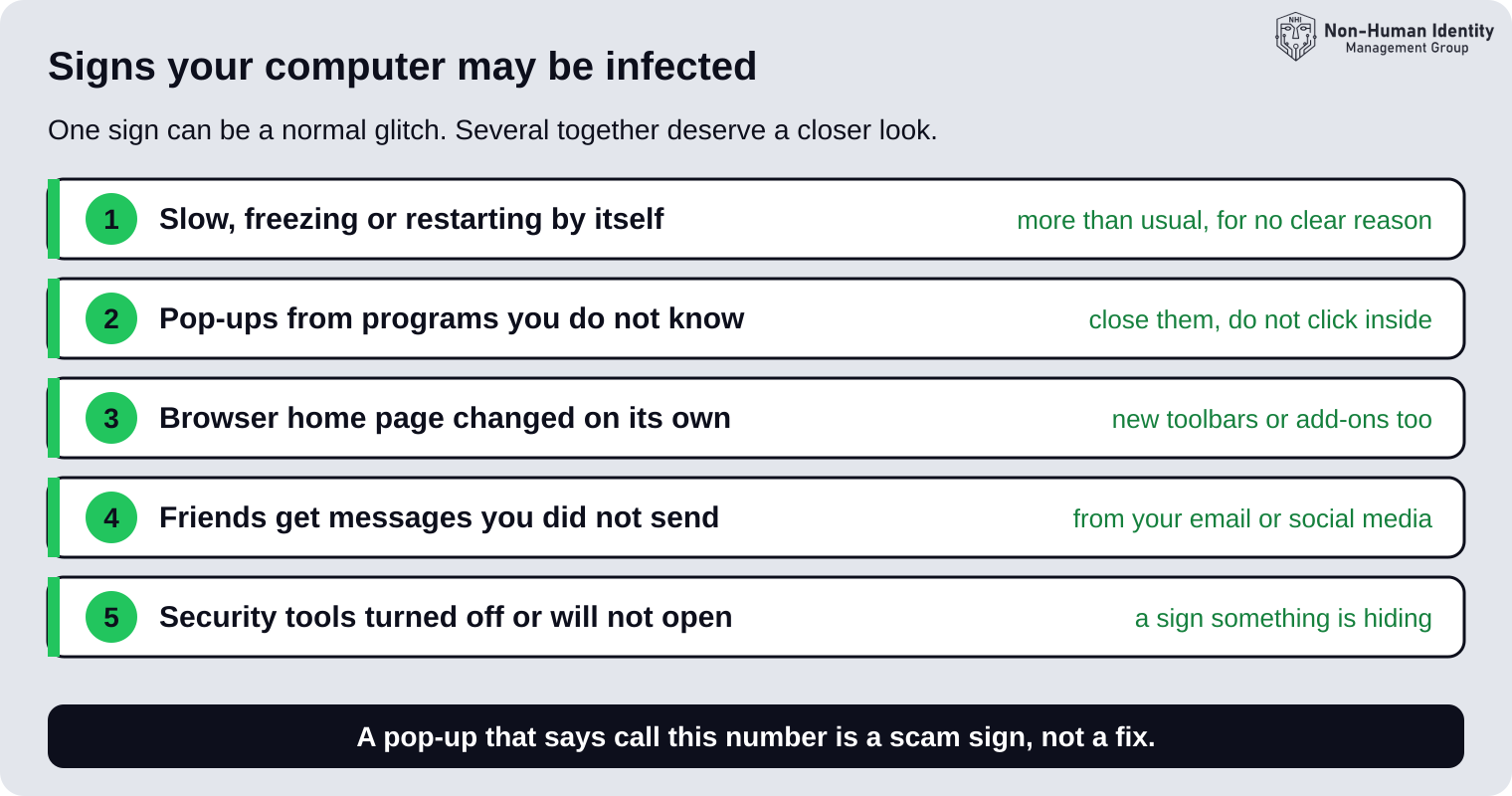
- Common signs are a slow or crashing computer, strange pop-ups and messages your friends say you sent.
- First, disconnect from the internet and stop banking or shopping on that device.
- Update your antivirus and run a scan. If it cannot clean the device, restore from a clean backup or reset it.
- Change your passwords from a different device you trust, and never call a number shown in a pop-up.
What you will learn
- Spot the signs that a computer may be infected.
- Explain why you disconnect before you do anything else.
- Check your device with the antivirus you already have.
- Ask for help without falling for a fake helper.
- Harmful software (malware)
- any program made to damage a device, steal data or spy on you. A virus is one kind.
- Virus checker (antivirus)
- a program that looks for harmful software and tries to remove it.
What is an infected computer?
Think of a rotten apple in a barrel. Left alone, it spoils the apples around it. Harmful software on a computer works the same way: it can spread, steal and damage.
A computer becomes infected when malware gets onto it and runs. This often happens through an email attachment, a fake download or a link in a message.
Once it runs, it may steal passwords, show adverts, lock your files or send messages in your name. Some kinds hide and do very little that you can see.
The aim when you suspect an infection is simple. Take the bad apple out of the barrel first, then clean it up.
Where the comparison stops working: a rotten apple is easy to see. Malware is often built to hide, so a computer can look normal while something runs in the background.
Why does it matter?
An infected computer can leak more than files. If it watches what you type, every password you enter on it may be copied.
If you use your computer for banking
What could happen: malware copies your bank password as you type it, and someone else signs in later.
Check this: stop banking on a device you think is infected until it has been cleaned.
If you run a small business
What could happen: one infected laptop on the office wi-fi spreads harmful software that locks shared files.
Check this: make sure staff know to disconnect a device and tell someone straight away.
Next: Ransomware for Beginners
If you help a parent with their computer
What could happen: a pop-up scares them into calling a fake helpline that asks for money or control of the computer.
Check this: tell them to call you, not a number on the screen.
What does it look like?
Example only. All values are made up.
*** WARNING! VIRUS DETECTED ***            (1)
Your computer is BLOCKED.                  (2)
Your passwords and bank details are at risk.
Do NOT turn off your computer.             (3)
Call FakeSecure Support now: FAKE-0000     (4)
Error code: EXAMPLE-0000
- Loud, scary words in capital letters to make you panic.
- A claim that the computer is blocked, so you feel you must act.
- An order not to switch off, so you keep the page open.
- In a real message like this, this line would show a phone number for a fake helpline.
Why this is risky: this is a common scam screen, not a real warning. The caller may ask for money or to take control of your computer.
The safer way: do not call. Close the browser. If it will not close, restart the computer. Then run a scan with the antivirus you already have.[2]
How does it work?
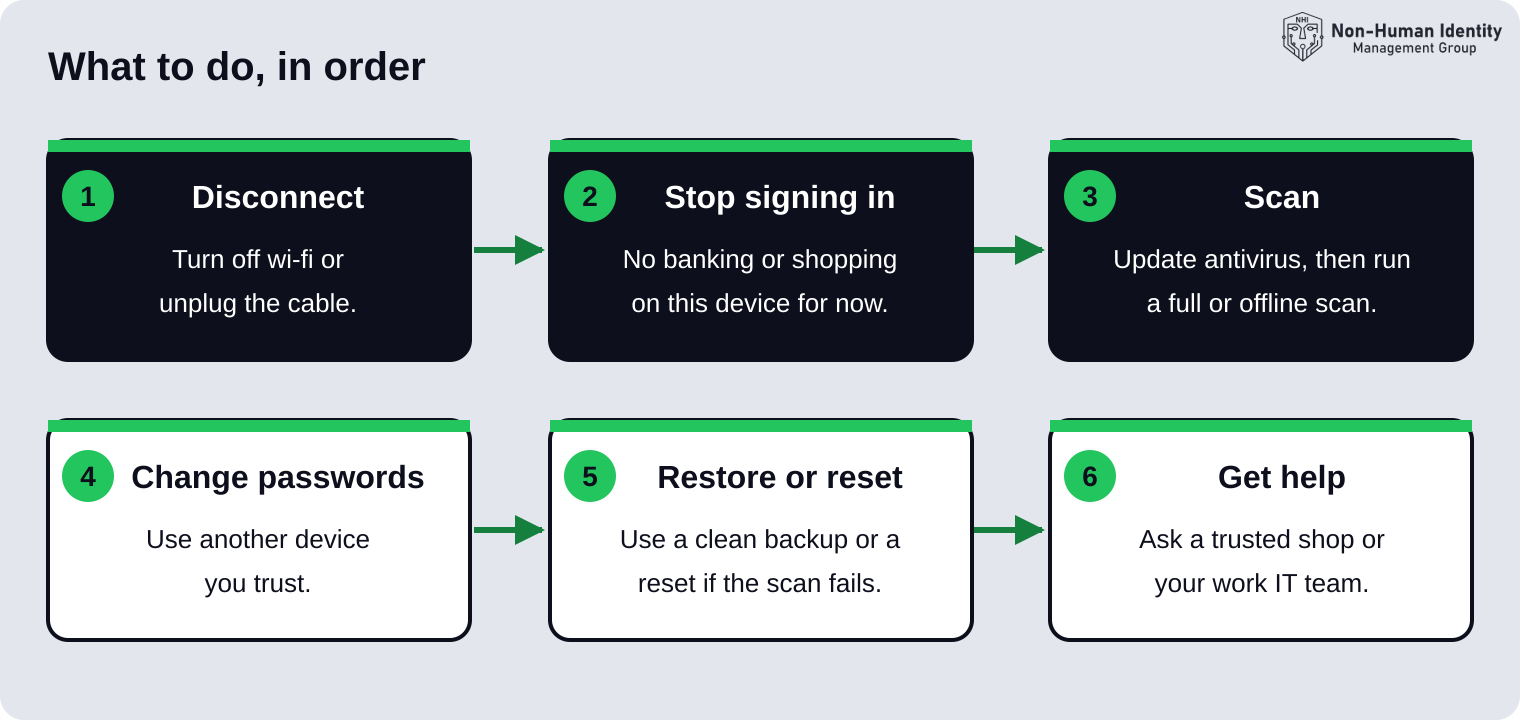
Here is what to do if you think your computer is infected. The order matters.
- Disconnect. Turn off wi-fi or pull out the network cable. This makes it harder for the malware to spread or send your data out. A US government security agency gives the same advice to organisations.[4]
- Stop signing in. Do not bank, shop or type passwords on that computer until it is clean.[2]
- Scan. Update your antivirus, then run a full scan and follow its advice.[1] You may need to reconnect for a short time to get the update. On Windows, an offline scan restarts the computer and checks it before Windows loads, which makes it harder for malware to hide.[3]
- Change passwords. Use a different device you trust. Start with your email and bank, and turn on extra sign-in checks.[2]
- Restore or reset. If the scan cannot clean it, the computer may need to be wiped and set up again. Restore your files from a backup made before the trouble started.[1]
- Get help if you need it. Use a repair shop you already know, or your work IT team for a work device. Never use a number from a pop-up.[2]
A worked example
This story is made up to show how it can happen.
Carmen Ortiz runs a small online craft shop from her kitchen in Denver. She uses one laptop for orders, email and banking.
One evening she opens an email that looks like a delivery note and clicks the attachment. Nothing seems to happen. Over the next two days the laptop gets slow, and her browser opens to a search page she has never seen.
Then a friend texts her. She has had an odd email from Carmen with a link. Carmen did not send it.
Carmen remembers the rotten apple idea. She turns off the laptop's wi-fi straight away. She does not open her bank on it.
She reconnects only long enough to update her antivirus, then disconnects and runs a full scan. It finds and removes two harmful files. To be safer, she also runs an offline scan, which restarts the laptop and checks it again.
Next, on her phone, she changes her email password and turns on extra sign-in checks. She does the same for her bank and her shop account. She tells her friends not to open the link.
The laptop now seems normal. But her shop files matter, so she asks a local repair shop she trusts to check it. They suggest a full reset, and she restores her files from an external drive she backed up last month.
What made the difference: Carmen disconnected first, and changed her passwords from a different device.
Myths and mistakes
| What people think | What is true |
|---|---|
| A pop-up saying I have a virus must be from Microsoft or Apple. | Pop-ups with a phone number are a common scam. Do not call the number shown.[2] |
| If the scan finds nothing, the computer is clean. | A clean scan is a good sign, not proof. If the strange signs carry on, get help or reset the device. |
| I should change my passwords on the infected computer straight away. | If malware is watching what you type, it may copy the new ones too. Use a different device you trust. |
| Restoring my backup fixes everything. | Only if the backup was made before the infection. Restoring onto a device that is still infected risks bringing it back.[1] |
| Macs and phones are not affected. | Any device can be affected. For phones and tablets, UK advice says a factory reset is the safest fix if you think one is infected.[1] |
What can I do this week?
- Check that your antivirus is switched on and updating. On Windows, open Windows Security to see its status.
- Turn on automatic updates for your computer and apps.
- Back up your important files to an external drive or cloud storage, and unplug the drive afterwards.
- Turn on extra sign-in checks for your email and bank.
- Agree with your family who to call if a scary pop-up appears.
Checklist
- I know how to turn off wi-fi on my computer quickly.
- My antivirus is on and up to date.
- My computer and apps update automatically.
- I have a recent backup that is not plugged in all the time.
- I would change passwords from a different device after an infection.
- I never call a phone number shown in a pop-up.
- I know who I would ask for help with a suspected infection.
Common questions
Should I turn my computer off if I think it has a virus?
Disconnect it from the internet first, which makes it harder for it to spread or send your data out. Turning it off is a fallback if you cannot disconnect. For a work device, tell your IT team before switching off, because they may want to look at it as it is.[4]
Do I need to buy antivirus to remove a virus?
Often not. Windows includes Microsoft Defender, and it can run an offline scan that checks the computer before Windows starts.[3] Paid products add extra features. Whatever you use, keep it switched on and updated.
Will a factory reset remove the infection?
Usually, yes. A reset wipes the device and sets it up again. UK advice calls it the safest fix for an infected phone or tablet.[1] Back up your files first, and restore only files saved before the trouble began.
Where next?
Ready for the detail? Read the practitioner guide: How to Isolate a Compromised Endpoint. It goes further into isolating a work device with security tools, deciding when to isolate, and checking it worked before release.
Also useful:
- Malware for Beginners
- Antivirus for Home Users
- Backup Security for Beginners
- Recognising Tech Support Scams Guide
Related NHI Mgmt Group resources: Securing Home Computers · Microsoft Defender Antivirus for Home Users Guide · Infostealer Threat Guide
Key terms
- Malware
- Any software made to harm a device, steal data or spy on its user.
- Antivirus software
- A program that looks for known harmful software and tries to remove it.
- Ransomware
- Malware that locks your files and demands payment to unlock them.
- Phishing
- A fake message that tries to trick you into clicking a link, opening a file or giving away details.
- Factory reset
- Wiping a device and setting it up again as it was when new.
- Backup
- A spare copy of your files, kept somewhere else, so you can get them back.
Sources and further reading
- Hacked device: action to take. National Cyber Security Centre (NCSC). https://www.ncsc.gov.uk/guidance/hacked-device-action-to-take, accessed 28 Nov 2026.
- How To Recognize, Remove, and Avoid Malware. Federal Trade Commission (FTC), Consumer Advice. https://consumer.ftc.gov/articles/how-recognize-remove-avoid-malware, accessed 28 Nov 2026.
- Help protect my PC with Microsoft Defender Antivirus (offline scan). Microsoft Support. https://support.microsoft.com/en-us/windows/help-protect-my-pc-with-microsoft-defender-offline-9306d528-64bf-4668-5b80-ff533f183d6c, accessed 28 Nov 2026.
- #StopRansomware Guide (detection and analysis: isolate impacted systems). Cybersecurity and Infrastructure Security Agency (CISA). https://www.cisa.gov/stopransomware/ransomware-guide, accessed 28 Nov 2026.
- Report Fraud service goes live. Report Fraud (City of London Police), 4 December 2025. https://www.reportfraud.police.uk/news/report-fraud-service-goes-live/, accessed 27 Nov 2026.