iPhone and iPad security means using the built-in settings that keep your device, account and data safe.
This guide is for anyone with an iPhone or iPad, and for students and new IT staff who help others with theirs. If you use your phone for banking, email or work, these settings protect more than the phone itself.
In short
- Your iPhone already has strong protections, but some only help if you switch them on.
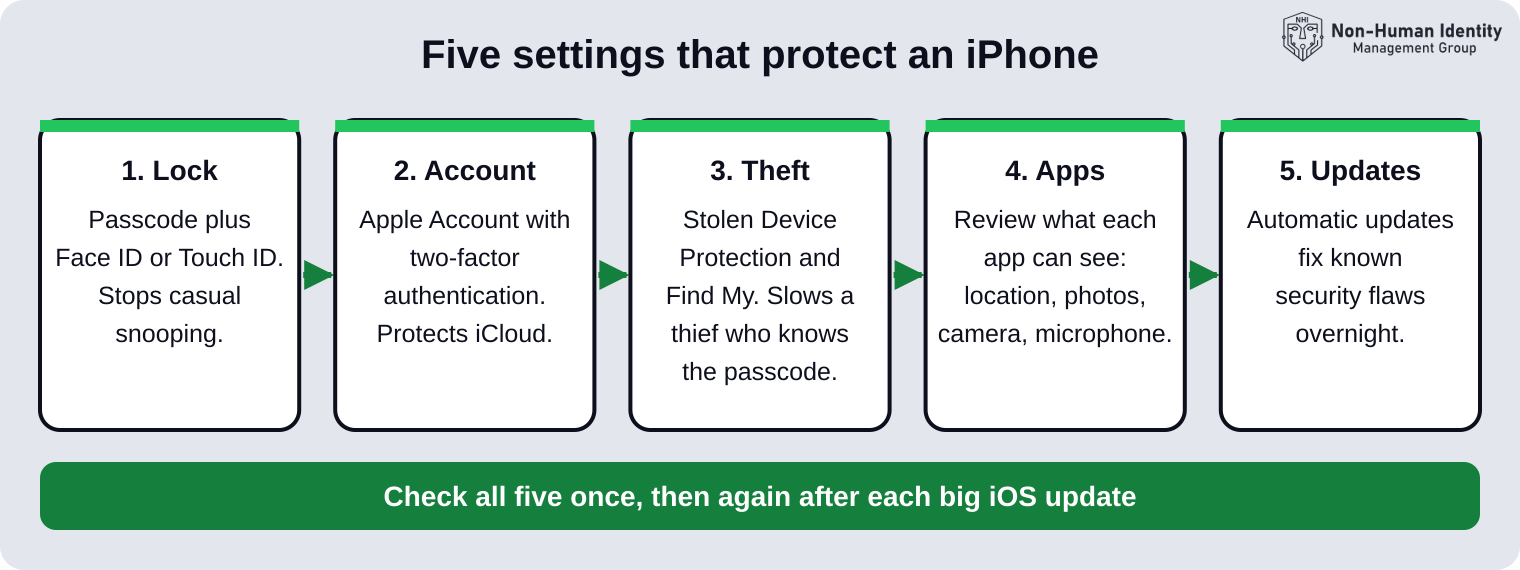
- Five areas matter most: the lock, your Apple Account, theft protection, app permissions and updates.
- Stolen Device Protection asks for your face or fingerprint for some changes when you are away from familiar places.
- Safety Check lets you see and stop what you share with people and apps.
What you will learn
- Explain the five settings areas that protect an iPhone or iPad.
- Check whether Stolen Device Protection and automatic updates are on.
- Spot an app that can see more than it needs.
- Decide whether you need extra protection such as Lockdown Mode.
- Screen lock (passcode)
- the number code you type to open your iPhone or iPad.
- Face or fingerprint check (Face ID or Touch ID)
- the iPhone checks your face or finger instead of asking for the code.
- App access (permissions)
- the things an app is allowed to see or use, such as your photos or location.
What is iPhone and iPad security?
Think of the safety features in a new car. It comes with seatbelts, an alarm and a tracker, but you still have to buckle up and set the alarm.
An iPhone or iPad works the same way. Apple builds in a screen lock, theft protection, privacy controls and updates. Most are on by default. Some are only helpful once you turn them on or check them.
The settings fall into five areas. The lock keeps strangers out of the device. Your Apple Account is the sign-in that holds your photos, backups and purchases. Theft protection slows down a thief. App permissions decide what each app can see. Updates fix known weaknesses in the software.
Where the comparison stops working: a car alarm is either on or off. Phone settings change with each software update, so a quick check after each big update is worth doing.
Why does it matter?
Your phone often holds the keys to the rest of your life. It receives bank codes, opens your email and stores saved passwords.
If you use your phone for banking
What could happen: a thief who watched you type your code may try to open your banking app or saved passwords.
Check this: turn on Stolen Device Protection, so those need your face or fingerprint away from home.
If you are a student sharing devices or accounts
What could happen: a former partner or housemate can still see your location or shared photos.
Check this: run Safety Check and review who you share with.
If you are new to IT support
What could happen: staff phones that miss updates stay open to flaws that are already fixed.
Check this: ask whether work iPhones are managed and kept up to date.
What does it look like?
Here is a made-up note that a student wrote after checking her iPhone. It shows the kind of things you find.
Example only. All values are made up.
My iPhone check, Sunday
Passcode: 4 digits, my birth year     (1)
Stolen Device Protection: Off          (2)
Automatic Updates: Off                 (3)
Location, "Torch EXAMPLE app": Always  (4)
Sharing location with: Ex-housemate    (5)
- A short code that people who know her could guess.
- Theft protection is not switched on yet.
- Updates wait until she remembers to install them.
- A torch app has no clear need to know where she is.
- Someone she no longer lives with can still see where she is.
Why this is risky: each line is a small gap. Together they make it easier for someone to open the phone, track her or use a flaw that has already been fixed.
The safer way: a longer passcode with Face ID. Stolen Device Protection and automatic updates on. Location set to "Never", or "While Using" for apps that need it. Sharing only with people she chooses today.
How does it work?
Here is what each of the five areas does, in the order most people check them.
- The lock. A passcode, plus Face ID or Touch ID, keeps the device closed to people who pick it up. Apple also recommends both for your account's safety.[6]
- The account. Two-factor authentication means a second check, such as a code on your other device. With it, a password alone is not enough to sign in on a new device.[6]
- Theft protection. Stolen Device Protection works when you are away from familiar places like home or work. There, using saved passwords or erasing the phone needs Face ID or Touch ID, not just the passcode. Changing your Apple Account password also needs a one-hour wait and a second face or fingerprint check. It needs iOS 17.3 or later, and it must be on before the phone is lost.[1]
- App permissions. You choose which apps can use your photos, contacts, location, camera and microphone.[7] The App Privacy Report shows how often apps used them over the past seven days.[5]
- Updates. Automatic updates can install overnight while the device charges on wi-fi, and you are told before they install.[3]
Two extra tools help in special cases. Safety Check (in Settings, then Privacy and Security) lets you review and stop sharing with people and apps. Its Emergency Reset stops all sharing at once.[2] Lockdown Mode is an extreme option for the very small group of people who may be personally targeted by advanced attacks. It limits some message attachments, web features and services, and Apple says most people are never targeted in this way.[4]
A worked example
Vida Marlow is a university student. Her phone was stolen from a café table last term. She had a new iPhone within a week, and this time she wants to set it up properly.
She starts with the lock. Her old code was her birth year, which friends knew. She picks a longer code and sets up Face ID, so she rarely needs to type it in public.
Next she opens Settings, then Face ID and Passcode. Stolen Device Protection is there. She checks that two-factor authentication, Find My and Significant Locations are on, because the feature needs them. Then she switches it on.[1]
She turns on automatic updates under General, then Software Update. Her phone will now install updates overnight while it charges.
Then she looks at app access. A free photo editor she used once can see all her photos. A torch app wants her location. She removes both permissions and deletes the torch app.
Last, she runs Safety Check. It shows that her old flatmate can still see her location from a shared trip last summer. She stops sharing with one tap and keeps sharing with her sister.[2]
The whole check takes her about twenty minutes. She sets a reminder to repeat it after the next big iOS update.
Myths and mistakes
| What people think | What is true |
|---|---|
| iPhones are safe, so there is nothing to set up. | The protections are strong, but some, like Stolen Device Protection, help only once they are on. |
| Face ID means my passcode does not matter. | The passcode is still the way in when Face ID fails. A guessable code weakens the whole lock. |
| Everyone should turn on Lockdown Mode. | Apple designed it for a very small group at high risk. It limits everyday features. |
| An app only uses what I gave it on the first day. | Permissions stay until you change them. Review them from time to time. |
| I can switch on theft protection after the phone is stolen. | Stolen Device Protection must be on before the phone is lost. |
What can I do this week?
- Change a short or guessable passcode to a longer one.
- Turn on Stolen Device Protection in Settings, then Face ID and Passcode.
- Turn on automatic updates in Settings, then General, then Software Update.
- Open Settings, then Privacy and Security, and remove app access you do not need.
- Run Safety Check and stop any sharing you no longer want.
Checklist
- My passcode is not a date, a pattern or a code other people know.
- Face ID or Touch ID is set up.
- Two-factor authentication is on for my Apple Account.
- Stolen Device Protection is on.
- Find My is on.
- Automatic updates are on.
- I have reviewed which apps can use my location, photos, camera and microphone.
- I have checked who I share my location with.
Common questions
Do these settings work the same on an iPad?
Mostly, yes. Passcodes, Face ID or Touch ID, app permissions, updates, Safety Check and Lockdown Mode all exist on iPad. Stolen Device Protection is described by Apple as an iPhone feature, so check the settings on your own iPad.
Will Stolen Device Protection get in my way at home?
Usually not. By default it adds the extra checks only when your iPhone is away from familiar places such as home or work. You can also choose to have the extra checks everywhere if you prefer.
Do I need antivirus on my iPhone?
For most people, the bigger wins are the settings on this page: a strong lock, two-factor authentication, updates and careful app permissions. Be wary of apps or pop-ups that claim your iPhone is infected and push you to install something.
What should I do first if my iPhone is stolen?
Use Find My from another device or a browser to mark it as lost. Then change your Apple Account password and tell your bank and mobile provider. The Apple and Google account guide in Where next covers the account steps.
Is the App Privacy Report always on?
No. You turn it on in Settings, then Privacy and Security. It starts collecting only after that. It shows the last seven days of app activity, and the report is stored only on your device.
Where next?
Ready for the detail? Read the practitioner guide: iPhone Security and Privacy Settings Guide. It goes further into a full hardening baseline, tracking requests and privacy labels, and connected computers and accessories.
Also useful:
- Smartphone Security for Beginners
- Apple and Google Account Security for Beginners
- Passkeys for Beginners
- Apple Lockdown Mode Guide
Related NHI Mgmt Group resources: Apple Platform Security Explained · Mobile Device Management for Beginners · Bring Your Own Device for Beginners
Key terms
- Passcode
- The number code that unlocks an iPhone or iPad.
- Biometric authentication
- Proving who you are with your face or fingerprint, as Face ID and Touch ID do.
- Two-factor authentication
- Needing a second proof, such as a code on another device, as well as your password.
- Stolen Device Protection
- An iPhone setting that asks for Face ID or Touch ID, and sometimes a one-hour wait, for key changes away from familiar places.
- Safety Check
- An iPhone tool to review and stop sharing with people and apps.
- Lockdown Mode
- An extreme protection mode for people who may be personally targeted by advanced attacks.
- Software update
- A new version of the device software that often fixes security flaws.
Sources and further reading
- About Stolen Device Protection for iPhone. Apple Support, Apple. https://support.apple.com/en-us/120340, accessed 28 Nov 2026.
- Safety Check for an iPhone with iOS 16 or later. Personal Safety User Guide, Apple. https://support.apple.com/guide/personal-safety/what-is-safety-check-ips2aad835e1/web, accessed 28 Nov 2026.
- Update your iPhone or iPad. Apple Support, Apple. https://support.apple.com/en-us/118575, accessed 28 Nov 2026.
- About Lockdown Mode. Apple Support, Apple. https://support.apple.com/en-us/105120, accessed 28 Nov 2026.
- About App Privacy Report. Apple Support, Apple. https://support.apple.com/en-us/102188, accessed 28 Nov 2026.
- Two-factor authentication for Apple Account. Apple Support, Apple. https://support.apple.com/en-us/102660, accessed 28 Nov 2026.
- Control access to information in apps on iPhone. iPhone User Guide, Apple. https://support.apple.com/guide/iphone/control-access-to-information-in-apps-iph251e92810/ios, accessed 28 Nov 2026.