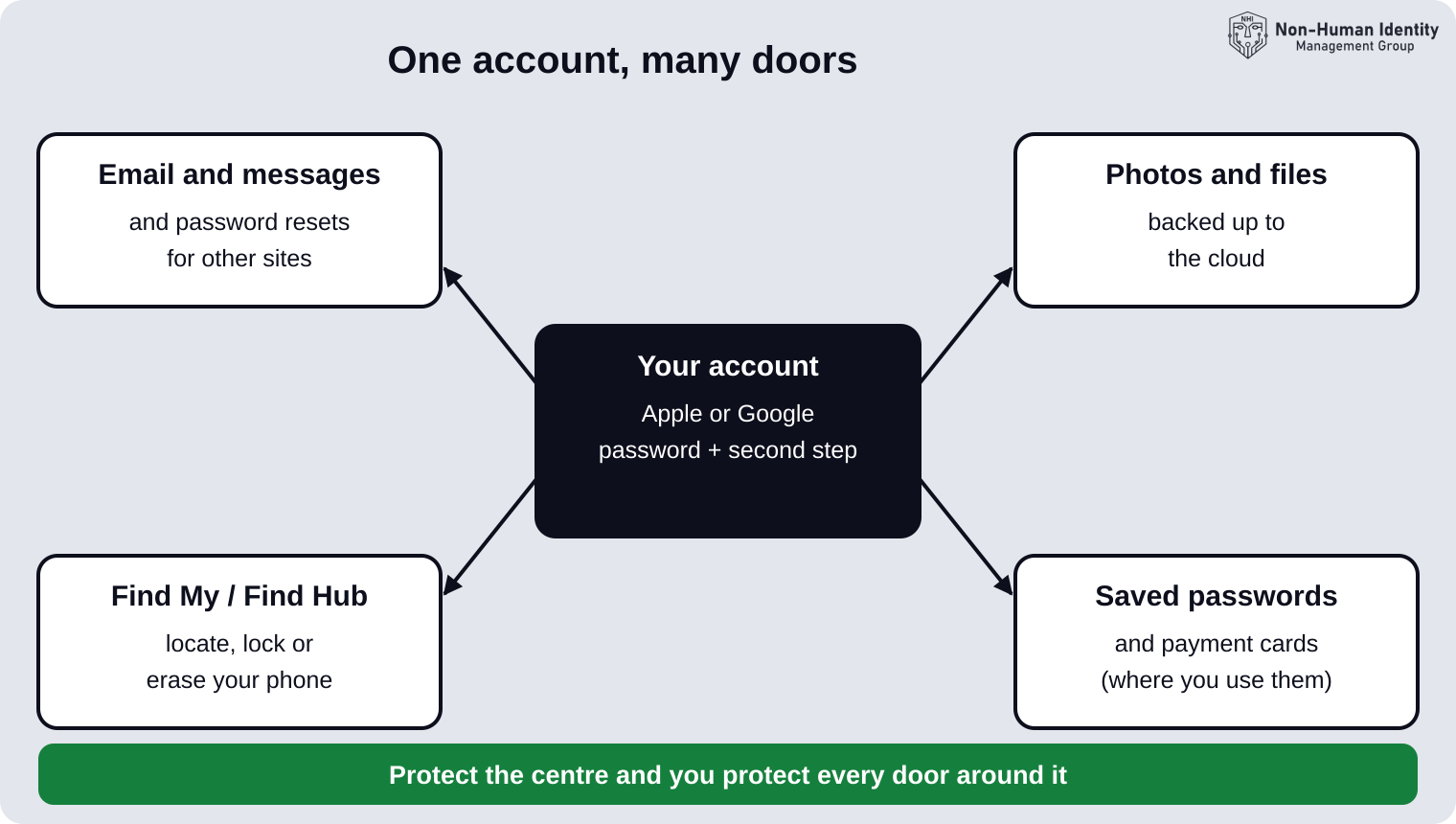
Your Apple or Google account is the one login that sits behind your phone, photos, email and backups.
This guide is for anyone with an iPhone, an Android phone or a Gmail address who wants to keep that account safe. You do not need any technical background. If you run a small business from your phone, the same account may also hold your customer emails and files.
In short
- Your Apple or Google account can open your email, photos, backups and saved passwords, and can lock or erase your phone.
- Turn on the second sign-in step, so a stolen password alone is not enough.
- Set up a way back in before you need it: recovery contacts, a recovery phone or email, or backup codes.
- Never share a sign-in code, and say no to any sign-in request you did not start.
What you will learn
- Explain why this one account matters more than most others.
- Check that the second sign-in step is turned on.
- Spot a sign-in request or code message you did not ask for.
- Set up a recovery route so a lost phone does not lock you out.
- Second sign-in step (two-factor authentication)
- a check after your password, such as a code or a tap on your phone.
- Phone you have already used to sign in (trusted device)
- a phone, tablet or computer the account already knows is yours.
- Way back in (account recovery)
- the steps that get you into your account if you lose your password or phone.
What is Apple and Google account security?
Think of a key safe by your front door. It holds the spare keys to your house, your car and your shed. Whoever opens the safe can open everything else.
Your Apple Account (once called an Apple ID) or your Google Account works the same way. You sign in to it once on your phone. After that it quietly opens many other things: your email, your photo backups, your saved passwords and the tools that find a lost phone.
Account security means keeping that key safe locked. In practice that means three things: a strong password, a second sign-in step and a planned way back in if something goes wrong.
Where the comparison stops working: a key safe sits in one place. Your account can be tried from any computer in the world. So the lock has to hold even when a stranger tries it from far away.
Why does it matter?
If someone gets into this account, they may be able to read your email. Many other sites send password reset links there, so they could take over those too. They may also see your photos and files.
The account also controls your phone. On an iPhone, Find My uses Activation Lock, and your Apple Account password is needed before anyone can turn off Find My.[5] On Android, Find Hub can lock or erase a lost phone. After an erase, the phone asks for your Google Account password before it can be used again.[6] These features protect you, but only while the account stays yours.
If you use your phone for everything
What could happen: a stranger signs in, reads your email and resets your other passwords.
Check this: make sure the second sign-in step is on for your account.
If you run a small business from your phone
What could happen: losing the account means losing customer emails, files and contacts at once.
Check this: set up a recovery route that does not depend on one phone.
If you help a parent or older relative
What could happen: they read out a sign-in code to a caller who claims to be from support.
Check this: agree that nobody genuine asks them for a code by phone or message.
What does it look like?
Here is a made-up sign-in alert of the kind many people see when someone tries to use their account.
Example only. All values are made up.
Sign-in request                                   (1)
Someone is trying to sign in to [email protected]
Device: Windows laptop                            (2)
Location: near Exampletown                        (3)
Was this you?
[ No, it's not me ]      [ Yes ]                  (4)
- In a real message, this alert would appear in your phone's own settings or the official app, not in a text with a link.
- The kind of device trying to sign in. If you are not using one, that is a warning sign.
- The rough place the attempt came from. It is only a guess, so do not rely on it alone.
- The choice that matters. If you did not just try to sign in, choose No.
Why this is risky: the request means someone already has your password. Tapping Yes by habit, or reading a code out to a caller, gives them the second step too.
The safer way: choose No, then change your password from a device you trust. Check your account's list of signed-in devices and remove any you do not know.[4]
How does it work?
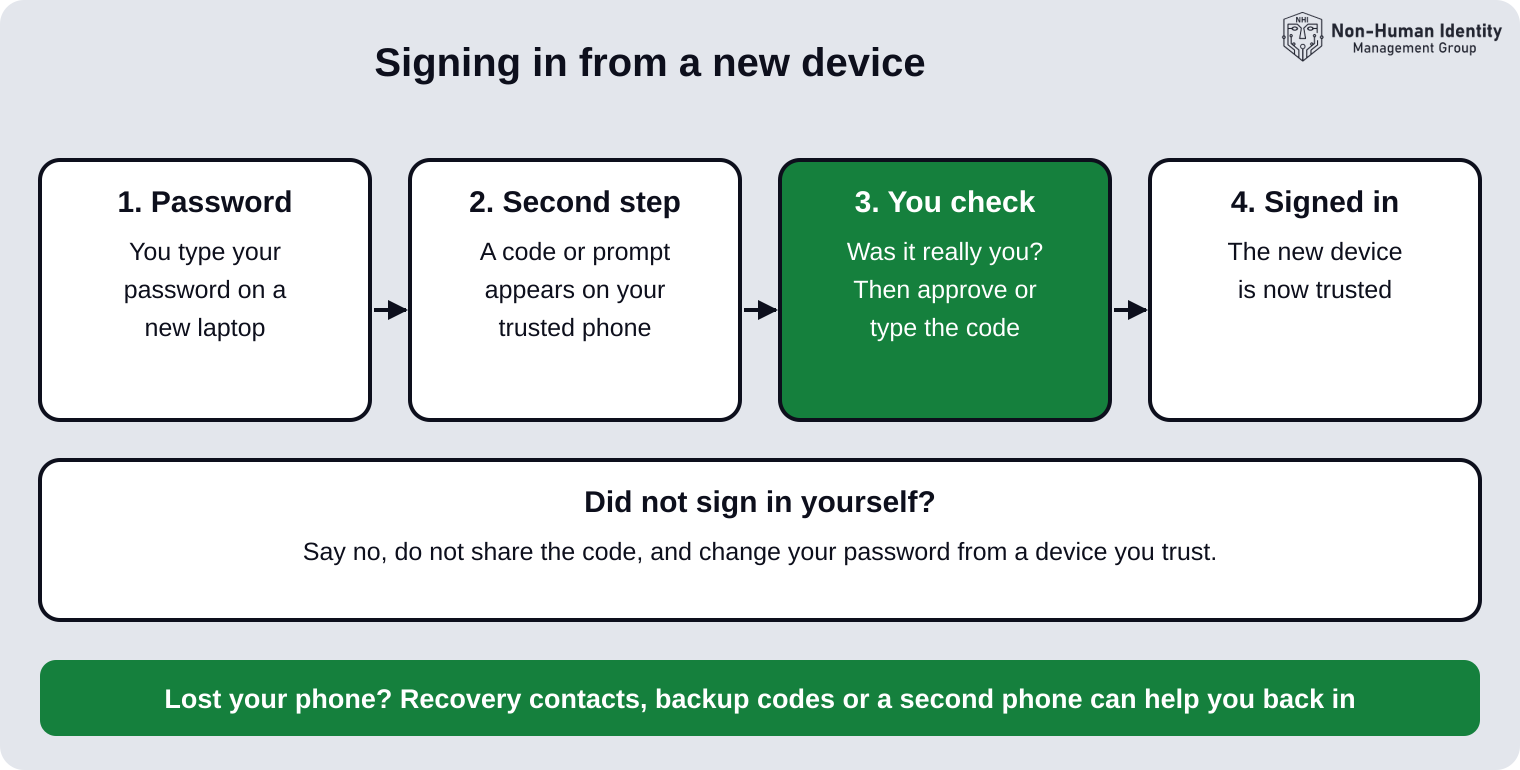
Both Apple and Google use a password plus a second step when you sign in somewhere new.
- Your password. You type it on a new phone, laptop or website.
- The second step. Apple shows a six-digit code on your trusted devices or sends it to your trusted phone number.[1] Google can send a prompt to tap on your phone, or ask for a code, a passkey or a security key.[3]
- Your check. You approve only if it really is you, right now.
- The new device is trusted. On Apple, you are not usually asked again on that device unless you sign out fully, erase it or change your password.[1]
- The way back in. If you lose your phone, your recovery set-up lets you prove it is you. Apple lets you add up to five recovery contacts.[2] Google offers backup codes and a recovery phone and email.[3][4]
Google lists the options from stronger to weaker. Passkeys and security keys give strong protection against fake sign-in pages. Codes sent by text or call are the weakest option, because criminals can sometimes take over a phone number.[3] A passkey is a sign-in that uses your phone's fingerprint, face or screen lock instead of a password.
A worked example
Petra Strand is a retired teacher. She uses an iPhone for photos of her grandchildren, her email and her online banking app.
One evening her phone shows a sign-in alert. Someone is trying to sign in to her Apple Account on a Windows laptop. Petra is sitting on her sofa with no laptop open.
She remembers the key safe. If a stranger is at the safe, he already has the code to part of it. She taps the option that says it was not her.
Ten minutes later her phone rings. A friendly voice says he is from "Apple support" and needs the six-digit code just sent to her. Petra hangs up. Nobody genuine needs that code from her.
Next, from her own iPhone, she changes her Apple Account password to a new one she has never used before. She checks the list of devices signed in to her account and sees only her phone and her iPad.
Then she fixes the weak spot she found. If she lost her phone, she had no easy way back in. She adds her daughter as a recovery contact. Her daughter cannot see anything in Petra's account. She can only give Petra a code to help reset her password.[2]
Last, Petra checks her email account's own password, because it had been the same as her old Apple one. She changes that too. The whole evening takes about half an hour.
Myths and mistakes
| What people think | What is true |
|---|---|
| My phone has a passcode, so my account is safe. | The passcode protects the phone in your hand. Your account can be tried from any computer, so it needs its own password and second step. |
| Apple or Google might call me and ask for my code. | Treat any request for your code as a scam. Google says it never asks for your password by email, message or phone call.[4] |
| Text message codes are as good as anything else. | They are better than nothing, but Google calls them the least secure option. Prompts, passkeys and security keys are stronger.[3] |
| I will sort out recovery if I ever lose my phone. | By then it may be too late. Set up recovery contacts, backup codes or a recovery email while you can still sign in. |
| Using the same password everywhere is fine if it is strong. | If one site leaks it, criminals try it on your other accounts. Use a different password for each, ideally saved in a password manager.[4] |
What can I do this week?
- Open your account settings. Check that the second sign-in step is on.
- Run Google's Security Checkup, or look at Sign-In and Security on your iPhone.
- Add a way back in, such as a recovery contact or recovery email, and keep any backup codes safe.
- Look at the list of devices that use your account. Remove any you no longer use.
- Tell your family that nobody genuine will ask them for a sign-in code.
Checklist
- My Apple or Google account has its own password, not used anywhere else.
- The second sign-in step is turned on.
- I use a prompt, passkey or security key rather than text codes where I can.
- I have at least one way back in that does not depend on my one phone.
- Backup codes, if I have them, are stored somewhere private and safe.
- My recovery phone number and email address are up to date.
- I have checked the list of signed-in devices in the last few months.
- Find My or Find Hub is turned on for my phone.
Common questions
Is an Apple ID the same as an Apple Account?
Yes. Apple now calls it an Apple Account, but many people and older help pages still say Apple ID. It is the same sign-in you use for the App Store, iCloud and Find My. The advice in this guide applies whichever name you see.
What if I lose the phone that gets my codes?
Use the recovery route you set up earlier. That might be a second Apple device, a recovery contact, Google backup codes or your recovery phone and email. If you have none, follow the official account recovery steps, which can take longer. See Hacked Account Recovery for Beginners.
Can a recovery contact see my photos or messages?
No. Apple says a recovery contact has no access to your account. They can only give you a six-digit code to help you reset your password. Apple also does not know who your recovery contacts are, so remember who you chose.[2]
Should I tick "Don't ask again" on my computer?
Only on a computer that you alone use. Google lets you skip the second step on a trusted device, but says to do this only on devices you do not share.[3] On a shared or work computer, leave the box empty.
I approved a sign-in by mistake. What now?
Act straight away. Change your password from a device you trust, then sign out any devices you do not recognise. Check that your recovery phone and email have not been changed. If you cannot get in, start the official recovery steps at once.
Where next?
Ready for the detail? Read the practitioner guide: Securing Your Apple ID and Google Account. It goes further into security keys, Safety Check and Google's Advanced Protection Program for people at higher risk.
Also useful:
- Authenticator Apps for Beginners
- Passkeys for Beginners
- SIM Swap Fraud for Beginners
- Microsoft Account Security for Beginners
Related NHI Mgmt Group resources: Account Takeover for Beginners · Password Managers for Beginners · Smartphone Security for Beginners
Key terms
- Two-factor authentication
- A sign-in that needs two different kinds of proof, such as a password and a code from your phone.
- Trusted device
- A phone, tablet or computer you have already signed in on, which can show codes or approve new sign-ins.
- Account recovery
- The steps that let you back into an account when you cannot sign in the normal way.
- Recovery contact
- A person you trust who can give you a code to help reset your Apple Account password, without seeing your account.
- Backup codes
- One-off codes from Google that you can use for the second step if you do not have your phone.
- Passkey
- A sign-in that uses your device's fingerprint, face or screen lock instead of a password.
- Activation Lock
- An Apple feature that needs your Apple Account password before a lost or erased iPhone can be set up again.
Sources and further reading
- Two-factor authentication for Apple Account. Apple Support, Apple. https://support.apple.com/en-us/102660, accessed 28 Nov 2026.
- How to set up an account recovery contact. Apple Support, Apple. https://support.apple.com/en-us/102641, accessed 28 Nov 2026.
- Turn on 2-Step Verification. Google Account Help, Google. https://support.google.com/accounts/answer/185839, accessed 28 Nov 2026.
- Make your account more secure. Google Account Help, Google. https://support.google.com/accounts/answer/46526, accessed 28 Nov 2026.
- Activation Lock for iPhone and iPad. Apple Support, Apple. https://support.apple.com/en-us/108794, accessed 28 Nov 2026.
- Find, lock, or erase a lost Android device. Android Help, Google. https://support.google.com/android/answer/6160491, accessed 28 Nov 2026.