A passkey lets you sign in with your phone or computer's screen lock instead of typing a password.
This guide is for anyone who has seen a "Create a passkey" button and wants to know what it does and whether to use it.
In short
- A passkey replaces a password. You unlock it with your fingerprint, face or device PIN.
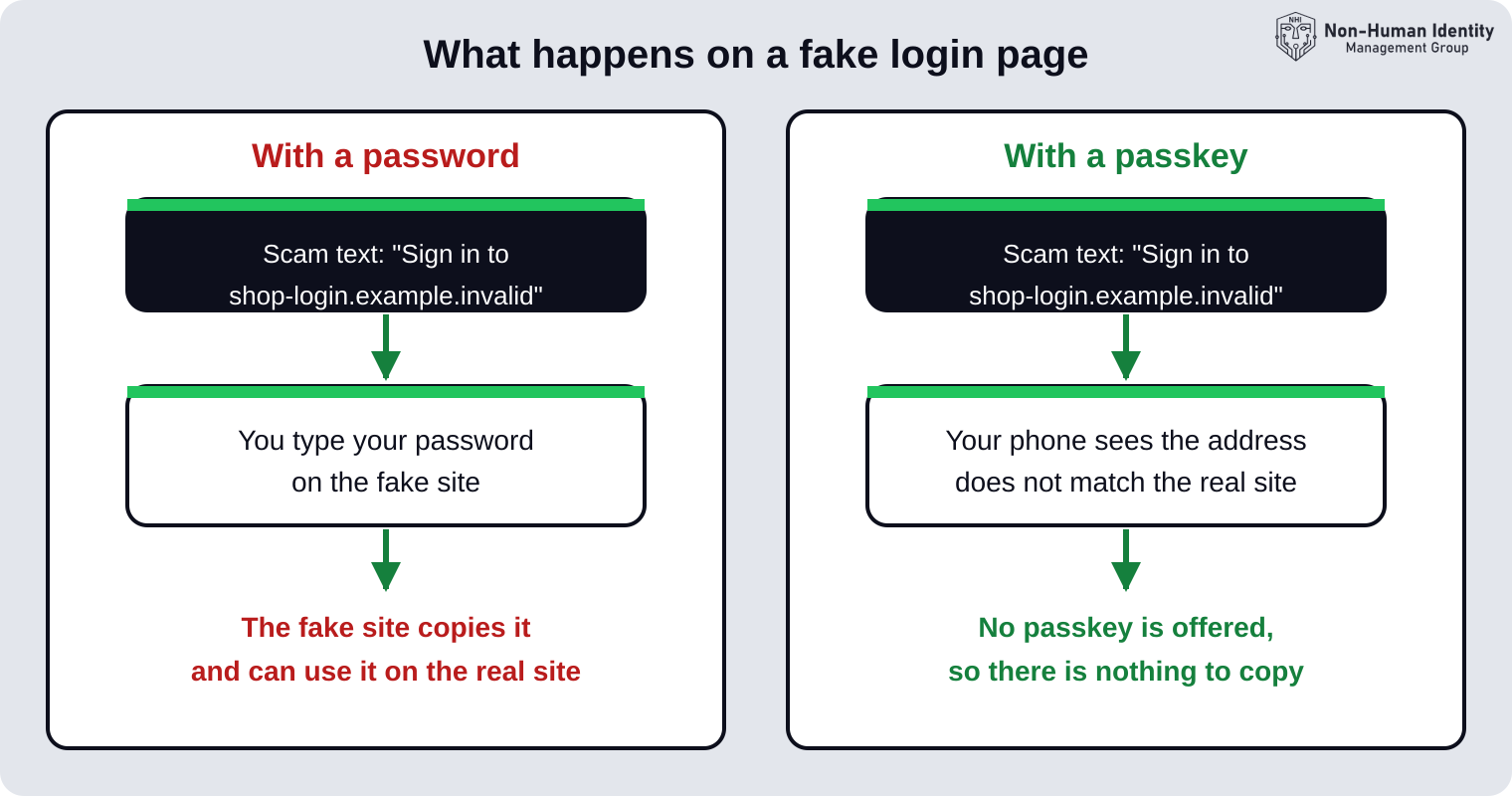
- It is made for one website or app, so a fake site cannot trick you into handing it over.
- The UK's National Cyber Security Centre says passkeys should now be people's first choice where offered.
- Where a service has no passkeys yet, keep using a password manager and a second sign-in step.
What you will learn
- Explain what a passkey is and why it is hard to steal.
- Spot when a website offers you a passkey.
- Check where your passkeys are saved and how you would get them back.
- Ask the right question before you switch off your old password.
- Sign-in key (passkey)
- a secret saved on your device that proves to one website that you are you.
- Screen lock
- the fingerprint, face scan or PIN you already use to open your phone or computer.
- Password manager
- an app that stores your passwords and passkeys, and can copy them to your other devices.
What is a passkey?
Think of an old-fashioned rubber stamp that you keep at home. When you sign up, the bank keeps an ink print of your stamp. Each time you visit, you stamp a fresh slip and the bank compares it with the print.
A passkey works in a similar way. When you create one, your device makes a pair of matching keys. The secret half, called the private key, stays with you. The website keeps the other half, called the public key, which is only useful for checking.[1]
To sign in, you unlock your device with your fingerprint, face or PIN. Your device then proves to the website that it holds the secret half. Nothing you could type or read out is sent.[1] Your fingerprint or face scan stays on your device.[2]
Your passkeys are usually kept by a password manager, such as the one built into your phone. It can copy them to your other devices and keep a backup.[3]
Where the comparison stops working: a rubber stamp could be pressed onto a fake bank's slip. A passkey is only offered to the site it was made for, so a lookalike site gets nothing.[1]
Why does it matter?
Passwords get guessed, reused and typed into fake websites. Passkeys remove most of those risks. In April 2026 the UK government's cyber security agency said passkeys should be consumers' first choice of login.[4]
If you shop and bank online
What could happen: you type your password into a fake login page from a scam message, and a stranger gets into your account.
Check this: look in the security settings of your email and bank for a passkey option.
Next: Phishing for Beginners
If you help an older relative with tech
What could happen: they reuse one weak password everywhere, and one leak opens many accounts.
Check this: set up a passkey on their email first, and make sure their phone has a screen lock.
If you run a small business
What could happen: staff are tricked into giving away passwords and codes for shared work accounts.
Check this: see whether your email and file services let staff sign in with passkeys.
What does it look like?
Here is a made-up screen. It shows what you might see when a website offers a passkey.
Example only. All values are made up.
shop.example.com                                  (1)
  Sign in faster with a passkey
  [ Create a passkey ]   [ Not now ]              (2)

Your phone:
  Save a passkey for [email protected]             (3)
  on shop.example.com?
  Saved to: FakePass password manager             (4)
  [ Use fingerprint ]                             (5)
- Check the web address first. You should be on the site you meant to visit.
- The site offers a passkey. You can say no and keep your password.
- The passkey is for this one account on this one site.
- Your phone says where the passkey will be stored. In a real screen, this line would name your phone's own password manager or the one you chose.
- You confirm with your screen lock. Your fingerprint stays on the phone.
Why this is risky: if you tap through without reading line 4, you may not know where your passkey lives. Then it is harder to get it back.
The safer way: save passkeys in one password manager you trust. Make sure that account has a way to recover it.
How does it work?
- You create it. On a site that supports passkeys, you choose "Create a passkey". Your device makes a new key pair just for that account.[1]
- The site keeps the public half. Your device keeps the private half, or your password manager stores it for you.[1]
- You come back later. When you next sign in, the site sends your device a one-off puzzle, called a challenge.
- You unlock your device. Your fingerprint, face or PIN is checked on the device itself.[1]
- Your device answers. It signs the puzzle with the private half. The site checks the answer with the public half and lets you in.[1]
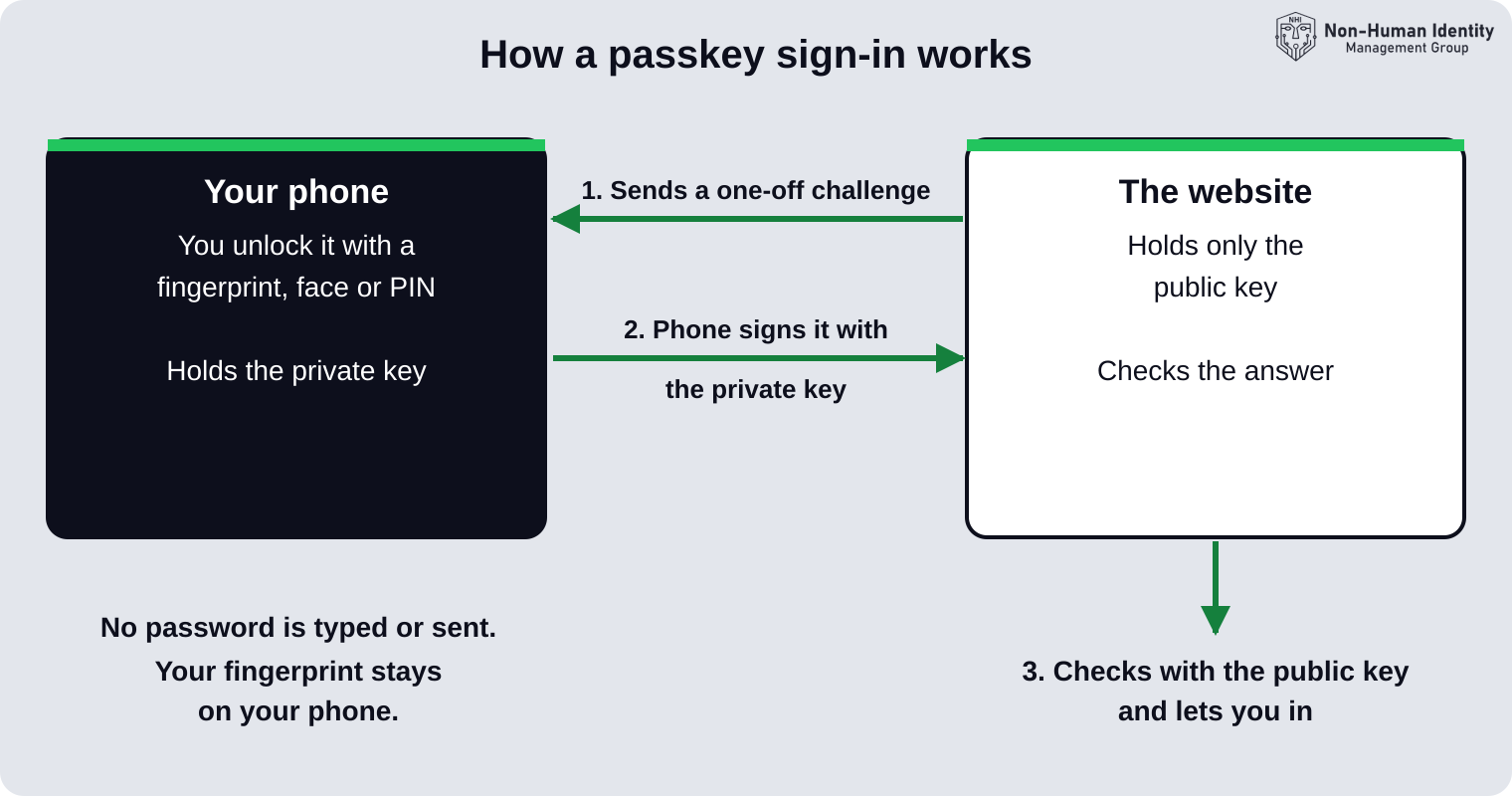
Because the website stores only the public half, a break-in at the website does not give criminals a password they can reuse elsewhere.[2]
A worked example
This story is made up to show how it can happen.
Owen Price is a bus driver in Cardiff. He has one password he uses for most things, with a number on the end that he changes now and then.
One evening he gets a text that says his parcel is stuck and he must sign in to his shopping account. He taps the link. The page looks right, so he types his email and password. Nothing happens. The next morning, his account has a new delivery address.
Owen's daughter helps him sort it out. They use the shop's official app to reset his password, remove the strange address and call the shop's help line from its website. Then they change the same password on his email, because he used it there too.
While they are in his email settings, they see "Create a passkey". His daughter explains it in one line: "It only works on the real site, so a fake page cannot get it."
They create passkeys for his email, his bank app and the shopping site. Each time, his phone asks for his fingerprint. They check that his phone's password manager is backed up to his account and that he knows his account recovery details.
Some sites do not offer passkeys yet. For those, the password manager makes a different strong password for each one, and Owen turns on a second sign-in step.
A month later, another parcel text arrives. Owen opens the app instead of the link. Even if he had tapped it, his phone would not have offered his passkey to the fake page.
What made the difference: Owen stopped relying on one password he had to type, and moved to sign-ins that only work on the real site.
Myths and mistakes
| What people think | What is true |
|---|---|
| The website gets a copy of my fingerprint. | Your fingerprint or face is checked on your own device. Providers say it is not sent to the website.[2][5] |
| If I lose my phone, I lose all my accounts. | Most password managers back up and sync passkeys, so you can usually get them back on a new device. Set up recovery before you need it.[3] |
| A passkey is just a saved password. | A password is a shared secret you can type. A passkey is a key pair, and the secret half is not handed to the website.[1] |
| Creating a passkey deletes my password. | Many sites keep your password as a backup option, at least for now. Check the site's settings to see what it allows.[5] |
| Anyone who picks up my phone can use my passkeys. | They also need to get past your screen lock. Use a fingerprint, face or a PIN that is hard to guess. |
What can I do this week?
- Make sure your phone and computer have a screen lock turned on.
- Create a passkey for your main email account, if it offers one. Start there, because email can reset your other accounts.
- Add passkeys for your bank and the shops you use most, where offered.
- Check which password manager holds your passkeys and that its backup and recovery are set up.
- For sites without passkeys, use a password manager to make a different strong password for each, and turn on a second sign-in step.
Checklist
- My phone and computer have a screen lock.
- My main email account has a passkey, or a strong password plus a second sign-in step.
- I know which password manager stores my passkeys.
- That password manager is backed up and I know how to recover it.
- I sign in through the official app or a saved bookmark, not links in messages.
- Sites without passkeys each have a different password.
Common questions
Should I use a passkey instead of a password?
Yes, where a site offers one. The UK's National Cyber Security Centre (NCSC) says passkeys should now be consumers' first choice of login, because they resist fake websites. Where a site has no passkeys yet, use a password manager for a strong, different password and turn on a second sign-in step.[4]
What happens if I lose my phone?
Usually you can get your passkeys back. Most password managers back them up to your account and copy them to your other devices. Remove the lost phone's passkeys from your account settings, and sign in on your new phone with your recovery details.[3][5]
Can I use a passkey on someone else's computer?
Often, yes. Many sites show a QR code, a square barcode, on the other computer. You scan it with your phone and confirm with your screen lock. You do not need to save a passkey on a computer you do not own.[5]
Is a passkey the same as two-step verification?
Not quite, but it covers the same ground. Two-step verification adds a code on top of a password. A passkey combines something you have, your device, with your screen lock. The NCSC says passkeys are at least as secure as a strong password with two-step verification.[4]
Do I need special equipment?
No. Most modern phones and computers have passkey support built in. Some people also use a small physical security key that plugs in or taps on the phone, but that is optional for home use.[1]
Where next?
Ready for the detail? Read the practitioner guide: Passwordless and Passkeys Guide. It goes further into synced and device-bound passkeys, account recovery design and rolling passkeys out across an organisation.
Also useful:
- FIDO2 and WebAuthn for Beginners
- Passkeys for Everyone Guide
- Passkeys vs Password Managers
- Passkey account recovery
Related NHI Mgmt Group resources: Password Managers Explained for Everyone Guide · Passkeys vs Hardware Security Keys · Account Takeover for Beginners
Key terms
- Passkey
- A way to sign in without a password, where a secret key stays on your device and the website keeps only a matching public key.
- Private key
- The secret half of a key pair, kept on your device, used to prove it is you.
- Public key
- The half of a key pair the website keeps, used only to check your device's answer.
- Synced passkey
- A passkey your password manager copies to your other devices through your account.
- Password manager
- An app that creates, stores and fills in passwords and passkeys for you.
- Phishing
- Using fake messages or websites to trick people into giving away logins or money.
Sources and further reading
- How Passkeys Work. FIDO Alliance, Passkey Central. https://www.passkeycentral.org/introduction-to-passkeys/how-passkeys-work, accessed 28 Nov 2026.
- Passkeys: passwordless authentication. FIDO Alliance. https://fidoalliance.org/passkeys/, accessed 28 Nov 2026.
- Passkeys: what you need to know. National Cyber Security Centre (NCSC). https://www.ncsc.gov.uk/information/passkeys-what-you-need-to-know, accessed 28 Nov 2026.
- NCSC: Leave passwords in the past, passkeys are the future. National Cyber Security Centre (NCSC), 23 April 2026. https://www.ncsc.gov.uk/news/ncsc-leave-passwords-in-the-past-passkeys-are-the-future, accessed 28 Nov 2026.
- Sign in with a passkey instead of a password (Google Account Help). Google. https://support.google.com/accounts/answer/13548313, accessed 28 Nov 2026.