Linux security is the set of habits, settings and tools that keep a Linux computer, whether a server in a data centre, a virtual machine in the cloud or a desktop on someone's desk, safe from misuse.
Linux runs a large share of the world's websites, cloud workloads and network devices, and more people now meet it at work without any training. This guide is for newcomers, students, career changers and managers who are not security specialists. It explains the main protective layers in plain English: accounts and admin rights, updates, remote access, the firewall, mandatory access control, malware scanning and checking your settings against a baseline. It links to deeper guides when you are ready for the detail.
By the end of this guide you will be able to:
- Explain the main layers that protect a Linux system.
- Understand why the root account and sudo need careful control.
- Describe how SELinux, AppArmor and a host firewall limit damage.
- Identify practical first steps to secure a Linux server or desktop.
Key takeaways
- Linux is not secure by magic. It has strong built-in protections, but they only help if they are switched on, kept up to date and configured with care.
- Admin rights are the biggest prize. The root account can change anything, so log in as a normal user and use sudo, with narrow rules, for admin tasks.
- Updates matter most. Applying security updates promptly is one of the most effective things you can do for any Linux system.
- Layers limit damage. A firewall reduces what can reach the system, and SELinux or AppArmor limits what a broken program can do once inside.
- Measure against a baseline. Published baselines such as CIS Benchmarks, checked with tools such as OpenSCAP, show where your settings drift.
What it is, in plain English
Linux is a family of open-source operating systems built on the Linux kernel. Popular versions, called distributions or distros, include Ubuntu, Debian, Red Hat Enterprise Linux (RHEL), Fedora and Amazon Linux. They share the same core ideas: users and groups, file permissions, a package manager for installing software, and a special all-powerful account called root.
Linux security means protecting that system in layers. Ubuntu's own documentation advises a layered approach, so that the system does not depend on one safeguard.[3] In practice the layers are: who can log in and what they can do, whether the software is patched, which network services are exposed, what each running program is allowed to touch, and whether anyone would notice if something went wrong.
A helpful comparison is a block of flats. The front door lock is the firewall and login. Each flat has its own key, like each user's file permissions. The caretaker holds a master key, like root. Fire doors between floors stop a fire spreading, like SELinux or AppArmor confining a program that has been taken over. Where the analogy breaks down: in a real building, a burglar has to be physically present, while a Linux server on the internet can be tried by automated attackers from anywhere, all day, every day.
Why it matters to you
- If you run a small business: your website, online shop or backups may well run on a Linux server you rent. If it is taken over, it can be used to steal customer data, send spam or launch ransomware.
- If you are new to a security job: you will meet Linux in cloud accounts, containers and network appliances. Knowing the basic layers helps you read hardening reports and spot obvious gaps.
- If you are a manager: you can ask simple, useful questions: are updates automatic, who has root or sudo, and are the systems checked against a baseline?
Linux servers often hold valuable things: databases, website code and credentials that let software talk to other systems. Those credentials, such as SSH keys, service account passwords and API keys, belong to non-human identities: accounts used by software rather than people. A compromised server can expose them and let an attacker move on to other systems.
How it works, step by step
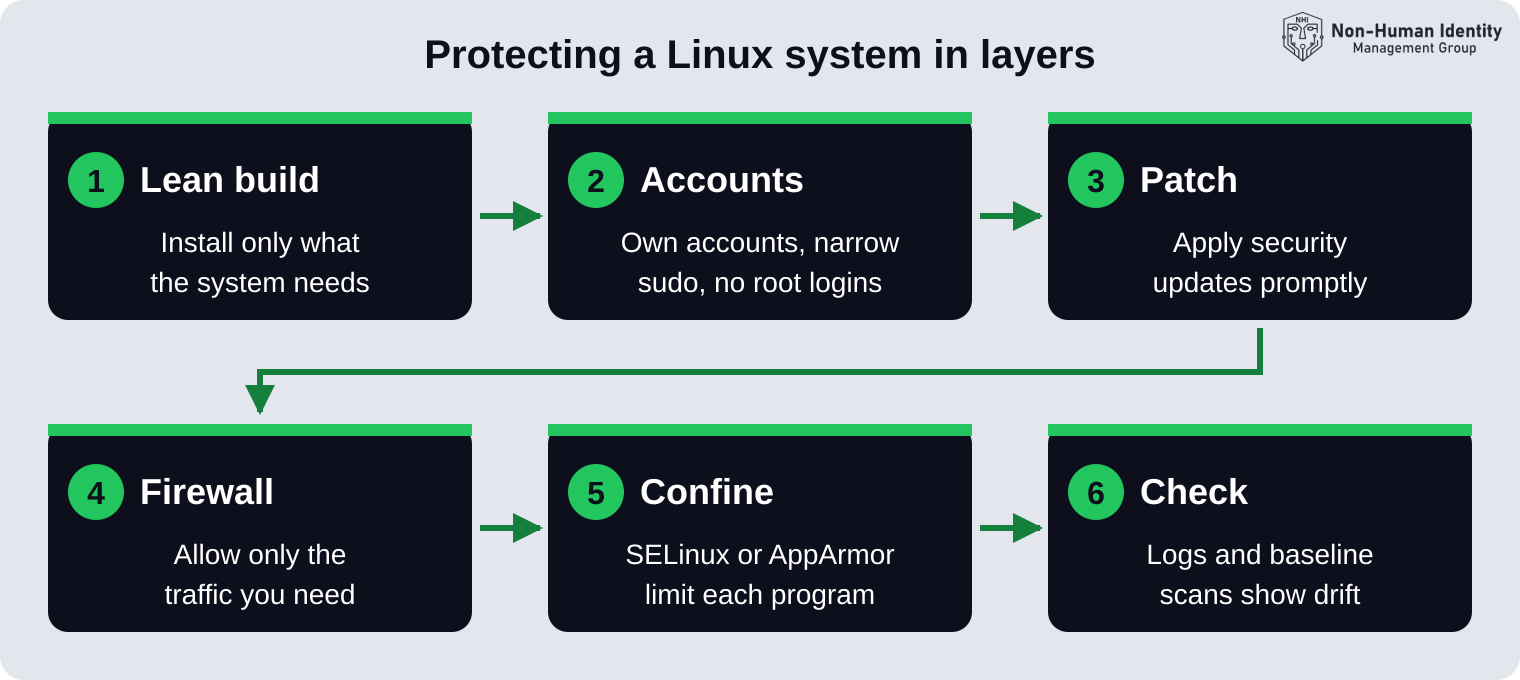
The order below is a sensible way to think about protecting any Linux system, new or existing.
- Start from a known good build. Install only the software the system needs. Every extra service is something else to patch and something else an attacker could reach. NIST lists this idea as control CM-7 Least Functionality in its SP 800-53 catalogue.[9]
- Control accounts and admin rights. Give each person their own account. Use sudo, a tool that lets an approved user run a specific command with root's power, instead of logging in as root. Keep sudo rules narrow. This follows the least privilege principle, NIST control AC-6.[9] See the sudo and sudoers Security Guide for rule design.
- Keep it patched. Turn on automatic security updates where your organisation allows it, and check that kernel updates are applied. Ubuntu, for example, describes standard security maintenance for its long-term support releases and options to extend it.[3] NIST calls this Flaw Remediation, control SI-2.[9]
- Secure remote access. Most servers are managed over SSH (Secure Shell), an encrypted remote login. OpenSSH lets you control whether root may log in and whether passwords are accepted, through settings called PermitRootLogin and PasswordAuthentication.[7] A common step is to use SSH keys and switch password logins off once keys work.
- Filter network traffic. A host firewall on the machine itself decides which network connections may come in or go out. On modern Linux the kernel framework for this is nftables, which replaces the older iptables family and has been available since kernel 3.13.[4] Friendly front ends such as ufw or firewalld sit on top. See the Linux Firewall Guide.
- Confine programs. Mandatory access control (MAC) adds rules that even a program running as root has to obey. RHEL and Fedora use SELinux; Ubuntu and Debian commonly use AppArmor. Red Hat explains that if a web server process is compromised, SELinux policy can stop that process reading files in users' home directories unless a rule allows it.[1] Ubuntu installs and loads AppArmor by default.[2]
- Scan for malware where it makes sense. Malware does target Linux, especially servers. ClamAV is an open-source antivirus toolkit originally designed for scanning email on mail gateways, and it can also scan files on access on modern Linux.[8] File servers and mail servers that handle files from others are typical places to use it. See the Linux Anti Malware Guide.
- Log, check and repeat. Send logs somewhere central so a break-in is noticed. Then compare your settings with a published baseline. A CIS Benchmark is a consensus-based set of secure configuration recommendations from the Center for Internet Security.[6] OpenSCAP is a free scanner that reads a security policy and checks whether the system complies, producing an HTML report.[5]
A worked example
Hollybank Bakery is a fictional small business with twelve staff. It rents one Ubuntu virtual server from a cloud provider to run its online ordering site. A freelance developer, Priya, set it up two years ago. The owner, Tom, asks a new IT contractor, Sam, to check it.
Sam finds several things. Priya still has an account with full sudo rights, although she stopped working for the bakery last year. Anyone on the internet can try to log in over SSH with a password. Automatic updates were switched off during a website problem and never switched back on. AppArmor is running, but the database port is open to the whole internet.
Sam agrees a plan with Tom. Priya's account is removed, after Sam checks that no scheduled jobs depend on it. Tom and Sam each get their own account, and only Sam has sudo. Sam sets up SSH keys for both, tests that they work from a second session, and then turns off password logins. Automatic security updates go back on, with a monthly reboot window agreed with Tom. The firewall is set to allow only web traffic and SSH from the contractor's office address, and the database is limited to the server itself. Sam keeps the old firewall rules saved so the change can be reversed quickly if the site breaks.
Finally, Sam runs an OpenSCAP scan against a CIS profile. It reports more than a hundred findings. Sam does not try to fix them all at once: he picks the handful that matter most for an internet-facing web server and puts the rest on a list for later. None of this makes the server unbreakable, but it is much harder to attack than it was, and Tom now knows who can change it.
Myths and misunderstandings
| What people think | What is true |
|---|---|
| Linux does not get viruses. | Malware for Linux exists and often targets servers, for example to mine cryptocurrency or encrypt data. Patching and good access control are the main defence, with scanning where files arrive from others. |
| If SELinux breaks something, just disable it. | Red Hat strongly discourages disabled mode and recommends enforcing mode. Permissive mode logs problems without blocking them, which helps you fix the policy instead.[1] |
| Using sudo is the same as being safe. | A rule that lets someone run any command as root is almost the same as giving them root. Narrow rules are what make sudo useful. |
| A cloud provider secures my server for me. | Providers secure their own infrastructure. The operating system, accounts, updates and firewall on your virtual server are normally your responsibility. |
| A firewall is enough on its own. | A firewall limits what can reach the system. It does not fix an unpatched web application that it allows through. |
| Passing a benchmark scan means the system is secure. | A scan shows how settings compare with a baseline. It does not test your applications, your passwords or whether anyone is watching the logs. |
Key terms
- Linux
- A family of open-source operating systems built on the Linux kernel, used for servers, desktops, containers and embedded systems.
- sudo
- A Linux command that lets an approved user run a specific command with elevated privileges, usually as root.
- Least privilege
- The principle that each user, process and system has only the access it needs for its function, and no more.
- Security patch
- A software update that fixes a specific vulnerability.
- SSH
- Secure Shell, the encrypted protocol commonly used for remote command-line administration of Linux systems.
- Host firewall
- Software on an individual device that controls which network traffic can enter or leave that device.
- nftables
- The Linux packet-filtering framework used to define firewall and traffic-filtering rules on a host.
- Mandatory access control
- An access model in which a central policy decides what can access each resource, and users or programs cannot override it.
- SELinux
- Security-Enhanced Linux, a mandatory access control system that uses labels and rules to limit what each process can do.
- AppArmor
- A Linux security framework that confines programs with path-based profiles listing the files and resources they may use.
- CIS Benchmark
- A hardened configuration standard for a specific operating system, application or platform.
- OpenSCAP
- A framework for scanning systems against security policy and hardening content to check whether they comply.
Common questions
Is Linux more secure than Windows?
Both can be run securely or badly. The settings, updates and people around a system matter more than which operating system it is.
Should I use SELinux or AppArmor?
Usually you use whichever your distribution ships and supports: SELinux on RHEL and Fedora, AppArmor on Ubuntu and Debian. Keeping the default one switched on is more important than the choice. The Reference Monitors and Mandatory Access Control Guide explains the differences.
Do Linux desktops need antivirus?
It depends on your organisation's policy and risk. Many organisations focus on updates, limited admin rights and browser security for desktops, and use scanning on servers that receive files from others. See the Linux Desktop Fleet Security Guide.
Why should I not log in as root?
Every mistake or compromised program then runs with full power, and logs cannot tell you which person did what. Personal accounts plus sudo keep a clearer record.
What is the difference between ufw, firewalld and nftables?
nftables is the kernel framework that does the filtering. ufw (common on Ubuntu) and firewalld (common on RHEL and Fedora) are simpler tools that write rules for it.
How often should I check a server against a baseline?
We suggest scanning after every major change and on a regular schedule, such as monthly, so that drift is spotted early.
First steps
- List every Linux system you own or rent, who manages it and which distribution and version it runs.
- Check that each one receives security updates, and turn on automatic security updates where your organisation allows it.
- Review who has sudo or root access on each system and remove anyone who no longer needs it.
- Confirm SELinux or AppArmor is running in enforcing mode, and that a host firewall allows only the services you need.
Checklist
- Every system is on a supported distribution version that still receives security updates.
- Security updates are applied automatically or on a short, agreed schedule.
- Each person has their own account; nobody logs in directly as root.
- sudo rules are narrow and reviewed when people change roles or leave.
- SSH uses keys, and password logins are switched off where keys are in place.
- A host firewall allows only the network services the system needs.
- SELinux or AppArmor is enabled and enforcing.
- Logs are sent to a central place and someone reviews alerts.
- The system has been scanned against a baseline such as a CIS Benchmark, and findings are tracked.
Check your understanding
1. Why is sudo with narrow rules safer than logging in as root?
Answer: each person uses their own account, only approved commands run with root's power, and the logs show who ran what.
2. What does SELinux or AppArmor add on top of normal file permissions?
Answer: rules that confine each program, so a compromised program can only reach what its policy allows, even if it runs with high privileges.
3. What is the difference between permissive and enforcing mode in SELinux?
Answer: permissive mode logs actions that break the policy but allows them; enforcing mode blocks them. Enforcing is the recommended mode for real systems.
4. Does a clean OpenSCAP scan mean a server cannot be attacked?
Answer: no. It shows the settings match a baseline. Applications, credentials and monitoring still need attention.
Suggested learning pathway
- For the wider picture of protecting devices, start with Endpoint Security for Beginners.
- For the general idea of locking down any system, read System Hardening for Beginners.
- For keeping software up to date, read Patch Management for Beginners.
- For the keys used to log in to Linux servers, read SSH Keys for Beginners.
- For the command line and system basics a defender needs, see the Linux Fundamentals for Defenders Guide.
- For the full practitioner hardening baseline, see the Linux Server Hardening Guide.
- For cloud images and Amazon Linux in particular, see the Amazon Linux and Cloud-Optimised Linux Hardening Guide.
- For automated compliance checks, see the OpenSCAP and Linux Compliance Scanning Guide.
Standards and references
- Using SELinux, Chapter 1: Getting started with SELinux. Red Hat Enterprise Linux 9 documentation, Red Hat. https://docs.redhat.com/en/documentation/red_hat_enterprise_linux/9/html/using_selinux/getting-started-with-selinux_using-selinux, accessed 27 Nov 2026.
- AppArmor. Ubuntu Server documentation, Canonical. https://ubuntu.com/server/docs/how-to/security/apparmor/, accessed 27 Nov 2026.
- Introduction to security. Ubuntu Server documentation, Canonical. https://ubuntu.com/server/docs/explanation/intro-to/security/index.html, accessed 27 Nov 2026.
- What is nftables? nftables wiki, netfilter project. https://wiki.nftables.org/wiki-nftables/index.php/What_is_nftables%3F, accessed 27 Nov 2026.
- Getting Started. OpenSCAP portal, OpenSCAP project. https://www.open-scap.org/getting-started/, accessed 27 Nov 2026.
- CIS Benchmarks. Center for Internet Security (CIS). https://www.cisecurity.org/cis-benchmarks, accessed 27 Nov 2026.
- sshd_config, OpenSSH daemon configuration file. OpenBSD manual pages, OpenBSD project. https://man.openbsd.org/sshd_config, accessed 27 Nov 2026.
- Introduction. ClamAV Documentation, ClamAV project. https://docs.clamav.net/Introduction.html, accessed 27 Nov 2026.
- SP 800-53 Rev. 5, Security and Privacy Controls for Information Systems and Organizations. National Institute of Standards and Technology (NIST). https://csrc.nist.gov/pubs/sp/800/53/r5/upd1/final.
Related NHI Mgmt Group resources: Root, sudo and superuser accounts on Linux and Unix · Linux Logging and auditd for Defenders Guide · How to check a Linux server for signs of compromise