Linux permissions are the rules that decide who can read, change or run each file on a computer.
This guide is for students, people starting in IT and anyone who has seen letters like rwx on a screen and wondered what they mean. You do not need to be a programmer to be affected: many websites and business apps run on Linux servers, and these rules decide who can reach your data.
In short
- Every file on Linux has an owner, a group and a set of rules for everyone else.
- Each of those three can be allowed to read, write (change) or execute (run) the file.
- The root account can do almost anything, so people borrow its power for one task at a time with sudo.
- Give each file the smallest rules that still let the work happen, and keep the sudo list short.
What you will learn
- Explain what read, write and execute mean for a file and a folder.
- Read a permission line such as rw-r----- without guessing.
- Explain why people use sudo instead of logging in as root.
- Check who can open the files that matter most to you.
- Access rules (permissions)
- the settings on a file that say who may read it, change it or run it.
- All-powerful account (root)
- the built-in Linux account that can change almost anything on the computer.
- Borrowed admin power (sudo)
- a tool that lets an approved person run one command with root's power.
What are Linux permissions?
Think of a shared office filing cabinet with a label on every drawer. The label says who may read the papers, who may add or remove papers, and who may use the forms inside. Linux puts a label like that on every file and folder.
Each label talks about three kinds of people. The owner is the account that the file belongs to. The group is a named set of accounts, such as everyone in the accounts team. Others means every other account on the computer.[1]
For each of those three, the label can allow three things. Read means you can look at the file. Write means you can change it. Execute means you can run it as a program.[1] For a folder, the meanings shift a little. Read lets you list what is inside, write lets you add or delete files there, and execute lets you reach the files inside it.[1]
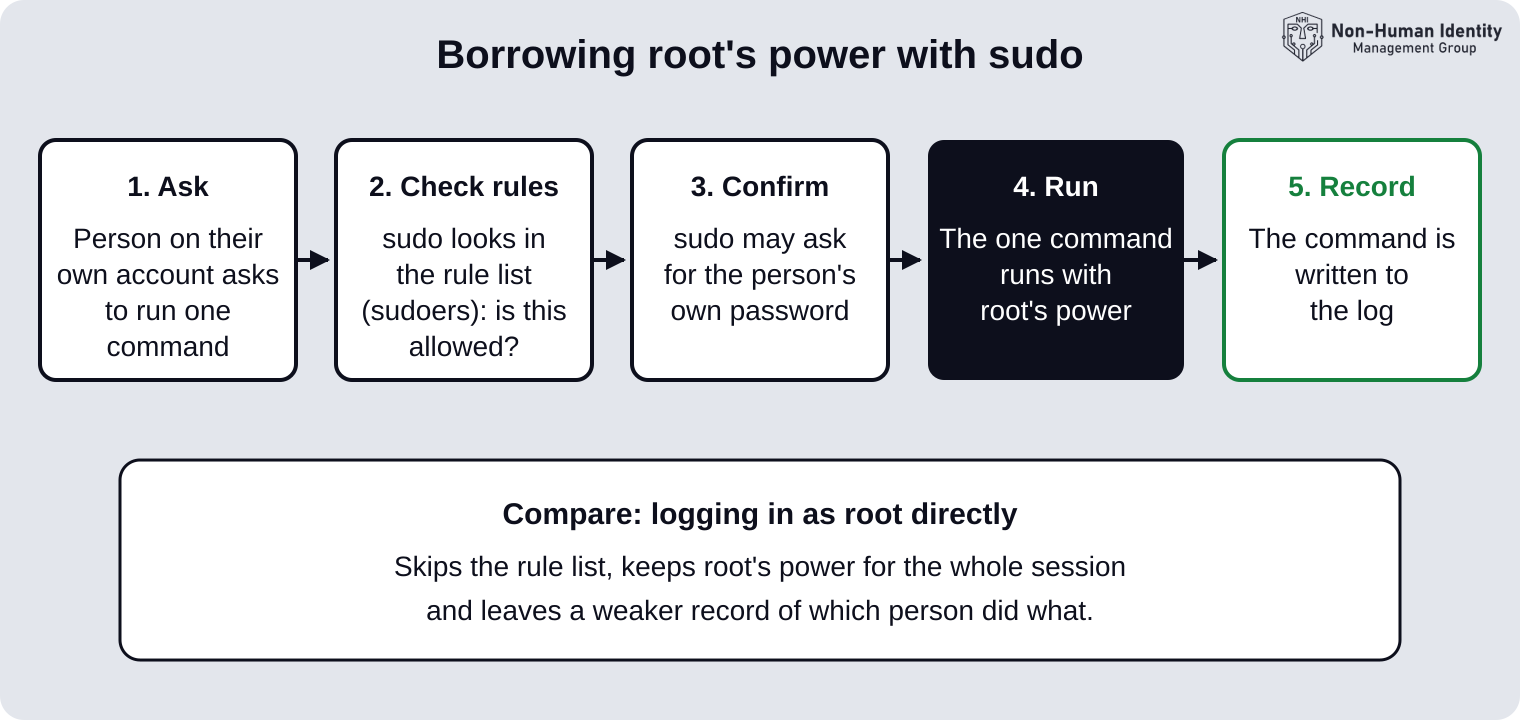
Linux also has one special account called root. Root can get past these labels and change almost anything. So people use a tool called sudo, short for "superuser do". It lets them borrow root's power for a single command, when the rules allow it.[2]
Where the comparison stops working: a filing cabinet label is easy to see as you walk past. Linux labels are only shown when someone asks for them, so a file that anyone can read can sit unnoticed for a long time.
Why does it matter?
Loose rules let the wrong account read or change a file. Programs have accounts too, so a website that is broken into can reach whatever its account is allowed to touch.
If you are a student or learning Linux
What could happen: you fix an error by making a file open to everyone, and forget to change it back.
Check this: when a file will not open, find out which of owner, group or others is missing the right, and add only that.
If you run a small business website
What could happen: a settings file holding the database password can be read by every account on the server.
Check this: ask your web supplier who can read the files that hold passwords and customer data.
If you are new to IT support
What could happen: you are given sudo for "everything" when you only need to restart one service.
Check this: ask for sudo rights that match the tasks you really do, and nothing more.
What does it look like?
On Linux, a folder listing can show the rules at the start of each line. Here is a made-up listing from a small design studio's server.
Example only. All values are made up.
-rw-r-----  bodhi  studio  FAKE-client-list.csv     (1)
-rw-rw-rw-  bodhi  studio  EXAMPLE-db-settings.conf (2)
-rwxr-x---  anil   studio  backup-0000.sh           (3)
drwxr-xr-x  anil   studio  shared-designs/          (4)
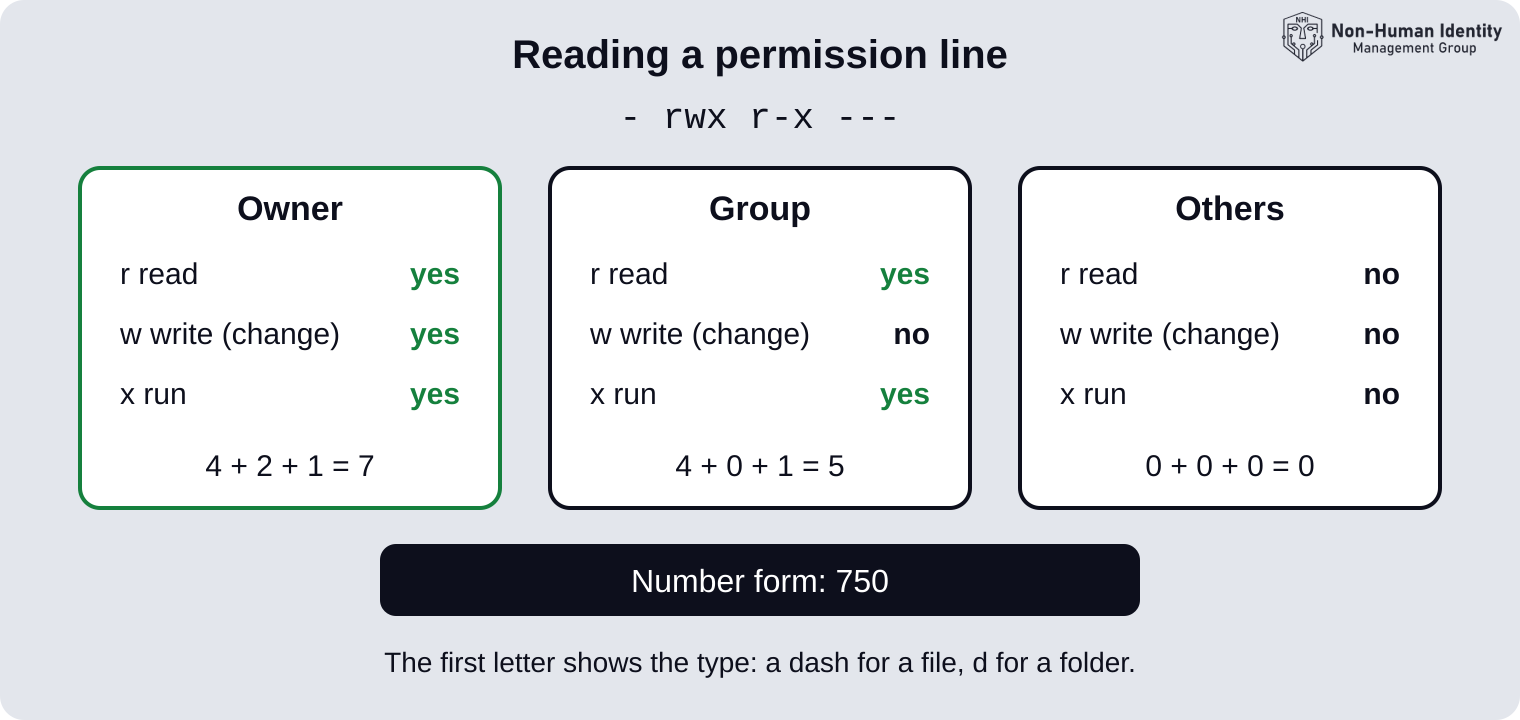
- Read the letters in threes after the first character. Owner bodhi may read and write (rw-). The studio group may read (r--). Everyone else gets nothing (---). This is a sensible setting.
- Everyone on the server may read and change this file (rw- for all three). In a real file, this line would contain the database password.
- Owner anil may read, change and run this script (rwx). The group may read and run it. Others get nothing.
- The first letter d means a folder. Others may list it and open the files inside, but not add or delete files.
Why this is risky: line 2 lets every account read the password and change the settings. That includes the account of any program that is broken into.
The safer way: settings files with passwords are readable only by the owner and, where needed, one group. Others get no rights at all.
Some tools show the same rules as numbers. Each right has a value: read is 4, write is 2 and execute is 1. Add them up for owner, group and others in that order.[3] So rw-r----- becomes 640, and rw-rw-rw- becomes 666.
How does it work?
Here is what happens when someone, or some program, tries to open a file.
- Who is asking? Linux notes which account is asking. People and programs both run under accounts.
- Which box applies? If the account owns the file, the owner rules apply. If not, and it is in the file's group, the group rules apply. Otherwise the rules for others apply.
- Is the right there? Linux checks for the right that is needed: read, write or execute. If it is missing, the request is refused.
- Changing the rules. The file's owner, or an account with enough power such as root, can change the rules with a command called chmod.[4]
- Borrowing power. When a task needs root, an approved person runs it through sudo. The tool checks a rule list, usually kept in a file called sudoers, and may ask for a password before it runs the command.[2] Each rule says who may run which commands, and as which account.[5]
- Keeping a record. By default, sudo logs the command it runs, so there is a record of who used root's power and for what.[2]
A worked example
Bodhi Kowal runs Elm Studio, a fictional design studio with six staff. A part-time IT helper, Anil Nakamura, looks after the studio's small Linux server.
One morning the studio's booking page shows an error. Bodhi remembers a forum post that said "just make it 777". That number means read, write and run for owner, group and everyone else. He asks Anil before he types anything.
Anil compares it to the filing cabinet. Taking every lock off the cabinet would fix the problem, but it would also let anyone take the papers. So he looks at the error instead. The website's account needs to read one settings file, and it is not in the file's group.
Anil adds the website's account to the right group. He sets the settings file so the owner can read and write, the group can read, and others get nothing. The booking page works again.
While he is there, Anil checks the sudo rule list. Two former freelancers still have sudo for every command. He removes them. He gives Bodhi sudo only for restarting the web service, which is the one task Bodhi does himself.
Last, Anil looks through the server for other files that every account can change. He finds one old backup script and tightens it.
Bodhi learns that the quick fix and the safe fix take about the same time. The difference is that the safe fix still makes sense a year later.
Myths and mistakes
| What people think | What is true |
|---|---|
| Setting a file to 777 is a harmless quick fix. | It lets every account read, change and run the file. Find the one missing right and add only that. |
| Logging in as root saves time. | It removes the safety net. Use your own account and borrow power with sudo for single tasks. |
| Giving someone sudo is always safe because it asks for a password. | A rule that allows any command is close to handing over root. Narrow rules are what make sudo useful. |
| Only people have accounts on a server. | Programs such as web servers and databases run under their own accounts, and the same rules apply to them. |
| Execute on a folder means running it. | For a folder, execute means being allowed to reach the files inside it.[1] |
What can I do this week?
- Ask who has sudo on each server you rely on, and remove anyone who has left.
- Check that files holding passwords give others no rights at all.
- Look for any file or folder that every account can change, and tighten it.
- Agree that nobody uses 777 as a fix without a second person checking.
Checklist
- Each person has their own account, and nobody logs in as root for daily work.
- sudo rules list the specific tasks a person needs, not every command.
- The sudo list is reviewed when people join, change jobs or leave.
- Files with passwords or personal data are readable only by the owner and one group at most.
- No file or folder is open for every account to change unless there is a written reason.
- Programs run under their own accounts with only the rights they need.
- sudo records are kept and someone looks at them.
Common questions
What does rwx mean in Linux?
rwx stands for read, write and execute. Read lets you look at a file, write lets you change it and execute lets you run it as a program. A dash in place of a letter means that right is missing. The letters appear three times: for the owner, the group and everyone else.
What is the difference between root and sudo?
Root is an account, and sudo is a tool. Root is the built-in account that can change almost anything. The sudo tool lets an approved person run one command with root's power, after checking a rule list, and it records what was run. Using sudo keeps you on your own account the rest of the time.
Why is chmod 777 a bad idea?
Because it opens the file to every account on the computer. 777 means read, write and run for the owner, the group and everyone else. Any program that is broken into could then read or change that file. It is better to find the one right that is missing and add only that.
Does sudo always ask for a password?
No, it depends on the rules. Usually it asks for the person's own password, and by default it remembers it for a short time.[2] Rules can also allow some commands with no password, which is handy for automated jobs but should be kept narrow and reviewed.
What is a group in Linux?
A group is a named set of accounts that share the same rights to some files. For example, a "finance" group could read the invoice folder while others cannot. Adding someone to a group gives them that group's rights, so group lists need checking as people change jobs.
Where next?
Ready for the detail? Read the practitioner guide: Linux File Permissions, SUID and ACLs Guide. It goes further into special permission bits, access control lists and how to audit a whole server for risky settings.
Also useful:
- Linux Security for Beginners
- Privilege Escalation for Beginners
- Least Privilege for Beginners
- Linux Fundamentals for Defenders Guide
Related NHI Mgmt Group resources: Linux Server Hardening Guide · Linux Privilege Escalation Techniques Guide · Linux Service Accounts and Keytab Management Guide
Key terms
- File permissions
- The read, write and execute rules on a file, set for its owner, its group and everyone else.
- Group
- A named set of accounts that share the same rights to some files.
- Root account
- The highest-power account on Linux, able to reach almost every file, command and setting.
- Sudo
- A Linux tool that lets an approved person run a specific command with root's power.
- Least privilege
- Giving each person and program only the access it needs, for only as long as it needs it.
- Privilege escalation
- Getting more access than you were given, for example moving from a normal account to root.
Sources and further reading
- Structure of File Mode Bits. GNU Coreutils manual, Free Software Foundation. https://www.gnu.org/software/coreutils/manual/html_node/Mode-Structure.html, accessed 28 Nov 2026.
- sudo manual page. Sudo project. https://www.sudo.ws/docs/man/sudo.man/, accessed 28 Nov 2026.
- Numeric Modes. GNU Coreutils manual, Free Software Foundation. https://www.gnu.org/software/coreutils/manual/html_node/Numeric-Modes.html, accessed 28 Nov 2026.
- chmod: Change access permissions. GNU Coreutils manual, Free Software Foundation. https://www.gnu.org/software/coreutils/manual/html_node/chmod-invocation.html, accessed 28 Nov 2026.
- sudoers manual page. Sudo project. https://www.sudo.ws/docs/man/sudoers.man/, accessed 28 Nov 2026.