LiteSpeed Cache is a WordPress plugin that saves ready-made copies of your pages so they load faster.
This guide is for website owners, bloggers and people new to running WordPress sites. You do not need to be technical to be affected: if your host uses LiteSpeed, this plugin may already be on your site, and a few of its settings touch security as well as speed.
In short
- The plugin tells the web server which pages to save and when to throw old copies away. The server does the saving.
- It runs on millions of WordPress sites, so its flaws draw attackers quickly.
- Keep it updated. Two serious flaws in 2024 were fixed in new versions.
- Leave the debug log off unless you are fixing a problem, then delete the log when you are done.
What you will learn
- Add-on (plugin)
- an extra piece of software you install in WordPress to add a feature.
- Saved copy (cache)
- a stored, ready-made version of a page that can be handed out without building it again.
- Fault-finding record (debug log)
- a file where software writes down what it is doing, to help someone fix a problem.
What is LiteSpeed Cache?
Think of a busy café. Instead of making every sandwich to order, staff make the popular ones early and put them on the counter. Customers get served faster.
A WordPress site normally builds each page fresh for every visitor. LiteSpeed Cache is a plugin that keeps ready-made copies instead. It works with LiteSpeed, a type of web server software (the program that hands your pages to visitors). The server stores the copies. The plugin manages it from inside WordPress.[2]
Some features, such as the page cache, need a LiteSpeed server or LiteSpeed's own delivery network, QUIC.cloud. Others, such as shrinking images and code files, work on any server.[1] For the general idea of caching, see Website Caching for Beginners.
Where the comparison stops working: café staff know which sandwich is a special order. The cache only knows what its settings tell it. If the settings are wrong, it may keep or show something it should not.
Why does it matter?
The plugin is very popular. The WordPress plugin directory lists more than 7 million active installations.[1] When a flaw is found in software that common, attackers look for sites that have not updated yet.
If you run a small business website
What could happen: an old version of the plugin lets a stranger make themselves an administrator.
Check this: open Plugins in WordPress and make sure LiteSpeed Cache shows no update waiting.
If you help friends or clients with their sites
What could happen: you switch on the debug log to fix a problem, forget it, and the log keeps login details.
Check this: after any fault-finding, turn the log off and delete the old log files.
If you run a members or shop site
What could happen: a page meant for one logged-in customer is saved and shown to others.
Check this: ask your web helper which pages are cached for logged-in users, and test it.
What does it look like?
Here is a made-up summary of the settings screens a site owner might see.
Example only. All values are made up.
LiteSpeed Cache - example.com (Sorrel Nursery)
Plugin version ............ 0.0.0 (update waiting)   (1)
Cache ..................... ON
Cache Logged-in Users ..... ON (private cache)       (2)
Toolbox > Debug Log ....... ON                       (3)
Toolbox > Log Cookies ..... ON                       (4)
Debug log saved in ........ wp-content/... (EXAMPLE)
- An update is waiting. In a real screen, this is the first thing to fix.
- Pages for logged-in people go to a private cache, kept apart for each visitor.
- The debug log is on. It is meant for short fault-finding only.
- Log Cookies writes visitors' cookie values into the log. Cookies can include login sessions.
Why this is risky: an old version may carry known flaws. A debug log that records cookies can hold the details that keep people logged in. Anyone who reads those details may be able to act as that person.[6]
The safer way: update first. Keep the debug log and Log Cookies off. If you need them for a short time, turn them off afterwards and delete the logs.[4]
How does it work?
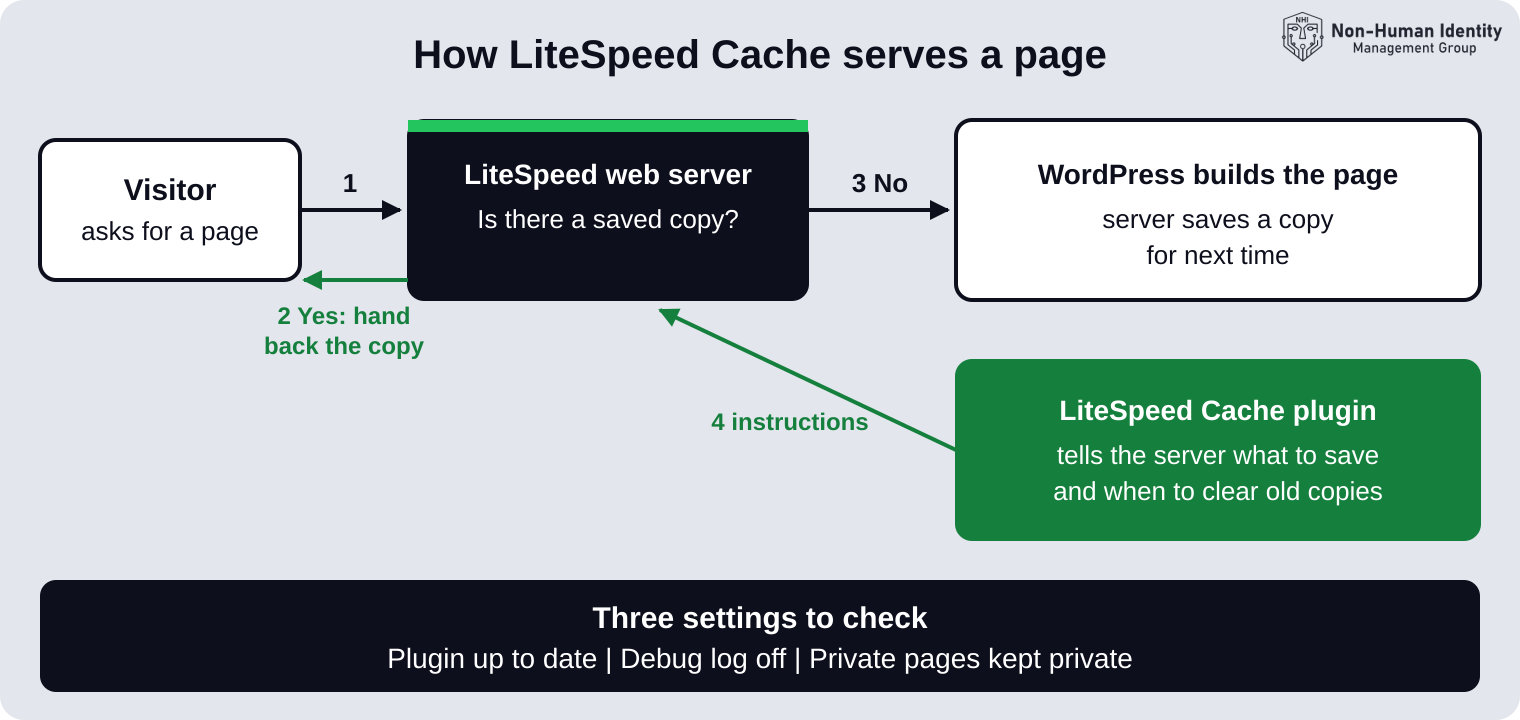
Here is what happens when someone visits a page on a site using the plugin.
- First visit. WordPress builds the page as usual, and the server saves a copy.
- Next visits. The server hands out the saved copy, without asking WordPress to build it again. This is faster and uses less of the server's effort.
- Logged-in visitors. Pages that differ for each person can go into a private cache, kept apart for each visitor and session. A session is the link that keeps you logged in.[3]
- Clearing copies. When you change a page, the plugin tells the server to throw the old copy away. This is called a purge.[4]
- Your settings. You choose what is cached, what is left out and whether fault-finding logs are kept.
A worked example
Gita Lomax runs Sorrel Nursery, a small plant nursery with an online shop on WordPress. Her host uses LiteSpeed, and the plugin came already installed. Ivo Hollis, a friend who does web work, helps her out now and then.
In the spring, the shop's pages loaded slowly, so Ivo turned on the debug log to find out why. He fixed the problem, but he forgot the log.
Months later, Gita reads that a flaw in older versions could let the debug log record cookies that keep people logged in. Someone who could read the log might then log in as those people. The plugin's maker fixed it in version 6.5.0.1. A security firm advised deleting any old debug logs too.[6]
Gita calls Ivo. Together they work through four steps.
- They update the plugin to the latest version and turn on automatic updates for it.
- They turn the debug log off and delete the old log files.
- They sign every account out of the site and ask staff to log in again, so any copied login cookies should no longer work.
- They check that the basket and account pages are not shared between customers.
Their host's records show no unusual admin logins in the period they can see. Gita adds one line to her monthly list: check plugin updates.
Myths and mistakes
| What people think | What is true |
|---|---|
| A speed plugin has nothing to do with security. | It runs inside WordPress with wide access. A flaw in it can let attackers in.[5] |
| If I never used the crawler feature, the 2024 admin flaw did not affect me. | The security firm said sites were exposed even with the crawler turned off. Updating was the fix.[5] |
| Turning the debug log off clears what it recorded. | Old log files can stay on the server. Delete them as well.[6] |
| Caching logged-in pages shows my page to everyone. | The plugin puts them in a private cache for each visitor. Still test pages that hold personal details.[3] |
| The plugin works the same on every host. | The page cache needs a LiteSpeed server or QUIC.cloud. Other features work anywhere.[1] |
What can I do this week?
- Open Plugins in WordPress and update LiteSpeed Cache if an update is waiting.
- Turn on automatic updates for the plugin, if your host allows it.
- Open the plugin's Toolbox and check that the debug log and Log Cookies are off.
- Ask your web helper to delete any old debug logs.
- Log in as a test customer and check that your account page shows only your details.
Checklist
- LiteSpeed Cache is on the latest version.
- Automatic updates are on for the plugin, or someone checks each month.
- The debug log is off.
- Log Cookies is off.
- Old debug log files have been deleted.
- Account, basket and checkout pages have been tested for privacy.
- Only people who need it have admin access to WordPress.
Common questions
Do I need LiteSpeed Cache if my host does not use LiteSpeed?
Probably not for page caching. That part needs a LiteSpeed server or the QUIC.cloud network. Some extras, such as shrinking images and code files, work on any server. If your host uses a different server, ask them which caching tool they recommend.
Is LiteSpeed Cache safe to use?
Yes, when kept up to date. Like any popular plugin it has had flaws, and its maker released fixes. The main risk comes from old versions and from leaving fault-finding settings on. Update promptly and switch off what you do not need.
What is the debug log for?
It helps someone find out why the cache is not working as expected. It records what the plugin does for each visit. It is meant for short use. The plugin's own guide warns that logs can fill disk space, so turn logging off once you finish.
What does purge mean?
Purge means throwing away saved copies so fresh ones are built. The plugin usually does this for you when a page changes. You can also purge by hand, for example after changing your site's design. It does not delete your pages, only the saved copies.
Should I cache pages for logged-in users?
It can be safe, because those pages go into a private cache for each visitor. Shops and member sites should still test it. Log in as two test users and check that neither one sees the other's details. If unsure, ask your host.
Where next?
Ready for the detail? Read the practitioner guide: LiteSpeed and OpenLiteSpeed Hardening Guide for Hosting Environments. It goes further into protecting the server's admin console, keeping hosting customers apart and limiting abusive traffic.
Also useful:
- Website Caching for Beginners
- WordPress Security for Beginners
- PHP and WordPress Security Guide
- Content Delivery Networks (CDNs) for Beginners
Related NHI Mgmt Group resources: WordPress Security Checklist · Web Cache Poisoning for Beginners · Cookie Security Guide
Key terms
- WordPress
- A widely used free system for building and running websites.
- Plugin
- An add-on that extends what a program such as WordPress can do.
- Cache
- A store of saved copies of pages or files that can be reused without rebuilding them.
- Cache purge
- Throwing away saved copies so that fresh ones are built next time.
- A small piece of data your browser holds to keep you logged in to a site.
- Privilege escalation
- When someone gains more access than they should have, such as becoming an administrator.
- Patch
- An update that fixes a flaw in software.
Sources and further reading
- LiteSpeed Cache (plugin page). WordPress.org Plugin Directory. https://wordpress.org/plugins/litespeed-cache/, accessed 28 Nov 2026.
- LSCache for WordPress: Overview. LiteSpeed Technologies documentation. https://docs.litespeedtech.com/lscache/lscwp/overview/, accessed 28 Nov 2026.
- LSCache for WordPress: Cache settings. LiteSpeed Technologies documentation. https://docs.litespeedtech.com/lscache/lscwp/cache/, accessed 28 Nov 2026.
- LSCache for WordPress: Toolbox (purge and debug settings). LiteSpeed Technologies documentation. https://docs.litespeedtech.com/lscache/lscwp/toolbox/, accessed 28 Nov 2026.
- Critical Privilege Escalation in LiteSpeed Cache Plugin Affecting 5+ Million Sites (CVE-2024-28000). Patchstack, 21 August 2024. https://patchstack.com/articles/critical-privilege-escalation-in-litespeed-cache-plugin-affecting-5-million-sites/, accessed 28 Nov 2026.
- Critical Account Takeover Vulnerability Patched in LiteSpeed Cache Plugin (CVE-2024-44000). Patchstack, 5 September 2024. https://patchstack.com/articles/critical-account-takeover-vulnerability-patched-in-litespeed-cache-plugin/, accessed 28 Nov 2026.