A Microsoft 365 backup is a separate copy of your work email and files that you can restore.
This guide is for small business owners and anyone who keeps work email and files in Microsoft 365. You do not need to be technical to be affected: if a mailbox is wiped or files are locked by ransomware, the business loses work, not just the IT team.
In short
- Microsoft keeps its service running, but getting back your deleted or damaged data is largely up to you.
- Recycle bins and deleted item folders only keep things for a limited time, for example 93 days for SharePoint files.
- A backup is a separate copy with older versions, kept for as long as you choose.
- Pick a backup, protect who can manage it, and test a restore before you need one.
What you will learn
- Explain the difference between a recycle bin and a backup.
- Spot the gaps in what Microsoft 365 keeps on its own.
- Check how long your deleted email and files can be brought back.
- Ask your IT supplier the right questions about backup.
- Separate copy (backup)
- a copy of your data kept apart from the original, so you can restore it.
- Deleted items bin (recycle bin)
- a holding area that keeps deleted things for a limited time.
- Point to go back to (restore point)
- a saved moment in time you can roll your data back to.
What is Microsoft 365 backup?
Think of renting a self-storage unit. The company keeps the building standing, dry and locked. But say you throw a box away, or someone with your key empties the unit. The company does not keep a spare copy of your things.
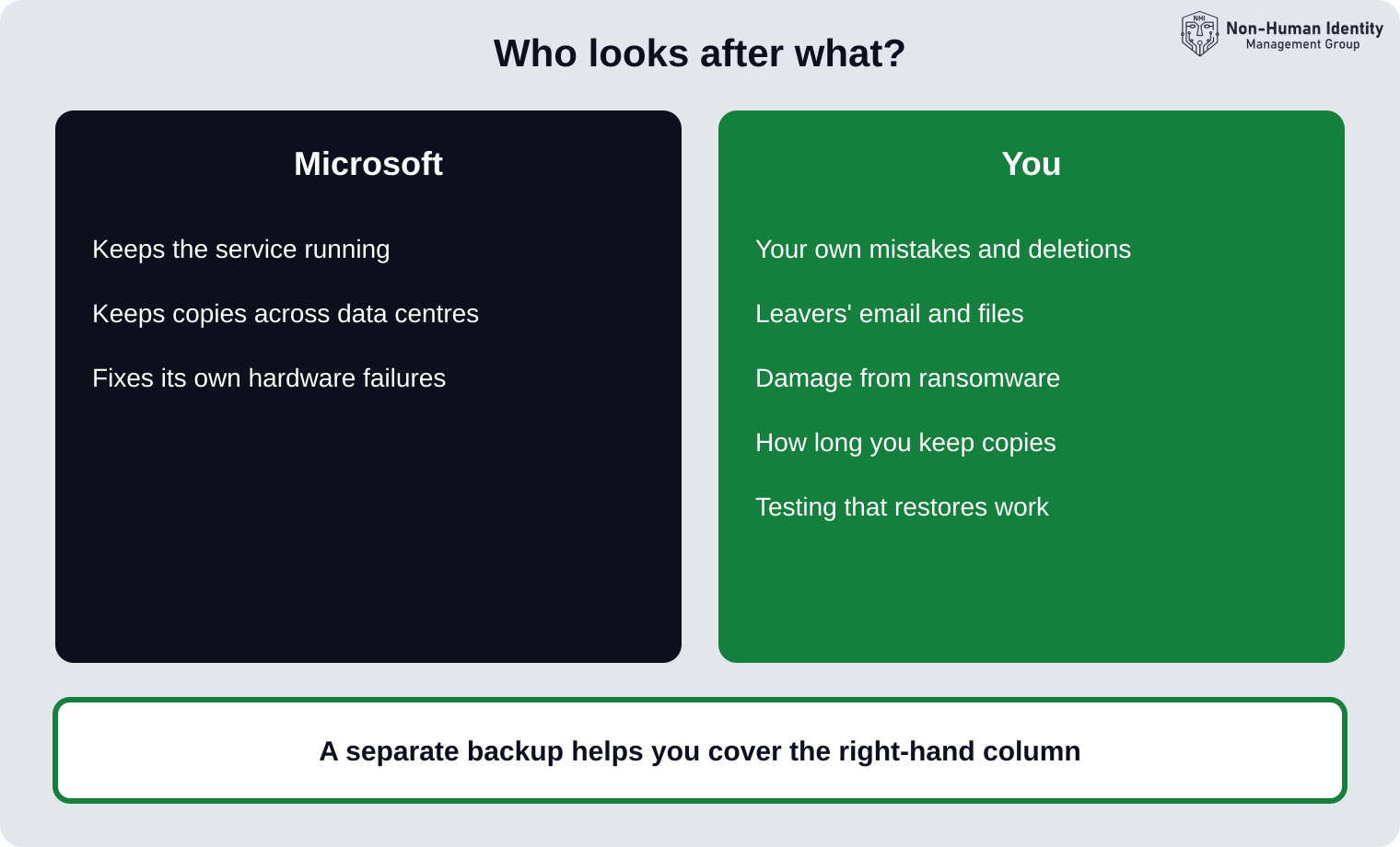
Microsoft 365 is similar. Microsoft runs the service and keeps copies of your data in more than one data centre, so a broken server does not lose it.[3] That protects against Microsoft's problems. It is not designed to undo your own mistakes once the time limits run out.
A backup is a separate copy of your email, OneDrive files, SharePoint sites and Teams files. It keeps older versions, so you can go back to how things were last week or last month.
Where the comparison stops working: a storage unit holds physical things. In Microsoft 365, a deletion or a scrambled file goes straight into the live service. The way back is a copy kept apart.
Why does it matter?
Data in Microsoft 365 can be lost in ordinary ways. Think of a mistake, or a leaver's account removed too soon. Or ransomware: harmful software that locks files and asks for money.
If you run a small business
What could happen: a folder of quotes was deleted four months ago, and nobody noticed until a customer asks for one.
Check this: ask your IT supplier whether you have a backup, and how far back it goes.
If you look after IT in a small team
What could happen: you remove a leaver's account, and their mailbox and OneDrive go with it.
Check this: agree a leaver process that saves their data before the account is removed.
If you manage a team
What could happen: ransomware on one laptop scrambles shared files, and the scrambled files sync back to the team site.
Check this: find out who would restore the files, and how long it would take.
Next: Ransomware for Beginners
What does it look like?
Here is a made-up "Am I covered?" card for a small firm. It compares what the firm has with what it thinks it has.
Example only. All values are made up.
Example Ltd: Microsoft 365 backup check

Email deleted by mistake      bin only, about 14 days     (1)
SharePoint and Teams files    bin only, 93 days           (2)
Leaver's OneDrive             removed with the account    (3)
Separate backup               NONE SET UP                 (4)
Who can delete the backup?    n/a
Last test restore             never                       (5)
- Deleted email can be brought back for a short time only.
- Files in the recycle bins are kept for a fixed period, then removed.
- No copy is kept when a person leaves. In a real file, this line would name the leaver process.
- No separate copy exists, so anything past the time limits is lost.
- Nobody has tried a restore, so nobody knows if one would work.
Why this is risky: the firm relies on bins with short time limits. A slow-to-notice mistake or an attack could leave nothing to restore.
The safer way: set up a separate backup that keeps older versions. Limit who can change or delete it. Test a restore every few months.
How does it work?
Here is what Microsoft 365 keeps on its own, and where a backup comes in.
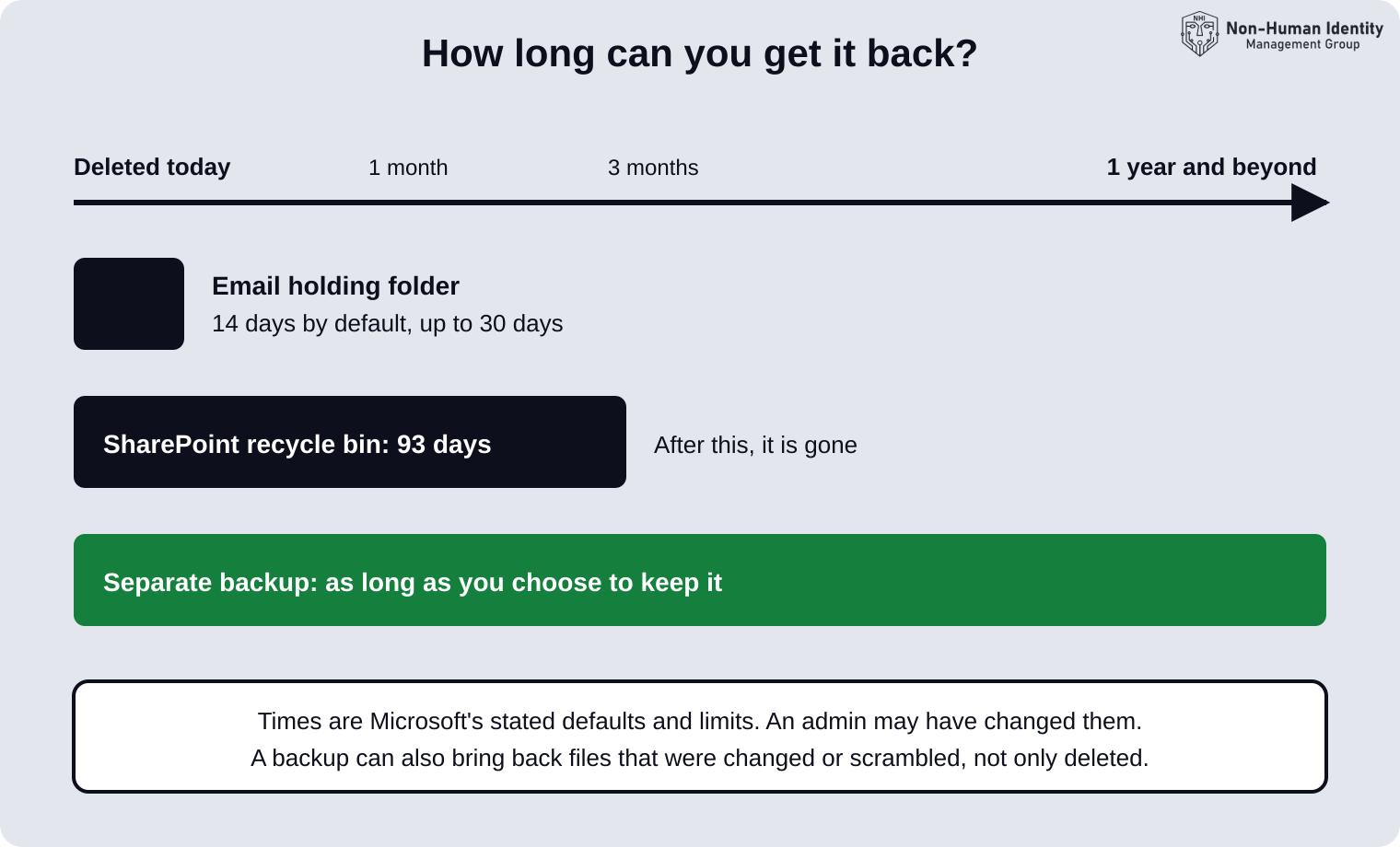
- Deleted email goes to a holding folder. In Exchange Online, the email part of Microsoft 365, deleted items are kept for 14 days by default. An admin can raise this to 30 days.[2]
- Deleted files go to a recycle bin. For SharePoint, deleted items are kept for 93 days from the moment they are deleted, then permanently deleted.[1]
- A backup takes copies on a schedule. It saves restore points (moments you can roll back to) and keeps them apart from the live data.
- You choose how long to keep them. Microsoft's own add-on is called Microsoft 365 Backup. It offers restore points every 10 minutes for the last two weeks. After that, it keeps weekly ones for up to 10 years.[4]
- You restore when needed. You pick a restore point and bring back one mailbox, one site, or chosen files, either in place or to a new location.[4]
Microsoft 365 Backup is a paid, pay-as-you-go add-on, charged by how much data you protect.[5] Many other firms sell backup for Microsoft 365 too. Whichever you choose, the ideas on this page apply.
A note for Google Workspace users: the same idea applies. Google says its Vault tool, used to keep and search data for legal reasons, is not designed to be a backup or archive tool.[7] See How to back up Google Workspace mail, Drive and settings.
A worked example
This story is made up to show how it can happen.
Amara Fairweather runs Thistle Kitchens, a kitchen fitting firm with 12 staff. All quotes, plans and customer emails live in Microsoft 365. Amara assumed Microsoft backed everything up.
In March a customer disputes a bill. Amara needs the signed design plan from last autumn. It was in a project folder that a fitter tidied away in November. The recycle bin no longer has it, because more than 93 days have passed.
She calls the firm's IT supplier. They confirm the firm has no separate backup. The plan is gone, and the dispute takes weeks to settle.
Amara decides it will not happen twice. With the supplier, she lists what the firm cannot work without: email, quotes, design plans and the accounts folder. The supplier sets up a backup for mailboxes, OneDrive and the SharePoint sites.
They agree to keep copies for seven years, to match how long the firm keeps its records. Only the supplier and Amara can change the backup settings, and both use two-step sign-in (a second check, such as a code on a phone).
A month later they run a test. The supplier restores a deleted folder from three weeks earlier to a new location. It works, and Amara writes down how long it took.
They also add one line to the leaver checklist: check the backup holds the person's mailbox and files before the account is removed.
Myths and mistakes
| What people think | What is true |
|---|---|
| Microsoft backs up everything for me. | Microsoft keeps the service running and keeps copies across data centres.[3] Bringing back your own deleted data is limited by the bins' time limits. |
| The recycle bin is a backup. | It holds deleted items for a set time, then they are removed.[1] |
| Synced files on my laptop are a backup. | Syncing copies changes and deletions both ways. A scrambled or deleted file can sync too. |
| Once backup is set up, we are done. | Check it covers new sites and new staff, and test a restore every few months.[6] |
| Anyone in IT should be able to change the backup. | Keep the list short and use two-step sign-in, so one stolen account cannot delete the backups. |
What can I do this week?
- Ask your IT supplier one question: "If a folder was deleted six months ago, could we get it back?"
- List the email and files your business could not work without.
- Check what happens to a leaver's mailbox and OneDrive in your firm.
- Find out who can change or delete your backups, and make sure they use two-step sign-in.
- Book a test restore of one folder or mailbox.
Checklist
- We know how long deleted email and files stay in the bins.
- We have a separate backup for email, OneDrive, SharePoint and Teams files.
- The backup keeps copies for as long as our business needs.
- New staff and new sites are added to the backup.
- Leavers' data is checked in the backup before their account is removed.
- Only a few named people can change or delete the backup.
- Those people use two-step sign-in.
- We have tested a restore in the last six months.
Common questions
Does Microsoft back up my Microsoft 365 data?
Partly. Microsoft keeps copies across data centres so its own failures do not lose your data. Your deleted items are kept only for set periods, such as 93 days for SharePoint files. For longer or fuller recovery, you need a separate backup.
What is the difference between a recycle bin and a backup?
A recycle bin holds deleted items for a limited time, then they are removed. A backup is a separate copy with older versions, kept for as long as you set. It can also bring back files that were changed or scrambled, not only deleted.
Do I need to buy something extra?
Usually, yes, if you want a true backup. Microsoft sells an add-on called Microsoft 365 Backup, and many other firms sell backup for Microsoft 365. Compare what each one covers, how long it keeps copies and how restores work.
What should a small business back up first?
Start with what you cannot work without. The UK National Cyber Security Centre suggests backing up all the data your business needs to operate, such as emails, documents, invoicing and customer details.[6] In Microsoft 365, that usually means mailboxes, OneDrive and SharePoint.
How often should we test a restore?
Regularly, and at least before you rely on it. The NCSC advises knowing how to restore your backups before you need them.[6] Many small firms test one folder or mailbox every few months and note how long it took.
Where next?
Ready for the detail? Read the practitioner guide: Microsoft 365 Backup. It goes further into backup policies, restore point choices and protecting the apps and admins that run your backup.
Also useful:
- The 3-2-1-1-0 Backup Rule Explained
- Backup Security for Beginners
- Microsoft 365 Security for Beginners
- How to back up Google Workspace mail, Drive and settings
Related NHI Mgmt Group resources: Backup and Recovery Testing Checklist · Backup Identity Isolation Guide · Backup and Recovery Policy Template
Key terms
- Backup
- A separate copy of data, with older versions, that you can restore if the original is lost or damaged.
- Recycle bin
- A holding area that keeps deleted items for a limited time before they are removed.
- Retention policy
- A rule that says how long data must be kept, often for legal or business reasons.
- Restore point
- A saved moment in time that you can roll data back to.
- Recovery point objective
- How much recent work a business can afford to lose, measured in time.
- The way security duties are split between a cloud provider and its customer.
- Immutable backup
- A backup that cannot be changed or deleted for a set time, even by an admin.
Sources and further reading
- Restore items in the recycle bin of a SharePoint site. Microsoft Support, Microsoft. https://support.microsoft.com/en-us/office/restore-items-in-the-recycle-bin-of-a-sharepoint-site-6df466b6-55f2-4898-8d6e-c0dff851a0be, accessed 28 Nov 2026.
- Recoverable Items folder in Exchange Online. Microsoft Learn, Microsoft. https://learn.microsoft.com/en-us/exchange/security-and-compliance/recoverable-items-folder/recoverable-items-folder, accessed 28 Nov 2026.
- Overview of Microsoft 365 Backup. Microsoft Learn, Microsoft. https://learn.microsoft.com/en-us/microsoft-365/backup/backup-overview, accessed 28 Nov 2026.
- Restore data in Microsoft 365 Backup. Microsoft Learn, Microsoft. https://learn.microsoft.com/en-us/microsoft-365/backup/backup-restore-data, accessed 28 Nov 2026.
- Microsoft 365 Backup pricing model. Microsoft Learn, Microsoft. https://learn.microsoft.com/en-us/microsoft-365/backup/backup-pricing, accessed 28 Nov 2026.
- Backing up your data. Small organisations guide to cyber security, National Cyber Security Centre (UK). https://www.ncsc.gov.uk/collection/small-organisations-guide-to-cyber-security/backing-up-your-data, accessed 28 Nov 2026.
- Google Vault FAQ. Google Workspace Admin Help, Google. https://knowledge.workspace.google.com/vault/getting-started/google-vault-faq, accessed 28 Nov 2026.