Microsoft Purview is Microsoft's set of tools for finding, labelling, protecting and keeping an organisation's data.
This guide is for new IT staff, students and small business admins who use Microsoft 365. You do not need to be a security expert to be affected: if your firm stores files in OneDrive, SharePoint, Teams or Outlook, Purview settings may decide what can be shared and how long it is kept.
This is an independent guide from NHI Mgmt Group, based on Microsoft's public documentation as of November 2026. It is not sponsored or reviewed by Microsoft. Product features change, so confirm settings against Microsoft's current documentation.
In short
- Purview is a family of tools, not one switch. Three are the place to start: labels, data loss prevention and retention.
- Sensitivity labels mark a file or email as, say, Confidential, and can lock it so only the right people open it.
- Data loss prevention (DLP) spots things like card numbers and warns or blocks before they are shared.
- Retention keeps what you must keep and deletes what you no longer need. It is not a backup.
What you will learn
- Explain what Microsoft Purview is in one sentence.
- Spot the difference between a sensitivity label and a retention label.
- Check what a DLP warning is telling you before you override it.
- Ask the right first questions before turning Purview on.
- Sensitivity stamp (sensitivity label)
- a tag on a file or email that says how private it is and can add protection.
- Leak checker (data loss prevention, DLP)
- rules that look for private details and warn or block before they leave.
- Keep-or-delete rule (retention)
- a setting that says how long content is kept and when it is deleted.
What is Microsoft Purview?
Think of a company post room. Staff stamp each envelope Private or Public. The post room checks outgoing mail for things that should not leave. Old files go to the archive on a schedule.
Microsoft Purview does those jobs for data in Microsoft 365. Microsoft describes it as a set of tools to govern, protect and manage data, grouped into data security, data governance and data compliance.[1]
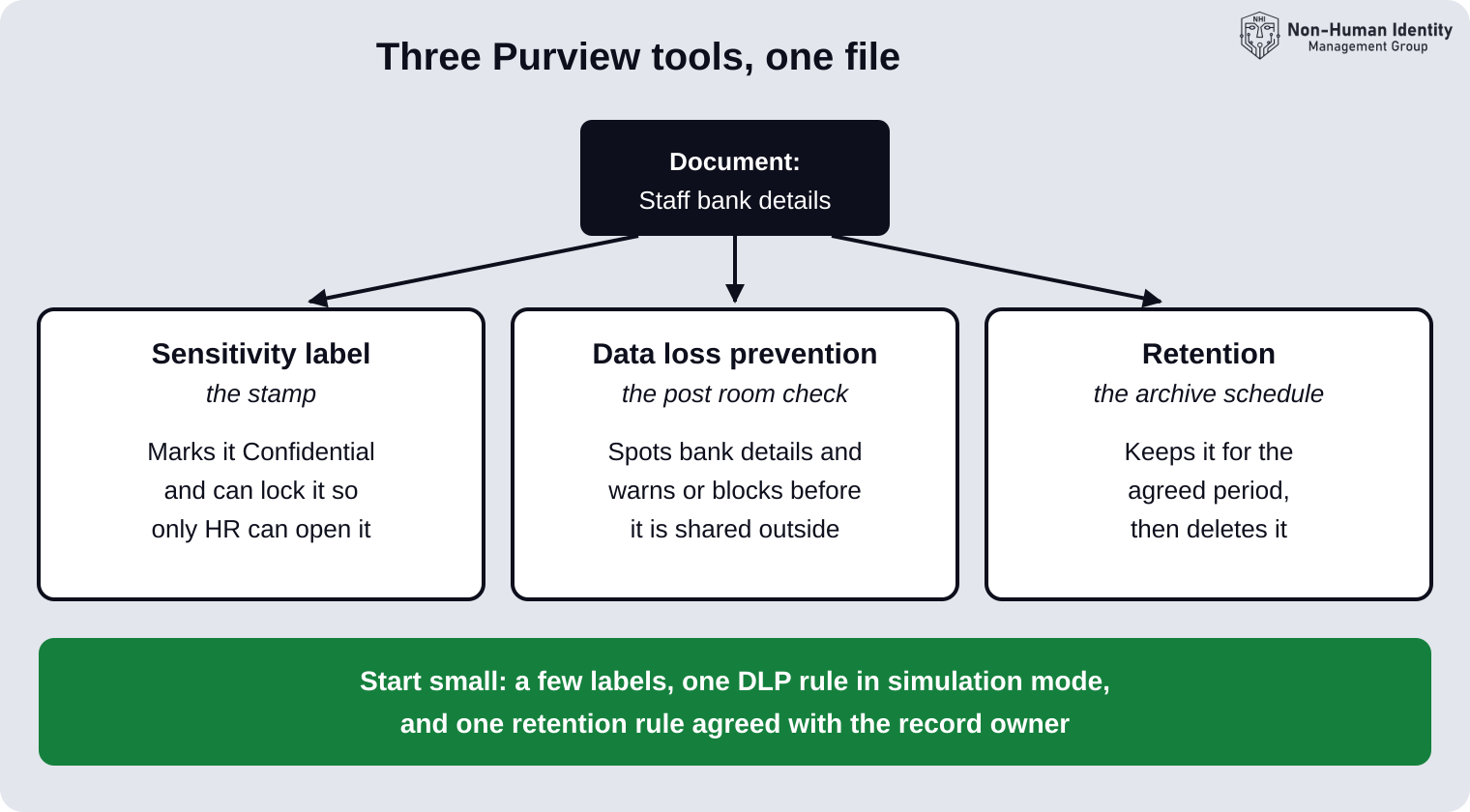
There are many tools in the family. For a beginner, three matter most:
- Sensitivity labels, the stamp. They mark how private something is, and can lock it.
- Data loss prevention, the post room check. It looks for private details before they are shared.
- Retention, the archive schedule. It decides how long things are kept and when they are deleted.
Where the comparison stops working: a stamp on an envelope can be peeled off. A sensitivity label is stored inside the file, so it stays with the file wherever it is saved.[2]
Why does it matter?
Most firms now keep their files, chats and email in the cloud, and sharing is a click away. Purview helps make sure private files reach only the right people, and that records are kept for as long as the rules say.
If you run a small business on Microsoft 365
What could happen: a staff list with bank details is shared by link with "anyone", and nobody notices.
Check this: ask your IT partner whether any DLP or label rules are switched on.
If you are new to IT work
What could happen: you set a delete rule on a whole site and remove files the firm was meant to keep.
Check this: ask who decides how long each kind of record must be kept.
If you handle customer or patient data
What could happen: you click past a warning and send private details to the wrong person.
Check this: read the warning, check the address and remove what is not needed.
What does it look like?
Here is a made-up warning, the kind a DLP rule can show in Outlook when an email holds card details.
Example only. All values are made up.
To:      [email protected]                          (1)
Subject: Payment details for the EXAMPLE order
Label:   Confidential                                (2)
Body:    Card number 0000 0000 0000 0000, exp 00/00  (3)

[!] Policy tip: this message contains a card number.   (4)
    Remove it, or click Override and give a reason.    (5)
- An outside address. The rule is set to check mail leaving the firm.
- The sensitivity label someone chose for this email.
- In a real message, this line would contain a customer's card number.
- The policy tip: Purview's warning that the rule found something.
- Some rules let you go ahead with a reason. The reason is recorded.[3]
Why this is risky: card details sent by email can be copied, forwarded and kept in many inboxes. Clicking Override without thinking defeats the point of the warning.
The safer way: take the card number out and use the firm's payment system instead. If you really must override, give an honest reason, because it is logged.
How does it work?
Here is how the three main tools usually fit together.
- Decide the labels. An admin creates a short list, such as Public, General, Confidential and Highly Confidential.[2]
- Apply the labels. Staff pick a label in Word, Excel, Outlook and other Office apps, or Purview suggests or applies one when content matches set rules.[2] A label can lock the file (encryption, scrambling it so only allowed people can open it) or add a header or watermark.
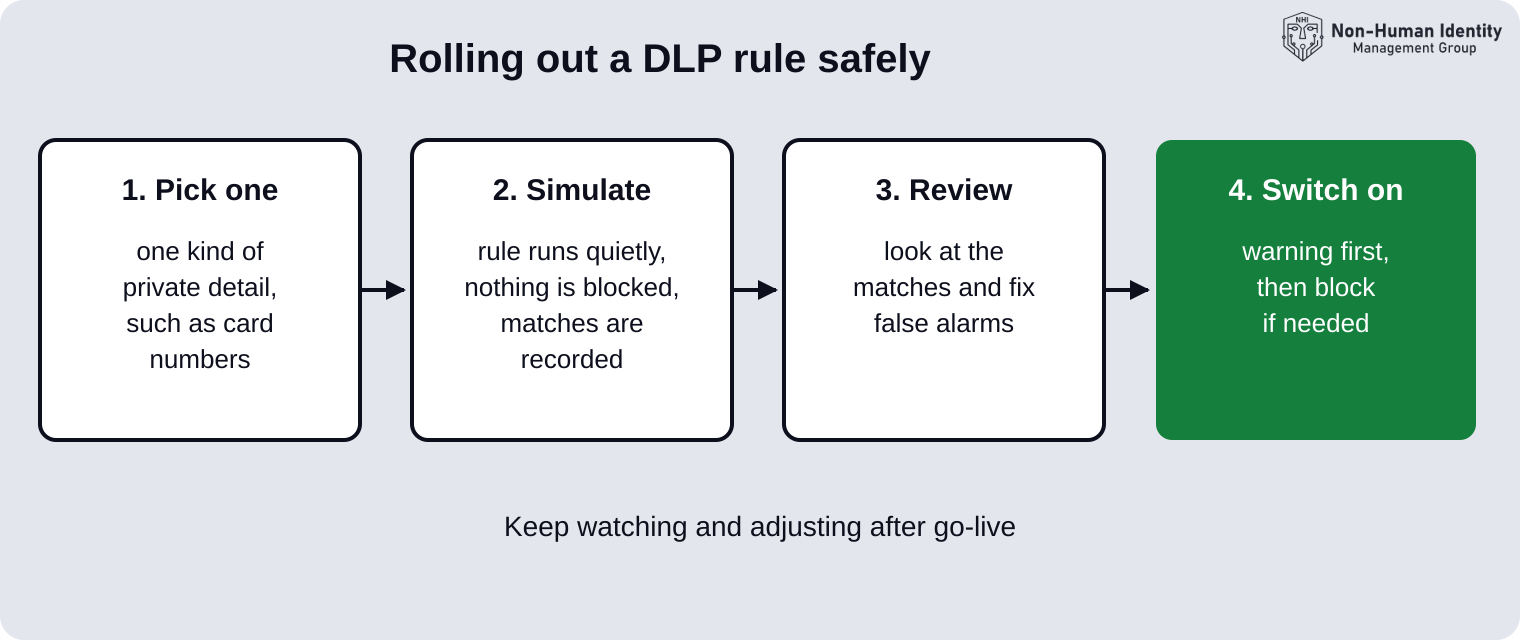
- Check what leaves. DLP rules look for private details, such as card or health numbers, in email, OneDrive, SharePoint, Teams and devices. They can warn, block, or allow an override with a reason.[3]
- Try it quietly first. Microsoft advises running new DLP rules in simulation mode, which records what would happen without acting, before turning them on.[3]
- Keep or delete on schedule. Retention policies cover a whole location, such as a mailbox or site. Retention labels cover single items. If two rules clash, keeping wins over deleting.[4]
A worked example
Quinn Tanaka looks after IT for Fern Dental, a fictional practice with three surgeries. The practice manager, Darius Okafor, has asked for help after a near miss.
Last month a receptionist almost emailed a patient list to the wrong address. She spotted it just in time. Darius wants to know if Microsoft 365 can help.
Quinn thinks of the post room. First, the envelopes need stamps. She creates three labels: General, Confidential and Patient Data. Patient Data locks the file so only practice staff can open it.
Next, she sets up one DLP rule for email leaving the practice. It looks for patient details and shows a warning. She runs it in simulation mode for two weeks. The results show many false alarms from a supplier's invoices, so she adjusts the rule.
Then she turns the rule on, with a warning and an override that needs a reason. After a month she reviews the overrides with Darius. Most have sensible reasons.
Last, she asks Darius how long patient records must be kept. He checks the professional guidance and gives her an answer in writing. Only then does she set a retention rule.
She tells the team that labels and warnings are a safety net, not a replacement for care. In the records available to her, no patient data has left by email since.
Myths and mistakes
| What people think | What is true |
|---|---|
| Purview is one product you switch on. | It is a family of tools. Start with one or two and add more as you learn. |
| Retention is our backup. | Retention is for keeping records for rules and legal needs. Microsoft does not describe it as a general backup.[4] |
| A label is just a sticker. | A label can also lock the file and add markings, and it travels with the file.[2] |
| Turn on blocking from day one to be safe. | Untested rules can block real work. Run them in simulation mode first.[3] |
| A delete rule always removes content on time. | If another rule says keep, keeping wins, and the longest keep period applies.[4] |
What can I do this week?
- Ask your IT team or partner which Purview tools are already in use.
- Write down the three or four labels your firm would need.
- Pick one kind of private detail, such as card numbers, for a first DLP rule.
- Ask record owners how long key records must be kept, in writing.
Checklist
- A short list of sensitivity labels exists, with a plain meaning for each.
- Staff know how to choose a label in Office apps.
- New DLP rules run in simulation mode before they block anything.
- Overrides of DLP warnings are reviewed regularly.
- Retention periods are agreed with the record owners, in writing.
- Nobody treats retention as a backup.
- Only a few named admins can change labels, DLP and retention settings.
Common questions
What is Microsoft Purview used for?
It is used to protect, label and manage an organisation's data, mainly in Microsoft 365. Microsoft groups its tools into data security, data governance and data compliance. Beginners usually start with sensitivity labels, data loss prevention and retention.[1]
What is the difference between a sensitivity label and a retention label?
A sensitivity label says how private something is and can lock it. A retention label says how long an item is kept and what happens after that. They do different jobs, and one item can carry both. Microsoft documents them as separate features.[2][4]
Can people outside my firm see our labels?
Not in their apps. Microsoft says people from other organisations and guests cannot see your sensitivity labels in apps. The label is stored in the file's details, though, so other tools can read it. Any lock the label added still applies.[2]
Is Microsoft Purview retention a backup?
No. Retention keeps content for rules and legal needs, and hides kept copies from most users. Microsoft presents it as a compliance tool. For getting lost data back after an attack or mistake, use a proper backup as well.[4]
What happens when I override a DLP warning?
The message or file is shared, and your reason is recorded. Microsoft says DLP activity is logged for review. Admins may look at overrides later to tune the rules or follow up, so give an honest, clear reason.[3]
Where next?
Ready for the detail? Read the practitioner guide: Microsoft Purview Information Protection Guide. It goes further into admin roles, the scanner and service accounts, and the logs that show labels and DLP are working.
Also useful:
- Microsoft Purview Retention Policies and Labels Guide
- Data Classification for Beginners
- Data Loss Prevention for Beginners
- Microsoft 365 Security for Beginners
Related NHI Mgmt Group resources: Microsoft Purview Message Encryption Guide · Microsoft Purview Communication Compliance Guide · Data Loss Prevention (DLP) Guide
Key terms
- Sensitivity label
- A tag on a file, email or site that says how private it is and can add protection.
- Data loss prevention
- Rules and tools that spot private details and warn or block before they are shared.
- Retention policy
- A rule that keeps or deletes everything in a location, such as a mailbox or site, after a set time.
- Retention label
- A tag on a single item that says how long to keep it and what happens next.
- Data classification
- Sorting data into groups by how sensitive it is.
- Data lifecycle
- The stages data goes through, from creation to use, keeping and deletion.
Sources and further reading
- Learn about Microsoft Purview. Microsoft Learn, Microsoft. https://learn.microsoft.com/en-us/purview/purview, accessed 28 Nov 2026.
- Learn about sensitivity labels. Microsoft Learn, Microsoft. https://learn.microsoft.com/en-us/purview/sensitivity-labels, accessed 28 Nov 2026.
- Learn about data loss prevention. Microsoft Learn, Microsoft. https://learn.microsoft.com/en-us/purview/dlp-learn-about-dlp, accessed 28 Nov 2026.
- Learn about retention policies and retention labels. Microsoft Learn, Microsoft. https://learn.microsoft.com/en-us/purview/retention, accessed 28 Nov 2026.