Nessus is a tool that checks computers for known security weak spots and lists what it finds.
This guide is for students, home lab builders and people new to IT work who have met Nessus on a course or in a job advert. You do not need to be a security expert: if you look after even a few computers, a scan report shows you which ones need updates first.
In short
- Nessus compares your devices with a large, regularly updated list of known flaws, then reports each match with a severity level.
- Scan only devices you own or have written permission to test.
- A scan that signs in to the device sees much more than a scan from the outside, so that account needs careful handling.
- Read the report by asking which findings are serious, reachable and fixable, not by working down the list from the top.
What you will learn
- Explain what Nessus does in one sentence.
- Describe the steps from a first scan to a finished report.
- Spot which findings on a report deserve attention first.
- Check that you have permission before you scan anything.
- Weak spot (vulnerability)
- a flaw in software or settings that an attacker could use.
- Weak spot finder (vulnerability scanner)
- a tool that checks devices against lists of known flaws and reports matches.
- Signed-in scan (credentialed scan)
- a scan where the tool uses an account to look inside the device.
This is an independent guide from NHI Mgmt Group, based on Tenable's public documentation as of November 2026. It is not sponsored or reviewed by Tenable. Product features change, so confirm settings against Tenable's current documentation.
What is Nessus?
Think of a building surveyor with a long printed checklist. They walk round the house, tick each item and write a report: loose roof tile, old wiring, damp in the cellar.
Nessus does the same job for computers. It is made by a company called Tenable. You give it a list of devices, such as laptops, servers or a home router. It checks each one against thousands of known problems and writes up what it finds.
Each check is a small program that Tenable calls a plugin. A plugin holds the test for one flaw, a short description and a suggested fix. Tenable says it has published more than 500,000 of them.[6]
There is a free version called Nessus Essentials. As of November 2026, Tenable says it is free for students, hobbyists and other non-commercial users. It covers up to 5 IP addresses (the number that identifies each device on a network). Some features, such as reports and exports, are left out.[1]
Where the comparison stops working: a surveyor can see damp with their own eyes. Nessus only finds problems it has a check for, so a new or unusual flaw may not show up at all.
Why does it matter?
Attackers often look for devices with known, unfixed flaws. A scan helps you find those devices before someone else does.
If you are a student or building a home lab
What could happen: you scan a network that is not yours. That can break the rules of your course, your employer or the law.
Check this: scan only your own lab machines, or devices you have written permission to test.
If you are new to an IT or security team
What could happen: your first report lists hundreds of findings, and you spend days on the wrong ones.
Check this: ask how your team ranks findings before you start fixing.
If you manage a small team
What could happen: the account the scanner uses has wide access, and nobody owns it or changes its password.
Check this: give the scan account a named owner and keep its password in a locked store.
What does it look like?
Here is a made-up summary from a small home lab scan. It is shaped like the kind of list Nessus shows, but it is not a copy of the real screen.
Example only. All values are made up.
Scan: home-lab-weekly       Target: 192.0.2.0/29
Host            Critical  High  Medium  Low  Info
lab-web.example     1       2      4     1    30   (1)
lab-db.example      0       1      2     0    25
old-printer.example 0       0      3     2    12   (2)

Finding EX-0001  lab-web  Critical
 "Web server version is out of support"            (3)
 Fix: upgrade to a supported version
Finding EX-0002  old-printer  Info
 "Device answers on a printer port"                (4)
- Each line is one device, with a count of findings at each severity level.
- A device you may have forgotten. Scans often turn these up.
- In a real file, this line would name the software, the flaw and a link to more detail.
- "Info" items are facts about the device, not flaws. They help you understand what is running.
Why this is risky: it is tempting to fix the biggest count first, or to ignore the printer. The single critical item on the web server may matter more than all the rest put together, especially if it faces the internet.
The safer way: look at each serious finding and ask three questions. How bad is it? Can someone reach it? Is a fix available? Then fix, scan again and check the finding has gone.
How does it work?
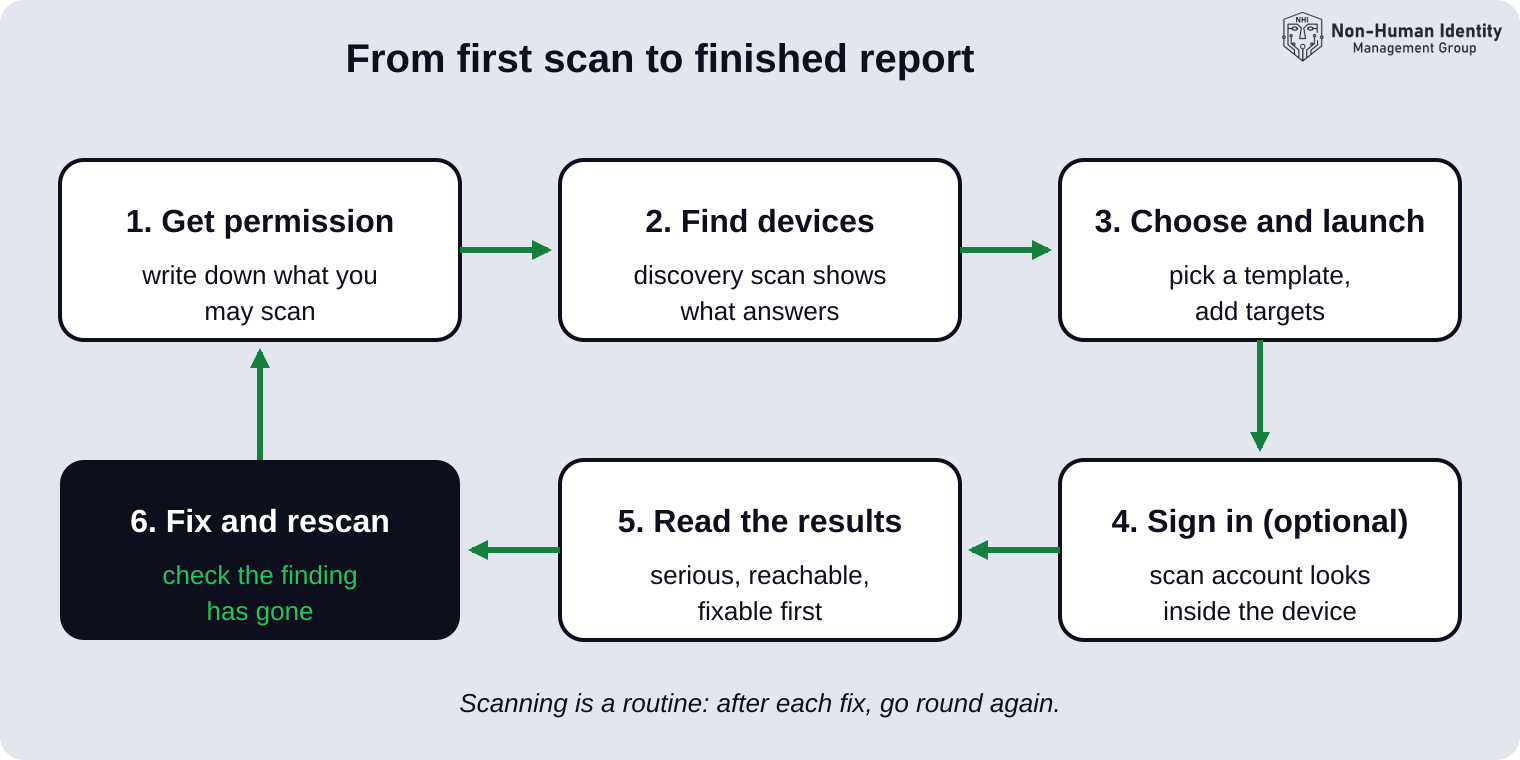
Tenable's own getting started steps follow a simple path.[2]
- Get permission and pick targets. Write down which devices you may scan. In the UK, using a computer to reach another system without permission can be a crime under the Computer Misuse Act.[7]
- Find what is there. A host discovery scan checks which devices answer on the network, so you know what you have.[2]
- Create and launch a scan. You choose a ready-made scan template (a preset list of checks), add the targets and press launch.[2]
- Optionally, let it sign in. In a credentialed scan, Nessus uses an account on the device to look at installed software and updates from the inside. Tenable says this is considerably more accurate on Windows, and the account often needs administrator rights.[3]
- Read the results. Nessus lists the hosts it scanned and the flaws it found, sorted by severity. A remediations view suggests fixes that clear the most findings at once.[5]
- Fix and scan again. A fresh scan is the way to confirm a fix worked.
Severity levels. Nessus labels each finding Critical, High, Medium, Low or Info. The label comes from a standard score for how bad a flaw is, called CVSS (Common Vulnerability Scoring System). A score of 9.0 to 10.0 is Critical on the newer CVSS versions, and 7.0 to 8.9 is High.[4]
Tenable also shows its own score, the Vulnerability Priority Rating (VPR). It runs from 0.1 to 10.0 and estimates how likely a flaw is to be used by attackers. In Nessus the VPR is fixed at scan time, so you rescan to see the latest values.[4]
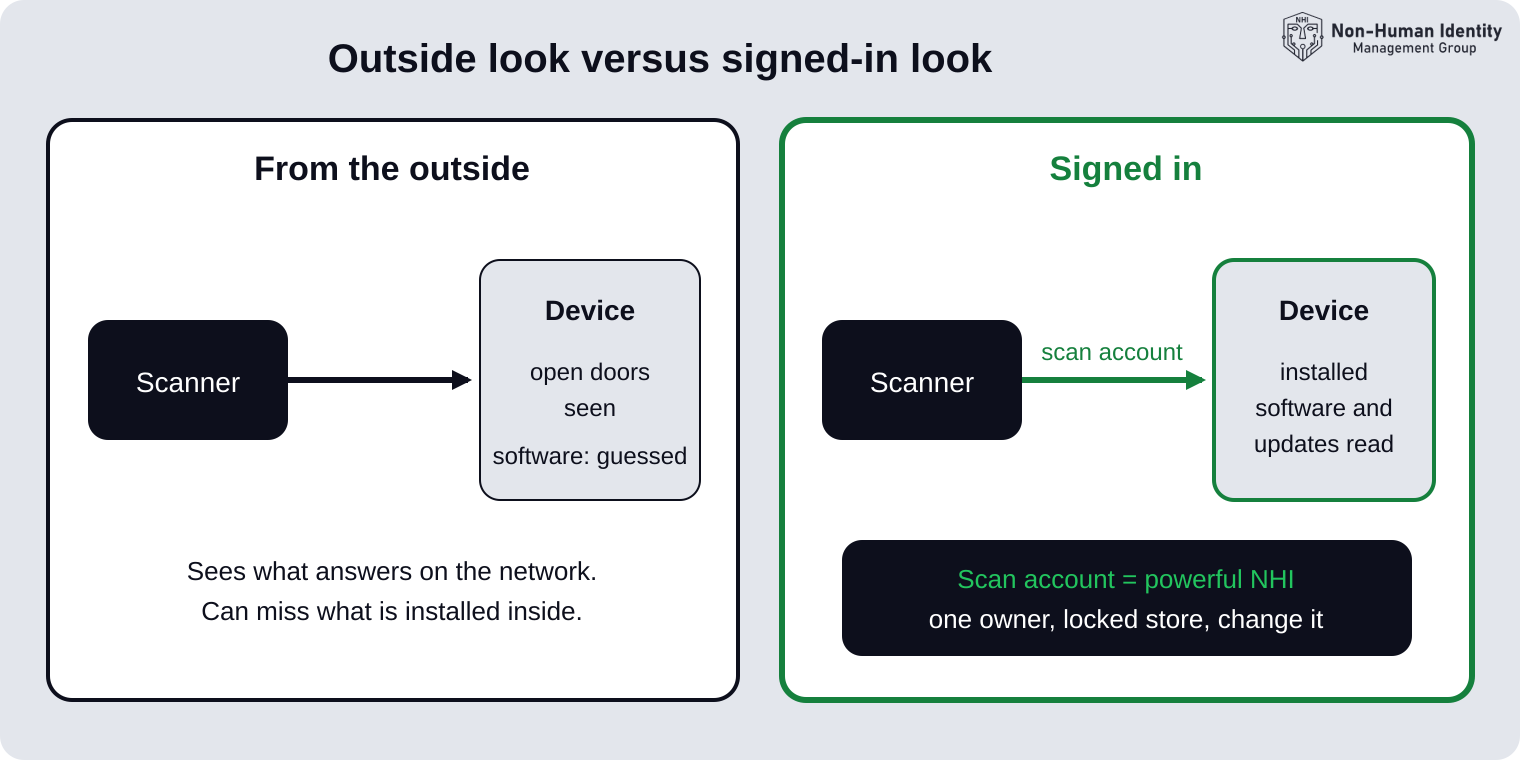
That scan account is a non-human identity (NHI): a digital identity used by software, not a person. It is often powerful, because it may hold administrator rights on many machines. Treat its password like a staff member's admin password, but for software: one owner, a locked store and regular changes.
A worked example
Freya Okafor is studying for her first security qualification. Her course asks for a scan report from her own home lab. She has three old laptops and a small test server on a separate network at home.
She signs up for Nessus Essentials. Her one-line note says she will scan her four lab machines only. She leaves out the family laptop and her housemate's games console, because they are not hers to test.
Her first discovery scan finds five devices, not four. The fifth is an old network printer she had forgotten was plugged in. She adds it to her list.
She runs a basic scan from the outside. The report shows one critical finding on the test server: an old web server version that is no longer supported. It also shows a dozen medium findings and lots of "Info" lines.
Her tutor, Soren Thorne, suggests she try a signed-in scan on one laptop. She creates a separate local account just for scanning, gives it a long password and keeps it in her password manager. The signed-in scan finds several missing updates that the outside scan could not see.
Freya upgrades the web server, installs the laptop updates and scans again. The critical finding has gone. She disables the scan account when the coursework is done. Her report explains what she scanned, what she fixed and what she chose to leave, with a reason for each.
Myths and mistakes
| What people think | What is true |
|---|---|
| A clean report means the device is safe. | It means Nessus found no flaws it has checks for on the devices it could reach. New flaws and missed devices will not appear. |
| Fix the device with the most findings first. | Start with serious findings that someone can reach and that have a fix. One critical item can matter more than many low ones. |
| Scanning any network is fine if I mean no harm. | Intent does not replace permission. Scan only what you own or are allowed in writing to test. |
| Any account will do for a signed-in scan. | Use a separate scan account with a named owner and a strong password, kept in a locked store. Remove it when no longer needed. |
| Every finding is a real problem. | Some findings are false positives (alerts that turn out to be wrong). Check before you spend hours fixing. |
What can I do this week?
- Write down the devices you are allowed to scan, and keep that note with your reports.
- Run a discovery scan on your own lab to see what is really on the network.
- Read one finding in full, including its description and suggested fix.
- Rank your top five findings by how bad they are, whether they can be reached and whether a fix exists.
- After a fix, scan again and confirm the finding has gone.
Checklist
- I have written permission, or ownership, for every device I scan.
- I ran a discovery scan and know which devices are on the network.
- I picked a scan template that fits what I want to check.
- Any scan account is separate, owned by a named person and kept in a locked store.
- I rank findings by severity, reachability and fix, not just by count.
- I rescan after each important fix.
- I record why any finding is left unfixed, with a review date.
Common questions
Is Nessus free?
There is a free version. As of November 2026, Tenable offers Nessus Essentials free for non-commercial users such as students. It covers a small number of devices and leaves out some features. Businesses use paid versions. Check Tenable's site for the current limits before you rely on them.
Can a scan break something?
It can. Scans send a lot of network traffic and some older or fragile devices, such as printers or factory equipment, may not cope. That is one reason to scan with permission, start small, and agree a time with whoever owns the devices.
What is the difference between Nessus and a penetration test?
Nessus checks for known flaws and reports them. A penetration test is a person, with permission, trying to use flaws the way an attacker would, to show what could really happen. A scan is broad and repeatable. A penetration test is deeper and less frequent.
Why does a signed-in scan find more?
From outside, Nessus can only see which services answer and guess what is behind them. With an account, it can read the installed software and updates on the device itself. Tenable says this is considerably more accurate on Windows.
Do I need to know how to code to use Nessus?
No. You set up scans and read reports through a web page. Knowing basic networking helps, such as what an IP address and a port are. The harder skill is deciding which findings matter most and who should fix them.
Where next?
Ready for the detail? Read the practitioner guide: Tenable Vulnerability Management and Nessus. It goes further into scan design, agents alongside network scans, priority scoring and locking down scan accounts and platform access.
Also useful:
- Vulnerability Management for Beginners
- Network Scanning for Beginners
- CVE and CVSS for Beginners
- Cyber Security Home Labs for Beginners
- Vulnerability Scanning Guide
Related NHI Mgmt Group resources: Vulnerability Prioritisation Guide · Patch Management Guide
Key terms
- Vulnerability
- A flaw or weakness in software, settings or design that an attacker could use.
- Vulnerability scanner
- A tool that checks systems against known flaws and reports what it finds.
- Credentialed scan
- A scan that uses an account on the device to look inside it, so it can see more.
- CVSS
- A standard way to score how severe a flaw is, from 0 to 10.
- False positive
- A finding that looks like a problem but turns out not to be one.
- Service account
- An account used by software, such as a scanner, not by a person.
- Plugin (Nessus)
- Tenable's name for one small check that tests for one known flaw.
Sources and further reading
- Nessus Essentials. Tenable. https://www.tenable.com/products/nessus/nessus-essentials, accessed 28 Nov 2026.
- Get Started with Tenable Nessus. Tenable Nessus User Guide, Tenable. https://docs.tenable.com/nessus/Content/GetStarted.htm, accessed 28 Nov 2026.
- Credentialed Checks on Windows. Tenable Nessus User Guide, Tenable. https://docs.tenable.com/nessus/Content/CredentialedChecksOnWindows.htm, accessed 28 Nov 2026.
- Risk Metrics. Tenable Nessus User Guide, Tenable. https://docs.tenable.com/nessus/Content/RiskMetrics.htm, accessed 28 Nov 2026.
- Scan Results. Tenable Nessus User Guide, Tenable. https://docs.tenable.com/nessus/Content/ScanResults.htm, accessed 28 Nov 2026.
- Tenable Plugins. Tenable. https://www.tenable.com/plugins, accessed 28 Nov 2026.
- Computer Misuse Act 1990, section 1. legislation.gov.uk, The National Archives. https://www.legislation.gov.uk/ukpga/1990/18/section/1, accessed 28 Nov 2026.