A cyber security home lab is a small, private set of computers where you can practise safely.
This guide is for anyone learning cyber security, changing career or curious about how attacks and defences work. You do not need special kit to start. One ordinary computer and free software are enough for a first lab.
In short
- A home lab lets you practise on computers you own, so you can learn by doing without harming anyone.
- Most labs run several pretend computers, called virtual machines, inside one real computer.
- Keep the lab cut off from your home network and the internet when you run anything risky.
- Only practise on systems you own or have written permission to test. Testing other people's systems can be a crime.
What you will learn
- Explain what a home lab is and why employers value lab practice.
- Plan a first lab on a computer you already own.
- Check that your lab is kept apart from your home network.
- Choose a first defensive exercise and record what you learn.
- Pretend computer (virtual machine)
- a computer that runs as a program inside your real computer.
- Save point (snapshot)
- a saved copy of a virtual machine's state that you can go back to.
- Practice target (vulnerable by design)
- software built with flaws on purpose so people can learn to find and fix them.
What is a cyber security home lab?
Think of a flight simulator. Pilots practise engine failures and bad weather in it, because a mistake there harms nobody. A home lab is a flight simulator for cyber security.
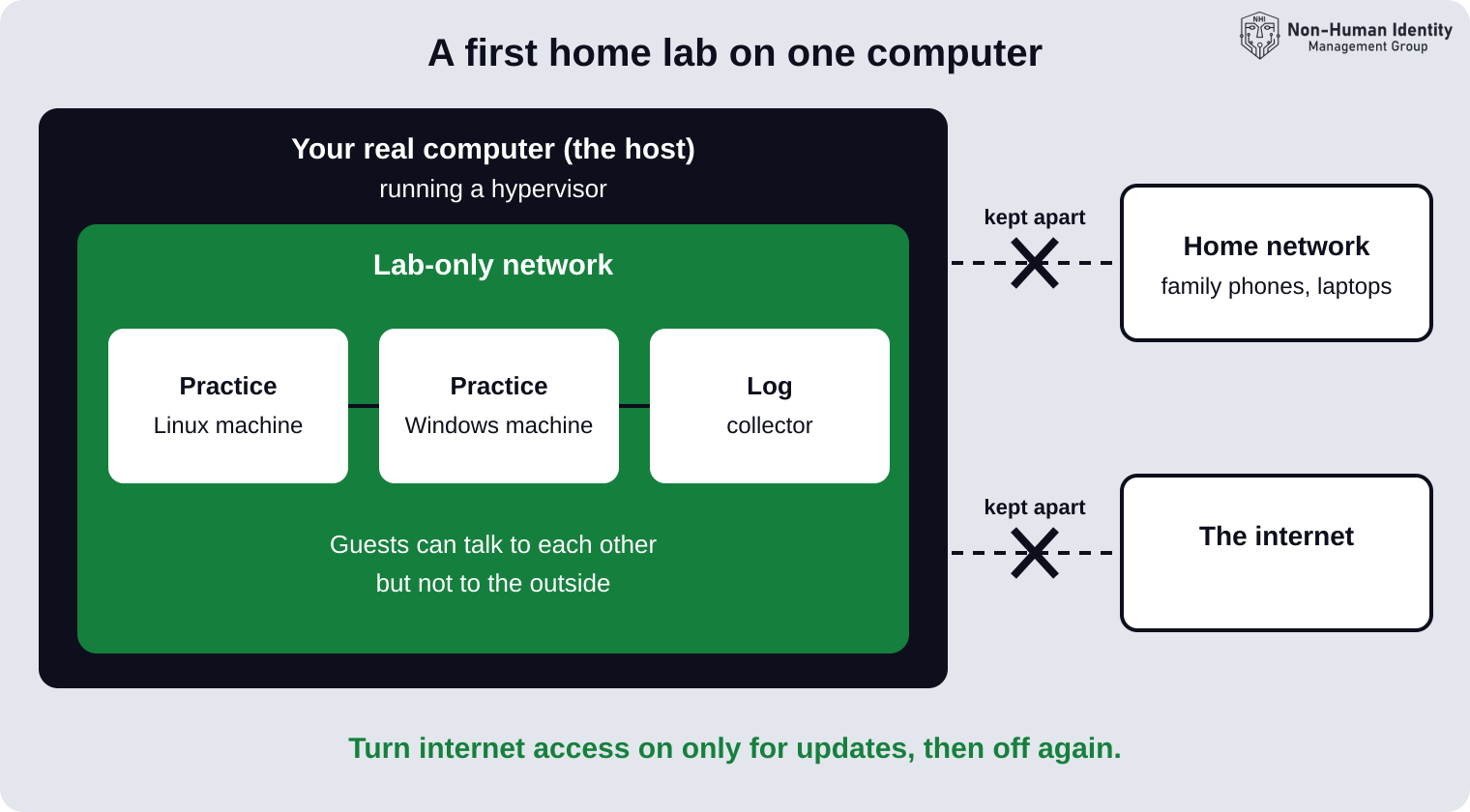
In a lab you set up computers, break them, watch what happens and fix them. Most people do not buy extra computers for this. They use virtual machines, pretend computers that run as programs inside one real computer.
The program that runs them is called a hypervisor. The real computer is called the host, and each pretend computer is a guest.[1] You can save a snapshot of a guest, then go back to it after an exercise goes wrong.[1]
Where the comparison stops working: a flight simulator cannot crash a real plane. A badly set up lab can touch your real home network, so you have to build the walls yourself.
Why does it matter?
Reading about security only goes so far. A lab lets you see real logs, real warnings and real fixes on your own screen. It also gives you things to talk about in an interview.
If you are changing career
What could happen: you finish a course but struggle to show what you can do.
Check this: keep short notes on each lab exercise, with what you tried and what you found.
If you are a student
What could happen: you try a tool you saw online against a real website and break the law without meaning to.
Check this: point practice tools only at machines inside your own lab.
If you already work in IT
What could happen: you test a change on a live system because there is nowhere else to try it.
Check this: build a small copy of the setup in your lab and try the change there first.
What does it look like?
Here is a made-up plan for a first lab on one laptop.
Example only. All values are made up.
LAB PLAN: lab-EXAMPLE-01
Host: my own laptop, 16 GB memory               (1)
Guest 1: practice Linux machine   network: LAB-ONLY   (2)
Guest 2: practice Windows machine network: LAB-ONLY
Guest 3: log collector            network: LAB-ONLY   (3)
Internet for guests: OFF, except for updates  (4)
Snapshot: "clean-start" taken before each exercise (5)
Accounts: lab-user / FAKE-pass-0000 (lab only)  (6)
- The host computer. Many people start with the one they already own.
- Each guest is on a lab-only network, so it can reach the other guests but not your home network.
- A machine that gathers records from the others, so you can practise spotting trouble.
- Turn the internet on only when you need updates, then turn it off again.
- A save point you can go back to after each exercise.
- Lab passwords are made up and used nowhere else. In a real file, this line would contain a password you never reuse.
Why this is risky: one wrong network setting matters. A practice machine full of known flaws could then sit on your home network, next to your family's phones.
The safer way: check each guest's network setting before you start it. Then test that it cannot reach your home network or the internet.
How does it work?
Here is a simple way to build your first lab, one step at a time, on a computer you already own.
- Check your computer. Most free hypervisors run on a normal laptop or desktop, and more memory lets you run more guests at once.
- Install a hypervisor. Free options exist for Windows, Mac and Linux, so download one from its official site only.
- Create a lab-only network. Hypervisors offer different network modes. An internal network mode lets guests talk to each other but not to the host or the internet.[2]
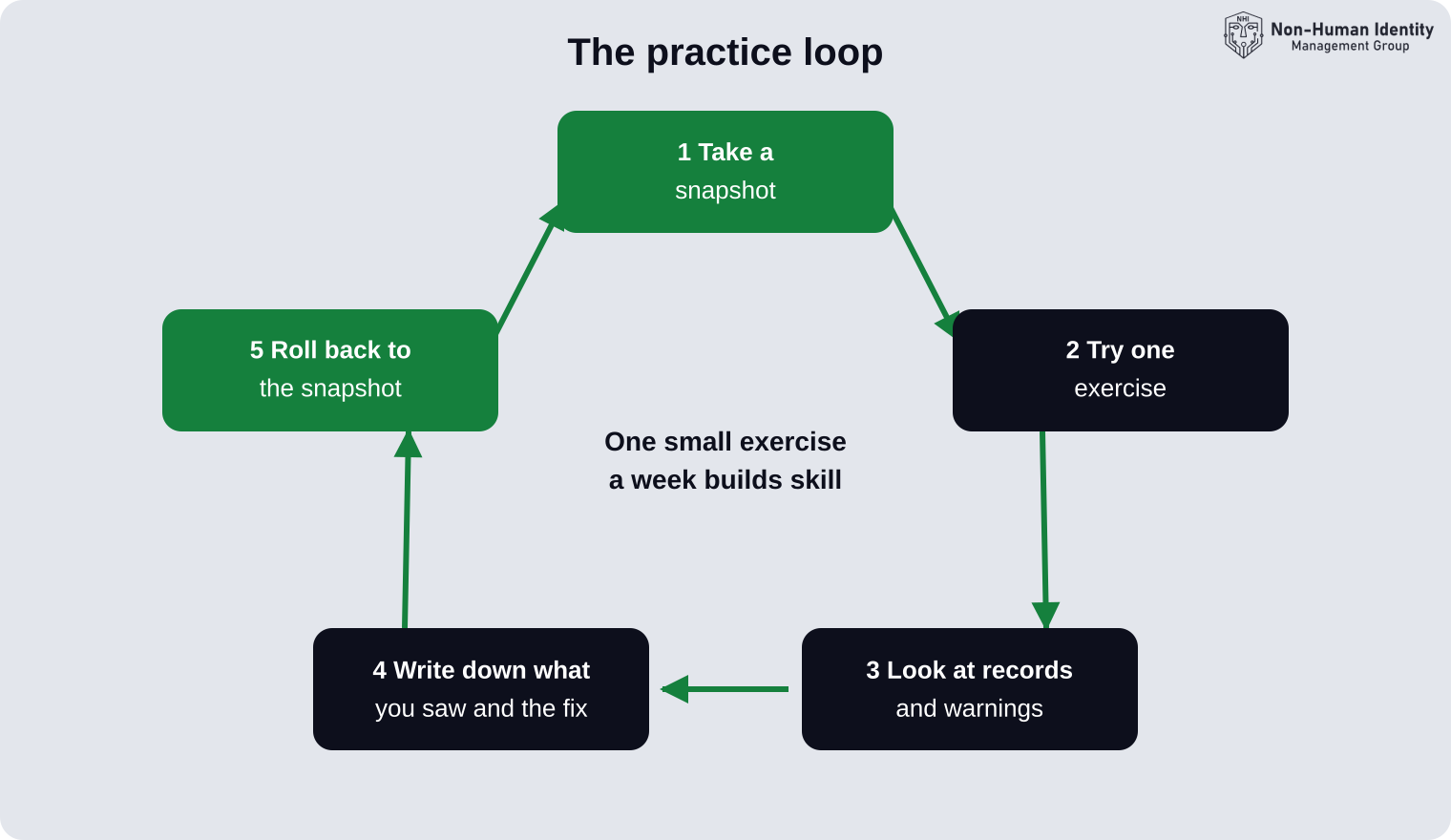
- Add your guests. Start with one ordinary machine and one practice target, and take a snapshot before you change anything.
- Practise and write it down. Try one exercise, look at the records it leaves, then roll back to the snapshot.
Good first exercises are defensive. For example, turn on logging on a guest, sign in with a wrong password five times, then find those failed sign-ins in the records. Then you know what that looks like when it happens for real.
Practice targets help too. OWASP, a non-profit that works on web app security, offers Juice Shop, a deliberately insecure web shop for training.[3] Run targets like this inside the lab-only network, never on a machine others can reach.
A worked example
This story is made up to show how it can happen.
Ula Kazlauskas works in a call centre in Vilnius and is studying for a career in cyber security. Her course talks about logs and alerts, but she has never seen one.
She decides to build a lab on her own laptop. She installs a free hypervisor from its official site and creates two guests: a practice Linux machine and a small log collector.
Before she starts either guest, she sets both to an internal network. Then she checks. From the Linux guest she tries to reach a website and her home router. Both fail, which is what she wants.
She takes a snapshot called "clean-start". Then she turns on logging and types a wrong password five times on purpose. On the log collector she finds five failed sign-in records, each with a time.
Next she changes a setting so the machine locks the account after three failed tries. She repeats the test and sees the lock in the records.
She writes half a page of notes: what she did, what the records showed and what the fix changed. Then she rolls back to "clean-start", ready for next week.
A month later, an interviewer asks how she would spot someone guessing passwords. Ula describes her lab test step by step.
What made the difference: Ula kept the lab apart from her home network, started with one small defensive exercise and wrote down what she learned.
Myths and mistakes
| What people think | What is true |
|---|---|
| I need expensive kit to build a lab. | Many people start with one computer they already own and free software. |
| Practising on a real website is fine if I do not cause damage. | Getting into a computer without permission can be a crime, even with no damage. In the UK this falls under the Computer Misuse Act.[4] Practise only on systems you own or have written permission to test. |
| A lab is only for learning to attack. | Defensive work, such as reading logs, hardening and spotting trouble, is a large part of most security jobs and is easy to practise in a lab. |
| The default network setting is safe. | Some modes connect guests to your home network or the internet. Check the setting for each guest, then test it.[2] |
| Free cloud accounts are always free. | Free tiers have limits, and some services can start charging. Set a spending alert before you build anything in the cloud. |
What can I do this week?
- Check how much memory and free disk space your computer has.
- Install a free hypervisor from its official site.
- Create one guest on a lab-only network and test that it cannot reach your home network.
- Take a snapshot, try one logging exercise and roll back.
- Start a simple notes file for your lab work.
Checklist
- I only practise on machines I own or have written permission to test.
- Every guest uses a lab-only network unless I need updates.
- I have tested that guests cannot reach my home network.
- I take a snapshot before each exercise.
- My lab passwords are made up and not used anywhere else.
- I download tools and practice targets from official sources only.
- I keep notes on each exercise.
Common questions
Do I need a powerful computer for a home lab?
Not to start. A normal laptop can usually run one or two small guests at once. More memory lets you run more machines together. Many people begin with what they have and add an older second-hand computer later if they need it.
Is building a hacking lab legal?
In general, yes. Building and using a lab on your own equipment is usually fine. Laws on computer misuse focus on whose systems you touch and whether you had permission. Practise only on machines you own or have written permission to test, and keep practice tools inside the lab.
What should my first exercise be?
Pick something small and defensive. Turn on logging on a guest, make a few failed sign-ins on purpose, then find them in the records. It teaches you what normal and unusual activity look like, which helps in almost any security role.
Can I build a lab in the cloud instead?
Yes, but take care. Cloud labs save you buying hardware, but they sit on the internet and can cost money. Set a spending alert first, use strong sign-in on the account and switch machines off when you finish.
Will a home lab help me get a job?
It can help. Employers often ask what you have done, not only what you have read. Clear notes on lab exercises give you real examples to talk about. A lab works best alongside courses or certifications, not instead of them.
Where next?
Ready for the detail? Read the practitioner guide: Building a Cybersecurity Home Lab. It goes further into hardware options, network isolation and snapshot habits, a build order for a defensive lab, and exercises that build detection skill.
Also useful:
- Cyber Security Certifications for Beginners
- Penetration Testing for Beginners
- Security Logging for Beginners
- Linux Security for Beginners
Related NHI Mgmt Group resources: Security Operations Centres for Beginners · System Hardening for Beginners · What Is Cyber Security? A Beginner's Guide to Protecting People, Data and Systems
Key terms
- Home lab
- A small, private set of real or virtual computers where you can practise security safely.
- Virtual machine
- A computer that runs as software inside a real computer, with its own operating system.
- Hypervisor
- Software that creates and runs virtual machines on a real computer.
- Snapshot
- A saved copy of a virtual machine's state that you can return to later.
- Network isolation
- Keeping a group of machines on their own network so they cannot reach others.
- Vulnerable by design
- Software built with flaws on purpose so people can practise finding and fixing them.
- Logging
- Keeping records of what happens on a computer, such as sign-ins and errors.
Sources and further reading
- Oracle VirtualBox User Guide: Introduction (components, host and guest; snapshots). Oracle. https://www.virtualbox.org/manual/topics/Introduction.html, accessed 28 Nov 2026.
- Oracle VirtualBox User Guide: Virtual Networking (NAT, internal networking and host-only modes). Oracle. https://www.virtualbox.org/manual/topics/networkingdetails.html, accessed 28 Nov 2026.
- OWASP Juice Shop. OWASP Foundation. https://owasp.org/www-project-juice-shop/, accessed 28 Nov 2026.
- Computer Misuse Act 1990, section 1 (unauthorised access to computer material). legislation.gov.uk, The National Archives. https://www.legislation.gov.uk/ukpga/1990/18/section/1, accessed 28 Nov 2026.