Ransomware warning signs are the clues attackers often leave before they lock your files.
This guide is for anyone who looks after computers at work, or who wants to know what to watch for. You do not need to be technical to help: an odd sign-in alert or a missing backup, reported quickly, can give your team time to act.
In short
- Many ransomware attacks are run by people who get in, look around and prepare before they lock any files.
- That preparation can leave clues: strange sign-ins, new remote access tools, security software switched off and backups deleted.
- Large amounts of data leaving the network can be a sign that files are being stolen first.
- Report odd signs straight away. Acting during the build-up is far easier than recovering afterwards.
What you will learn
- Explain why ransomware often gives warning before files are locked.
- Spot the common signs that an attack may be building.
- Check that someone would notice if backups or security tools stopped.
- Ask who to tell, and how, when something looks wrong.
- File-locking attack (ransomware)
- harmful software that scrambles files and demands payment to unlock them.
- Early clue (warning sign)
- activity that often comes before the files are locked, such as backups being deleted.
- Moving around (lateral movement)
- an attacker spreading from the first computer they reach to others on the network.
What are ransomware warning signs?
Think of a storm building. Before it breaks, the sky darkens, the wind picks up and the birds go quiet. If you notice, you can get inside in time.
Many ransomware attacks build up in a similar way. People, not just automatic software, break in, look around and prepare. Microsoft calls these "hands-on-keyboard" attacks that usually target whole organisations rather than one device.[1]
While they prepare, the attackers often steal passwords, move from computer to computer and try to gain more power.[1] Each step can leave a clue. Those clues are the warning signs.
Where the comparison stops working: a storm is the same for everyone and you can see it coming. An attacker tries to hide, often using normal tools so their actions look like everyday IT work. The signs are easier to miss, so someone has to look for them on purpose.
Why does it matter?
Once files are locked, recovery can take days or weeks. Spotting the build-up gives you a chance to act while the damage is still small. US government guidance also warns that an attack may be a sign of an earlier break-in that was never fully cleaned up.[2]
If you run a small business
What could happen: your IT supplier sees a backup failure, but nobody follows it up until the files are locked.
Check this: ask your supplier who watches for alerts, and how quickly they tell you.
If you are new to IT or security work
What could happen: an alert that security software was switched off sits unread over a weekend.
Check this: learn which alerts need a call straight away, not an email or a ticket.
If you use a computer at work
What could happen: you get a sign-in alert you did not expect, ignore it, and an attacker keeps using your account.
Check this: report any sign-in or security alert you did not cause, even if it seems small.
Next: Ransomware for Beginners
What does it look like?
Here is a made-up list of alerts from one week at a small firm. Each line on its own might look minor. Together they tell a story.
Example only. All values are made up.
MON 02:14  Sign-in to remote access from a new country, user FAKE-staff01   (1)
MON 02:40  New remote control tool installed on PC-EXAMPLE-07                (2)
TUE 23:05  Account FAKE-staff01 added to the admin group                    (3)
WED 01:30  Security software stopped on 6 computers                         (4)
WED 03:10  40 GB sent from FILE-SERVER-EXAMPLE to an unknown cloud site      (5)
THU 00:50  Backup job failed: old backup copies deleted                     (6)
- In a real screen, this line would show the account name and the place the sign-in came from.
- Attackers often install normal remote control tools so they can come back.
- An everyday account suddenly gets admin powers.
- Security tools being switched off on many computers at once is rarely innocent.
- A large upload may mean data is being stolen before the files are locked.
- Deleting backups makes it harder to recover without paying.
Why this is risky: if each alert is handled alone, or not at all, the attackers keep working. In this made-up case, the next step could be locking every file.
The safer way: someone reviews alerts every day, links related ones together and treats lines 3 to 6 as urgent. They call the person on duty at once, even at night.
How does it work?
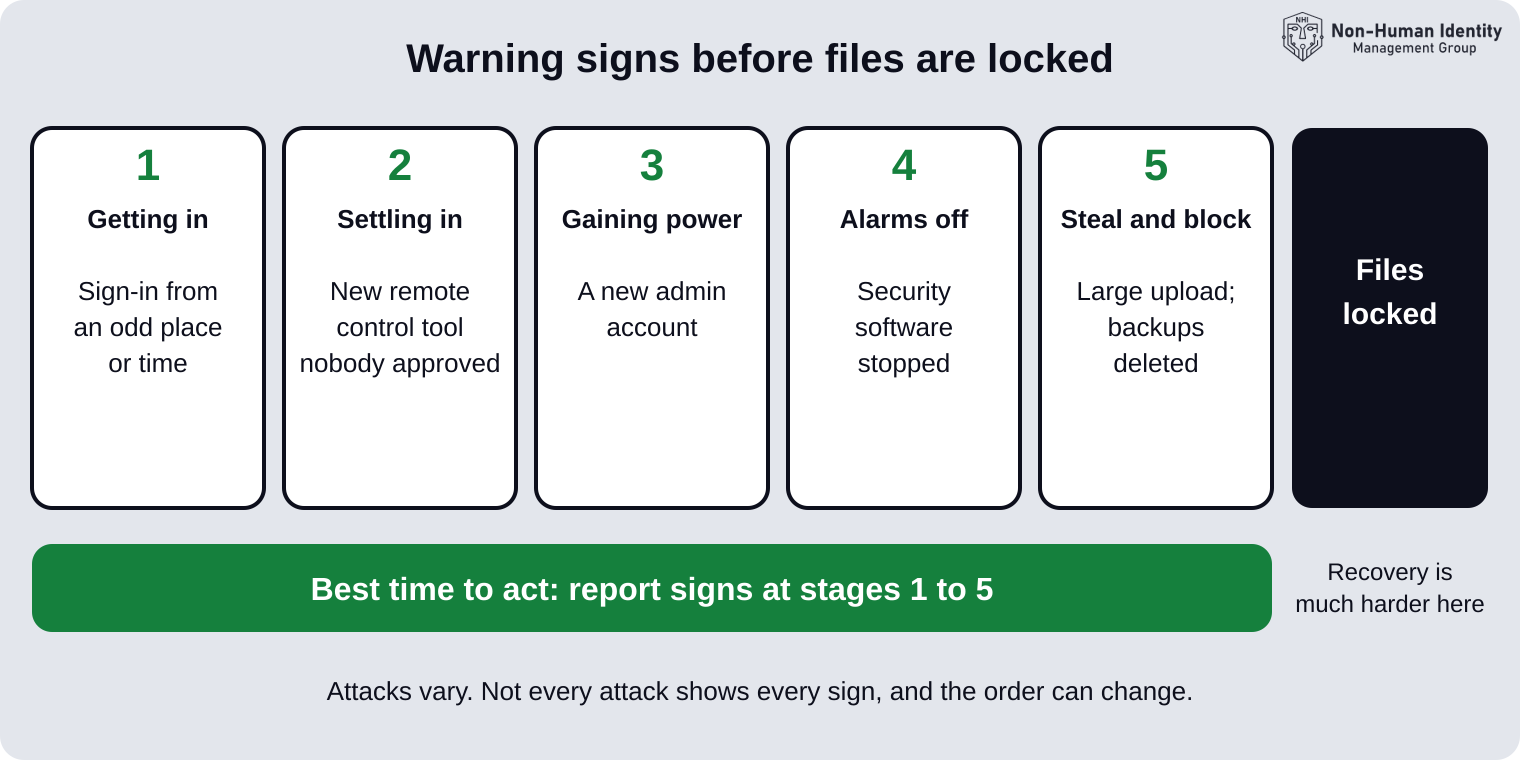
Attacks vary, but many follow a similar path.[1] Each stage has its own warning signs.
- Getting in. Attackers often use stolen passwords, fake emails or computers that were not updated.[3] Watch for sign-ins at odd times or from odd places.
- Settling in. They may install remote control tools so they can return.[3] Watch for new tools that IT did not approve.
- Looking around and gaining power. They steal more passwords and move between computers.[1] Watch for new admin accounts and unusual connections.
- Turning off the alarms. Some groups switch off antivirus and other security tools.[3] Treat this as urgent.
- Stealing and blocking recovery. Many groups copy data out first, and try to delete backups.[2] Watch for large uploads and failed backup jobs.
- Locking the files. Only now are the files scrambled. By this stage, the earlier signs have often been missed.
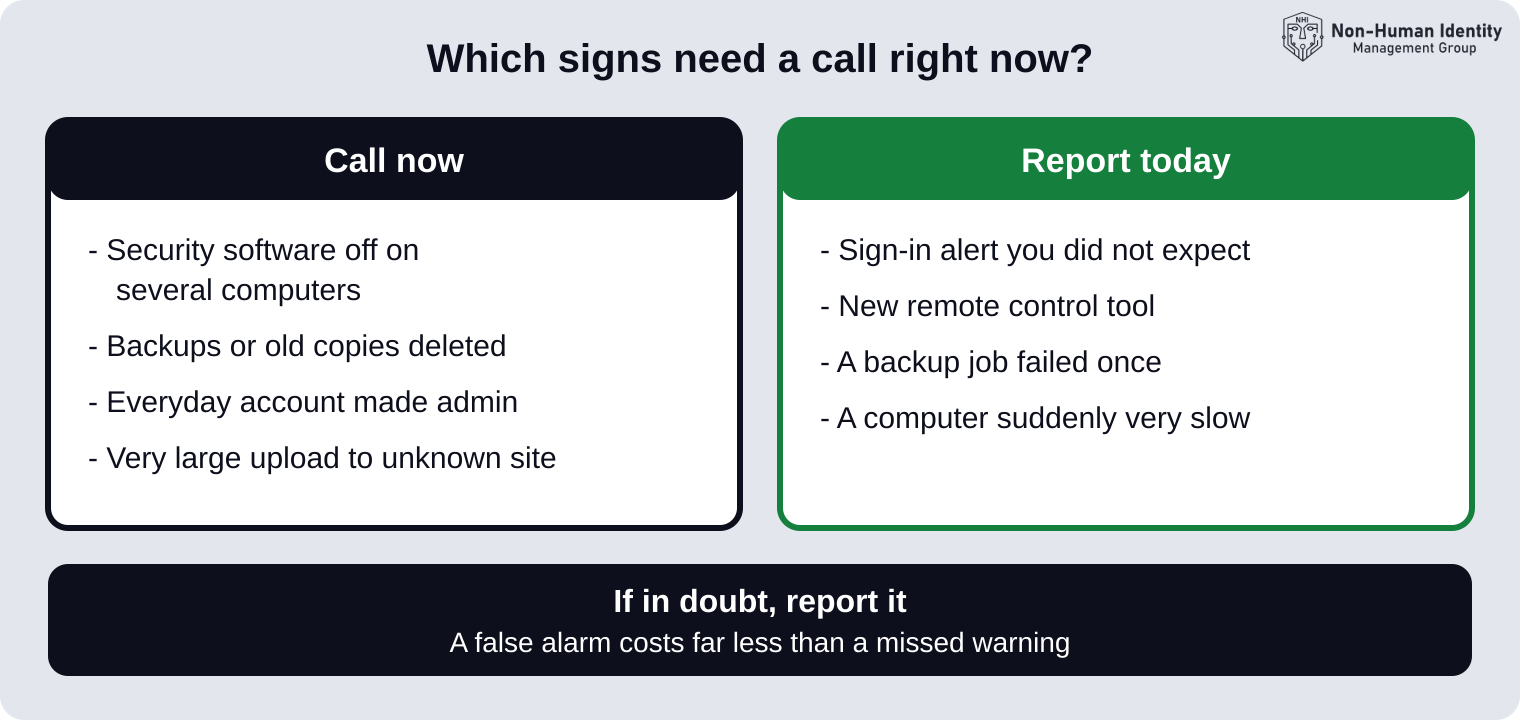
Some signs are more urgent than others. The figure below sorts them.
A worked example
Dario Zamora manages the office at a small accountancy firm. Umar Engel looks after its IT two days a week.
On Tuesday morning, Dario gets an email from the backup service: "Backup failed. Older copies removed." He has seen backup failures before, and nearly lets it go.
Then he remembers a short talk Umar gave the team. Umar said that a backup being deleted is one of the signs to report at once. Dario calls him.
Umar logs in to the firm's security dashboard. He sees that security software was switched off on four computers overnight. He also sees that a staff account was made an admin late on Sunday, from a place nobody in the firm has visited.
Umar follows the firm's plan. He disconnects the affected computers from the network and resets the staff member's password. Then he calls the firm's incident response provider, a specialist company the firm pays to help in an emergency.
The provider finds that the attackers had copied some files out but had not yet locked anything. The firm restores the deleted backups from an offline copy kept in another building. With the provider's help, it also tells its clients and reports the attack to the authorities.
It is still a hard week. But because Dario reported one odd email, the firm keeps trading. Later, Umar sets the system to phone him, not just email, when backups are deleted or security tools stop.
Myths and mistakes
| What people think | What is true |
|---|---|
| Ransomware strikes all at once, with no warning. | Many attacks are run by people who spend time inside first. That build-up often leaves clues. |
| A failed backup is just a technical glitch. | It might be. But attackers often target backups, so a failure deserves a check, not a shrug. |
| If the antivirus is installed, we are covered. | Some attackers switch security tools off. Someone needs to notice when that happens. |
| Reporting something that turns out to be harmless wastes time. | A false alarm costs minutes. A missed warning can cost weeks. Good teams thank people for reporting. |
| Small firms are not worth an attacker's time. | Attackers often look for weak spots, not big names. Small firms can be easier to get into. |
What can I do this week?
- Find out who receives your security and backup alerts, and how fast they read them.
- Ask whether anyone would be told if security software stopped on a computer.
- Check that at least one backup copy is kept offline or separate from the network.
- Write down who to call, day or night, if something looks wrong.
- Tell your team that reporting an odd sign-in or alert is always welcome.
Checklist
- Someone reviews security alerts every day.
- Alerts for stopped security software go to a person, not just an inbox.
- Failed or deleted backups are checked the same day.
- New admin accounts are reviewed by a second person.
- Only approved remote access tools are allowed.
- At least one backup is kept offline and tested.[2]
- Staff know how to report an odd sign-in or alert.
- There is a written plan for who to call, including out of hours.
Common questions
How long do attackers wait before locking files?
It varies a great deal from one attack to the next. Some move quickly, while others stay hidden for much longer. Microsoft describes the attackers looking around, stealing passwords and spreading first, so there is often some time to notice the signs and act.
What is the most urgent warning sign?
Signs that someone is removing your safety nets. Security software being switched off on several computers, or backups being deleted, are rarely innocent. Treat them as urgent and call the person on duty straight away, rather than sending an email that may not be read for hours.
Can I spot these signs without special tools?
Some of them. Anyone can notice an unexpected sign-in alert, a backup failure email or a computer that suddenly runs very slowly. Linking signs across many computers usually needs security tools and trained people, which is what an IT supplier or a managed security service can provide.
What should I do if I see a warning sign?
Report it straight away to your IT team or supplier, using the contact in your plan. Say what you saw and when. Do not try to investigate or clean up yourself, because you might destroy evidence or alert the attacker. Let the people with the right tools decide.
Do attackers steal data as well as locking it?
Often, yes. US government guidance describes attackers copying data and threatening to publish it unless the victim pays. This is why a large, unexpected upload from your network is a warning sign in its own right, even if no files have been locked.
Where next?
Ready for the detail? Read the practitioner guide: Ransomware Early Warning Signs. It goes further into the logs and tools that show each stage, which alerts should wake someone up, and how teams test whether they would catch an attack in time.
Also useful:
- How to Hunt for Ransomware Precursors
- Ransomware for Beginners
- Backup Security for Beginners
- Ransomware Response and Recovery Guide
Related NHI Mgmt Group resources: Ransomware Prevention Guide · Ransomware Readiness Checklist · Threat Hunting for Beginners
Key terms
- Ransomware
- Harmful software or an attack that blocks access to files or systems and demands payment.
- Initial access
- The first way an attacker gets into a network, such as a stolen password.
- Lateral movement
- An attacker spreading from the first computer they reach to other systems.
- Data exfiltration
- Copying data out of a network to a place the attacker controls.
- Double extortion
- Locking files and also threatening to publish stolen data, to push the victim to pay.
- Shadow copies
- Saved earlier versions of files that Windows can use for recovery, often deleted by attackers.
- EDR
- Security software on computers that watches for harmful activity and helps teams respond.
Sources and further reading
- What is human-operated ransomware? Microsoft Learn, Microsoft. https://learn.microsoft.com/en-us/security/ransomware/human-operated-ransomware, accessed 28 Nov 2026.
- #StopRansomware Guide. Cybersecurity and Infrastructure Security Agency (CISA) and partners. https://www.cisa.gov/stopransomware/ransomware-guide, accessed 28 Nov 2026.
- #StopRansomware: Medusa Ransomware (AA25-071A). FBI, CISA and MS-ISAC joint advisory, 12 March 2025. https://www.cisa.gov/news-events/cybersecurity-advisories/aa25-071a, accessed 28 Nov 2026.