Secure Boot and a TPM chip help a computer check that its start-up code has not been tampered with.
This guide is for anyone who uses a laptop or PC and has seen these words in a settings screen or an upgrade message. You do not need to be technical to benefit: if your business hands out laptops, these two features help protect the data on them if one is lost or tampered with.
In short
- Secure Boot checks each piece of start-up code for a trusted digital signature before it runs, and refuses code it does not trust.
- A TPM is a small security chip that keeps keys safe and records what loaded during start-up.
- Together they make it harder for hidden harmful code to load before Windows and your security tools.
- Check both are turned on, keep updates on, and save your disk recovery key before changing any start-up setting.
What you will learn
- Explain what Secure Boot and a TPM do, in plain words.
- Check whether they are turned on for your computer.
- Spot the start-up changes that can make your computer ask for a recovery key.
- Ask your IT team or supplier the right questions about them.
- Start-up code (firmware)
- the built-in software that wakes up the computer before Windows or macOS loads.
- Start-up check (Secure Boot)
- a setting that lets only start-up code with a trusted signature run.
- Security chip (TPM)
- a small chip that keeps keys safe and records how the computer started.
What are Secure Boot and a TPM?
Think of a theatre stage door. The guard only lets in people whose names are on the signed cast list. Secure Boot is that guard for the code that starts your computer.
When you press the power button, the computer runs its firmware, the built-in start-up code stored on the main board. That code then loads a start-up loader, which loads the core of the operating system. With Secure Boot turned on, each step checks the next one for a trusted digital signature. That is a mark that proves who made the code and that nobody changed it.[1] If the signature is missing or wrong, that code is not started.
A TPM, short for Trusted Platform Module, is a small security chip on the computer's board. Think of it as a tiny safe with a logbook. It keeps secret keys in a way that is hard to copy out, and it records what loaded during start-up.[2] Windows features such as BitLocker disk encryption and Windows Hello sign-in use it.[2]
Where the comparison stops working: a stage door guard can be talked round. Secure Boot settings live in the firmware, and Microsoft says ordinary software cannot change them; a person has to change them in the firmware settings.[1] But the guard is only as good as its list, so the list itself needs updates.
Why does it matter?
Harmful code that loads before Windows can hide from tools that start later. These two features make that much harder.
If you use a laptop at home
What could happen: with Secure Boot off, changed start-up code is more likely to load before your antivirus.
Check this: look in Windows Security under Device security to see what your computer reports.
Next: Malware for Beginners
If you run a small business
What could happen: a lost laptop without disk encryption can have its drive read in another computer.
Check this: ask your IT supplier whether every laptop uses disk encryption backed by the TPM, and where recovery keys are kept.
Next: Encryption for Beginners
If you are new to IT work
What could happen: a firmware change made without the recovery key can lock a user out of their laptop.
Check this: confirm the recovery key is saved before you update firmware or change start-up settings.
What does it look like?
Here is a made-up summary screen. Windows and PC makers show similar ones.
Example only. All values are made up.
Device summary: EXAMPLE-LAPTOP-0000
Start-up mode ........ UEFI                   (1)
Secure Boot .......... Off                    (2)
Security processor ... TPM 2.0, ready         (3)
Disk encryption ...... Off                    (4)
Recovery key saved ... No                     (5)
- UEFI is the modern kind of firmware. Secure Boot needs it.
- Secure Boot is turned off, so start-up code is not being checked.
- A TPM is present and ready. Windows 11 expects version 2.0.
- The disk is not encrypted, so a lost drive could be read elsewhere.
- In a real screen, this line would tell you where your recovery key is kept.
Why this is risky: the chip is there but not used well. Start-up code goes unchecked. The data on the disk is not locked.
The safer way: save the recovery key first. Then you or your IT team can turn on Secure Boot and disk encryption.
How does it work?
- The firmware starts. On many modern PCs the firmware is itself checked for a signature before it runs.[1]
- Secure Boot checks the start-up loader. The firmware runs the loader only if it was signed with a certificate on its trusted list, or a person approved it.[1]
- Windows checks itself. The loader checks the signature on the core of Windows, which then checks drivers and start-up files. A changed file is refused.[1]
- The TPM keeps a record. As each part loads, a fingerprint of it, called a hash, is written into the TPM. This is called measured boot.[1]
- The record is used. Disk encryption can ask the TPM to release its key only when start-up looks as expected. Work systems can also check the signed record before letting a laptop onto the network.[1][2]
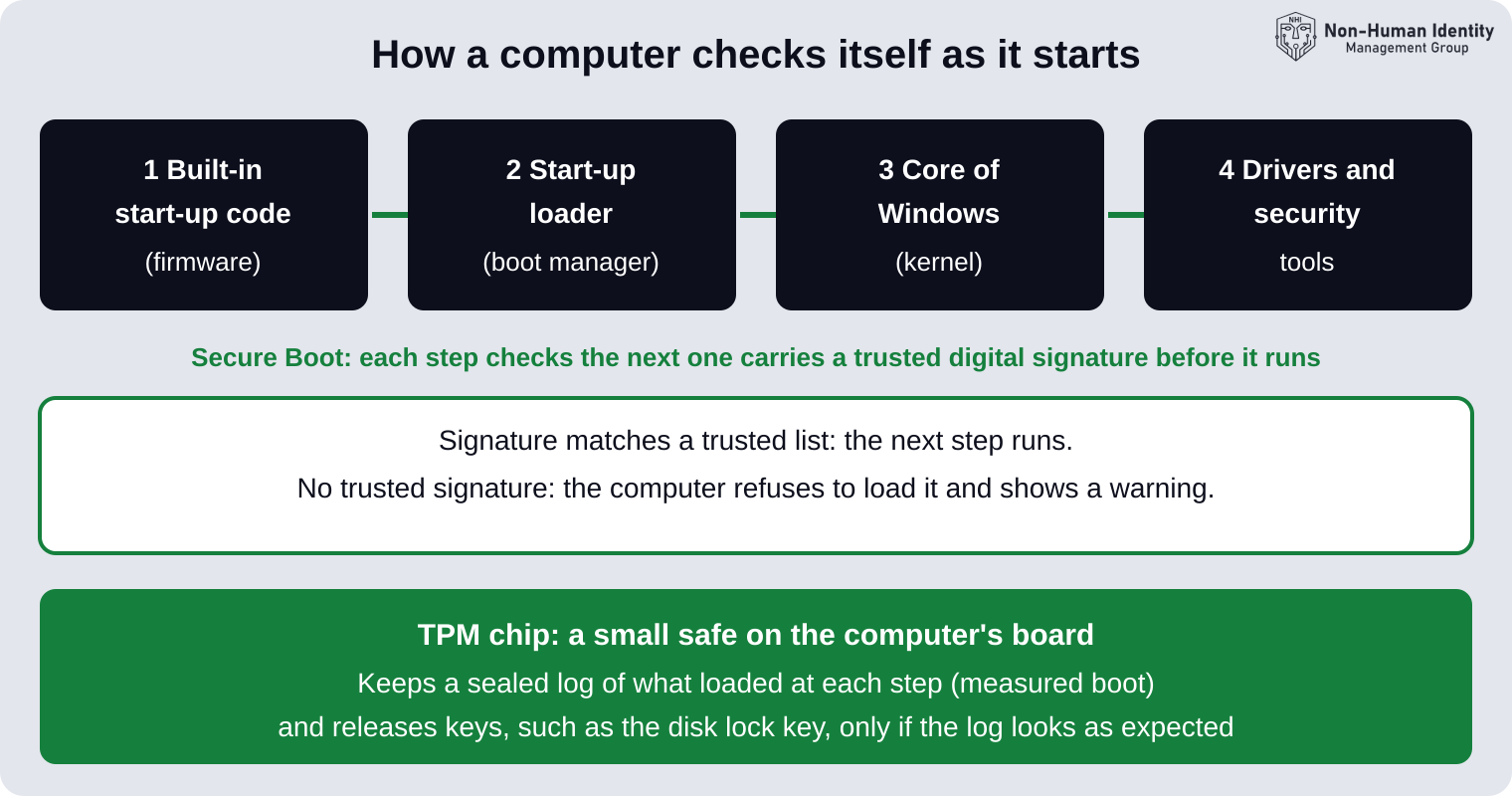
Secure Boot blocks. Measured boot records, so something else has to read the record and act on it.[1] That is why the two work best together. A US standards body sums up the goal for start-up code in three jobs: protect it, spot changes to it and recover it.[9]
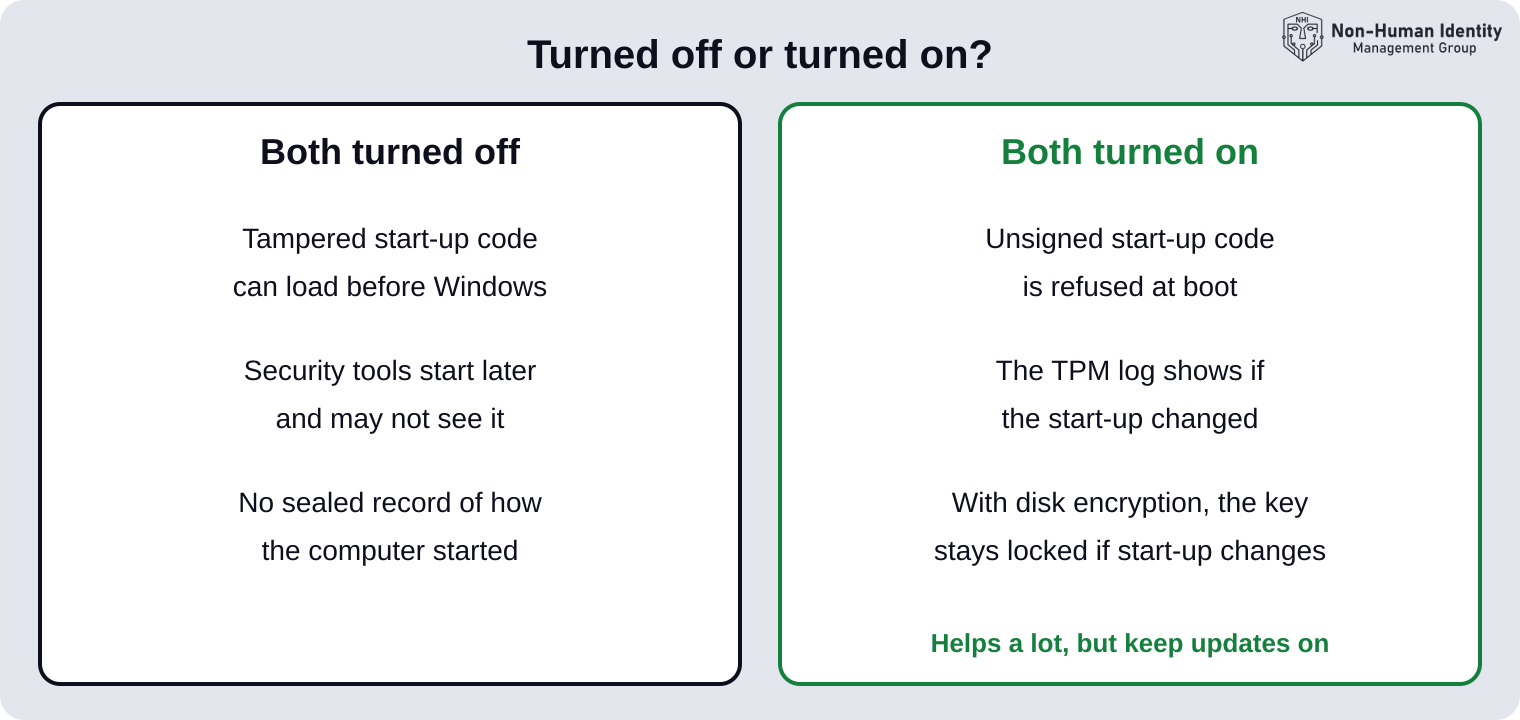
The trusted list needs updates too. Microsoft's original 2011 Secure Boot certificates began to expire in June 2026. Devices without the newer 2023 certificates keep starting, but they stop getting new start-up security fixes.[3] Most get the new certificates automatically through updates. Some need a firmware update from the maker.[3]
A worked example
This story is made up to show how it can happen.
Pia Holm runs a small design studio with six staff. She buys two second-hand laptops for new starters. Before handing them out, she asks Ronan Byrne, the freelance IT helper the studio uses, to check them.
Ronan opens Windows Security on the first laptop. Under Device security, the TPM shows as ready. But Secure Boot is off, and the disk is not encrypted. The last owner had turned Secure Boot off to try another operating system and never turned it back on.
Ronan does things in a careful order. First, he resets Windows so nothing from the last owner is left on it. Then he turns Secure Boot on in the firmware settings, using the maker's support page as a guide. He restarts and confirms Windows now reports it as on. Only then does he turn on BitLocker. He saves the recovery key in the studio's password manager, not on the laptop itself.
The second laptop is older. Ronan checks the maker's site and finds a firmware update that adds the newer Secure Boot certificates. He confirms the recovery key is saved, then installs the update. The laptop asks for the recovery key once after the update. He types it in, and it starts normally.
Ronan leaves Pia a one-page note listing each laptop, where its recovery key is kept, and a reminder to keep updates turned on.
What made the difference: Ronan saved each recovery key before touching any start-up setting, so the change was a short pause, not a lost laptop.
Myths and mistakes
| What people think | What is true |
|---|---|
| Secure Boot is the same as antivirus. | No. It checks start-up code before Windows loads. You still need security tools and updates once Windows is running. |
| Having a TPM means my disk is encrypted. | Not always. The TPM holds the key, but disk encryption still has to be turned on. |
| Once Secure Boot is on, I can forget about it. | Its trusted list needs updates. Microsoft's older certificates began expiring in 2026, and devices need the newer ones to keep getting start-up fixes.[3] |
| Changing a firmware setting is harmless. | Firmware updates and TPM changes are listed by Microsoft as reasons BitLocker asks for the recovery key.[5] Save the key first. |
| I turned Secure Boot off to fix a problem, so it can stay off. | Microsoft advises turning it back on once the problem is fixed.[6] |
What can I do this week?
- Open Windows Security and go to Device security. See if it shows a security chip (TPM) and Secure Boot.[7]
- Find your disk recovery key. Keep a copy somewhere safe, away from the laptop.
- Turn on automatic updates. Check your PC maker's site for firmware updates too.
- If Secure Boot is off and you feel unsure, ask your IT team or the PC maker to help.
- At work, ask IT if every laptop has disk encryption turned on.
Checklist
- My computer starts in UEFI mode, not the older legacy mode.
- Secure Boot is turned on.
- A TPM is present and shows as ready, version 2.0 where the computer supports it.
- Disk encryption is turned on.
- My recovery key is saved somewhere safe, away from the computer.
- Automatic updates are on, and I check for firmware updates from the maker.
- Anyone who changes start-up settings saves the recovery key first.
Common questions
Do I need Secure Boot and a TPM for Windows 11?
Microsoft lists firmware that is Secure Boot capable and TPM version 2.0 as minimum requirements for Windows 11.[4] Microsoft's help page says Secure Boot does not have to be switched on to upgrade, but it recommends turning it on for better security.[6]
Why did my computer ask for a BitLocker recovery key?
Usually because something in start-up changed. Microsoft lists causes such as a firmware update, clearing or turning off the TPM, and a new main board.[5] Type in the saved key. If you did not expect a change, tell your IT team.
Can I still use Linux with Secure Boot on?
Often yes. Microsoft notes that the bootloaders for Linux distributions are signed with a Microsoft certificate that many PCs trust.[1] Check your distribution's own guidance before you change any firmware setting.
Does a TPM stop someone reading my stolen laptop?
Not by itself. The TPM helps when disk encryption is turned on. Then the key stays in the chip, and the data stays locked if the drive is moved to another computer. A start-up PIN adds another check.[8]
What is UEFI, and why does it matter here?
UEFI is the modern kind of firmware that most current PCs use, replacing the older BIOS. Microsoft says Secure Boot and measured boot need UEFI firmware and a TPM chip.[1] A computer set to the older legacy mode cannot use Secure Boot until it is switched to UEFI.[6]
Where next?
Ready for the detail? Read the practitioner guide: IoT Secure Firmware Update Guide (SUIT, signed OTA). It goes further into signed firmware updates, rollback protection and keeping signing keys safe.
Also useful:
- Firmware and Boot Security Guide
- Firmware Signing vs Secure Boot
- Disk Encryption Guide: BitLocker and FileVault
- Encryption for Beginners
Related NHI Mgmt Group resources: Firmware and BIOS Update Management Guide · BitLocker · Patch Management for Beginners
Key terms
- Firmware
- Built-in software that runs hardware at a low level, including the code that starts a computer.
- Secure Boot
- A device start-up process that checks each piece of start-up code has a valid signature before it runs.
- Trusted Platform Module (TPM)
- A hardware chip that stores keys and records measurements of the start-up process.
- Measured boot
- Recording a fingerprint of each start-up part, so changes can be checked later.
- Digital signature
- A mark made with a private key and checked with the matching public key, proving who made something and that it has not changed.
- Bootkit
- Harmful software that hides in the start-up process so it loads before the operating system.
- Disk encryption
- Locking a whole drive so its contents cannot be read without the right key.
Sources and further reading
- Secure the Windows boot process. Microsoft Learn, updated 18 August 2025. https://learn.microsoft.com/en-us/windows/security/operating-system-security/system-security/secure-the-windows-10-boot-process, accessed 28 Nov 2026.
- Trusted Platform Module (TPM) overview. Microsoft Learn, updated 17 November 2026. https://learn.microsoft.com/en-us/windows/security/hardware-security/tpm/trusted-platform-module-overview, accessed 28 Nov 2026.
- Windows Secure Boot certificate expiration and CA updates (KB5062710). Microsoft Support. https://support.microsoft.com/help/5062710, accessed 28 Nov 2026.
- Windows 11 Specs and System Requirements. Microsoft. https://www.microsoft.com/en-gb/windows/windows-11-specifications, accessed 28 Nov 2026.
- BitLocker recovery overview. Microsoft Learn, updated 29 July 2025. https://learn.microsoft.com/en-us/windows/security/operating-system-security/data-protection/bitlocker/recovery-overview, accessed 28 Nov 2026.
- Windows 11 and Secure Boot. Microsoft Support. https://support.microsoft.com/en-us/windows/windows-11-and-secure-boot-a8ff1202-c0d9-42f5-940f-843abef64fad, accessed 28 Nov 2026.
- Enable TPM 2.0 on your PC. Microsoft Support. https://support.microsoft.com/en-us/windows/enable-tpm-2-0-on-your-pc-1fd5a332-360d-4f46-a1e7-ae6b0c90645c, accessed 28 Nov 2026.
- BitLocker device encryption. Microsoft Learn, updated 17 November 2026. https://learn.microsoft.com/en-us/windows/security/operating-system-security/data-protection/bitlocker/, accessed 28 Nov 2026.
- SP 800-193, Platform Firmware Resiliency Guidelines. National Institute of Standards and Technology (NIST), May 2018. https://csrc.nist.gov/pubs/sp/800/193/final, accessed 28 Nov 2026.