Security camera and alarm security means making sure only the right people can view, change or switch off these systems.
This guide is for small business owners, shop and site managers, and anyone new to looking after CCTV or an alarm. You do not need a technical background. If your cameras or alarm can be reached from a phone app, they are connected devices and need the same care as a computer.
In short
- Most modern cameras, recorders and alarm panels connect to the internet so you can check them from your phone.
- That same connection can let a stranger in if the system keeps its factory password or misses updates.
- Common gaps are shared passwords, old installer accounts and recorders opened up to the whole internet.
- Change default passwords, give each person their own account, keep updates on and ask how remote viewing is set up.
What you will learn
- Explain how cameras, the recorder, the alarm panel and the app connect.
- Spot the settings that most often leave a system open.
- Check who can view your footage and arm or disarm your alarm.
- Ask your installer the right questions about remote access.
- Video box (recorder)
- the box, often called an NVR, that stores footage from the cameras.
- Factory password (default password)
- the password a device ships with, before anyone changes it.
- Viewing from away (remote access)
- checking cameras or the alarm from outside the building, usually through an app.
What is security camera and alarm security?
Think of a shop window with a blind. You want to see out, and you choose who looks in. A connected camera is a window onto your premises, and its password is the blind.
Modern cameras are small computers. Each one films, then sends the video over your network to a recorder. The recorder stores it, and an app lets you watch from anywhere. Many alarm panels work the same way. They send alerts to your phone and let you arm or disarm from an app.
Keeping these systems secure means three things. Only the right people can watch the footage. Only the right people can change settings or switch the alarm off. The devices keep getting fixes from their maker.
Where the comparison stops working: you notice an open blind. You may not notice a stranger watching a camera feed, because the system usually keeps working as normal.
Why does it matter?
Cameras and alarms are there to protect you. If someone else controls them, they can watch your routines or switch protection off.
If you run a shop, café or small office
What could happen: a stranger watches your till and back door through a recorder that still uses its factory password.
Check this: ask whoever set it up whether every password was changed.
If you manage a site or building
What could happen: a former installer or staff member can still log in to the alarm app and disarm it.
Check this: list every account on the cameras and alarm, and remove anyone who has left.
If you look after IT for a small firm
What could happen: a weak camera on the office network gives an attacker a way towards your other computers.
Check this: put cameras and the recorder on their own part of the network.
What does it look like?
Here is a made-up summary of the settings on a small shop's camera system. Many recorders show a similar page.
Example only. All values are made up.
EXAMPLE-NVR  |  Shop recorder  |  example.invalid
Firmware:      v1.0.0000 (last updated 4 years ago)   (1)
Admin user:    admin / password unchanged             (2)
Other users:   installer, shop, shop2                 (3)
Remote view:   router port forwarded to recorder      (4)
Alarm app:     3 users can disarm, 1 is a leaver      (5)
- Old software. Fixes for known weaknesses have not been added.
- In a real system, this line would show that the factory password is still in use.
- Shared accounts. Nobody can tell who watched or changed what.
- The recorder is reachable by anyone on the internet who finds it.
- Someone who no longer works here can still switch the alarm off.
Why this is risky: each line on its own is a common shortcut. Together they mean a stranger may find the recorder, guess the password and watch or change it.
The safer way: keep the software current and set a strong, unique admin password. Give each person their own account. View from away through the maker's app or a secure tunnel, and keep the list of people who can disarm short.
How does it work?
Systems differ, but most small business setups follow these steps.
- Film. Each camera records video and sends it across your network, by cable or Wi-Fi.
- Store. The recorder (NVR) saves the video, or the camera sends it to the maker's online service, often called the cloud.
- Watch. You open an app or web page. It asks for a username and password, then shows live or saved video.
- Reach from away. To watch from home, the system needs a route in from the internet. Some setups open a door in your router, called port forwarding. Others go through the maker's cloud service or a secure tunnel (VPN).
- Alarm. The alarm panel watches door and motion sensors. It can alert your phone, sound a siren or contact a monitoring centre. People with access can arm or disarm it from the app.
Step 4 is where many problems start. The UK's National Cyber Security Centre says cameras set up for remote viewing are the route by which strangers may reach live feeds. It suggests turning remote viewing off if you do not need it.[1] It also suggests turning off router features called UPnP and port forwarding, which criminals can misuse to reach devices.[1]
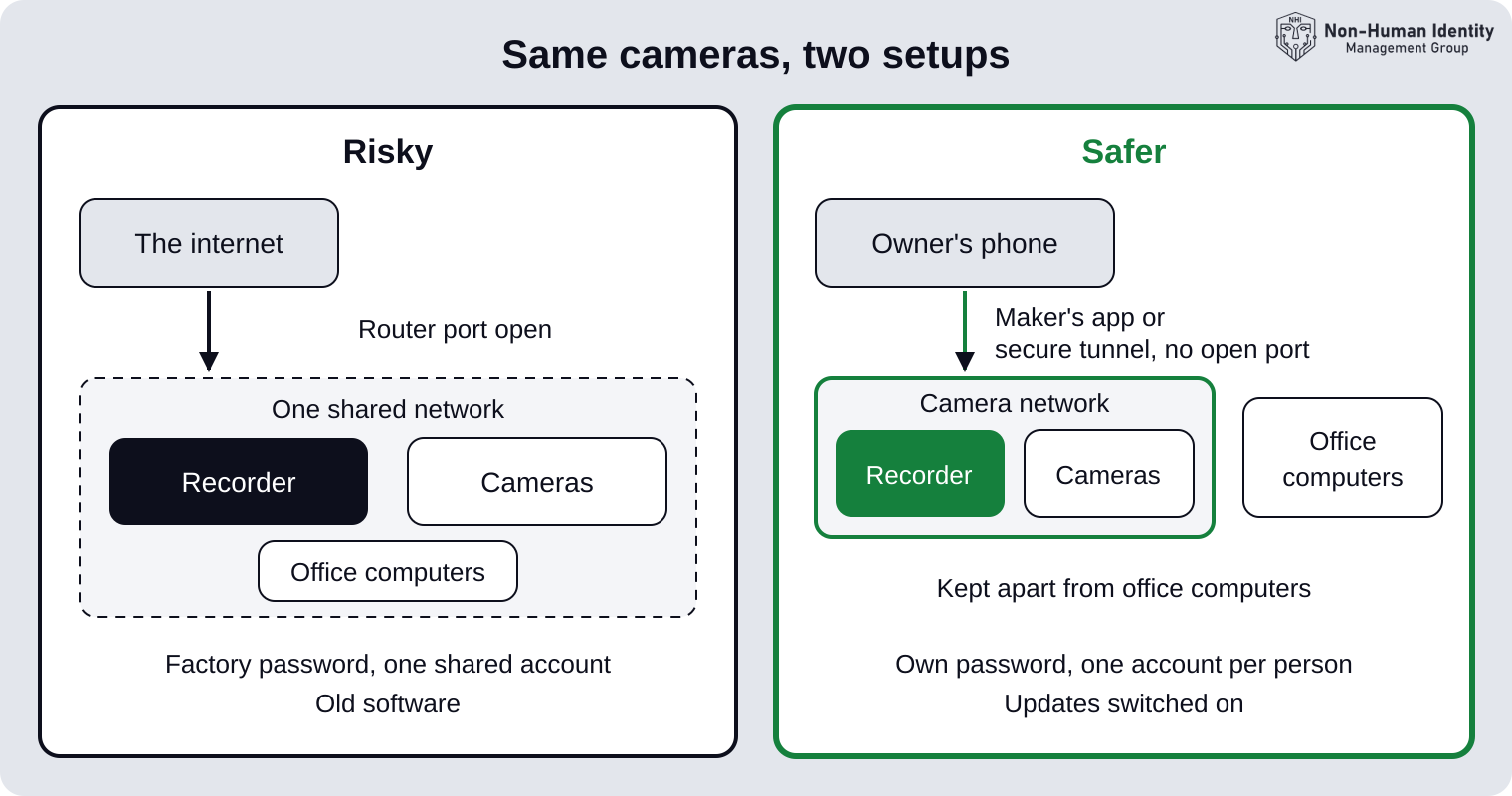
Camera makers give similar advice. One maker's hardening guide says to set a unique, strong admin password on each device. It says to use a separate, limited account for day-to-day viewing, and to keep cameras off the open internet.[2] It also recommends putting cameras on their own network, apart from business computers.[2]
The law is helping too. Since 29 April 2024, UK rules for connectable products ban easy-to-guess default passwords on new devices. Makers must also say how long they will provide security updates.[3] Older equipment may predate these rules, so check yours.
What about smart video analytics?
Some newer systems use artificial intelligence (AI) to spot people, read number plates or recognise faces. These features can collect more sensitive information. The UK data protection regulator warns that some uses, such as facial recognition, can be very intrusive.[4] Treat these features as extra data to protect, and check the privacy rules before switching them on. See the CCTV and Video Surveillance Privacy Guide.
A worked example
Dana Hollis runs Lantern Bakes, a fictional bakery with two shops. Each shop has four cameras, a recorder and an alarm. Marek Castell, a local installer, fitted them three years ago. Dana watches the cameras from her phone.
A customer mentions a news story about hacked shop cameras. Dana asks Marek to go through the system with her.
First, they log in to each recorder. One still uses the factory password. Marek sets a long, unique password for each recorder and saves them in Dana's password manager.
Next, they look at accounts. Everyone shares one login called "shop", including two staff who have left. Marek creates one viewing account per manager. Only Dana keeps the admin account.
Then they check how Dana watches from home. The router has a port forwarded straight to one recorder. Marek closes it and sets up viewing through the maker's app instead, with two-step login turned on.
Finally, the alarm. Five people can disarm it, including a former supervisor. Dana removes him and asks the alarm company to tell her when anyone is added.
The firmware is two years old, so Marek updates it and turns on automatic updates where offered. He also moves the cameras onto their own network, apart from the till.
The work takes an afternoon. No setup is perfect, but it closes the gaps a passing stranger is most likely to try.
Myths and mistakes
| What people think | What is true |
|---|---|
| The installer will have changed the passwords. | Not always. Ask, and check each device yourself. |
| Nobody would bother with my shop cameras. | Automated tools scan the internet for any reachable device, not just famous targets. |
| Port forwarding is the normal way to view cameras from home. | It is one way, and a risky one. The maker's app or a secure tunnel avoids opening your router.[1] |
| Cameras are separate from my computers. | If they share a network, a weak camera can be a step towards other devices. |
| Once installed, the system looks after itself. | Updates, accounts and leavers need checking, just like a computer. |
What can I do this week?
- Log in to your recorder, camera app and alarm app, and change any password still at its factory setting.
- List every account on each system and remove people who have left.
- Ask your installer how remote viewing works and whether any router ports are open.
- Check for software updates and turn on automatic updates where offered.
- Find out how long the maker will keep sending security updates for your devices.
Checklist
- No camera, recorder or alarm uses its factory password.
- Each person has their own account, and only one or two people are admins.
- Two-step login is on for the camera and alarm apps where offered.
- Remote viewing uses the maker's app or a secure tunnel, not an open router port.
- Cameras and the recorder sit on their own network, apart from tills and office computers.
- Software is up to date and automatic updates are on where offered.
- Leavers lose access to cameras and the alarm on their last day.
- We know who can disarm the alarm, and the list is short.
Common questions
Can someone really watch my business cameras?
Yes, if they get the password or the system is open to the internet without protection. The NCSC says remote access is the usual route strangers use to reach feeds. Changing default passwords, updating software and closing open router ports make this much less likely.
Is cloud storage safer than a recorder in the shop?
It can be, but it depends on the setup. Cloud services avoid opening your router, and makers usually update them. You then rely on your account password, so use a strong one and turn on two-step login. A recorder can be safe too if it is set up carefully.
What should I ask an installer before they fit a system?
Ask four things. Will every password be changed and handed to you? How will you view it from away, and will any router ports be opened? How long will the maker send security updates? Can each member of staff have their own account?
What should I do if I think someone got into my cameras?
Change the admin password from a trusted device, then remove any accounts you do not recognise. Check the router for open ports and close them. Update the software. If footage of people may have been seen, check your data protection duties and get help if needed.
Where next?
Ready for the detail? Read the practitioner guide: IP Camera and CCTV Security Guide. It goes further into recorder and video management system design, network layout for video, and firmware and end-of-life planning for larger estates.
Also useful:
- Smart Home Security for Beginners
- Default Passwords for Beginners
- Home Router Security for Beginners
- CCTV and Video Surveillance Privacy Guide
Related NHI Mgmt Group resources: IoT Security for Beginners · Physical Security for Beginners · Enterprise IoT Security Programme Guide
Key terms
- IP camera
- A camera that sends its video over a computer network rather than a separate video cable.
- Network video recorder
- A box or program that receives, stores and plays back video from network cameras.
- Default password
- The password a device ships with before its owner sets their own.
- Remote access
- Reaching a device or system from outside the local network, for example from a phone at home.
- Firmware
- The built-in software that runs a device such as a camera, recorder or alarm panel.
- Network segmentation
- Splitting a network into separate zones so trouble in one zone is harder to spread.
- Port forwarding
- A router setting that lets traffic from the internet reach a chosen device inside your network.
Sources and further reading
- Smart security cameras: using them safely in your home. National Cyber Security Centre (UK), 3 March 2020. https://www.ncsc.gov.uk/guidance/smart-security-cameras-using-them-safely-in-your-home, accessed 28 Nov 2026.
- AXIS OS Hardening Guide. Axis Communications. https://help.axis.com/en-us/axis-os-hardening-guide, accessed 28 Nov 2026.
- The UK Product Security and Telecommunications Infrastructure (Product Security) regime. Department for Science, Innovation and Technology, GOV.UK. https://www.gov.uk/government/publications/the-uk-product-security-and-telecommunications-infrastructure-product-security-regime, accessed 28 Nov 2026.
- Guidance on video surveillance (including CCTV). Information Commissioner's Office (UK). https://ico.org.uk/for-organisations/uk-gdpr-guidance-and-resources/cctv-and-video-surveillance/guidance-on-video-surveillance-including-cctv/, accessed 28 Nov 2026.