Smart home security means setting up connected cameras, speakers and gadgets so only you can control them.
This guide is for anyone with a smart camera, doorbell, speaker, baby monitor or webcam at home. You do not need technical skills: most of the protection comes from a few settings in the device's app.
In short
- Smart devices connect your home to the internet, so a weak setting can let a stranger look or listen in.
- Change any password that came in the box, and turn on two-step verification in the app.
- Keep updates switched on, and check how long the maker will support the device.
- Turn off features you do not use, such as viewing from outside the home.
What you will learn
- Explain how a smart camera or speaker connects to the internet.
- Check the five settings that matter most on each device.
- Spot the signs that a device may not be under your control.
- Ask the right questions before you buy a new gadget.
- Connected gadget (smart device)
- an everyday object, such as a camera or speaker, that links to the internet and is run from an app.
- Password from the box (default password)
- a password set by the maker before you buy the device.
What is smart home security?
Think of moving into a new house where the builder's code still opens the front door. Until you change it, anyone who knows that code can walk in. Smart devices can work the same way.
A smart device is a gadget that talks to the internet. Cameras, video doorbells, smart speakers, baby monitors, plugs and webcams are common examples. Together they are often called the Internet of Things.
Smart home security is the set of steps that keeps those gadgets under your control. It covers the passwords, the app account, updates from the maker and the features you choose to leave on.[1]
Where the comparison stops working: you would notice a stranger in your hall. Someone watching through a camera or listening through a speaker leaves few signs you can see.
Why does it matter?
Cameras and speakers sit in private places: bedrooms, nurseries and living rooms. If someone else controls them, they can see and hear your home life.
If you have a baby monitor or indoor camera
What could happen: a stranger views the feed or talks through the speaker.
Check this: change any password from the box and turn on two-step verification.
If you work from home
What could happen: a smart speaker or webcam picks up work calls you meant to keep private.
Check this: mute speakers and cover or unplug webcams during sensitive calls.
If you rent out or sell a home
What could happen: an old owner can still reach a doorbell or camera through their app.
Check this: factory reset devices when people move in or out.
What does it look like?
Example only. All values are made up.
FakeCam app  |  Nursery camera  (model EXAMPLE-0000)
Device password ............ admin / 0000      (1)
Two-step verification ...... OFF               (2)
Automatic updates .......... OFF               (3)
Remote viewing ............. ON                (4)
Shared with ................ [email protected]  (5)
Security updates until ..... (not shown)       (6)
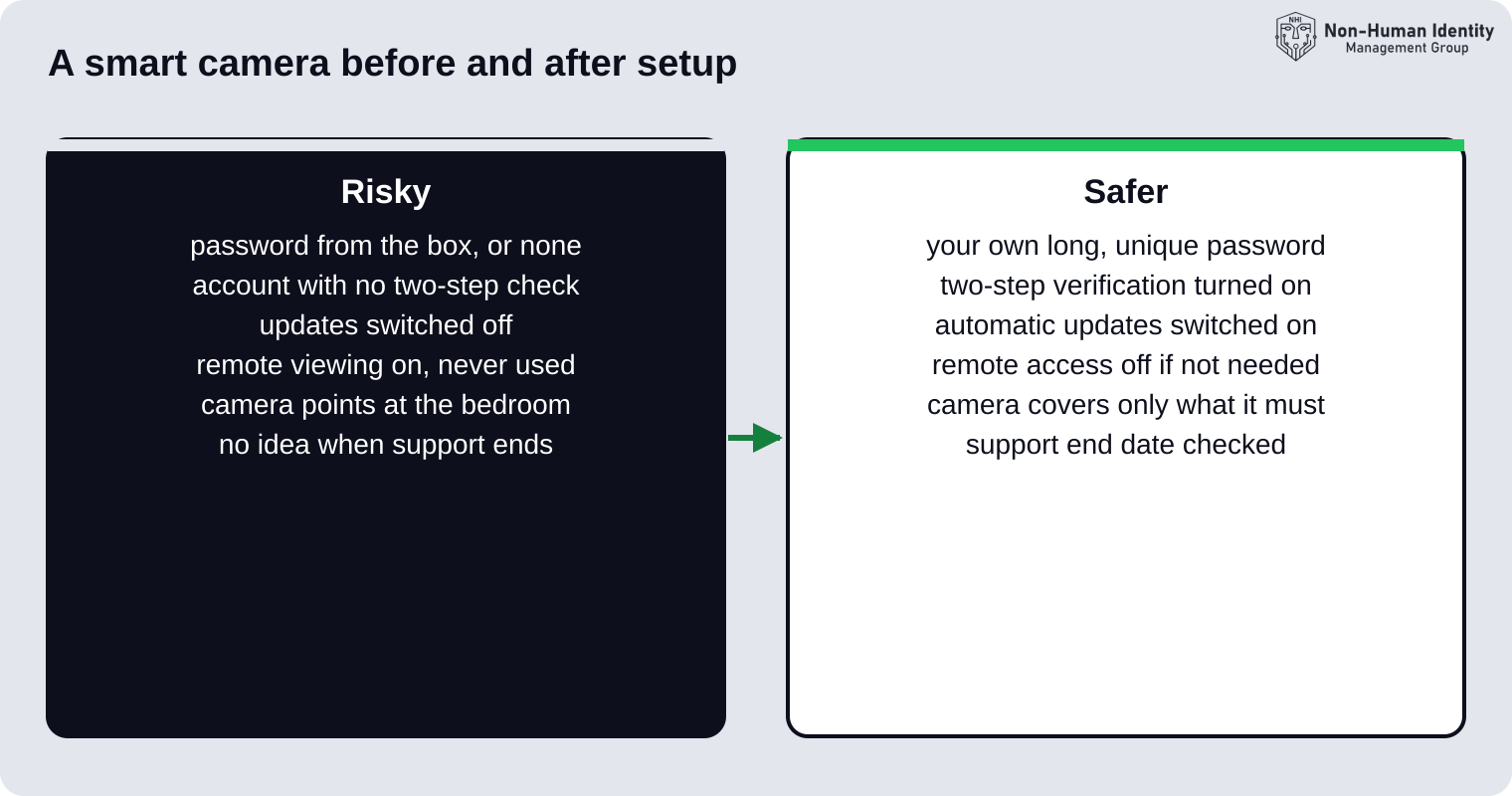
- A password from the box. In a real screen, this line would show a password that others can guess or look up.
- Anyone with your account password can sign in.
- Fixes from the maker are not being installed.
- The feed can be reached from outside the home, even if you never use it.
- Someone who no longer lives there can still watch.
- You do not know when the maker stops fixing problems.
Why this is risky: the camera works fine, so nothing looks wrong. But several doors are open at once.
The safer way: set your own password and turn on two-step verification and updates. Then remove old shares, and turn off remote viewing if you do not need it.
How does it work?
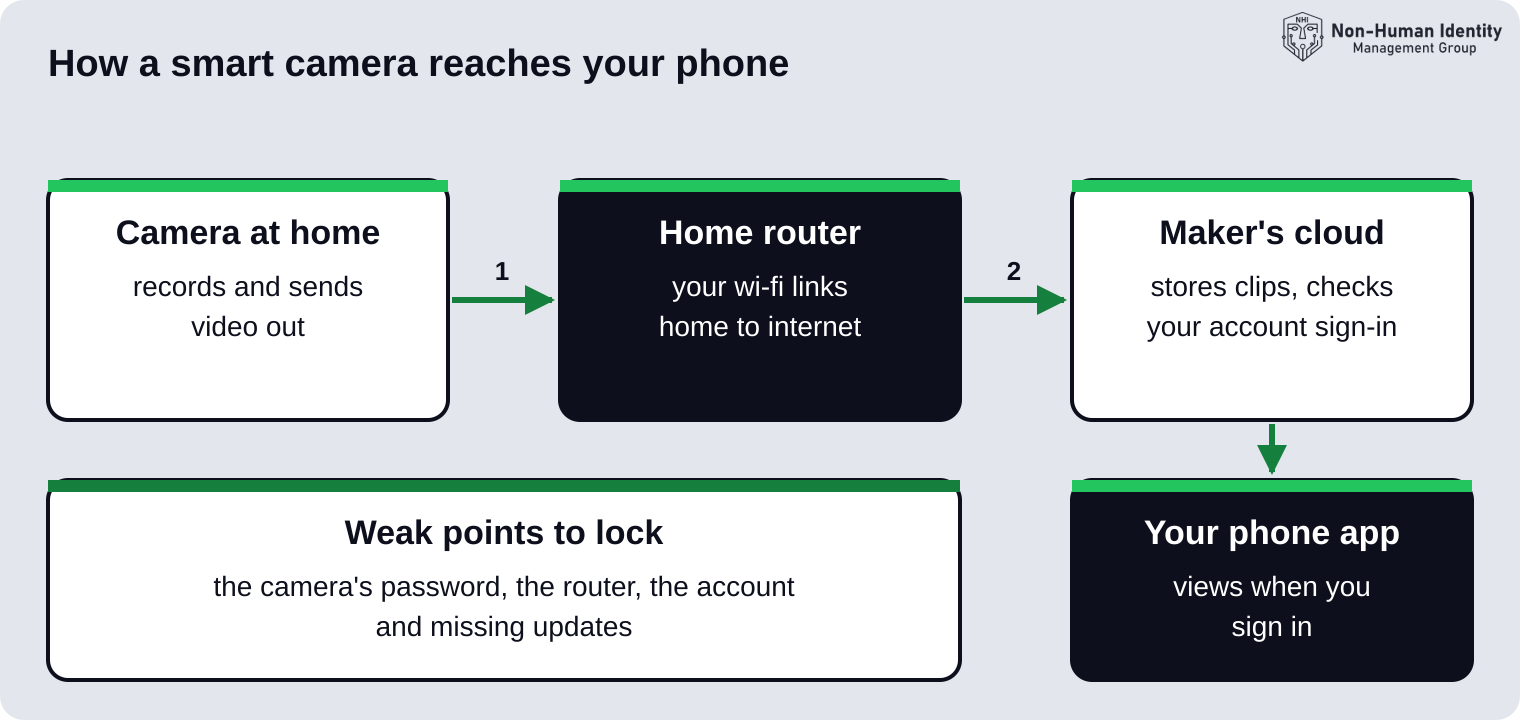
- The device joins your wi-fi. It connects through your home router, the box that links your home to the internet.
- It talks to the maker's service. Many cameras and speakers send data to the maker's online service, often called the cloud.
- You use an app. You sign in to an account in the maker's app to view, listen or change settings.
- The maker sends fixes. Updates to the device's built-in software, called firmware, close security holes.[1]
- Each link needs a lock. The device password, your router, your app account and the updates all matter.
Some devices are not secure when you first switch them on, so follow the maker's setup steps with care.[1]
The law is starting to help. Since 29 April 2024, UK rules say makers of most smart devices sold in the UK must not use easy-to-guess default passwords. They must also say how long they will provide security updates.[2] Older devices may still have weak passwords from the box.
A worked example
This story is made up to show how it can happen.
Pavel Jarvis is a primary school teacher in Norwich. When his daughter is born, a friend gives him a second-hand baby monitor with a camera.
A few weeks later, Pavel hears a faint click from the monitor at night. The next morning the camera is pointing at the door, not the cot. He did not move it.
He does not know what happened, but he decides to check. He unplugs the monitor and looks up the model on the maker's website. The UK's national cyber agency advises resetting a device with the maker's instructions if you think someone has taken control of it.[1] The maker's page also shows that the model stopped getting updates last year.
Pavel resets the monitor, but the lack of updates worries him. He buys a new model. Before paying, he checks the box and the maker's site for how long it will get security updates.[2]
During setup he makes a long, unique password with three random words and turns on two-step verification in the app. He leaves automatic updates on. He switches off viewing from outside the home, because he only uses it in the house.
Finally, he changes his wi-fi password too, as the old one was printed on the router.
What made the difference: Pavel treated a strange sign as a reason to check. He chose a device that the maker will keep updating.
Myths and mistakes
| What people think | What is true |
|---|---|
| Nobody would bother hacking my camera. | Some attacks are run by programs that look for any device with a weak password, whoever owns it. |
| If it works, it is set up safely. | A device can work perfectly with the password from the box and updates turned off. |
| Updates are optional extras. | Updates often fix security holes. Turn on automatic updates where the device offers them.[1] |
| A second-hand device is as good as new. | It may still be linked to the old owner, or no longer get updates. Reset it and check its support date.[1] |
| Remote viewing has to be on. | Only if you need to view from outside the home. If not, turning it off removes one way in.[1] |
What can I do this week?
- List every smart device in your home, including the ones you rarely use.
- Change any password from the box to a long, unique one, such as three random words.[1]
- Turn on two-step verification in each device's app.
- Switch on automatic updates, and turn off remote access you do not need.[1]
- Check who else can see each camera, and remove anyone who should not.
Checklist
- No device uses the password it came with.
- Each device app account has two-step verification turned on.
- Automatic updates are on for every device that offers them.
- I know when each device stops getting security updates.
- Remote viewing is off on devices I only use at home.
- Only people who live here can see or control the cameras.
- My home wi-fi and router have their own strong passwords.
- I factory reset devices before selling or giving them away.
Common questions
Can someone really watch me through my smart camera?
Yes, if they get hold of your account or the device has a weak password and no updates. That is why the password, two-step verification and updates matter. With those in place, the risk drops a lot, though no device is perfectly safe.
Should I cover my laptop webcam?
A cover is a cheap, simple extra that many people like. It does not replace the basics. Keep your laptop updated, use antivirus where it fits, and only give camera access to apps you trust in your privacy settings.
What should I check before buying a smart device?
Check how long the maker will send security updates. Avoid devices that are unsupported or close to the end. In the UK, makers must publish this period. Also look for two-step verification in the app and a way to report security problems.[1][2]
What should I do if I think a device has been taken over?
Unplug it, then follow the maker's instructions to reset it to factory settings. Change the app account password and turn on two-step verification. Check the maker's support site for advice, and change your wi-fi password if you are unsure.[1]
Where next?
Ready for the detail? Read the practitioner guide: IP Camera and CCTV Security Guide. It goes further into recorders, network separation and securing camera systems for businesses.
Also useful:
- Smart Home Security Guide
- IoT Security for Beginners
- Home Router Security for Beginners
- Wi Fi Security for Beginners
Related NHI Mgmt Group resources: Securing Your Home Router Guide · End-of-Life Home Routers Guide · Password Managers for Beginners
Key terms
- Internet of Things (IoT)
- Everyday objects that connect to the internet so they can be run from an app or share data.
- IoT security
- Keeping connected devices, their apps and their data safe from people who should not control them.
- Default credential
- A username or password set by the maker before sale, which you should change.
- Firmware
- The built-in software that runs a device such as a camera or router.
- Multi-factor authentication (MFA)
- Asking for two or more kinds of proof, such as a password and a code, before letting you in.
- Botnet
- A crowd of hacked devices, often weakly protected gadgets, controlled together by a criminal.
Sources and further reading
- Smart devices: using them safely in your home. National Cyber Security Centre (NCSC), reviewed 23 February 2024. https://www.ncsc.gov.uk/guidance/smart-devices-in-the-home, accessed 28 Nov 2026.
- The UK Product Security and Telecommunications Infrastructure (Product Security) regime. Department for Science, Innovation and Technology, GOV.UK. https://www.gov.uk/government/publications/the-uk-product-security-and-telecommunications-infrastructure-product-security-regime, accessed 28 Nov 2026.