Snowflake security means controlling who and what can log in to your Snowflake data, and what they can see.
This guide is for new IT staff, small business admins and students who have been handed a Snowflake account. You do not need to write code to follow it: if your company keeps sales or customer data in Snowflake, these settings decide who can reach it.
This is an independent guide from NHI Mgmt Group, based on Snowflake's public documentation as of November 2026. It is not sponsored or reviewed by Snowflake. Product features change, so confirm settings against Snowflake's current documentation.
In short
- Snowflake is a cloud service where companies store and analyse large amounts of data.
- Both people and programs log in. Mark each program as a service user and give it a key or token, not a password.
- People sign in with a password plus a second step. A network policy limits where logins can come from.
- Roles decide what each login can see. Keep the top admin role for a few named people.
What you will learn
- Explain the difference between a person user and a service user in Snowflake.
- Spot a risky program account in a list of users.
- Check which roles and network limits your account uses.
- Ask the right questions of whoever set up your Snowflake account.
- Program account (service user)
- a Snowflake user that a program uses, with no person typing a password.
- Permission bundle (role)
- a named set of permissions given to users, which decides what they can see and do.
- Address allow list (network policy)
- a rule saying which internet addresses may connect to Snowflake.
What is Snowflake security?
Think of renting a flat. The landlord fixes the roof and the shared front door. You still choose who gets a key to your flat and which rooms they can use.
Snowflake works in a similar way. It is a data warehouse, a cloud service built to store and query large amounts of business data. Snowflake runs and protects the service itself. You, the customer, choose who and what can log in, from where, and which data each login can reach.
Accounts come in two kinds. Some are people, such as an analyst checking sales figures. Others are programs, such as a nightly job that copies orders in, or a reporting tool. Program accounts are a kind of non-human identity (NHI). An NHI is a digital identity, or the credential behind it, that represents a machine, application, automated process, service or AI agent. It lets that thing authenticate, carry out tasks and connect to other systems without a person.
Where the comparison stops working: in a flat you can see who walks in. In Snowflake, logins happen out of sight, often at night, so you depend on settings and records rather than your eyes.
Why does it matter?
A data warehouse often holds a lot of a company's data in one place. If someone gets a working login, they may be able to read or copy whatever that login is allowed to see.
If you have just been given the admin login
What could happen: you use the top admin role for everyday work, so one mistake or stolen login reaches everything.
Check this: who holds the top admin role, and does each of them sign in with a second step?
If you look after data loads or reports
What could happen: a reporting tool still logs in with an old password, and may fail when stronger sign-in rules arrive.
Check this: is each program set up as a service user with a key or token?
If you manage the business
What could happen: nobody can say who owns each program account or what data it can see.
Check this: ask for a short list of every login, its owner and its role.
What does it look like?
Here is a made-up note on one user, as a new admin might write it down.
Example only. All values are made up.
User:            REPORT_LOADER_EXAMPLE
Used by:         nightly sales report program
Type:            (not set, so treated as a person)   (1)
Signs in with:   password only                         (2)
Default role:    ACCOUNTADMIN                          (3)
Network policy:  none                                  (4)
Owner:           unknown                               (5)
- No type is set, so Snowflake treats it as a person.
- In a real file, this line would contain the sign-in method. Here a program uses a password alone.
- The top admin role. The program only needs to read sales data.
- Logins are allowed from any internet address.
- Nobody is named as responsible for this login.
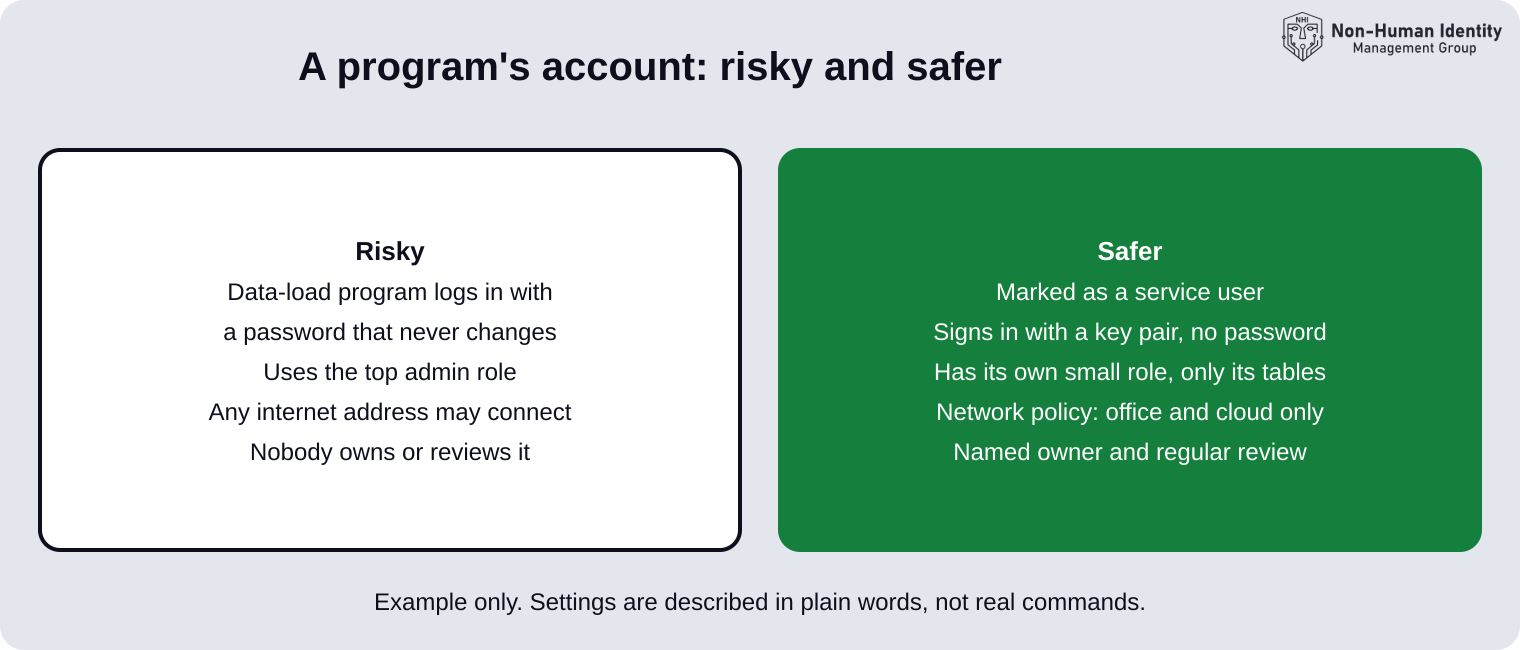
Why this is risky: anyone who finds the password may be able to log in from anywhere, with full admin power. Snowflake is also phasing out password-only sign-ins, so this program may fail.[1]
The safer way: mark it as a service user with a key pair. Give it a small role, a network policy and an owner.
How does it work?
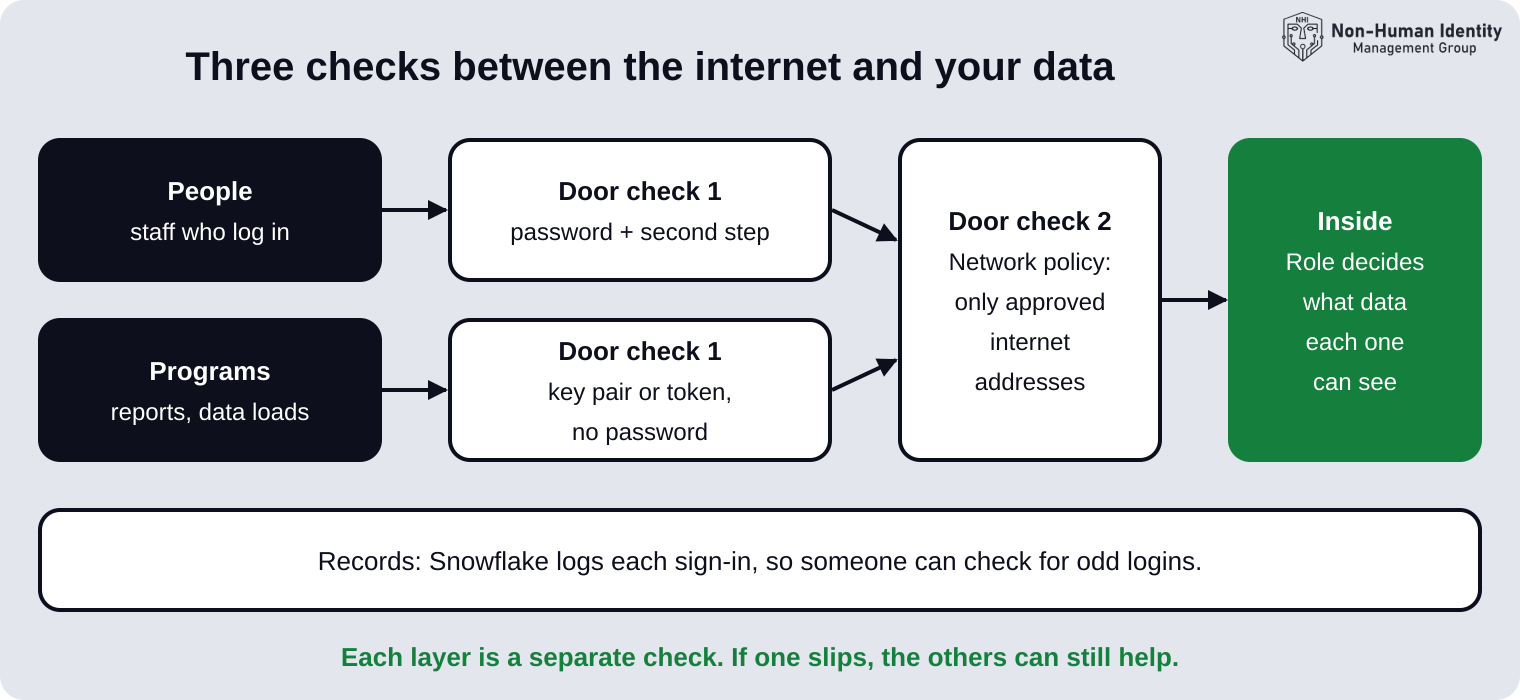
Every login passes several checks before it reaches any data.
- Who are you? A person signs in with a password plus a second step, called multi-factor authentication (MFA). Snowflake's published plan makes MFA required for people who sign in with a password, with the last phase rolling out from August to October 2026.[1]
- Program or person? Each user has a type. A service user is meant for a program with no person involved. It cannot log in with a password and cannot enrol in MFA.[2] Instead it uses another proof, such as a key pair. That is a private key kept by the program, matched to a public key held by Snowflake.[4] Snowflake also offers programmatic access tokens, which expire after 15 days by default.[6]
- Where are you coming from? A network policy lists the internet addresses allowed to connect. It can apply to the whole account or to one user.[5] For service users, a token can only be created or used when a network policy applies.[6]
- What may you see? Permissions are given to roles, and roles are given to users. Snowflake's docs say the top admin role, ACCOUNTADMIN, should go only to a limited, controlled number of users.[3]
- What happened? Snowflake keeps a record of sign-in attempts, including the user, the internet address, the sign-in method and whether it worked. The record covers the last year and can run up to two hours behind.[7]
A worked example
Sana Castell has just joined a small online furniture shop as its only IT person. The shop keeps its orders and customer records in Snowflake. On her first week, the finance lead, Petra Ilic, hands her the admin login.
Sana remembers the flat. Snowflake looks after the building, but the keys are now her job. So she starts with a list of every user in the account.
There are eleven. Seven are people. Four are programs, but none of them is marked as a service user. Two still log in with a password alone, and one of those has the top admin role.
Sana checks Snowflake's sign-in rules and sees that password-only logins are being phased out.[1] She does not want the nightly order report to fail one morning. She asks Jana Marlow, the contractor who built the reports, to help.
Together they mark each program as a service user and switch it to a key pair. Jana keeps the private keys in the shop's secrets store, not in the report code. Sana gives each program its own small role with access only to the tables it uses. Then she adds a network policy, so the programs can connect only from the shop's cloud servers.
Next she trims the top admin role to two people: herself and Petra. Both sign in with a second step. She writes down an owner for every program account.
Last, she looks at the sign-in records for the past month. She finds no unexpected logins in the records available to her. She books a review every three months.
Myths and mistakes
| What people think | What is true |
|---|---|
| Snowflake is in the cloud, so Snowflake handles all the security. | Snowflake runs the service. You choose the users, sign-in methods, roles and network limits. |
| A program can share a person's login. | Give each program its own service user, so it can be limited, watched and switched off on its own.[2] |
| Admin roles are fine for everyday work. | Snowflake advises keeping the top admin role to a small, controlled group.[3] |
| A key pair is safe wherever the key is kept. | The private key is a secret. Keeping it safe is the customer's job, so store it in a secrets store.[4] |
| If logins worked yesterday, nothing needs changing. | Snowflake is phasing out password-only sign-ins, so older program accounts may need a new method.[1] |
What can I do this week?
- List every user in your account and mark which are people and which are programs.
- Check that each person signs in with a second step.
- Ask who holds the top admin role, and cut the list to the people who need it.
- Find any program that still logs in with a password, and plan its move to a key pair or token.
- Check whether a network policy is turned on for the account.
Checklist
- Every program account is set up as a service user.
- Program accounts use a key pair or token, not a password.
- Private keys and tokens live in a secrets store, not in code.
- Every person signs in with a second step.
- The top admin role is held by a small, named group.
- Each program has its own small role, limited to the data it needs.
- A network policy limits where logins can come from.
- Every login has a named owner, and the list is reviewed regularly.
Common questions
What is a service user in Snowflake?
It is a user meant for a program, not a person. You set its type to SERVICE. It cannot log in with a password or use a second step. It signs in with a key pair or a token instead. This makes program accounts easier to spot and control.
Do I need MFA in Snowflake?
Yes, for people who sign in with a password. Snowflake's published plan makes a second step required for them, phased in through 2026. Programs are handled differently: they are set up as service users and use keys or tokens. Check Snowflake's current rollout page for your account's dates.
What is ACCOUNTADMIN?
It is Snowflake's top admin role, with power over the whole account. Snowflake advises giving it only to a limited, controlled number of users. Day-to-day work is better done with smaller roles, so a single mistake or stolen login reaches less.
What is a network policy?
It is a rule listing which internet addresses may connect to your Snowflake account. You can apply it to the whole account or to one user. It means a stolen login is less useful to someone connecting from an address you have not approved.
Where can I see who has logged in?
Snowflake keeps a sign-in history. It shows each attempt, the user, the internet address, the sign-in method and whether it worked. It covers the last year and can lag by up to two hours. Your admin or data team can check it.
Where next?
Ready for the detail? Read the practitioner guide: Snowflake Security Guide. It goes further into authentication policies, key rotation, masking sensitive columns and a phased rollout plan.
Also useful:
- Service Accounts in Snowflake Guide
- Snowflake Security Checklist
- Role-Based Access Control for Beginners
- Multi-Factor Authentication for Beginners
- Cloud Security for Beginners
Related NHI Mgmt Group resources: How to find Snowflake service users without key-pair auth · Snowflake Login and Access History Detection Guide · Non-Human Identities for Beginners
Key terms
- Snowflake
- A cloud data warehouse service used to store, query and share large amounts of data.
- Data warehouse
- A store built for fast searching and reporting across large amounts of business data.
- Service account
- An account used by a program rather than a person. Snowflake calls this a service user.
- Key-pair authentication
- Signing in with a private key that matches a public key held by the service, instead of a password.
- Multi-factor authentication
- Signing in with two or more separate proofs, such as a password and a code from an app.
- Role
- A bundle of permissions given to users, usually matching a job or task.
- Least privilege
- Giving each user or program only the access it needs, and no more.
Sources and further reading
- Planning for the deprecation of single-factor password sign-ins. Snowflake Documentation. https://docs.snowflake.com/en/user-guide/security-mfa-rollout, accessed 28 Nov 2026.
- User management (user types). Snowflake Documentation. https://docs.snowflake.com/en/user-guide/admin-user-management, accessed 28 Nov 2026.
- Overview of Access Control. Snowflake Documentation. https://docs.snowflake.com/en/user-guide/security-access-control-overview, accessed 28 Nov 2026.
- Key-pair authentication and key-pair rotation. Snowflake Documentation. https://docs.snowflake.com/en/user-guide/key-pair-auth, accessed 28 Nov 2026.
- Controlling network traffic with network policies. Snowflake Documentation. https://docs.snowflake.com/en/user-guide/network-policies, accessed 28 Nov 2026.
- Using programmatic access tokens for authentication. Snowflake Documentation. https://docs.snowflake.com/en/user-guide/programmatic-access-tokens, accessed 28 Nov 2026.
- LOGIN_HISTORY view (Account Usage). Snowflake Documentation. https://docs.snowflake.com/en/sql-reference/account-usage/login_history, accessed 28 Nov 2026.