Web and DNS filtering stops devices from reaching websites that are known to be harmful or unwanted.
This guide is for small business owners, office managers, school staff and households who want to know what a filter does and where it falls short. You do not need to be technical: if your staff click links in emails, a filter is one of the cheapest safety nets you can add.
In short
- DNS filtering refuses to look up the address of a site on a block list, so the device cannot find it.
- Web filtering looks at the site or page itself and can block whole categories, such as gambling.
- Filters reduce clicks on known phishing and malware sites, but they do not catch every new site.
- A filter only works if devices actually use it, so check that it cannot be easily switched around.
What you will learn
- Explain the difference between DNS filtering and web filtering.
- Spot a block page and know what it means.
- Check whether your home or office connection is filtered.
- Ask a supplier the right questions before you choose a filter.
- Internet address book (DNS)
- the system that turns a website name into the number a computer needs to reach it.
- Banned list (block list)
- a list of websites a filter will not let devices reach.
- Warning screen (block page)
- the page you see when a filter has stopped you reaching a site.
What is web and DNS filtering?
Think of a taxi firm with a short list of addresses it will not drive to. You ask for a trip, the dispatcher checks the list, and some trips are politely refused.
Every time you visit a website, your device first asks for its address. This lookup uses the Domain Name System (DNS), the internet's address book. The service that answers is called a resolver. A filtering resolver checks a block list first. If the site is on it, the address is not returned, so the device cannot find the site.[2]
Web filtering works one step later. It looks at the website or page you are trying to open and sorts it into a category, such as gambling or social media. An administrator chooses which categories to block.[3]
Many products do both. Filtering by DNS is quick and covers every app on the device. Filtering by web page can be more precise.
Where the comparison stops working: a taxi firm can only refuse trips booked through it. A device can sometimes ask a different address book, or use a saved address, and skip the filter altogether.
Why does it matter?
Many attacks start with one click on a link to a fake login page or a site that hides harmful software. A filter can stop that click from reaching sites already known to be bad.
It also gives you a record. Lookups for blocked sites can show which device may be infected or which person was targeted.[2]
If you run a small business
What could happen: a member of staff clicks a fake invoice link and types in their email password.
Check this: ask your IT supplier whether office devices use a filtering DNS service, on and off site.
Next: Phishing for Beginners
If you work in a school office
What could happen: the filter blocks so much that teaching is held up, so staff start finding ways around it.
Check this: find out who reviews the school's filtering and when it was last checked.
If you look after a household
What could happen: the filter on your home broadband does not follow laptops and phones to other networks.
Check this: look in your broadband account for a security or content filter setting.
If you manage a team
What could happen: people working from home are not covered, because the filter only sits in the office.
Check this: ask whether the filter also protects laptops away from the office.
Next: Malware for Beginners
What does it look like?
Here is a made-up block page that a member of staff might see after clicking a link in an email.
Example only. All values are made up.
  This site has been blocked
  ---------------------------------------------
  Address:   invoice-portal.example.invalid      (1)
  Reason:    Known phishing site                 (2)
  Policy:    Office security filter              (3)
  Reference: BLK-0000-FAKE                       (4)

  Think this is a mistake? Contact your IT team.  (5)
- In a real message, this line would show the address the person tried to open.
- The category the filter matched. Phishing means a fake site that tries to steal logins.
- Which rule set made the decision, so IT staff can find it.
- A code to quote when asking for help, so the block can be looked up.
- A clear route to report a wrong block, so people do not try to get around the filter.
Why this is risky: some people treat a block page as an annoyance and try another device or network. If the site really was a fake login page, the risk is only moved.
The safer way: treat a block page as a warning. Report it, and ask IT to unblock the site if it is genuinely needed. Some filters return an "address not found" reply instead of a block page, so a missing site can also be a block.[2]
How does it work?
Here is what happens when someone clicks a link on a filtered network.
- The click. A person clicks a link, and the device needs the site's address.
- The lookup. The device asks the filtering resolver. Networks are pointed at this resolver by the router or by settings on each device.[2]
- The list check. The resolver checks the name against its block lists. These lists are built from threat information and kept up to date by the provider.[1]
- The decision. A safe site gets its address back. A blocked site gets no address, a block page, or a reply sent to a safe dead end.[2]
- The page check. Where web filtering is also used, the software checks the page's category before it loads.[3]
- The record. The lookup is logged, so IT staff can spot a device that keeps trying to reach bad sites.
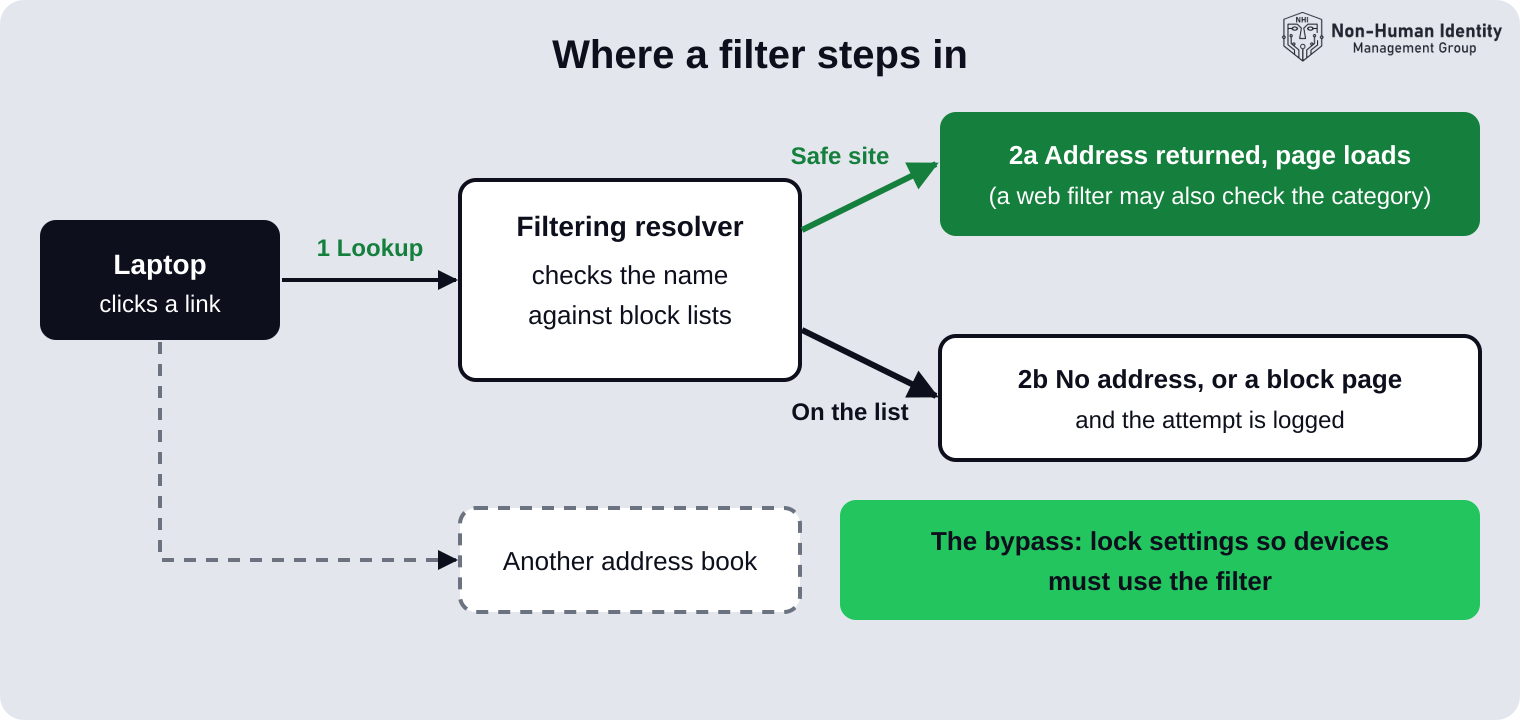
Filters need settings that make devices use them. The UK's National Cyber Security Centre advises stopping devices and browsers from using other resolvers. That includes encrypted lookups built into some browsers, which can be set to use the filter instead.[2]
A worked example
Anil Whitlock manages the office at Alder Couriers, a fictional delivery firm with twenty staff. Half the team work from home two days a week.
One morning a driver, Pia Vance, gets an email saying a parcel fee is unpaid. She clicks the link on her work laptop. Instead of a payment page, she sees a block page that says "Known phishing site".
Pia nearly tries her phone instead. Then she remembers Anil's note: a block page is a warning, not a fault. She reports it with the reference code.
Anil checks the filter's records. Three other staff received the same email. Two were in the office and were blocked too.
The third, working from home on a personal laptop, was not covered. He had typed his password into the fake page. Anil helps him change it at once and turn on a second login check.
Afterwards, Anil asks his IT supplier two questions. Can the filter protect work laptops at home? Can staff switch it off? The supplier adds a small app to each work laptop that sends lookups to the filter wherever it is.
Anil also writes a short rule. Work is done on work laptops, and blocked sites are reported, not worked around.
Myths and mistakes
| What people think | What is true |
|---|---|
| A filter blocks all phishing. | It blocks sites already on its lists. A brand new fake site may get through, so staff still need to stay alert. |
| The office filter protects laptops at home. | Only if it was set up to. Many filters cover one network, not the device. |
| A block page means the internet is broken. | It means the filter worked. Report it if you think the block is wrong. |
| More blocking is always safer. | Over-blocking gets in the way of work, and people look for ways around it. In England, schools are told filters should not unreasonably affect teaching.[4] |
| Home broadband filters cover every situation. | No filter is perfect, and devices taken elsewhere may use another network.[5] |
What can I do this week?
- Ask your IT supplier or broadband provider whether your connection is filtered, and by what.
- Check whether the filter also covers laptops away from the office.
- Tell staff what a block page looks like and how to report one.
- Name one person who can unblock a genuine site quickly.
- Look in your broadband account for a security filter setting at home.
Checklist
- Office devices use a filtering DNS service.
- Work laptops are filtered when away from the office.
- Staff cannot easily switch devices to a different resolver.
- Block pages tell people how to report a wrong block.
- Someone reviews blocked lookups for signs of trouble.
- The filter's categories have been chosen on purpose and are reviewed at least once a year.
- We know what data the filter provider keeps about our lookups.
Common questions
What is the difference between DNS filtering and a web filter?
DNS filtering blocks at the address lookup, so it is fast and covers every app. A web filter looks at the site or page itself and can block by category or by full address. Many products combine both for better cover.
Will a filter slow down my internet?
Usually not by much. A DNS filter only changes who answers the address lookup, and those lookups are small. Page-checking filters do more work, so ask the supplier how they handle busy times and what happens if their service goes down.
Can a filter see everything I do online?
It can see the names of the sites devices look up, and some web filters see more. The UK's cyber security agency advises checking how a provider handles that data before you choose one.[2] Tell staff plainly what is filtered and logged.
Is there a free filter for organisations?
Some governments offer one to certain groups. The UK runs a free Protective DNS service for central government and other eligible organisations.[1] Many broadband providers also offer free filters for home customers.[5] Check what fits your situation.
Can people get around a filter?
Sometimes, for example by changing device settings, using another network or a private tunnel service. Locking device settings and blocking other resolvers on the network makes this harder, which is why the setup matters as much as the block list.[2]
Where next?
Ready for the detail? Read the practitioner guide: Protective DNS Guide. It goes further into choosing a service, closing bypass routes and using block logs for detection.
Also useful:
- DNS Security for Beginners
- DNS Filtering vs Secure Web Gateway
- Secure Web Gateway and Web Filtering Guide
- Phishing for Beginners
Related NHI Mgmt Group resources: DNS Security and Protective DNS Buyer's Guide · Browser Security for Beginners · Malware for Beginners
Key terms
- Domain Name System
- The internet's address book, which turns website names into the numbers computers use.
- Resolver
- The service that answers a device's address lookup. It can shape which sites devices can reach.
- Protective DNS
- A lookup service that uses threat information to stop devices reaching harmful sites.
- Blocklist
- A kept-up-to-date list of sites or addresses linked to phishing, malware or other abuse.
- Web filtering
- Controlling which websites or kinds of site people can reach, based on a set of rules.
- Secure web gateway
- A checkpoint for web traffic leaving an organisation that applies rules and blocks threats.
- Phishing
- Fake messages or websites that trick people into giving away logins, money or access.
Sources and further reading
- Protective Domain Name Service (PDNS). National Cyber Security Centre (NCSC). https://www.ncsc.gov.uk/information/pdns, accessed 28 Nov 2026.
- Protective DNS for the private sector. National Cyber Security Centre (NCSC). https://www.ncsc.gov.uk/guidance/protective-dns-for-private-sector, accessed 28 Nov 2026.
- Web content filtering. Microsoft Defender for Endpoint documentation, Microsoft Learn. https://learn.microsoft.com/en-us/defender-endpoint/web-content-filtering, accessed 28 Nov 2026.
- Filtering and monitoring standards for schools and colleges. Department for Education, GOV.UK, updated 16 September 2026. https://www.gov.uk/guidance/meeting-digital-and-technology-standards-in-schools-and-colleges/filtering-and-monitoring-standards-for-schools-and-colleges, accessed 28 Nov 2026.
- Parental controls offered by your home internet provider. UK Safer Internet Centre. https://saferinternet.org.uk/guide-and-resource/parental-controls-offered-by-your-home-internet-provider, accessed 28 Nov 2026.