Windows event logs are the records a Windows computer keeps of sign-ins, changes and problems.
This guide is for new IT staff, students and anyone who has been told to "check the event logs". You do not need to be an expert to be affected: if your business uses Windows computers, these logs are often the first place someone looks after a problem.
In short
- Windows writes events into a few main logs: Application, System and Security.
- Each event has a number, called an event ID, that tells you what kind of thing happened.
- A handful of events, such as sign-ins, failed sign-ins and new accounts, are worth learning first.
- Some events are only written if auditing is switched on, and old events can be overwritten, so copy logs somewhere safe.
What you will learn
- Explain what the three main Windows logs hold.
- Spot the event IDs for a sign-in, a failed sign-in and a cleared log.
- Check whether the logs on your computers are kept long enough.
- Ask who copies your logs to a central place.
- Diary of events (event log)
- a list of things that happened on a computer, each with a date and time.
- Event number (event ID)
- a number that says what kind of event it is, such as a sign-in.
- Viewer app (Event Viewer)
- the Windows tool for reading event logs.
What are Windows event logs?
Think of the flight recorder on a plane. It quietly notes what happens during the flight. If something goes wrong, people read it back to work out what happened.
Windows does something similar. In the background, it writes short notes called events. An event might say "someone signed in", "a service failed to start" or "a new user account was made". Each event has a date, a time and a number.
Windows keeps these events in one shared system, so people do not have to dig through each program's own files.[6] You can read them in a built-in tool called Event Viewer. To open it, search for Event Viewer in the Start menu.
There are three main logs, found under Windows Logs in Event Viewer:[7]
- Application: notes from programs, such as an app that hit an error.
- System: notes from Windows itself, such as a driver that did not load.
- Security: sign-ins, failed sign-ins and changes to accounts, once auditing is turned on.
Where the comparison stops working: a flight recorder is built to survive a crash. A Windows log lives on the same computer it describes. It can fill up, and an attacker with enough access may try to clear it.
Why does it matter?
When something odd happens on a Windows computer, the logs help answer three questions: who, what and when. Without them, you are guessing.
If you are new to IT support
What could happen: a user says "I was locked out" and you do not know where to look.
Check this: open Event Viewer on a test computer and find your own last sign-in.
If you run a small office
What could happen: someone guesses a password on a shared computer, and nobody notices.
Check this: ask your IT supplier whether failed sign-ins are recorded and reviewed.
If you are studying for a security job
What could happen: an interviewer asks what a sign-in event looks like, and you freeze.
Check this: learn the six events in the figure on this page and what each one means.
Next: SIEM for Beginners
What does it look like?
Here is a made-up, shortened sign-in event, laid out the way Event Viewer shows its details.
Example only. All values are made up.
Log Name:   Security
Event ID:   4624                              (1)
Date:       2026-03-04 07:52:10
Computer:   OFFICE-PC-0000.example.invalid    (2)
Logon Type: 3                                 (3)
Account Name: FAKE-reception
Source Network Address: 192.0.2.10            (4)
Logon ID:   0x0000FAKE                        (5)
- The number 4624 means an account signed in successfully.
- The computer that was signed in to. This is where the event is written.
- The type of sign-in. Type 3 means over the network, for example opening a shared folder.
- In a real file, this line would contain the network address of the computer the sign-in came from.
- A code that links this sign-in to other events in the same session.
Why this is risky: one line like this looks harmless. It only tells a story when you compare it with what is normal. A 3am sign-in from an unknown address is worth a closer look.[1]
The safer way: learn which accounts and computers normally appear. Keep the logs long enough to look back. Copy them to a central place where they can be searched together.
How does it work?
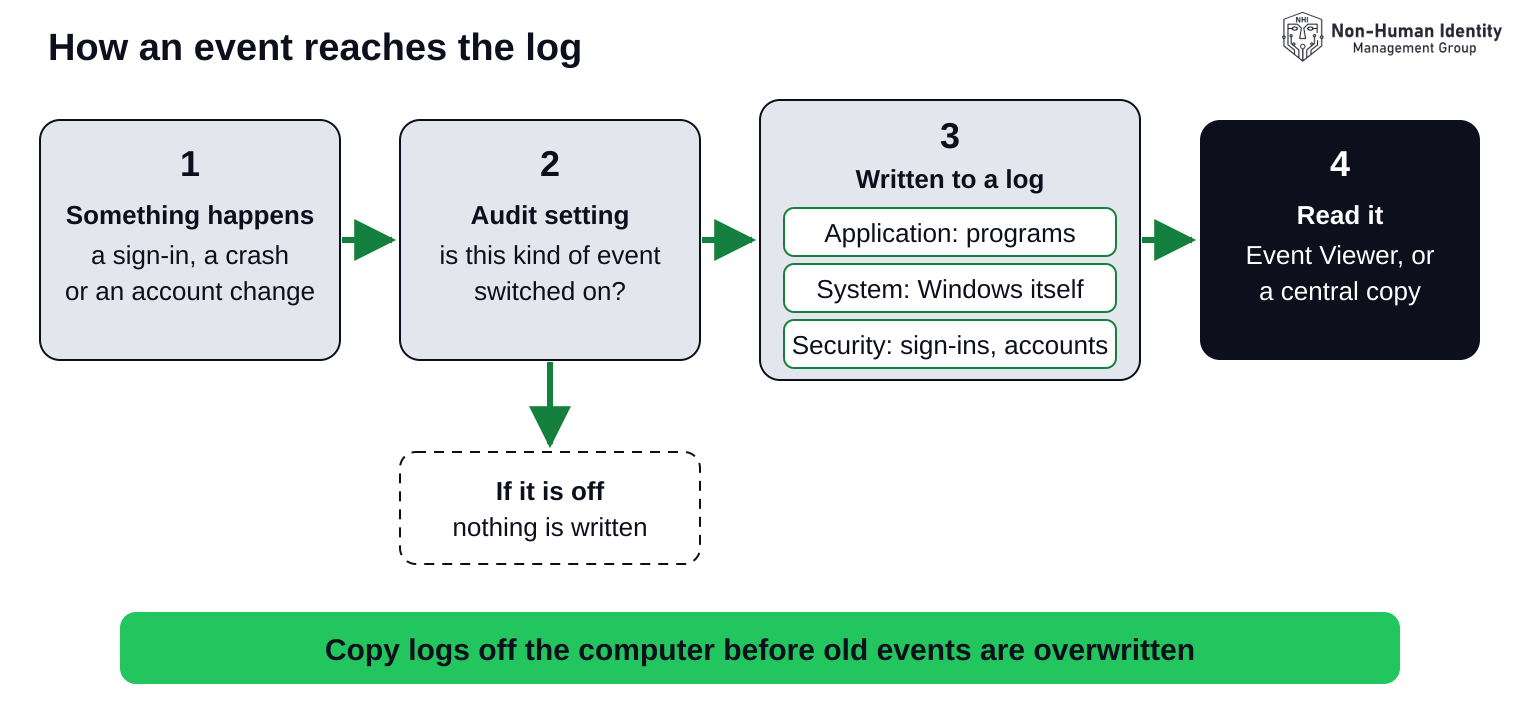
Here is the path from "something happened" to "someone can read about it".
- Something happens. A person signs in, a program crashes or an account is changed.
- Windows checks its settings. For security events, an audit policy (the setting that says which actions to record) decides whether to write the event. Some useful events are not recorded by default. For example, Windows does not record new programs starting unless that setting is turned on.[4]
- The event is written. It goes into the right log with a time, an event ID and details such as the account name.
- The log fills up. Each log has a size limit. Depending on its settings, old events can be overwritten when it is full.[8]
- Someone reads it. A person opens Event Viewer, or a tool copies the events to a central system and checks them there.
There are hundreds of event IDs. You do not need to learn them all. Microsoft publishes a list of events worth watching.[3] These six are a good start.
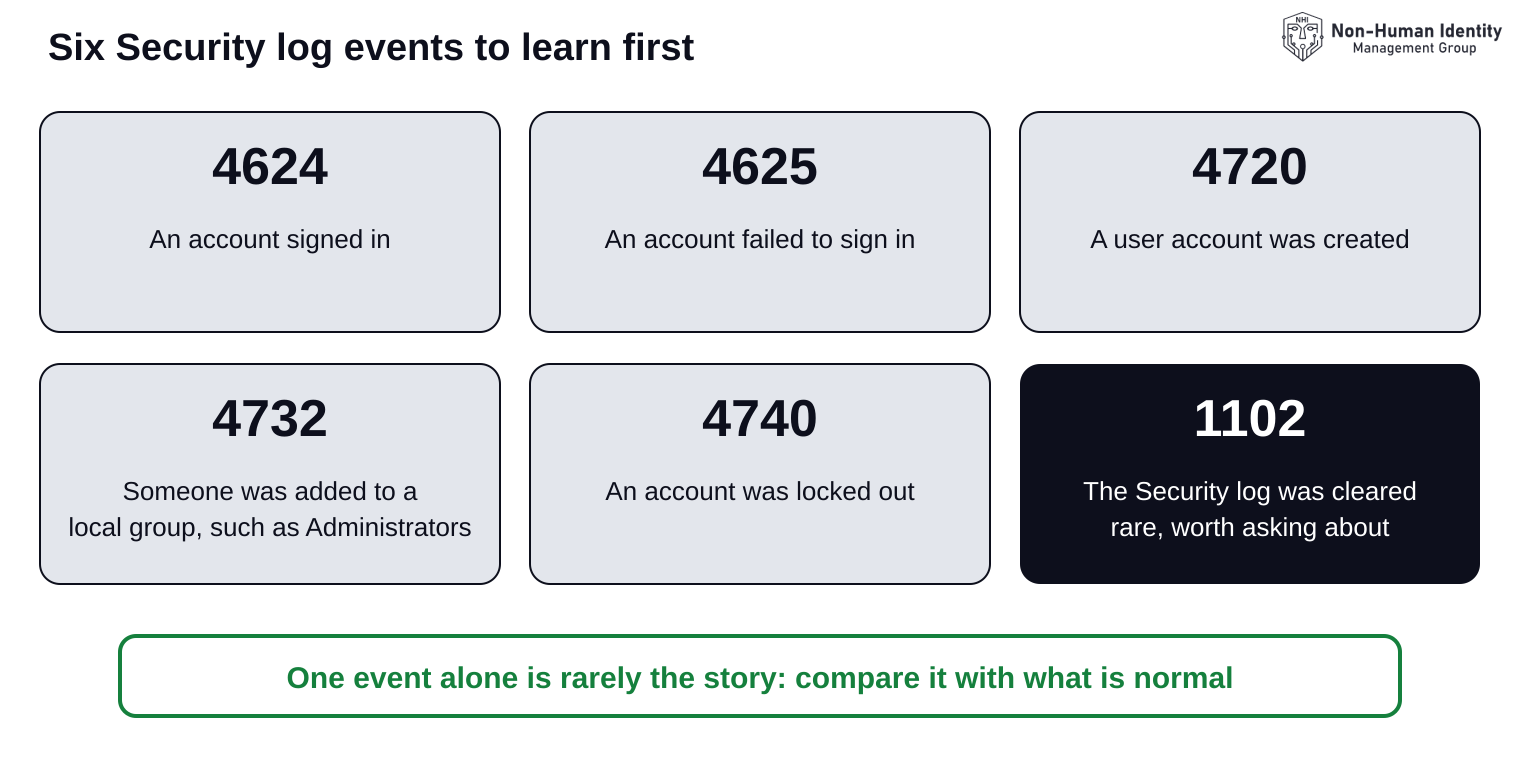
Failed sign-ins carry a status code that says why they failed. One code means the user name was wrong, and another means the password was wrong. Microsoft notes that many wrong user names in a row may mean someone is guessing names.[2] A cleared Security log is rare, so Microsoft suggests looking into why it happened.[5]
A worked example
Juno Haddad has just started as the only IT person at Rowan Tutors, a fictional tutoring firm with twenty staff.
On Monday, the office manager says the shared front desk computer locked her out twice last week. Juno wants to know why.
She remembers the flight recorder idea. The computer has been taking notes, so she reads them back. She opens Event Viewer on the front desk computer and goes to Windows Logs, then Security.
She filters the log to show event 4625, the failed sign-ins. There are about forty in one evening, all for the account named "admin". The status codes show a wrong password each time.
Next she looks for event 4740, a locked account. The office manager's account was locked on Tuesday morning, but that was a few typing mistakes. The "admin" failures are different. They all came over the network, from another computer in the office.
Juno checks that computer. It is an old laptop running a backup program with a saved, out-of-date password for "admin". It retries every few minutes. No outsider is involved, as far as the records available to her show.
She updates the program to use its own account instead, and resets the password. Then she checks that no 4720 events show new accounts she did not expect.
Last, she finds the Security log only holds about two weeks of events. She asks the firm's IT supplier to copy the logs to a central system, so older events are not lost.
Myths and mistakes
| What people think | What is true |
|---|---|
| Windows records everything by default. | Many security events depend on the audit policy. If a setting is off, the event is not written.[4] |
| The logs keep every old event. | Each log has a size limit, and old events can be overwritten.[8] |
| A failed sign-in means an attack. | Many come from typos or old saved passwords. Look for patterns, not single events.[3] |
| The sign-in is logged on the computer I sat at. | A successful sign-in event is written on the computer that was accessed.[1] |
| Turning on log copying also switches on the right events. | Copying tools send what is already logged. The audit settings must be set separately.[8] |
What can I do this week?
- Open Event Viewer on a test computer and find your own last sign-in.
- Filter the Security log for failed sign-ins and see what is normal.
- Check how many days of events your Security log really holds.
- Ask who copies your Windows logs to a central place, and how long they are kept.
Checklist
- I know where the Application, System and Security logs are in Event Viewer.
- I can explain what events 4624, 4625, 4720, 4732, 4740 and 1102 mean.
- Audit settings for sign-ins and account changes are switched on.
- Each log is big enough to hold the history we need.
- Logs are copied to a central place that ordinary users cannot change.
- Someone reviews failed sign-ins and new administrator accounts regularly.
- A cleared Security log is always followed up.
Common questions
How do I open Event Viewer?
Search for Event Viewer in the Start menu and open it. The main logs are under Windows Logs on the left. Reading the Security log usually needs administrator rights, so on a work computer you may need to ask your IT team.
What is event ID 4624?
Event 4624 means an account signed in successfully. It is written on the computer that was signed in to. Its logon type shows how the sign-in happened, for example at the keyboard, over the network or by Remote Desktop.[1]
Should I worry about lots of failed sign-ins?
Look into them, but do not panic. Many come from typos or programs using an old password. A steady run of failures for one account, or many different user names, is more worrying. Microsoft suggests comparing against what is normal for your computers.[2]
Can someone delete the logs?
Yes, an account with enough rights can clear a log. Clearing the Security log writes its own event, 1102, which names the account that did it. This is one reason to copy logs to a central place quickly.[5]
Do I need a special tool to read the logs?
No, Event Viewer is enough to learn on one computer. For many computers, teams copy logs to a central system so they can search them together. The UK's cyber security agency points to built-in Windows event forwarding as one way to do this.[9]
Where next?
Ready for the detail? Read the practitioner guide: Windows Event Log Guide. It goes further into audit policy settings, every logon type and the event IDs security teams use to spot attacks.
Also useful:
- Security Logging for Beginners
- SIEM for Beginners
- Windows Security for Beginners
- Windows Event Forwarding Guide
- Incident Response for Beginners
Related NHI Mgmt Group resources: Windows Event Log Guide · Active Directory for Beginners · Brute-Force Attacks for Beginners
Key terms
- Event log
- A list of things that happened on a computer, each with a date and time.
- Event ID
- A number that tells you what kind of event was recorded.
- Event Viewer
- The built-in Windows tool for reading event logs.
- Audit policy
- The settings that decide which security actions Windows records.
- Logon type
- A number in a sign-in event that shows how the sign-in happened.
- Event forwarding
- Copying events from many computers to one central place.
- SIEM
- A system that collects logs in one place and looks for signs of trouble.
Sources and further reading
- 4624(S): An account was successfully logged on. Microsoft Learn, Microsoft. https://learn.microsoft.com/en-us/previous-versions/windows/it-pro/windows-10/security/threat-protection/auditing/event-4624, accessed 28 Nov 2026.
- 4625(F): An account failed to log on. Microsoft Learn, Microsoft. https://learn.microsoft.com/en-us/previous-versions/windows/it-pro/windows-10/security/threat-protection/auditing/event-4625, accessed 28 Nov 2026.
- Appendix L: Events to Monitor. Microsoft Learn, Microsoft. https://learn.microsoft.com/en-us/windows-server/identity/ad-ds/plan/appendix-l--events-to-monitor, accessed 28 Nov 2026.
- Audit Policy Recommendations. Microsoft Learn, Microsoft. https://learn.microsoft.com/en-us/windows-server/identity/ad-ds/plan/security-best-practices/audit-policy-recommendations, accessed 28 Nov 2026.
- 1102(S): The audit log was cleared. Microsoft Learn, Microsoft. https://learn.microsoft.com/en-us/previous-versions/windows/it-pro/windows-10/security/threat-protection/auditing/event-1102, accessed 28 Nov 2026.
- Event Logging. Microsoft Learn, Microsoft. https://learn.microsoft.com/en-us/windows/win32/eventlog/event-logging, accessed 28 Nov 2026.
- Eventlog Key (Application, Security and System logs). Microsoft Learn, Microsoft. https://learn.microsoft.com/en-us/windows/win32/eventlog/eventlog-key, accessed 28 Nov 2026.
- Use Windows Event Forwarding to help with intrusion detection. Microsoft Learn, Microsoft. https://learn.microsoft.com/en-us/windows/security/operating-system-security/device-management/use-windows-event-forwarding-to-assist-in-intrusion-detection, accessed 28 Nov 2026.
- Logging and protective monitoring (Device Security Guidance). National Cyber Security Centre. https://www.ncsc.gov.uk/collection/device-security-guidance/managing-deployed-devices/logging-and-protective-monitoring, accessed 28 Nov 2026.