Adware is software that fills your screen with ads you did not ask for.
This guide is for anyone whose computer or phone has started showing odd pop-ups, or who wants to keep junk software off their devices. If your business uses laptops, one unwanted program on one machine can slow staff down and change settings without anyone noticing.
In short
- Adware shows ads you did not ask for. Unwanted programs, often called PUPs, are software you did not mean to install.
- Most arrive hidden inside free downloads, as extra ticked boxes you click past.
- Warning signs include pop-ups, a home page that keeps changing and new toolbars you did not add.
- Remove the program, check your browser add-ons and site alerts, then reset the browser if the ads come back.
What you will learn
- Spot the signs that unwanted software is on your device.
- Explain how adware gets in, usually with your accidental say-so.
- Check your apps, add-ons and browser alerts for junk.
- Remove it in the right order so it does not come back.
- Ad software (adware)
- a program whose main job is to show you adverts, often while tracking what you look at.
- Unwanted program (PUP)
- software you did not really mean to install, such as an extra toolbar that came with a free app.
- Junk that came with the device (bloatware)
- apps the maker or seller put on a new device that you may not need.
What are adware and unwanted programs?
Think of a free gift that arrives with a salesperson who then moves into your home. You wanted the gift. You did not want someone in the corner shouting offers at you all day. Adware works the same way on a computer or phone.
Adware is software that shows you adverts you did not ask for. It may open pop-up windows, add ads to web pages or send you to shopping sites. Some adware also watches which sites you visit, so it can choose which ads to show.
A potentially unwanted program, or PUP, is a wider idea. It means software that is not quite a virus, but that you would probably not choose to keep. Microsoft describes these programs as software that can slow your machine, show unexpected ads or install other software you did not expect.[2] Common examples are extra toolbars, search tools that change your home page and "PC cleaner" apps that push you to pay.
Bloatware is a cousin. It is software that comes already installed on a new device. Much of it is harmless, but it can take up space and some of it shows ads.
Where the comparison stops working: a salesperson in your home is easy to see. Adware often hides inside browser settings and site alerts, so you see the ads but not where they come from.
Why does it matter?
Most adware is more annoying than dangerous. But it can slow your device, track what you do and lead you to scam pages.
If you use a home computer
What could happen: a pop-up claims your computer has a virus and tells you to call a number or pay for a fix.
Check this: close the window and never call a number from a pop-up. The FTC gives the same advice.[3]
If you run a small business
What could happen: a free tool a staff member installs brings extras that change browser settings on a work laptop.
Check this: agree who may install software on work devices, and where it should come from.
Next: Antivirus for Beginners
If you help family with their devices
What could happen: an older relative clicks "Allow" on a site, and it then sends fake alerts that look like system warnings.
Check this: look at which sites are allowed to send notifications in their browser.
What does it look like?
Here is a made-up install screen of the kind that brings extra software with it.
Example only. All values are made up.
FreePDF-Example Setup                     [ Step 3 of 4 ]
  ( ) Custom install (advanced)
  (x) Express install (recommended)            (1)
  [x] Also install FAKE-Search toolbar         (2)
  [x] Set example.invalid as my home page      (3)
  [x] Install SpeedUp-PC-Example (free scan)   (4)
  By clicking Next you accept the offers above.
              [ Decline ]   [ Next > ]          (5)
- The "recommended" choice often hides the extra offers.
- A toolbar you did not come for, ticked for you in advance.
- A change to your browser home page and search.
- A "cleaner" app. It may find problems, then ask you to pay.
- "Decline" may skip one offer. Or it may seem to cancel the whole install.
Why this is risky: click Next without reading, and you agree to three extra programs.
The safer way: choose Custom and untick every extra. Get software from the maker's own site or an official app store.
How does it work?
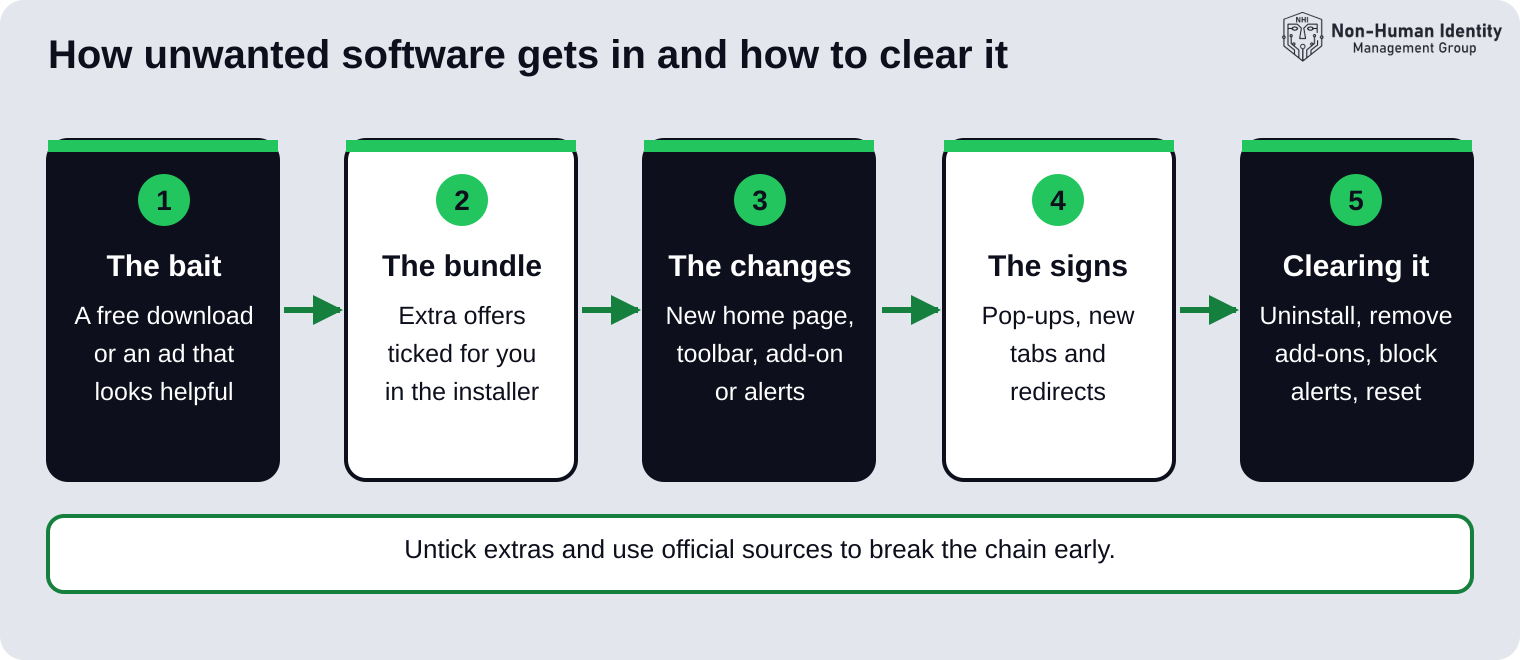
- The bait. You look for something free, such as a PDF tool or a video player, and an ad or a download site offers it.
- The bundle. The installer packs in extras. Google's policy on unwanted software lists hiding these extras, or not telling you about them, as a key warning sign.[1]
- The changes. The extras change your home page or search, add a toolbar or browser add-on, or ask to send you notifications.
- The ads and tracking. Pop-ups, new tabs and redirects to other sites start to appear. Some tools also send details of your browsing to the maker.[1]
- Hard to remove. Some unwanted software is made hard to uninstall, or puts settings back after you change them.[1]
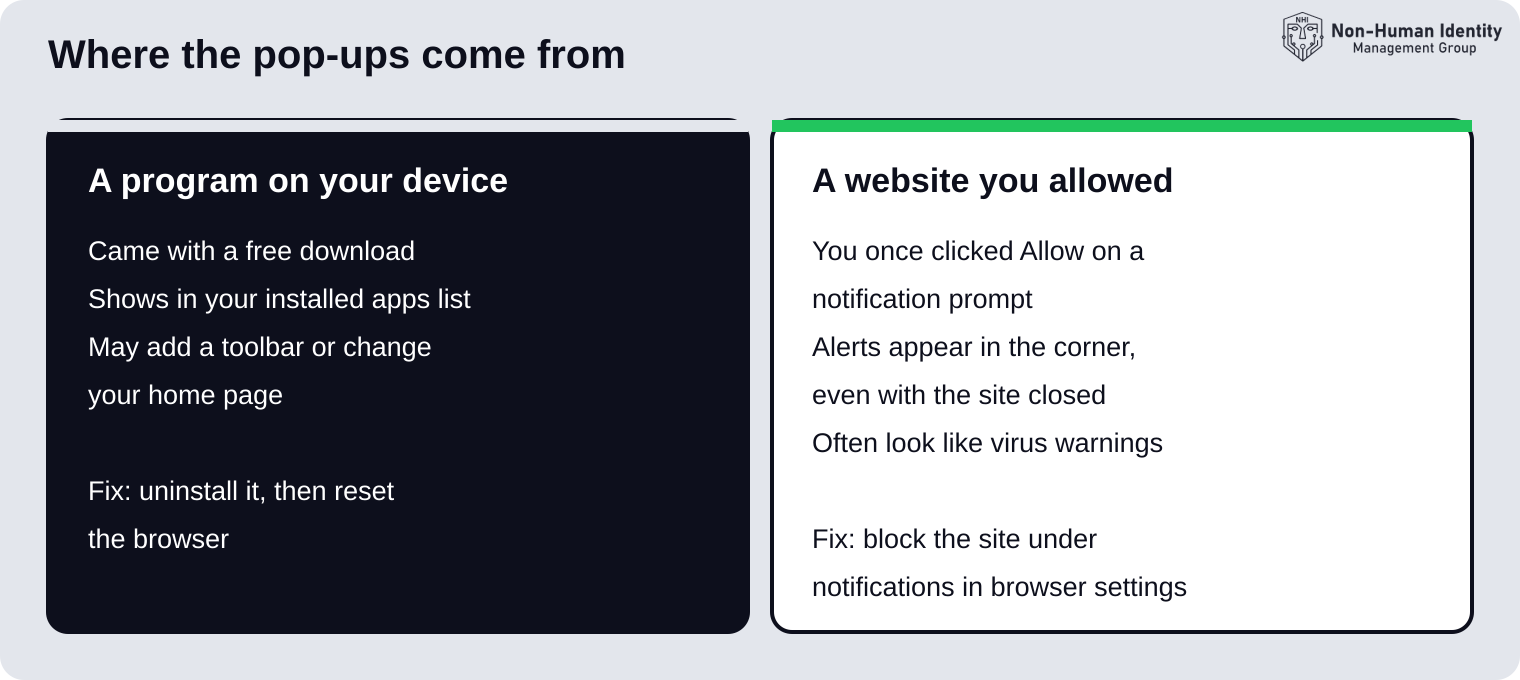
Not every pop-up comes from a program on your device. Some come from a website you once allowed to send notifications. These look like system alerts but appear in the corner of your screen. You can turn them off in your browser settings.[5]
A worked example
This story is made up to show how it can happen.
Hector Alvarez is a retired teacher in Phoenix. He wants to join two PDF files for a club newsletter. He searches for a free tool and clicks the first result, which turns out to be an advert.
The installer is quick. He clicks "Next" four times. The tool works, and he forgets about it.
Two days later his browser opens with a new search page he has never seen. A toolbar sits across the top. Ads for shops he has never visited pop up as he reads the news. One evening a box in the corner says his computer is "infected" and gives a number to call.
Hector does not call. He remembers a tip from his daughter: real warnings do not come with a phone number. He closes the box and asks her to talk him through a clean-up on a video call.
First he opens the list of installed apps. He finds the PDF tool, a search toolbar and a "PC speed-up" app he does not recognise. He uninstalls all three.
Next he opens his browser's add-ons page and removes an add-on with the same name as the toolbar. Then he checks which sites may send him notifications. One unknown site is on the list, so he blocks it.[5]
The new search page is still there, so he uses the browser's reset option.[4] His normal home page comes back. He runs a full scan with his security software, which finds nothing more in the areas it checks.
What made the difference: Hector did not trust the alert, and he cleared each change in turn instead of only closing pop-ups.
Myths and mistakes
| What people think | What is true |
|---|---|
| Adware is just annoying, so I can ignore it. | It can slow your device, track your browsing and lead you to scam pages. It is worth removing. |
| Clicking "Decline" on an offer always cancels the extras. | Installers word buttons in different ways. Read each screen, and choose Custom so you can untick every extra. |
| A pop-up that says I have a virus must be from my antivirus. | Fake warnings copy the look of real ones. Close it, and never call a number or pay through a pop-up.[3] |
| Resetting the browser is enough on its own. | If the program is still installed, it may change the settings back. Uninstall it first, then reset.[4] |
| A "PC cleaner" app will fix it for me. | Some cleaner apps are themselves unwanted programs. Use the tools built into your device and trusted security software. |
What can I do this week?
- Open your list of installed apps and uninstall anything you do not recognise or no longer use. On Windows 11 this is under Settings, Apps, Installed apps.[6]
- Open your browser's add-ons page and remove any you did not add on purpose.
- Check which sites may send you notifications, and block the ones you do not know.[5]
- If you use Microsoft Edge, turn on the setting that blocks potentially unwanted apps. Microsoft says it is off by default.[2]
- Next time you install something free, pick Custom and untick every extra.
Checklist
- I download software from the maker's website or an official app store.
- I choose Custom install and untick extra offers.
- My installed apps list has nothing I do not recognise.
- My browser has only the add-ons I chose.
- Only sites I trust may send me notifications.
- My security software is up to date and scans new files.
- I never call a number or pay because of a pop-up.
Common questions
Is adware the same as a virus?
Not quite. Adware is usually installed with your accidental agreement, often bundled with something you wanted. Microsoft says unwanted programs like this are not treated as viruses, though they can still harm how your device works. Some adware does act like malware, so remove it either way.
Why do the pop-ups come back after I remove things?
Usually because one part is still there. It may be a browser add-on, a site allowed to send notifications, or a program that resets your settings. Uninstall the program first, then remove add-ons, block notifications, and reset the browser last.
Should I remove the apps that came with my new laptop?
You can remove the ones you do not need. Some pre-installed apps are useful, such as update tools from the maker. If you are not sure what an app does, search the maker's support site before you remove it. Never remove your security or update software.
Can phones get adware too?
Yes. On phones it often comes from apps that show full-screen ads, or from websites you allowed to send notifications. Remove apps you do not trust, check notification settings, and install apps only from the official app store for your phone.
When should I get expert help?
Get help if the ads keep coming back after every step. Also get help if you typed passwords or card details into a page the ads led you to. In that case, change those passwords from a clean device and contact your bank.
Where next?
Ready for the detail? Read the practitioner guide: Adware and Potentially Unwanted Programs Guide. It covers how security tools classify unwanted software, blocking it across many company devices, and controls for browser add-ons at work.
Also useful:
- Malware for Beginners
- Browser Extensions for Beginners
- Verifying Software Downloads for Beginners
- Spyware for Beginners
Related NHI Mgmt Group resources: Browser Privacy and Security Settings Guide · Antivirus for Beginners · Cookies and Online Tracking for Beginners
Key terms
- Adware
- Software that shows adverts you did not ask for and may track what you browse.
- Potentially unwanted program (PUP)
- Software that may work, but that most people would not choose to keep because of how it was installed or what it does.
- Bloatware
- Software that comes pre-installed or bundled with a device or app but is not needed for its main use.
- Adware installer
- A setup program that adds unwanted ad software alongside the program you meant to install.
- Malvertising
- Harmful adverts, sometimes on well-known sites or search pages, that lead to fake download pages or scams.
- Browser extension
- A small add-on that changes how your web browser works, and that may be able to read the pages you visit.
- Malware
- Software made on purpose to damage a device, steal data or spy on its user.
Sources and further reading
- Unwanted Software Policy. Google. https://www.google.com/about/unwanted-software-policy.html, accessed 28 Nov 2026.
- Detect and block potentially unwanted applications with Microsoft Defender Antivirus. Microsoft Learn. https://learn.microsoft.com/en-us/defender-endpoint/detect-block-potentially-unwanted-apps-microsoft-defender-antivirus, accessed 28 Nov 2026.
- Malware: How To Protect Against, Detect, and Remove It. Federal Trade Commission (FTC), Consumer Advice. https://consumer.ftc.gov/articles/malware-how-protect-against-detect-and-remove-it, accessed 28 Nov 2026.
- Remove unwanted ads, pop-ups and malware. Google Chrome Help. https://support.google.com/chrome/answer/2765944, accessed 28 Nov 2026.
- Turn notifications on or off. Google Chrome Help. https://support.google.com/chrome/answer/3220216, accessed 28 Nov 2026.
- Uninstall or remove apps and programs in Windows. Microsoft Support. https://support.microsoft.com/en-us/windows/uninstall-or-remove-apps-and-programs-in-windows-4b55f974-2cc6-2d2b-d092-5905080eaf98, accessed 28 Nov 2026.