AWS security means protecting what you build and store in an Amazon Web Services account.
This guide is for students, founders and new developers who have just opened an AWS account, or are about to. You do not need to be a security expert. If your business runs a website or app on AWS, these first settings protect your data and your bill.
In short
- AWS looks after its buildings and machines. You look after the settings, data and logins in your own account.
- The first sign-in, called the root user, can do everything, so give it a second sign-in check and lock it away.
- Set a budget alert, turn on a lasting activity record and keep storage private unless it truly needs to be public.
- Most of these settings take minutes and cost little or nothing.
What you will learn
- Explain which parts of security AWS handles and which parts are yours.
- Spot the five settings to check in a brand-new account.
- Check whether your account has a budget alert and a lasting activity record.
- Ask the right questions if someone else set up your account.
- Master login (root user)
- the email and password used to open the account, with full control of it.
- Spending alarm (budget alert)
- an email AWS sends when your costs reach or look set to pass a limit you choose.
- Activity record (CloudTrail)
- the AWS service that writes down actions taken in your account.
What is AWS security?
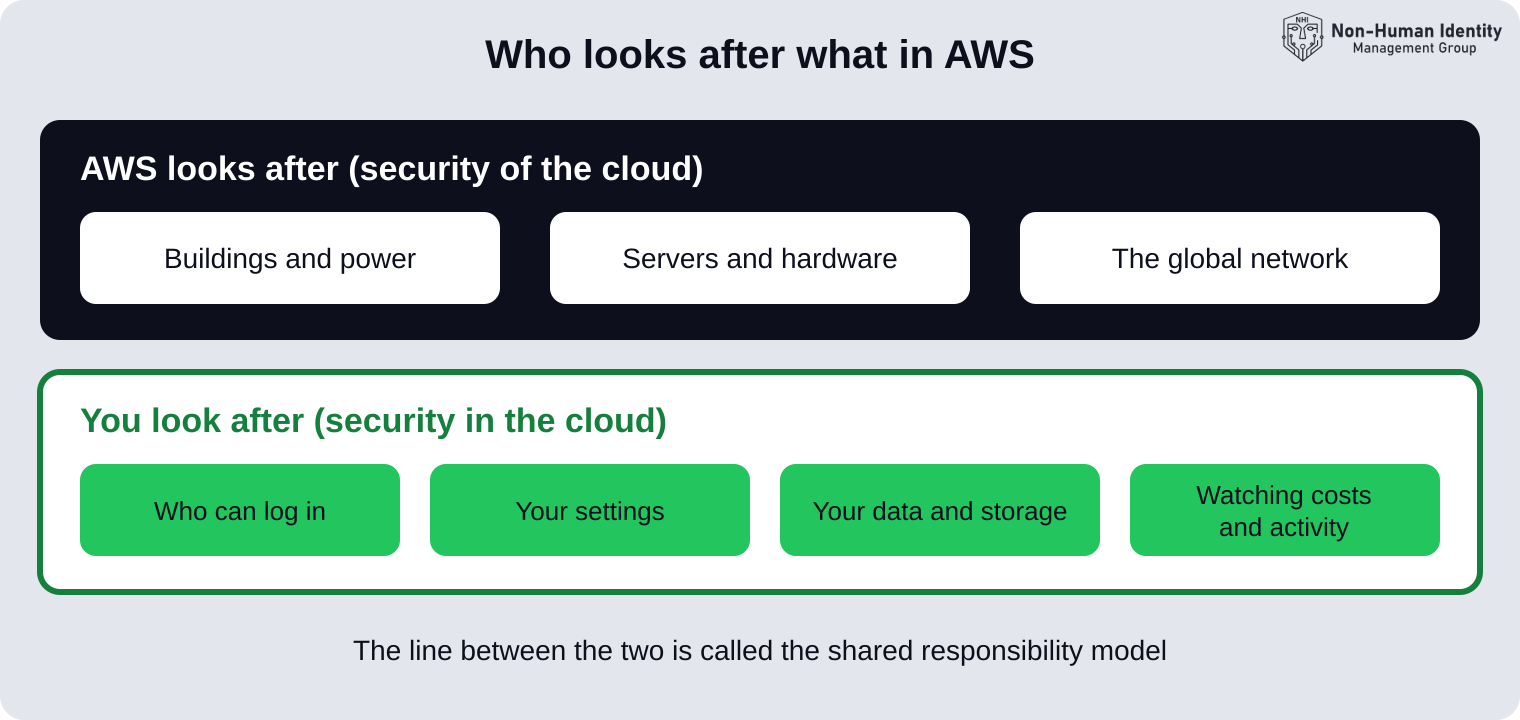
Think of renting a flat. The landlord fixes the roof and the wiring, but you lock the door and decide who gets a key. AWS works in the same way.
AWS protects the data centres, hardware and network that run its services. You protect what you put on top: your data, your apps, your settings and who can log in. AWS calls this the shared responsibility model.[1]
So AWS security is mostly about your own choices. Who can sign in? What can they change? Is your storage private? Will you notice if something odd happens or the bill jumps?
Where the comparison stops working: a flat comes with a lock already fitted. In AWS, many safety settings exist but some are yours to switch on, and a few can be undone by one wrong click.
Why does it matter?
A new account is often set up in a hurry, by one person, with the most powerful login. Mistakes made on day one tend to stay for years.
If you are a student or learning AWS
What could happen: a practice project leaks a key or is left running, and you get a bill you did not expect.
Check this: set a small monthly budget alert before you build anything.
Next: AWS IAM for Beginners
If you run a startup on AWS
What could happen: one founder holds the only master login, and nobody else can recover the account if they leave.
Check this: make sure the account email is a shared company address, not one person's inbox.
If you are a new developer on a team
What could happen: you make a storage area public to share one file, and everything in it becomes readable.
Check this: ask whether public access is blocked for the whole account.
What does it look like?
Here is a made-up first-day check of a new account. A careful founder might keep a note like this.
Example only. All values are made up.
Account: 000000000000 (example-shop)
Root user email:     [email protected]      (1)
Root user MFA:       not set                     (2)
Root access keys:    1 key, created at sign-up   (3)
Budget alert:        none                        (4)
Lasting trail:       none (90-day history only)  (5)
S3 public access:    blocked at account level    (6)
- One person's inbox. AWS uses this address for recovery and urgent notices.
- No second sign-in check on the most powerful login.
- A long-lasting key for the root user. AWS advises not creating these at all.
- No spending alarm, so a runaway cost may go unnoticed until the bill arrives.
- Only the short built-in history. Older actions will drop out of view.
- Good: public access to storage is blocked for the whole account.
Why this is risky: anyone with the root password or that root key could control the whole account. Without an alert or a lasting record, problems are found late.
The safer way: use a shared company email and turn on MFA for the root user. Delete any root keys. Add a budget alert and a trail, and keep public access blocked.
How does it work?
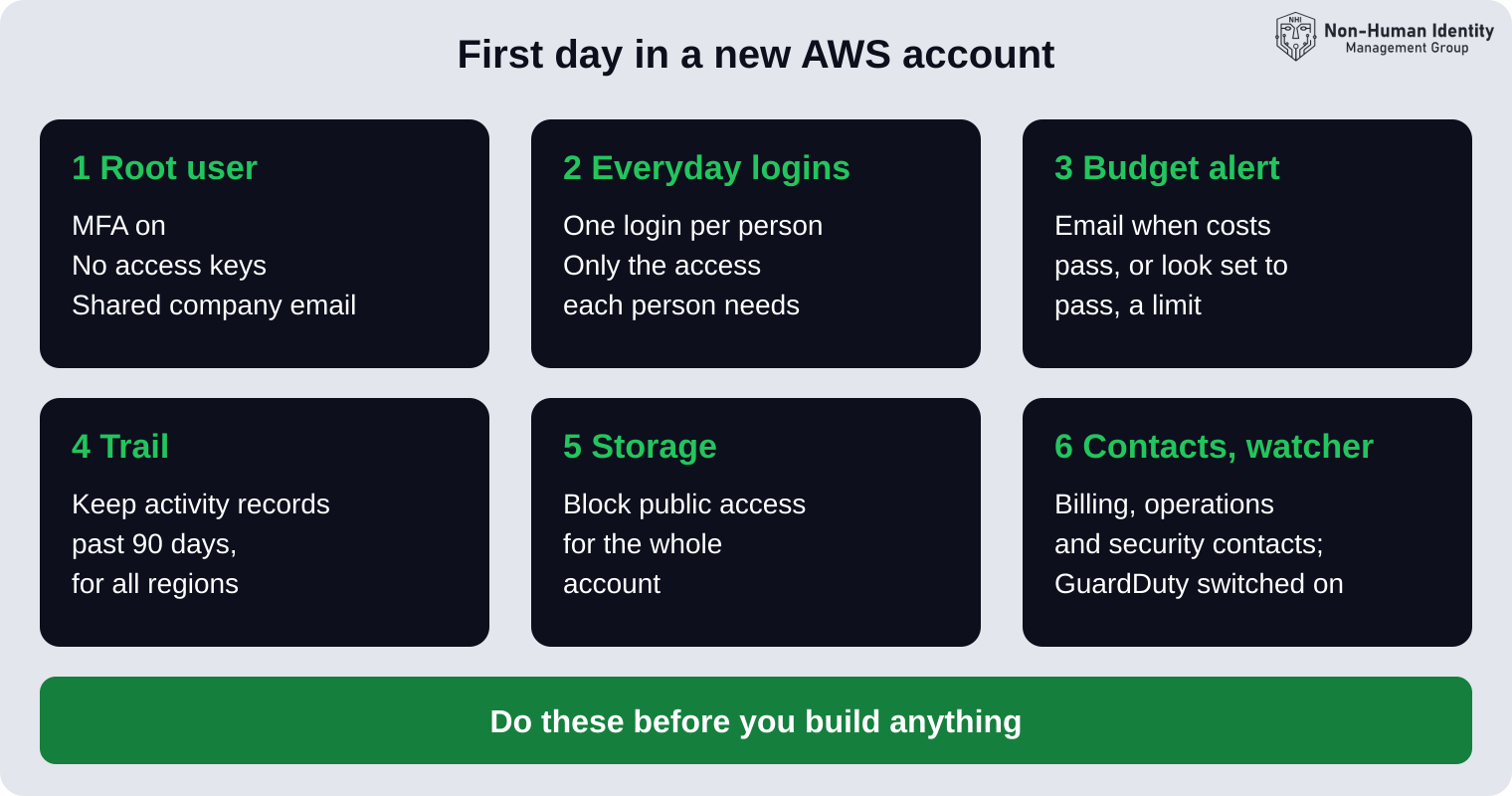
These are the first settings to get right, in a sensible order. Each one is a setting in the AWS console, the website where you manage your account.
- Lock away the root user. Give it a strong, unique password. Turn on multi-factor authentication (MFA), a second check such as a code from an app or a security key. Do not create access keys for it, and use a group email address the business controls.[2] Use it only for the few jobs that need it.
- Make everyday logins. Create separate logins for each person, with only the access they need. Our AWS IAM for Beginners guide explains how.
- Set a spending alarm. AWS Budgets can email you when costs pass, or are forecast to pass, a limit. AWS warns the alert can arrive after the cost, because billing data lags behind use.[3]
- Keep a lasting activity record. CloudTrail shows the last 90 days of account changes for free, in each region.[4] To keep records longer, you create a trail, which saves the records as files in your own storage. AWS recommends a trail that covers all regions.[5]
- Keep storage private. Amazon S3 is AWS's file storage. New storage areas, called buckets, do not allow public access by default. A setting called Block Public Access stops anyone making them public later, and AWS suggests turning it on for the whole account.[6]
- Add the right contacts and a watcher. Add billing, operations and security contacts so AWS can reach the right team.[7] You can also switch on GuardDuty, a service that looks for suspicious activity. It has a 30-day free trial the first time you turn it on.[8]
A worked example
Talia Grover runs Birch Nursery, a fictional plant shop. Her friend Kofi Corrigan built the shop's website on AWS last spring, using his own email to open the account.
Talia now wants the account in the shop's name. Kofi agrees to go through it with her one evening.
First they change the root user email to a shared shop address that Talia and her manager can both read. They give the root user a new password, stored in the shop's password manager, and turn on MFA with a security key. They find an old root access key from the first week. They check it is not used by the website, then delete it.
Next, Kofi makes a normal login for himself with only the access he needs for the website. Talia gets a login that can see bills but not change the site.
Then they set a monthly budget of a small amount, with an email to the shop address at 80 per cent. They create a trail that covers all regions, so changes are kept for longer than 90 days.
Finally, they check storage. Block Public Access is already on for the account. The website's photos are shared through the website itself, so nothing needs to be public.
The whole check took about an hour. Talia writes the settings on one page and puts a reminder in her calendar to look again in six months.
Myths and mistakes
| What people think | What is true |
|---|---|
| AWS is secure, so my account is secure. | AWS secures its own systems. Your logins, settings and data are your job.[1] |
| The root user is the safest login to use every day. | It has full control. AWS advises using it only for the few tasks that need it.[2] |
| A budget alert stops spending. | An alert sends an email. Costs can carry on rising after it arrives, so someone has to act.[3] |
| AWS keeps every record of what happened, for ever. | The free history covers 90 days. A trail is needed to keep records longer.[4] |
| Turning off Block Public Access only affects new files. | Existing public rules stay in place, so removing the block can make old items public again.[6] |
What can I do this week?
- Sign in as the root user once, turn on MFA and check there are no root access keys.
- Create a monthly budget with an email alert to a shared address.
- Check that a trail exists and covers all regions.
- Check that Block Public Access is on for the whole account.
- Add billing, operations and security contacts in the account settings.
Checklist
- The root user has a strong password and MFA.
- The root user has no access keys.
- The account email is a shared address the business controls.
- Each person has their own everyday login with only the access they need.
- A budget alert emails a shared address.
- A trail keeps activity records for all regions.
- Block Public Access is on for the whole account.
- Billing, operations and security contacts are filled in.
Common questions
Is AWS security the same as AWS IAM?
No. IAM is one part of it: the logins and permissions. AWS security also covers your bill, your activity records, your storage settings and how you watch for trouble. This guide covers the first settings across all of these. Our AWS IAM beginner guide goes into logins in more depth.
Do these settings cost money?
Most cost little or nothing. Viewing the 90-day history is free. A budget, MFA and Block Public Access have no charge of their own. A trail stores files in your storage, which can add a small cost, and GuardDuty is charged after its free trial. Check the AWS pricing pages.
What if someone else set up my account?
Ask them to walk through the settings with you, as in the worked example. Make sure the root email is one the business controls, the root user has MFA, and you can recover the account without that person. Then change the root password.
What should I do if I get an unexpected bill?
Look at the billing page to see which service is costing money, and stop anything you do not recognise. Check the activity record for logins or changes you did not make. If you suspect misuse, change passwords and keys and contact AWS Support.
Do I need all of this for a practice account?
Yes, at least the root MFA and the budget alert. Practice accounts are where keys get pasted into code and test servers get left running. Both settings take a few minutes and can save a painful bill.
Where next?
Ready for the detail? Read the practitioner guide: AWS Security Checklist. It goes further into multi-account setups, detailed logging and alerting, and the controls used by larger teams.
Also useful:
- AWS IAM for Beginners
- Cloud Security for Beginners
- Cloud Storage Buckets for Beginners
- AWS CloudTrail Guide
- How to recover AWS root access when the MFA device or email is lost
Related NHI Mgmt Group resources: CSPM for Beginners · How to detect AWS console sign-ins without MFA · Cloud Provider Mandatory MFA
Key terms
- The split of security work between the cloud provider and the customer.
- Root user
- The login created with an AWS account, which has full access to it.
- Multi-factor authentication
- A second check at sign-in, so a stolen password alone is not enough.
- Access key
- A long-lasting secret that lets a program sign in to AWS without a person.
- Audit logs
- Time-stamped records of who did what, used to check events later.
- Budget alert
- An email AWS Budgets sends when costs pass, or are forecast to pass, a set limit.
- Block Public Access
- An Amazon S3 setting that stops storage being made public.
Sources and further reading
- Security and compliance, Overview of Amazon Web Services. Amazon Web Services. https://docs.aws.amazon.com/whitepapers/latest/aws-overview/security-and-compliance.html, accessed 28 Nov 2026.
- Root user best practices for your AWS account. AWS Identity and Access Management User Guide, Amazon Web Services. https://docs.aws.amazon.com/IAM/latest/UserGuide/root-user-best-practices.html, accessed 28 Nov 2026.
- Managing your costs with AWS Budgets. AWS Cost Management User Guide, Amazon Web Services. https://docs.aws.amazon.com/cost-management/latest/userguide/budgets-managing-costs.html, accessed 28 Nov 2026.
- Working with CloudTrail event history. AWS CloudTrail User Guide, Amazon Web Services. https://docs.aws.amazon.com/awscloudtrail/latest/userguide/view-cloudtrail-events.html, accessed 28 Nov 2026.
- Creating and updating a trail. AWS CloudTrail User Guide, Amazon Web Services. https://docs.aws.amazon.com/awscloudtrail/latest/userguide/cloudtrail-create-and-update-a-trail.html, accessed 28 Nov 2026.
- Blocking public access to your Amazon S3 storage. Amazon S3 User Guide, Amazon Web Services. https://docs.aws.amazon.com/AmazonS3/latest/userguide/access-control-block-public-access.html, accessed 28 Nov 2026.
- Update the alternate contacts for your AWS account. AWS Account Management Reference Guide, Amazon Web Services. https://docs.aws.amazon.com/accounts/latest/reference/manage-acct-update-contact-alternate.html, accessed 28 Nov 2026.
- What is Amazon GuardDuty? Amazon GuardDuty User Guide, Amazon Web Services. https://docs.aws.amazon.com/guardduty/latest/ug/what-is-guardduty.html, accessed 28 Nov 2026.