Conditional access is a set of sign-in rules that look at who is signing in, from where, on which device and to which app, and then decide whether to allow access, ask for more proof or block it.
A password on its own treats every sign-in the same, whether it comes from your office laptop or a stranger's computer abroad. Conditional access adds judgement. This guide is for newcomers, students, career changers and managers who are not security specialists. It explains the general idea first, then how rules are built step by step, a worked example and simple first steps. Microsoft Entra ID uses the name "Conditional Access"; other platforms offer similar features under other names, which we point out along the way.
By the end of this guide you will be able to:
- Explain what conditional access is and why a password alone is not enough.
- Understand the signals a rule can check and the decisions it can make.
- Describe how a rule is tested safely before it is switched on.
- Identify three practical first rules for a small organisation.
Key takeaways
- Conditional access is "if this, then that" for sign-ins. If a sign-in matches certain conditions, then it is allowed, challenged for more proof or blocked.
- It works after the password, not instead of it. It decides what a correct password is allowed to unlock.
- Names differ by platform. Microsoft calls it Conditional Access, Google Workspace calls it Context-Aware Access, and Okta uses sign-in policies. The idea is the same.
- Test before you enforce. Most platforms let you watch what a rule would do before it starts blocking anyone, which avoids locking people out.
- Keep a controlled way back in. A tested emergency account, excluded from normal rules and closely watched, protects you if a rule goes wrong.
What it is, in plain English
Conditional access is a policy approach, offered by many identity providers, in which a sign-in is allowed, blocked or challenged depending on conditions such as the user, the device, the location and the risk of the request. An identity provider is the service that checks who you are when you sign in to work apps, such as Microsoft Entra ID, Google Workspace or Okta.
Microsoft describes its version simply: Conditional Access policies at their simplest are if-then statements, so if a user wants to access a resource, then they must complete an action.[1] The "if" part uses signals, facts about the sign-in. The "then" part is a decision: allow, require something extra such as multi-factor authentication (MFA), or block.
A helpful comparison is a building's front desk. The receptionist does not just check your pass. They notice whether you are staff or a visitor, whether you are going to the general office or the server room, and whether it is the middle of the night. A visitor heading to the server room might be asked for ID and an escort; a stranger at 3am might be turned away. Where the analogy breaks down: the rules are written in advance by administrators and applied the same way every time, so they are only as good as the conditions someone thought to include.
Conditional access is a practical building block of zero trust, the security model described in NIST SP 800-207, in which no access is trusted just because of where it comes from. NIST states that there is no implicit trust granted to assets or user accounts based solely on their physical or network location.[2]
Why it matters to you
- If you run a small business: stolen passwords are one of the most common ways in. A rule that requires MFA, or blocks sign-ins from places you never work, makes a stolen password much less useful.
- If you are new to a security job: reading and troubleshooting sign-in rules is a routine identity task, and "why was I blocked?" is one of the most common help desk questions.
- If you are a manager: conditional access lets you apply stronger checks to sensitive apps and admin accounts without slowing down everyone for everything.
The 2024 attacks on Snowflake customer accounts show what is lost without these checks. Mandiant reported that the affected accounts were not configured with MFA, so a valid username and password was enough, and that they had no network allow lists limiting access to trusted locations.[3] Mandiant and Snowflake notified about 165 potentially exposed organisations.[3] See the Snowflake Breach 2024 page. Requiring MFA and limiting sign-in locations are exactly the kinds of rule conditional access applies.
How it works, step by step
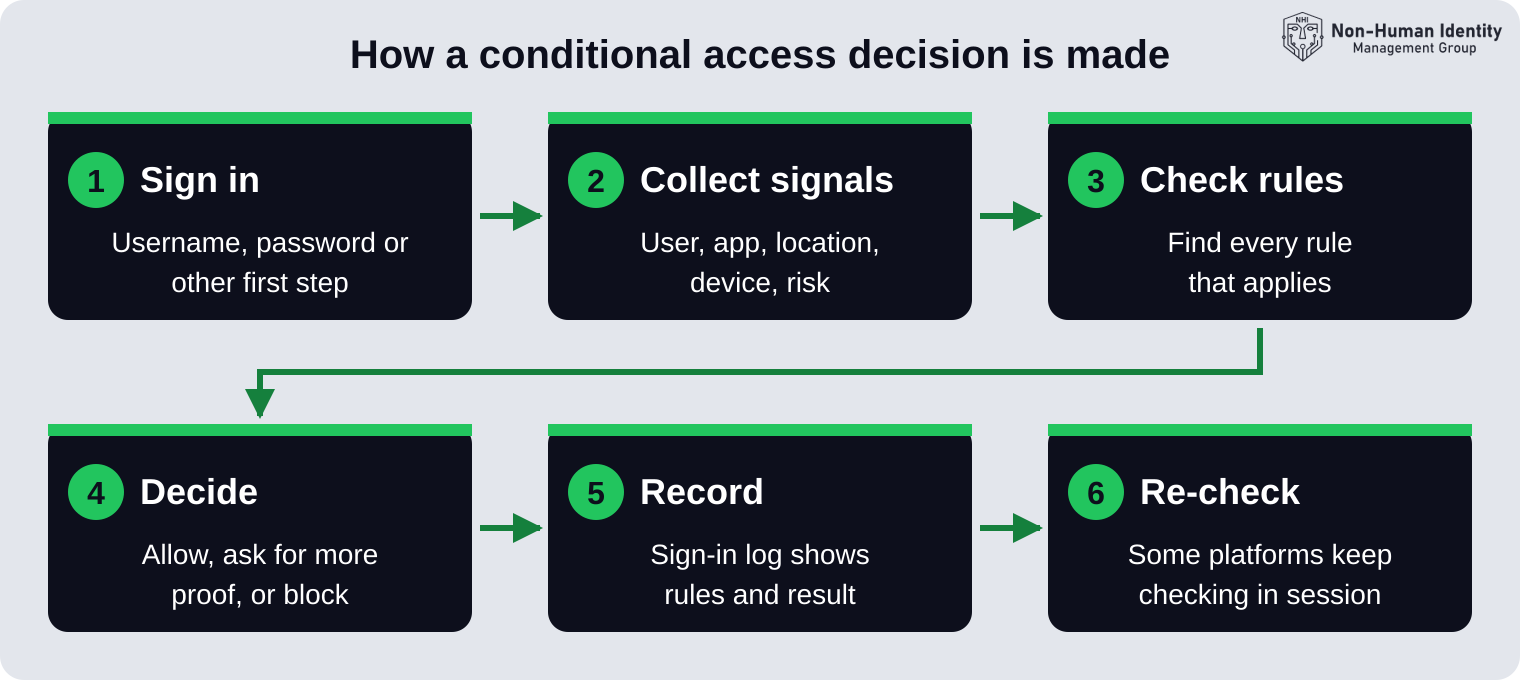
Here is what happens each time someone signs in to an app protected by conditional access.
- The person enters their username and password (or another first sign-in method). Microsoft notes that its policies are enforced after this first-factor authentication is completed.[1]
- The system collects signals. Typical signals are the user or group, the app being opened, the network or country (often set up as a named location), the device and whether it meets your security rules, and a calculated risk score where the platform offers one.[1][4]
- The rules are checked. The platform finds the rules that apply to this sign-in. On Okta, for example, policies and their rules are checked in list order and Okta advises placing restrictive rules at the top.[5]
- A decision is made. Allow, allow only after an extra step such as MFA or a compliant device (one that meets your security standards), or block.[1]
- The result is recorded. Sign-in logs show which rules applied and why, which helps you troubleshoot and investigate.[6]
- Checks can continue. Some platforms re-check conditions during a session. Google, for example, says core services such as Gmail and Drive are checked continuously, while some connected apps are checked only at sign-in.[4]
The table below shows how three well-known identity platforms name this feature in their own documentation. Platforms are listed alphabetically and only as examples; the order is not a ranking.
| Platform | Feature name | How its documentation describes it |
|---|---|---|
| Google Workspace | Context-Aware Access | Granular access policies for apps based on attributes such as user identity, location, device security status and IP address, on personal and managed devices.[4] |
| Microsoft Entra ID | Conditional Access | If-then policies that bring signals together to make decisions, such as block access or grant access with MFA or a compliant device.[1] |
| Okta | App sign-in policies | Policies whose rules decide whether a request is allowed or denied, based on conditions such as user and group membership, device and location, and can require extra authentication for sensitive apps.[5] |
Availability: Google states that Context-Aware Access applies only to users on supported editions, such as Enterprise, Education, Frontline and Cloud Identity Premium.[4] Microsoft states that Conditional Access requires Microsoft Entra ID P1 licences (also included in Microsoft 365 Business Premium), and that risk-based policies need Entra ID P2.[1] Check your own platform's current licensing.
Useful distinctions
- Conditional access is not MFA. MFA is one of the things a rule can ask for. Conditional access decides when to ask for it, and can also block.
- Anything outside your rules may be let through. If no rule applies to a sign-in, most platforms simply allow it. Broad rules that cover all users and apps, with few exceptions, are safer than many narrow ones.
- Not every signal is equally trustworthy. A managed, compliant device is a strong signal. A device's reported platform or a location from an IP address can be faked or shared, so treat them as helpful hints rather than proof.
- Software sign-ins need their own rules. Rules written for people usually do not cover non-human identities (NHIs), such as the service accounts and app identities that software uses. Some platforms offer separate conditional access for workload identities. See Non-Human Identities for Beginners and the Conditional Access for Workload Identities guide.
- Emergency accounts are controlled exceptions. A break-glass account excluded from your rules is there for when sign-in breaks, not for everyday use. Keep very few, store them securely and alert on every use.
A worked example
Brightwater Architects is a fictional practice with 35 staff, all in the UK. Everyone uses a cloud office suite for email and files, and two people are administrators.
Jo, the office manager who looks after IT, writes three rules:
- Everyone, every app: require MFA for all sign-ins.
- Admins: administrators must use MFA and a company-managed laptop to reach admin settings.
- Locations: block sign-ins from countries where nobody works, with a short, approved and time-limited exception process for staff travelling abroad.
Before switching them on, Jo puts all three rules into the platform's monitoring mode for two weeks. The sign-in log shows that the old scanner in the print room signs in with a basic email protocol that cannot do MFA. Jo replaces the scanner's set-up with a supported method before enforcing the rule, rather than leaving a permanent exclusion. Jo also creates one emergency admin account, excluded from the rules, with a long random password stored in a safe and an alert on every use.
Two months later, an architect's password is caught in a phishing email and someone tries to sign in from abroad. The location rule blocks the attempt and it shows up in the sign-in log. Conditional access did not make the account safe on its own: the password was still stolen, so Jo resets it, checks the log for other attempts and reminds staff how to report phishing.
Myths and misunderstandings
| What people think | What is true |
|---|---|
| Conditional access replaces passwords. | It runs after the first sign-in step and decides what happens next. You still need strong sign-in methods. |
| Blocking other countries keeps attackers out. | Attackers can use networks in your own country. Location rules help, but MFA and device checks matter more. |
| If I have not written a rule for an app, it is blocked. | Usually the opposite: sign-ins that no rule applies to are normally allowed. Cover all apps by default. |
| Exclusions are harmless if they are only for a few accounts. | Every excluded account or app is a gap. Give each exclusion an owner, a reason and a review date. |
| Conditional access is only for big companies. | Many cloud identity platforms include it on business plans. A small organisation can start with two or three rules. |
Key terms
- Conditional access
- A policy approach, offered by many identity providers, in which sign-in is allowed, blocked or challenged depending on conditions such as risk, device compliance and location.
- Context-aware access
- Deciding whether to allow access based on the situation around the request, such as device health, location and risk, not just a username and password.
- Policy engine
- The part of a system that checks identity, device and request data against rules and makes the access decision.
- Multi-factor authentication (MFA)
- Requiring two or more independent proofs of identity before access is granted.
- Named location
- A set of IP address ranges or countries defined by administrators so rules can allow, challenge or block sign-ins from them.
- Compliant device
- A device that meets an organisation's required security and management standards before it is allowed to access resources.
- Risk-based authentication
- Changing how much proof is required depending on the estimated risk of a sign-in.
- Legacy authentication
- Older sign-in methods kept for compatibility that often cannot support MFA or device checks.
- Zero trust
- A security model, described in NIST SP 800-207, that trusts no request because of network location and checks every access request.
- Break-glass account
- An emergency account used when normal access paths fail, kept tightly controlled and monitored.
Common questions
Is conditional access the same as zero trust?
No. Zero trust is the overall model of checking every request. Conditional access is one practical tool for applying it at sign-in.
What happens if a rule blocks the wrong people?
That is why you test rules in a monitoring mode first. Microsoft's report-only mode, for example, evaluates policies during sign-in but does not enforce them, and logs what would have happened.[6] If an enforced rule causes problems, switch it back to monitoring in a controlled, recorded way while you fix it.
Does conditional access work for service accounts and apps?
Rules for people usually do not apply to software identities. Some platforms offer separate options for workload identities, and other controls such as limiting where a key can be used also help.
What should my first rules be?
A common starting set is: MFA for everyone, stronger checks for administrators, and blocking older sign-in methods that cannot do MFA. Add location and device rules once those are working.
Will it annoy staff?
Good rules ask for extra proof only when it matters, for example on new devices or for admin tasks. Many platforms remember a trusted device for a period, so people are not prompted constantly.
Who should be allowed to change the rules?
Very few people. Changing a rule can open or close access for everyone, so we suggest limiting this right and alerting on every change.
First steps
Three things you can do this week:
- Find your platform's feature. Look in your identity or admin console for terms such as "Conditional Access", "Context-Aware Access" or "sign-in policies", and check which licence or edition you need.
- Create and test an emergency account. Exclude it from your rules, store its credentials securely and set an alert for every sign-in, so a mistake cannot lock you out.
- Draft one rule in monitoring mode. Start with "require MFA for all users", run it in monitoring or report-only mode for a week or two, review who would have been affected, fix the problems you find, then switch it on.
Checklist
- We know which conditional access feature our identity platform offers and what licence it needs.
- Every user must use MFA, with very few, documented exceptions.
- Administrators face stronger checks than normal users.
- Older sign-in methods that cannot do MFA are blocked or being phased out.
- New rules are tested in a monitoring mode before they are enforced.
- Each exclusion has an owner, a reason and a review date.
- We have at least one tested emergency account, excluded from rules and monitored.
- Changes to rules are limited to a few people and generate an alert.
Simple measures that show progress: the share of sign-ins covered by an MFA rule, the number of accounts and apps excluded from rules (aiming down), how many sign-ins still use older methods, and how often rules change without a matching change request.
Check your understanding
1. When does conditional access make its decision?
Answer: after the first sign-in step, such as the password, when it decides whether to allow, ask for more proof or block.
2. Name three signals a rule can check.
Answer: any three of the user or group, the app, the location or network, the device and its compliance, and the sign-in risk.
3. Why test a rule in monitoring mode first?
Answer: to see who would be affected without blocking anyone, so you can fix problems before enforcing it.
4. Why keep an emergency account outside your rules?
Answer: so you can still get in if a rule or the sign-in service goes wrong. It is a controlled, monitored exception, not an everyday account.
Suggested learning pathway
- Start with Identity and Access Management for Beginners.
- For the most common thing a rule asks for, read Multi-Factor Authentication for Beginners.
- For the bigger model, see Zero Trust for Beginners.
- For the platform that coined the name, see Microsoft Entra ID for Beginners.
- For emergency accounts, see Break-Glass Accounts for Beginners.
- For the full practitioner design, see the Conditional Access Guide.
- For a ready-made starting set of Microsoft rules, see the Entra Conditional Access Baseline Policy Set Template.
Standards and references
- What is Conditional Access? Microsoft Entra ID documentation, Microsoft Learn, last updated 27 Apr 2026. https://learn.microsoft.com/en-us/entra/identity/conditional-access/overview, accessed 27 Nov 2026.
- SP 800-207, Zero Trust Architecture. National Institute of Standards and Technology (NIST), August 2020. https://csrc.nist.gov/pubs/sp/800/207/final.
- UNC5537 Targets Snowflake Customer Instances for Data Theft and Extortion. Mandiant, Google Cloud Threat Intelligence, June 2024. https://cloud.google.com/blog/topics/threat-intelligence/unc5537-snowflake-data-theft-extortion, accessed 27 Nov 2026.
- Protect your business with Context-Aware Access. Google Workspace Admin Help, Google. https://knowledge.workspace.google.com/admin/security/protect-your-business-with-context-aware-access, accessed 27 Nov 2026.
- Policies. Okta Developer documentation, Okta. https://developer.okta.com/docs/concepts/policies/, accessed 27 Nov 2026.
- What is Conditional Access report-only mode? Microsoft Entra ID documentation, Microsoft Learn, last updated 1 Jun 2026. https://learn.microsoft.com/en-us/entra/identity/conditional-access/concept-conditional-access-report-only, accessed 27 Nov 2026.
Related NHI Mgmt Group resources: Conditional Access vs Security Defaults · Zero Trust Identity Guide · Zero Trust for Small Organisations