When you open a website, your browser finds the site, asks it for the page and puts it together.
This guide is for anyone who uses the web and wants to know what happens behind the screen, and where things can go wrong. You do not need any technical knowledge. If you shop, bank or work online, these steps happen many times a day.
In short
- Your browser looks up the site's number, connects to it, asks for the page and builds it on your screen.
- Each step can be tricked or misused, for example by a fake look-alike address or an unsafe network.
- The padlock means the connection is private. It does not prove the site is honest.
- Checking the real web address is one of the most useful habits you can build.
What you will learn
- Explain the four main steps of opening a web page.
- Spot the part of a web address that shows who really runs the site.
- Explain what the padlock does and what it does not tell you.
- Check a link before you type a password or card number.
- Web address (URL)
- the text in the address bar that says which site and page you want.
- Site name (domain name)
- the main name in a web address, such as example.com, that someone has registered.
- Web's phone book (DNS)
- the system that turns a site name into the number computers use to find it.
What is the web?
Think of ordering a takeaway by phone. You look up the restaurant's number, call it, place your order and wait for the food to arrive. Opening a website follows the same pattern.
Your browser is the app you use to visit websites, such as Chrome, Edge, Firefox or Safari. When you type a domain name, the browser first looks up the site's number. This number is called an IP address. The lookup uses DNS, which works like a phone book for websites.[1]
Then the browser connects to the web server, the computer that holds the site. It sends a request, and the server sends back the files that make up the page. The browser puts the files together and shows you the result.[1]
The browser and server talk in a shared language called HTTP. When the talk is scrambled so others cannot read it, it is called HTTPS.[2]
Where the comparison stops working: when you call a restaurant, you usually know you have the right one. On the web, a fake site can look just like the real one, and the address may differ by one letter.
Why does it matter?
Most online scams and many website attacks use one of these steps. Knowing the steps helps you see where a trick fits in.
If you shop or bank online
What could happen: a link in a message takes you to a fake shop that looks real and takes your card details.
Check this: read the site name in the address bar before you type anything.
Next: Phishing for Beginners
If you run a small website
What could happen: your site still allows plain, unscrambled connections, so details typed on public wi-fi could be read.
Check this: ask your web host whether every page uses HTTPS.
If you are new to IT or security work
What could happen: you see terms like DNS, cookies and headers in every report and lose track of what they mean.
Check this: learn the four steps on this page, then add one new term at a time.
What does it look like?
Here is a made-up web address, broken into its parts.
Example only. All values are made up.
https://shop.example.com/basket?item=0000
(1)      (2)  (3)        (4)    (5)

Look-alike to watch for:
https://example.com.checkout-FAKE.example.net/basket   (6)
- The scheme. "https" means the connection is scrambled on its way.
- A part added in front of the site name, here "shop". The owner of the site name chooses it.
- The site name. This is the part that shows who runs the site.
- The page you want on that site.
- Extra details sent to the site, here the item in your basket.
- This one starts with "example.com". But read the words just before the first single slash, from the right: the site is "example.net". The start is only decoration.
Why this is risky: a fake address can put a trusted name at the start, where people tend to look. Only the end of the site name part tells you who runs it.
The safer way: find the first single slash after "https://". Read the words just before it, from right to left. If it is not the site you expected, do not type anything.
How does it work?
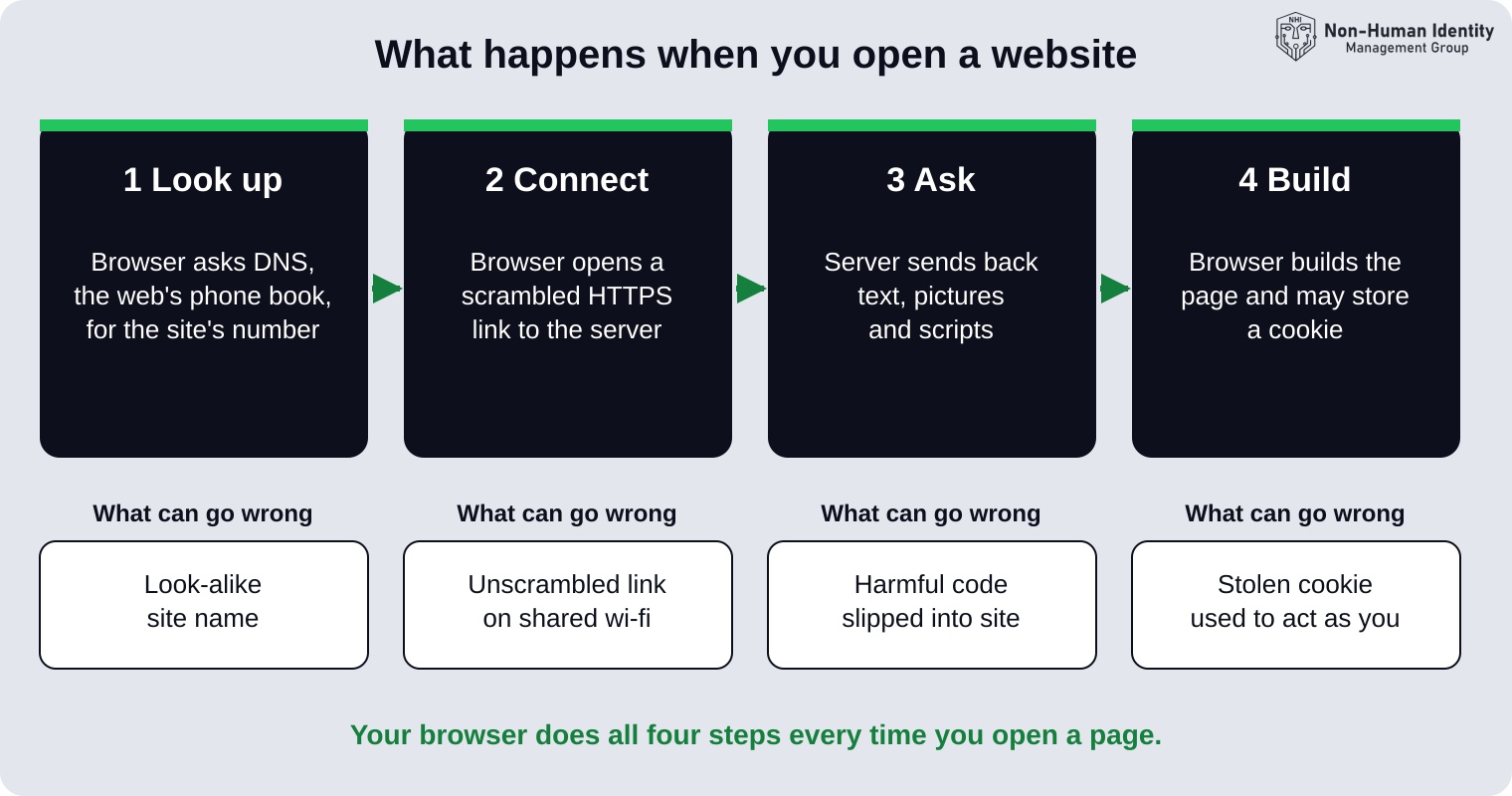
Here are the four main steps, with what can go wrong at each one.
- Look up the number. The browser asks DNS for the site's IP address.[1] What can go wrong: you typed or clicked a look-alike site name, so the lookup finds the wrong site.
- Connect. The browser opens a connection to the server. With HTTPS, it is scrambled and the site shows a certificate, a digital ID card for the site name. What can go wrong: on plain HTTP, others on the same network may read or change what is sent.
- Ask for the page. The browser sends a request, and the server replies with files: text, pictures and small programs called scripts.[1] What can go wrong: a flaw in the site may let an attacker slip in harmful code.
- Build and remember. The browser builds the page. It may also store a cookie, a small note that lets the site remember you are signed in.[2] What can go wrong: if someone steals that note, they may be able to act as you on that site.
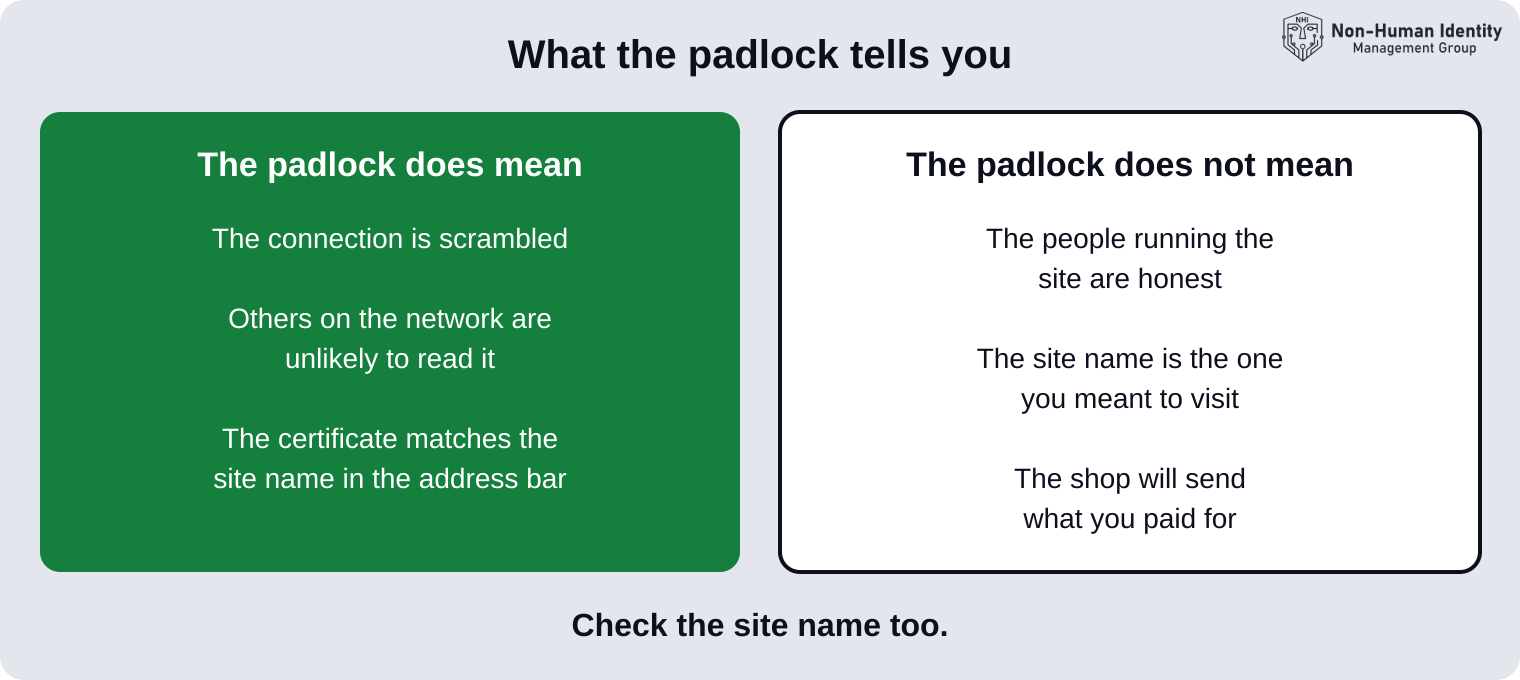
The padlock in the address bar comes from step 2. It means the connection is scrambled. It does not tell you whether the people running the site are honest. The FBI warns people not to trust a website just because it shows a lock or "https".[3]
Site owners have extra tools too. Settings called security headers can tell the browser to use only scrambled connections, or to load scripts only from places the owner trusts.[4]
A worked example
This story is made up to show how it can happen.
Tomas Varga is a bus driver in Budapest who wants new running shoes. One evening a message arrives with a link to a sale: 70 per cent off a brand he likes.
He taps the link, and the page looks right. It has the brand's logo, smart photos and a padlock in the address bar, so Tomas adds a pair of shoes to his basket.
Before he types his card number, he stops. A friend once showed him how to read a web address, so he taps the address bar to see the full text.
The address starts with the brand's name. But when Tomas finds the first single slash and reads the words just before it, the site name is something different. It ends in a name he has never heard of.
He thinks about the padlock. It only means the connection is scrambled, and a fake shop can have one too.
Tomas closes the page. He types the brand's real web address himself and looks for the sale, but there is no sale on the real site.
He deletes the message. Later he tells a friend, who had received the same message and had not yet clicked it.
What made the difference: Tomas checked the site name, not the logo or the padlock.
Myths and mistakes
| What people think | What is true |
|---|---|
| A padlock means the site is safe. | It means the connection is scrambled. Criminals can get one for a fake site too.[3] |
| If the brand's name is in the address, it is the brand's site. | Only the site name, just before the first single slash, tells you who runs it. A brand name elsewhere in the address can be decoration. |
| A site that looks professional must be real. | Logos and photos are easy to copy. The address is harder to fake. |
| Cookies are always bad. | Many cookies keep you signed in or remember your basket. The risk is when one is stolen, or when trackers follow you between sites. |
| Private or incognito mode hides me from websites. | It mainly stops your own device keeping a history. The sites you visit can still see your visit. |
What can I do this week?
- Practise finding the site name in five web addresses you use often.
- Bookmark your bank and favourite shops, and use the bookmarks instead of links in messages.
- Update your browser, and turn on automatic updates if they are off.
- Turn on your browser's "always use secure connections" setting if it has one.
Checklist
- I can find the site name in a web address.
- I know the padlock means a scrambled connection, not an honest site.
- I type important web addresses myself or use bookmarks.
- My browser updates itself.
- I avoid typing passwords on sites that show "Not secure".
- I sign out of important sites on shared computers.
Common questions
What is the difference between the internet and the web?
The internet is the network that links computers around the world. The web is one service that runs on it: the pages you open in a browser. Email and many phone apps also use the internet, but they are not web pages.
What does "Not secure" in the address bar mean?
It means the connection to that page is not scrambled. Others on the same network may be able to read what you send. Do not type passwords or card details on such a page. It does not by itself mean the site is a scam.
Can a website see who I am?
Partly. A site can see the network address your connection comes from, and some details about your device and browser. If you sign in, or a cookie remembers you, it may know exactly who you are. It cannot read the other files on your computer.
Is it safe to click a link if it shows a padlock?
Not on that basis alone. The padlock only shows the connection is scrambled. Check the site name in the address bar. If the link came in a message you did not expect, go to the site by typing its address or using a bookmark instead.
Where next?
Ready for the detail? Read the practitioner guide: Security Headers Guide. It goes further into the settings a site owner sends with each page, how they block common attacks, and how to test a site's setup.
Also useful:
- TLS and HTTPS for Beginners
- DNS Security for Beginners
- Session Tokens and Cookies for Beginners
- Browser Security for Beginners
- The OWASP Top 10 for Beginners
Related NHI Mgmt Group resources: Cross-Site Scripting for Beginners · Phishing for Beginners · Networking Fundamentals for Beginners
Key terms
- Domain name
- The registered name of a website, such as example.com.
- DNS
- The Domain Name System: it turns site names into the numbers computers use to find each other.
- IP address
- A number that identifies a computer on the internet, a bit like a phone number.
- Web server
- A computer that stores a website and sends its pages to browsers that ask for them.
- HTTPS
- The secure version of HTTP, where the connection between browser and site is encrypted.
- A small piece of data a website asks your browser to store and send back on later visits.
- Security headers
- Instructions a website sends with each page that tell the browser to apply extra safety rules.
Sources and further reading
- How the web works. MDN Web Docs (Mozilla). https://developer.mozilla.org/en-US/docs/Learn_web_development/Getting_started/Web_standards/How_the_web_works, accessed 28 Nov 2026.
- Overview of HTTP. MDN Web Docs (Mozilla). https://developer.mozilla.org/en-US/docs/Web/HTTP/Guides/Overview, accessed 28 Nov 2026.
- Cyber Actors Exploit 'Secure' Websites in Phishing Campaigns (PSA I-061019-PSA). Federal Bureau of Investigation, Internet Crime Complaint Center (IC3), 10 June 2019. https://www.ic3.gov/PSA/2019/PSA190610, accessed 28 Nov 2026.
- Practical security implementation guides. MDN Web Docs (Mozilla). https://developer.mozilla.org/en-US/docs/Web/Security/Practical_implementation_guides, accessed 28 Nov 2026.