Keycloak is free, open-source software that handles signing in for your apps in one place.
This guide is for students, new developers and anyone who has met Keycloak in a lab or course. If your team uses it for real users, every app behind it depends on how well it is set up.
In short
- Keycloak is a sign-in service: your apps send people to it, and it tells the apps who they are.
- A realm is a separate space for users and apps. Keep "master" for running Keycloak itself.
- The quick lab set-up is for learning. It uses plain web traffic and a simple first admin account.
- Before real users arrive, switch on HTTPS, replace the first admin and keep the admin page off the internet.
What you will learn
- Explain what Keycloak does in one sentence.
- Spot the difference between a lab set-up and a live one.
- Check which realm your apps and users sit in.
- Ask the right questions before Keycloak goes live.
This is an independent guide from NHI Mgmt Group, based on the Keycloak project's public documentation as of November 2026. It is not sponsored or reviewed by the Keycloak project. Product features change, so confirm settings against the current Keycloak documentation.
- Sign-in service (identity provider)
- a system that checks who someone is and tells other apps.
- Separate space (realm)
- a walled-off area in Keycloak with its own users, apps and settings.
- Registered app (client)
- an app or service that Keycloak has been told about and will sign people in for.
What is Keycloak?
Think of the reception desk in an office block. Visitors check in once at the desk and get a badge. Each office trusts the badge, so it does not need its own front desk.
Keycloak is that desk for apps. It is a sign-in service, also called an identity provider (a system that checks who someone is and tells other apps). Its own guide describes it as a single sign-on tool for web apps and web services.[2] Single sign-on means one sign-in gets you into many apps.
Keycloak is open source, so anyone can download and run it for free. It is a project of the Cloud Native Computing Foundation, a group that looks after shared cloud software.[6] Because it is free and runs on a laptop, it often turns up in courses and labs.
Inside Keycloak, everything lives in a realm. A realm is a separate space with its own users, apps, roles and groups.[2] Each app you connect is called a client (an app that asks Keycloak to sign someone in).[2]
Where the comparison stops working: a reception desk sits in one building. Keycloak may serve dozens of apps across the internet. If someone takes over the desk, every app that trusts it is exposed at once.
Why does it matter?
A sign-in service is a central point. Set it up well and many apps share good security. Leave lab settings in place and many apps share the same weak spot.
If you are a student or learning in a lab
What could happen: you copy your lab set-up to a cloud server, and the admin page is open with a simple password.
Check this: never reuse lab settings for anything other people can reach.
If you are a developer adding sign-in to an app
What could happen: your client allows any web address to receive sign-in results, so a token could be sent somewhere it should not go.
Check this: list the exact web addresses your app uses in the client settings.
If you look after servers or a small IT team
What could happen: Keycloak goes live with the first admin account still in place, and nobody owns it.
Check this: make named admin accounts with a second sign-in check, then remove the first one.
What does it look like?
Here is a made-up review sheet that a student might fill in before showing a Keycloak project to other people for the first time.
Example only. All values are made up.
Keycloak review: shop-demo.example.com
Started with:     start-dev                    (1)
Web address:      http://shop-demo.example.com (2)
Admin account:    admin (temporary)            (3)
Apps live in:     master realm                 (4)
Client redirect:  *                            (5)
Admin page:       open to the internet         (6)
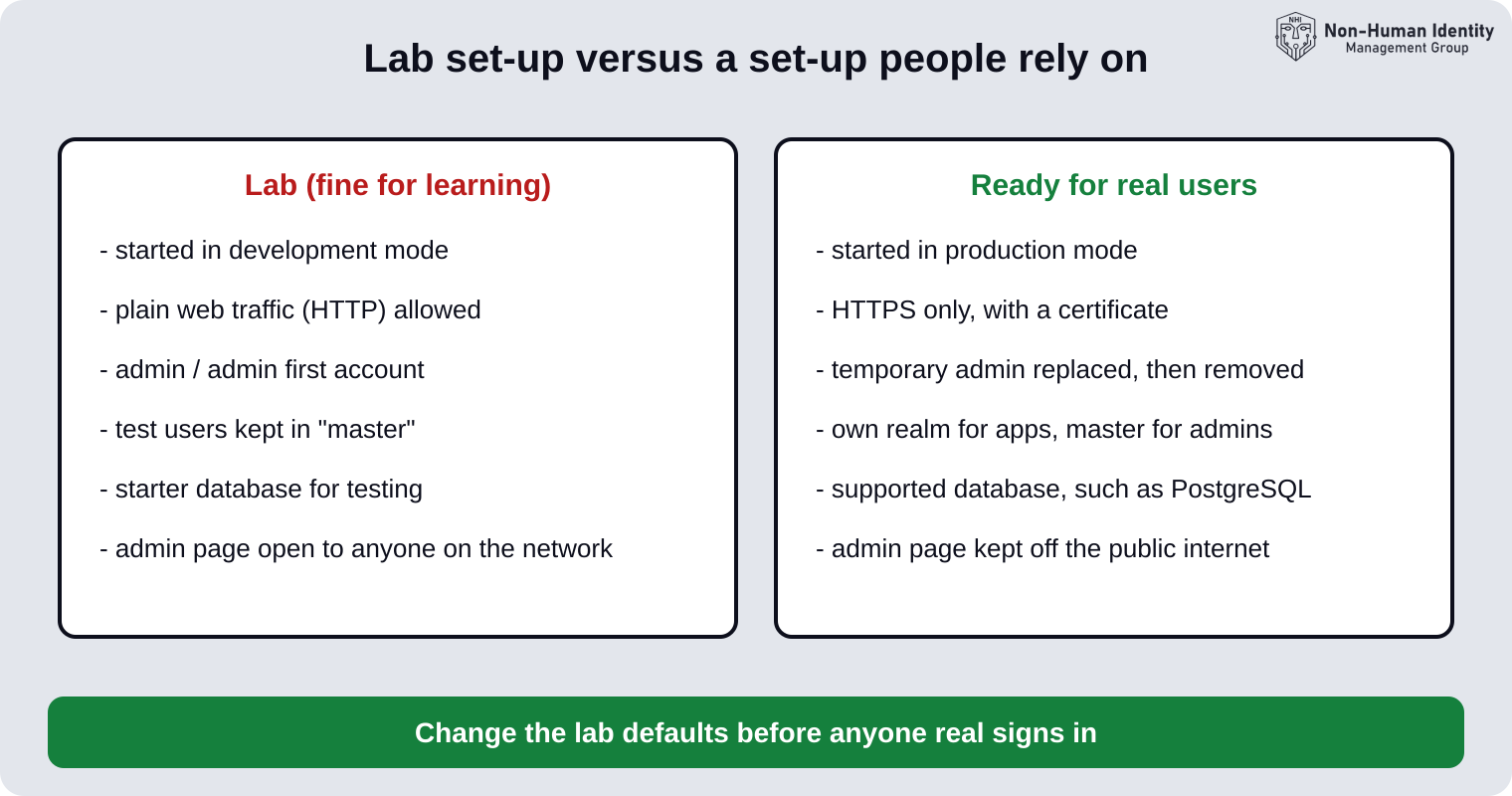
- Development mode, which is meant for trying Keycloak out.
- Plain HTTP, so passwords and tokens travel without encryption.
- The first admin account, which Keycloak marks as temporary.
- The app and its users sit in the realm meant for running Keycloak itself.
- A star means any web address may receive sign-in results.
- Anyone who finds the admin page can try to sign in to it.
Why this is risky: each line is a normal lab shortcut. Together, they leave the sign-in desk open. Every app that trusts it is then at risk.
The safer way: start in production mode, with HTTPS. Put apps in their own realm. List the exact return addresses. Swap the temporary admin for named admins. Keep the admin page on a private address.
How does it work?
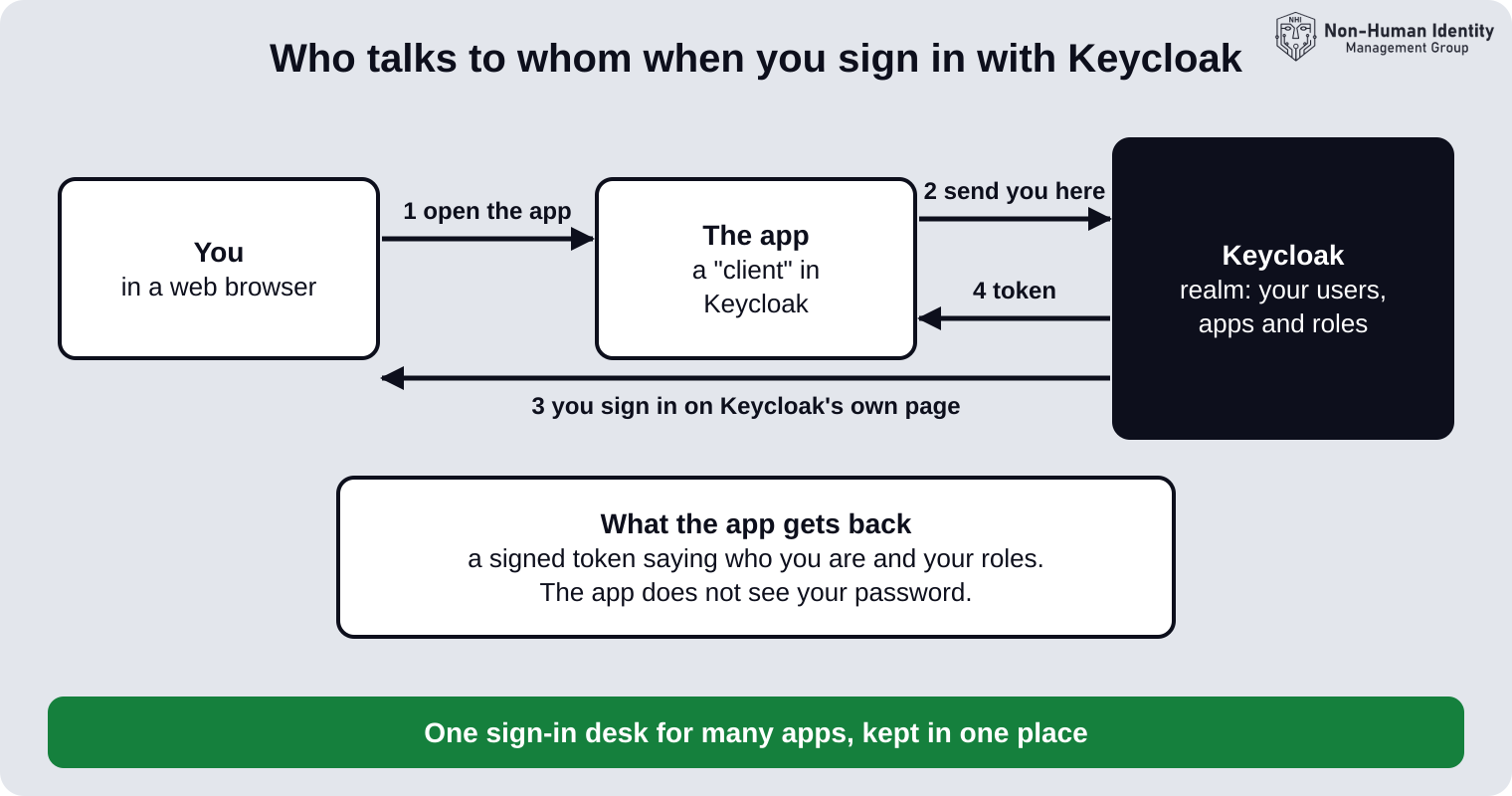
When someone signs in to an app that uses Keycloak, these steps usually happen.
- Open the app. A person opens the app. The app sees they are not signed in.
- Go to Keycloak. The app sends their browser to Keycloak's sign-in page for the right realm.
- Prove who you are. The person signs in on Keycloak's page, not the app's. Keycloak can add a second check, such as a code.
- Get a token. Keycloak sends the app a token (a signed note saying who the person is). Most apps use a standard called OpenID Connect for this.[1]
- Use the roles. The app reads the roles in the token, such as "staff" or "admin", and decides what to show.[2]
Keycloak can also check users held somewhere else. It can read staff from an existing company directory, and it can hand sign-in to another provider, such as a social media account.[2]
Not every client is a person's app. Each client can have its own service account (an account a program uses for itself), so one program can get a token to call another.[2] That service account is a non-human identity (NHI). An NHI is a digital identity, or the credential behind it, used by a machine, app or service. It lets software connect to other systems without a person. Its secret needs the same care as any password.
The quick-start guide runs Keycloak in development mode. In this mode, plain web traffic (HTTP) is allowed and strict address checks are off.[3] Production mode turns HTTP off and expects you to set up HTTPS and the server's address. Keycloak will not start in this mode until you do.[3]
A worked example
Yara Marlow is studying web development. For her final project she builds a small booking app for a fictional climbing gym, and uses Keycloak for sign-in.
She follows the quick-start guide on her laptop. Keycloak starts in development mode, with a first admin account called "admin". She makes a realm called "climbing", adds two test users and registers her app as a client.[1]
Her tutor, Uma Jovanovic, asks her to put the project online so the class can try it. Yara is about to copy the laptop set-up to a cloud server as it is. Uma asks her to fill in a short review first.
Yara thinks of the reception desk. A desk in an empty training room can be casual. A desk in a busy building needs proper checks.
She works through the list. She starts Keycloak in production mode, which makes her set up HTTPS and the server's address.[3] She creates a named admin account with a strong password and a second sign-in check, then deletes the temporary one, as Keycloak's guide advises.[5]
Next she checks her client. She had used a star for the allowed return address, so she replaces it with her app's exact address. She moves the admin page to a separate private address.[4] She also turns on the realm's protection against repeated password guessing.[2]
The class tests the app the next day. Uma uses Yara's review as a model checklist for the rest of the group.
Myths and mistakes
| What people think | What is true |
|---|---|
| If it works on my laptop, it is ready to go live. | Development mode is for trying Keycloak out. Production mode expects HTTPS and a set address.[3] |
| The master realm is the place for my app. | Keycloak's guide says to use master only for managing Keycloak. Make a separate realm for apps.[1] |
| The first admin account is fine to keep. | It is temporary. Replace it with a permanent admin, then remove it.[5] |
| Open source means someone else keeps it secure. | The project fixes the software. You choose the settings and apply the updates. |
| The admin page needs to be on the internet like the sign-in page. | Keycloak's guide suggests serving admin pages on a separate address that is not public.[4] |
What can I do this week?
- Open your Keycloak admin page and note which realm each app and user sits in.
- Check how your Keycloak is started: development mode or production mode.
- Look at each client's allowed return addresses and remove any star.
- Find out who owns the admin accounts, and remove any that nobody owns.
- Check which Keycloak version you run and when it was last updated.
Checklist
- Keycloak runs in production mode with HTTPS for anything other people use.
- Apps and their users live in their own realm, not in master.
- The temporary first admin has been replaced by named admins and removed.
- Admin accounts use a second sign-in check.
- The admin page is served on a private address, not the public one.
- Each client lists exact return addresses, with no stars.
- Protection against repeated password guessing is on for each realm.
- Client secrets and service accounts have an owner and are kept out of code.
- Keycloak runs on a supported database, such as PostgreSQL, and is kept up to date.
Common questions
Is Keycloak free?
Yes, the software itself is free and open source. You can download it and run it on your own server or laptop. You still pay for the servers it runs on and the time to set it up and keep it updated.
What is the difference between a realm and a client?
A realm is the space; a client is one app inside it. The realm holds users, roles and settings. Each client is an app or service that Keycloak signs people in for. One realm can hold many clients, and users in that realm can reach each of them.
Why should I not use the master realm for my app?
Because master holds the accounts that run Keycloak itself. Keycloak's own guide says to use it only for managing Keycloak. Keeping apps in their own realm means an app's users never sit next to the admins who control every realm.
Does Keycloak work with SAML as well as OpenID Connect?
Yes, it supports both. OpenID Connect is common for newer web and mobile apps. SAML is an older standard that many business apps still use. Keycloak can also hand sign-in to another provider that uses either one.
Can I learn Keycloak without risking anything?
Yes, on your own laptop. Development mode is made for trying it out. The risk starts when a lab set-up becomes reachable by other people. Before that happens, switch to production mode and work through the checklist on this page.
Where next?
Ready for the detail? Read the practitioner guide: Keycloak Hardening Guide. It goes further into reverse proxy settings, admin access controls and how to review clients and realms at scale.
Also useful:
- Single Sign-On for Beginners
- OpenID Connect for Beginners
- SAML for Beginners
- Service Accounts for Beginners
Related NHI Mgmt Group resources: Identity Provider and SSO Security Guide · OAuth 2.0 and OpenID Connect Guide · Non-Human Identities for Beginners
Key terms
- Identity provider
- A system that checks who a person or program is and tells other apps they can trust it.
- Realm
- A separate space in Keycloak with its own users, apps, roles and settings.
- Single sign-on (SSO)
- Signing in once to reach many apps.
- OpenID Connect
- A common standard that lets an app learn who has signed in, using a signed token.
- Access token
- A short-lived signed note that lets an app or program use a service.
- Service account
- An account used by a program rather than a person.
- Admin console
- The web page where administrators change a system's settings.
Sources and further reading
- Get started with Keycloak on Docker. Keycloak. https://www.keycloak.org/getting-started/getting-started-docker, accessed 28 Nov 2026.
- Server Administration Guide. Keycloak. https://www.keycloak.org/docs/latest/server_admin/index.html, accessed 28 Nov 2026.
- Configuring Keycloak (development and production modes). Keycloak. https://www.keycloak.org/server/configuration, accessed 28 Nov 2026.
- Configuring Keycloak for production. Keycloak. https://www.keycloak.org/server/configuration-production, accessed 28 Nov 2026.
- Admin bootstrap and recovery. Keycloak. https://www.keycloak.org/server/bootstrap-admin-recovery, accessed 28 Nov 2026.
- Keycloak project page. Cloud Native Computing Foundation. https://www.cncf.io/projects/keycloak/, accessed 28 Nov 2026.