Legacy sign-in is an older way of logging in where an app sends your username and password every time.
This guide is for small business owners, office managers and people new to IT work. You do not need to be technical to be affected: if a scanner, printer or old email app at work suddenly stops sending email, this change may be the reason.
In short
- Older apps and devices often log in by sending a saved username and password with every request. This is called basic authentication.
- Large email providers such as Microsoft and Google have switched this off for most email services, because stolen passwords are easy to reuse with it.
- The newer way, called modern authentication, signs you in once and gives the app a short-lived pass, so extra checks such as a code on your phone can work.
- Find what still uses the old way, then move each device or app to a supported option before it breaks.
What you will learn
- Explain what legacy sign-in is in one sentence.
- Spot the devices and apps most likely to break when it is switched off.
- Explain why the newer way is safer.
- Ask your IT supplier the right questions about the change.
- Password-every-time login (basic authentication)
- an app sends a saved username and password each time it connects.
- Pass-based login (modern authentication)
- you sign in once, and the app gets a short-lived pass to use instead of your password.
- Extra check (multi-factor authentication)
- a second proof, such as a code on your phone, on top of your password.
What is legacy sign-in?
Think of reading your bank card PIN out loud at every shop till. Each shop hears the full PIN. Anyone standing nearby hears it too.
Legacy sign-in works in a similar way. The app or device keeps a copy of your username and password. Every time it connects to your email or files, it sends both again. Microsoft describes basic authentication in just these terms: the username and password go with every request and are often stored on the device.[1]
Modern authentication is more like paying by contactless card. You prove who you are once, at a proper sign-in page. The app then gets a pass, called a token, that only works for that app and only for a limited time.[1]
Where the comparison stops working: a shop till forgets your PIN when you leave. A device using legacy sign-in usually keeps the password saved inside it, sometimes for years, so it can log in again without asking anyone.
Why does it matter?
Legacy sign-in makes stolen passwords easier to use. It can also make it hard to add an extra check such as a code on your phone.[1] Microsoft says its analysis found more than 99 percent of password spray attacks use legacy sign-in methods.[2] Password spraying means trying a few common passwords against many accounts.
If you run a small business
What could happen: the office scanner stops emailing documents one morning, and nobody knows why.
Check this: ask your IT supplier which devices send email using a saved mailbox password.
If you are new to IT work
What could happen: an old script or app quietly logs in with a password that skips the extra check.
Check this: look at sign-in records for logins that use older methods, and note who owns each one.
If you use an old email app at home or work
What could happen: the app keeps asking for your password and never connects.
Check this: update the app, or switch to one that offers a "Sign in with Microsoft" or "Sign in with Google" button.
What does it look like?
Here is a made-up settings screen for an office scanner. It sends scans by email. Many older devices look like this.
Example only. All values are made up.
Scan to Email settings (Sorrel Printers, front desk)
Mail server:   smtp.example.invalid
Port:          587
Sign-in type:  Username and password        (1)
Username:      [email protected]          (2)
Password:      FAKE-Scanner-0000            (3)
Last change:   2019                         (4)
- This is the sign of legacy sign-in. There is no "Sign in with" button. There is just a box for a password.
- In a real screen, this line would contain the mailbox the scanner logs in as.
- In a real screen, this line would contain that mailbox's password, saved on the device.
- The password has not changed for years. The extra check cannot be used on this login.
Why this is risky: the password sits on the device and is sent each time a scan goes out. If someone learns it, they may be able to use the mailbox from anywhere. An extra check may not apply to this kind of login.[1]
The safer way: the device uses an option that does not need a saved password. Microsoft lists modern sign-in where the device supports it. It also lists a mail route that knows the device by a certificate (a digital ID card for a computer) or a fixed internet address.[3]
How does it work?
Here is what usually happens when a provider retires legacy sign-in.
- The announcement. The provider says it will stop accepting password-every-time logins for certain services, and gives a timeline.
- The search. IT teams look for apps, scripts and devices that still use the old way. Printers and scanners that send email are common ones.[3]
- The switch. Each one moves to a newer option: modern sign-in, a different way of sending mail, or a replacement app.
- The cut-off. The provider turns the old method off. Anything not moved stops connecting, often with an error saying the sign-in type is not supported.
- The tidy-up. Saved passwords left on old devices are changed or removed, so they can no longer be used if found.
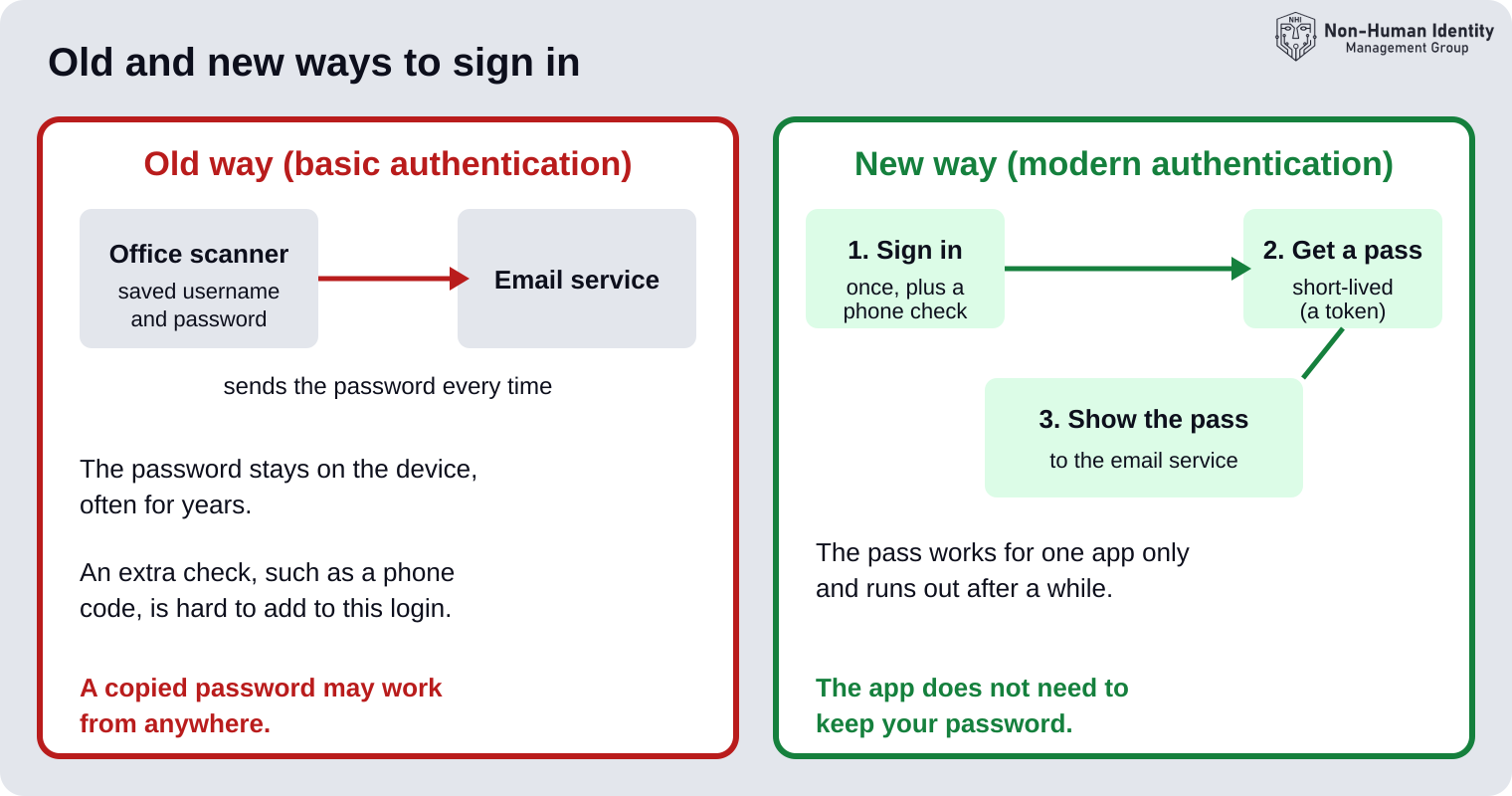
Two big examples show the trend. Microsoft removed basic authentication for most of its business email connections from October 2022. It has also announced plans to retire it for sending email from devices and apps. It has updated that timeline more than once, so check its latest notice.[1] Google says that from 14 March 2025, its email and calendar connections no longer accept plain passwords for Google Workspace accounts. App passwords are the one exception.[4] An app password is a separate password made for one older app.
A worked example
Marek Bergmann runs Sorrel Printers, a fictional print and copy shop with eight staff. Sana Varga looks after its IT as a part-time supplier.
On Monday the front desk scanner stops emailing scans to customers. The screen shows an error about the sign-in type not being supported. Marek calls Sana.
Sana remembers the shop till. The scanner has been reading out the same password at every connection since 2019. The email provider has now stopped listening to that.
First, she checks whether the scanner can use modern sign-in. It cannot, because it is too old for the new method. So she follows the email provider's guidance. She sets up a mail route that knows the scanner by the shop's fixed internet address, not a password.
Next, she changes the password of the old scanner mailbox, so the copy saved on the device no longer gives access. She also clears it from the scanner's settings.
Then she looks at the sign-in records for other old-style logins. She finds one more: an old email app on the shop laptop. Marek's assistant moves to the current app, which signs in through the provider's own page with a phone check.
Last, Sana writes a short list of every device that sends email and how it signs in. By lunchtime scans are flowing again, and Marek asks her to check the list before buying any new office kit.
Myths and mistakes
| What people think | What is true |
|---|---|
| The scanner is broken and needs replacing. | Often it only needs a different sending method. Check the provider's guidance first.[3] |
| Turning the old sign-in back on is the easy fix. | Where a provider still allows it, it brings back the risk and only delays the problem. Plan a proper move. |
| We have the extra phone check, so passwords are protected. | Legacy sign-in can make the extra check hard to apply to that login.[1] |
| Only email is affected. | Email is the best-known case, but calendars, contacts and some admin tools have used the same old method.[1][4] |
| Once the device works again, we are done. | Change or remove any old password left on the device, so a found copy is no use. |
What can I do this week?
- List every printer, scanner or app that sends email for you.
- Ask your IT supplier how each one signs in.
- Read your email provider's latest notice about the change.
- Update old email apps on phones and laptops.
- Before you buy a new printer, ask if it supports modern sign-in.
Checklist
- We have a list of devices and apps that send or read email for us.
- Each one has a named owner and a known sign-in method.
- Devices that cannot use modern sign-in have a supported alternative in place.
- Old saved mailbox passwords have been changed or removed.
- Staff use current email apps that sign in through the provider's own page.
- The extra check (multi-factor authentication) is on for staff accounts.
- Someone watches for provider notices and dates about the change.
Common questions
Why has my scanner stopped sending emails?
Often because your email provider no longer accepts the saved username and password the scanner uses. The fix is usually a different sending method, not a new scanner. Ask your IT supplier to check your provider's guidance for printers and scanners, and to move the device to a supported option.
Is basic authentication the same as a weak password?
No. Basic authentication is about how the password is sent, not how strong it is. Even a strong password is sent and stored each time, and it can be hard to add an extra check. A strong password used this way still carries those risks.
What is modern authentication in plain words?
It is a sign-in where you prove who you are once, on the provider's own page, often with an extra check. The app then gets a short-lived pass for that one service. Microsoft says these passes have a limited lifetime and are tied to the app they were made for.
Can I just use an app password instead?
Sometimes, as a stopgap. Google still allows app passwords for some older apps. An app password is still a saved password, though. Give it one job, keep it safe and remove it when the app is replaced. See App Passwords for Beginners.
Does this affect my personal email?
It can. Old email apps that only ask for a password may fail to connect to large providers. Updating the app, or using one with a "Sign in with" button, usually fixes it. Your provider's help pages explain which apps are supported.
Where next?
Ready for the detail? Read the practitioner guide: Exchange Online SMTP AUTH Basic Auth Retirement. It goes further into Microsoft's current timeline, the sending options for printers and apps, and how to find what still uses the old method.
Also useful:
- Legacy Authentication and ROPC Retirement Guide
- App Passwords for Beginners
- Multi-Factor Authentication for Beginners
- Password Spraying for Beginners
Related NHI Mgmt Group resources: Conditional Access Guide · OAuth 2.0 for Beginners · Email Security for Beginners
Key terms
- Legacy authentication
- Older sign-in methods that send a username and password directly and cannot easily use extra checks.
- Basic authentication
- A sign-in method where the app sends a username and password with every request.
- Modern authentication
- A sign-in method where you log in once and the app uses a short-lived, limited pass.
- Multi-factor authentication
- Needing two different kinds of proof, such as a password and a phone code, to get in.
- App passwords
- Separate passwords made for one older app that cannot use modern sign-in.
- Password spraying
- Trying a few common passwords against many accounts to find one that works.
Sources and further reading
- Deprecation of Basic authentication in Exchange Online. Microsoft Learn, Microsoft. https://learn.microsoft.com/en-us/exchange/clients-and-mobile-in-exchange-online/deprecation-of-basic-authentication-exchange-online, accessed 28 Nov 2026.
- Block legacy authentication with Conditional Access. Microsoft Learn, Microsoft. https://learn.microsoft.com/en-us/entra/identity/conditional-access/policy-block-legacy-authentication, accessed 28 Nov 2026.
- How to set up a multifunction device or application to send email using Microsoft 365 or Office 365. Microsoft Learn, Microsoft. https://learn.microsoft.com/en-us/exchange/mail-flow-best-practices/how-to-set-up-a-multifunction-device-or-application-to-send-email-using-microsoft-365-or-office-365, accessed 28 Nov 2026.
- Transition from less secure apps to OAuth. Google Workspace Admin Help, Google. https://knowledge.workspace.google.com/admin/sync/transition-from-less-secure-apps-to-oauth, accessed 28 Nov 2026.