An app password is a separate code that lets an older app sign in without your account's extra check.
This guide is for anyone who has seen "app passwords" in their Apple, Google or Microsoft settings and wondered what they are. You do not need to be technical to be affected: if an old email app, scanner or calendar tool connects to your account, it may be using one.
In short
- An app password is a long code made by your account provider for one app that cannot handle a modern sign-in.
- When an app uses it, there is no second check, such as a code on your phone.
- Providers now suggest using them only when there is no better option.
- Give each one a clear name, review the list and remove any you no longer need.
What you will learn
- Explain what an app password is in one sentence.
- Spot app passwords in your account settings.
- Check which ones are still needed.
- Remove the ones you do not need, safely.
- Extra sign-in check (two-step verification)
- a second proof, such as a phone code, on top of your password.
- One-app code (app password)
- a code made for one older app, so it can sign in without that second proof.
- Modern sign-in
- a sign-in where the app sends you to your provider's own page, such as "Sign in with Google".
What is an app password?
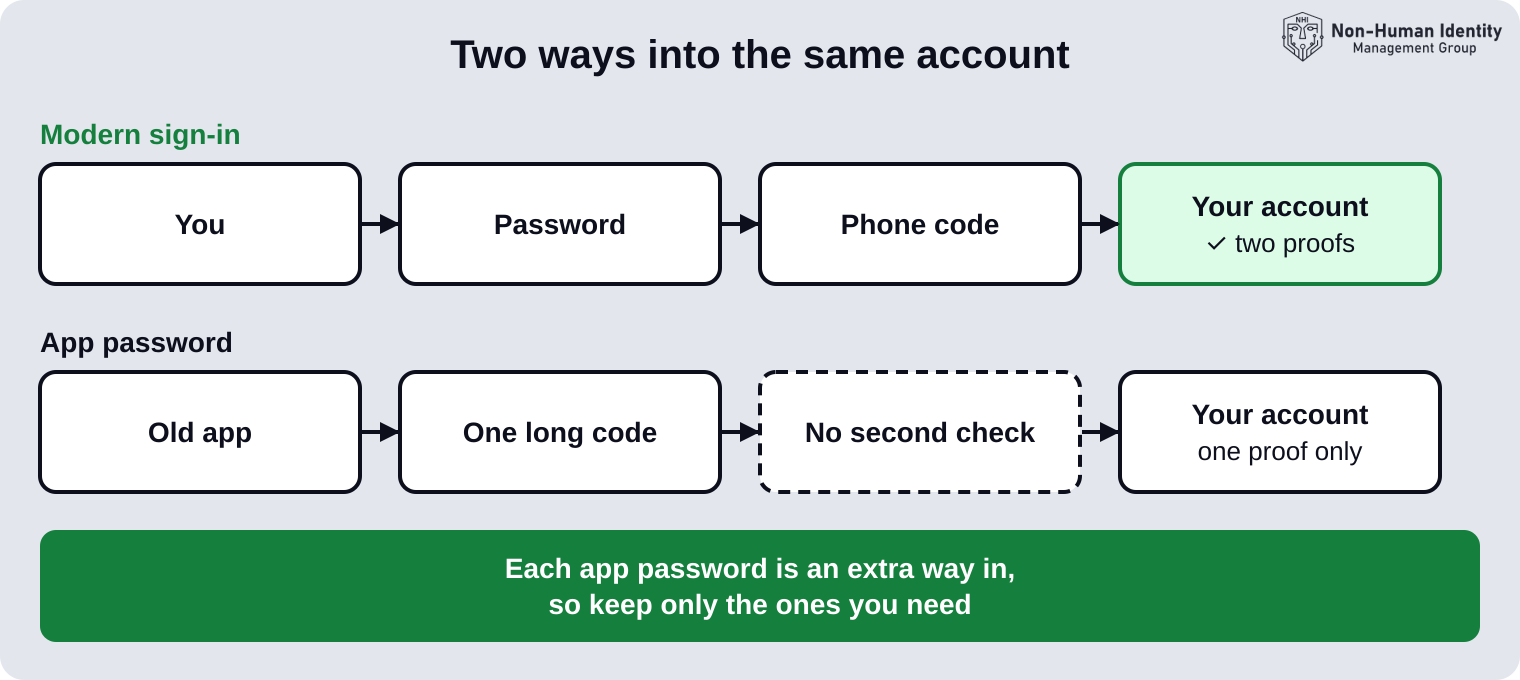
Think of a house with a keypad alarm at the front door. A friend has a spare key to the side door, and that door skips the keypad. It is handy, but it is a second way in.
Your account works like the front door. You type your password, then pass an extra check, such as a code on your phone. This is called two-step verification, or multi-factor authentication. Some older apps cannot show that second step. So providers let you make an app password: a long, random code for that one app to use instead.
You make it in your account settings, paste it into the app once, and the app keeps it. Microsoft says that when an app password is used, there is no extra check, so the sign-in simply succeeds.[2]
Where the comparison stops working: a side door is easy to see. App passwords sit quietly in a settings page, and many people forget they made them.
Why does it matter?
Each app password is a way into your account that skips the extra check. If someone copies it, they may be able to sign in as that app. Google says app passwords are not recommended and are not needed in most cases.[1]
If you use email at home
What could happen: an app password made years ago for an old laptop still works after you sell the laptop.
Check this: open your account's app passwords page and remove names you do not recognise.
If you run a small business
What could happen: a scanner or shop till sends email with an app password that nobody remembers making.
Check this: list every device that sends email for the business and how it signs in.
If you are new to IT support
What could happen: you switch off app passwords for staff, but the old ones keep working.
Check this: read your provider's notes on what happens to existing app passwords.
What does it look like?
Here is a made-up app passwords page, like the ones in Apple, Google or Microsoft account settings.
Example only. All values are made up.
App passwords for [email protected]
Name                       Created
Mail app on office PC      3 Mar 2023      (1)
Scanner                    12 Jan 2022     (2)
test                       9 Sep 2021      (3)
[ Remove ]   [ Remove all ]                (4)

New app password (shown once):
FAKE EXAM PLE0 0000                        (5)
- A clear name tells you which app uses it.
- A device that sends scans by email. Check it is still in use.
- A vague name. Nobody knows what it was for, so it is a good one to remove.
- The buttons that take a code away. The app that used it will stop signing in.
- In a real screen, this would be the new code. Paste it into the app once. Do not save it anywhere else.
Why this is risky: old and vague entries skip the extra check. Nobody is watching them.
The safer way: use one code per device, with a clear name. Look at the list often. If the app offers a "Sign in with Google" or "Sign in with Microsoft" button, use that instead.
How does it work?
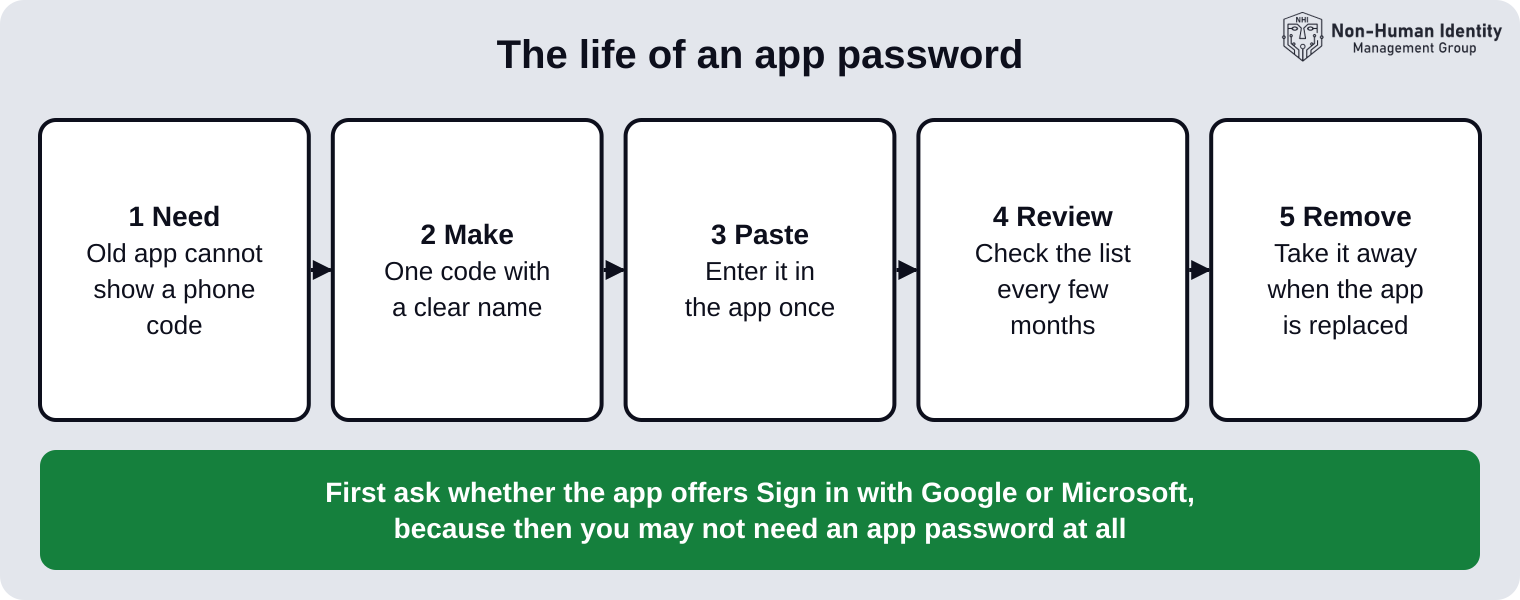
- You turn on the extra check. Apple and Google let you make app passwords only once two-step verification is on.[1][3]
- You make the code. In your account settings, you give it a name and the provider shows a long code.
- You paste it in once. You type or paste the code into the old app's password box. The app saves it.
- The app signs in without the second step. The provider accepts the code alone for that app.[2]
- You remove it when it is no longer needed. Once removed, the app using it is signed out until you give it a new code.[3]
What happens when you change your main password depends on the provider. Providers are listed alphabetically.
- Apple: you can have up to 25 active app-specific passwords. Changing or resetting your main password removes them all.[3]
- Google: changing your Google Account password removes your app passwords. The option may not appear for work or school accounts, or with Advanced Protection turned on.[1]
- Microsoft (work accounts): each person can have up to 40. They stay valid after a password reset, so Microsoft advises deleting them and making new ones.[2]
A worked example
Noor Yilmaz runs Wren Studio, a fictional one-person photography business. She uses a personal Google account for work email, with two-step verification on.
One morning she gets a convincing fake login email, so she changes her Google password to be safe. That afternoon, the studio scanner stops sending scans to her inbox. Her old desktop email app stops too.
Her friend Tomas Osei, who works in IT, explains. Google removes app passwords when the account password changes.[1] The scanner and the email app were each using one. Noor remembers making them years ago and then forgetting them, like a side-door key lent out and never returned.
They sort it out together. The desktop email app has had an update, and it now offers "Sign in with Google". Noor uses that, so the app gets its own sign-in through Google's page, with her phone check.
The scanner is older and only has a password box. Noor makes one new app password and names it "Scanner, back room". Tomas pastes it into the scanner's settings. The code is not written down anywhere else.
Last, Noor opens the app passwords page and checks the list. Only the scanner entry is there. She adds a note in her calendar to check the list every three months, and to remove the entry when she replaces the scanner.
Myths and mistakes
| What people think | What is true |
|---|---|
| App passwords are safer than my normal password. | They are long and random, but they skip the extra check. Use them only where there is no modern sign-in. |
| Changing my password removes all app passwords everywhere. | Apple and Google remove them on a password change. Microsoft work accounts keep them, so delete them yourself.[2] |
| Switching off app passwords for staff stops the old ones. | Microsoft says existing app passwords keep working when you turn off the option to make new ones.[2] |
| I should keep a copy of the code in case I need it again. | You can make a new one at any time. A saved copy is one more thing to leak. |
| One app password for all my apps keeps things simple. | Use one per device with a clear name, so you can remove one without breaking the rest. |
What can I do this week?
- Open the app passwords page for each account you use and read the list.
- Remove any entry you do not recognise or no longer need.
- Check whether each old app now offers a "Sign in with" button, and switch to it if so.
- Rename or remake the codes you keep, so each name says which device uses it.
- Set a reminder to look at the list again in three months.
Checklist
- Two-step verification is on for every account that has app passwords.
- Each app password has a clear name that matches one device or app.
- No app password is used where a modern "Sign in with" option exists.
- Codes are pasted into the app once and not saved in notes, email or chat.
- The list is reviewed every few months, and unknown entries are removed.
- App passwords are removed when a device is sold, lost or replaced.
- In work accounts, IT checks what happens to existing app passwords before changing the setting.
Common questions
Why can I not find the app passwords option?
Your account setup may hide it. Google says the option may not appear on work or school accounts, with Advanced Protection on, or when two-step verification uses only security keys. Apple and Google both need two-step verification turned on first. On a work account, ask your IT team.
Do I need an app password for my iPhone mail app?
Usually not for a Google account. Google says iPhones and iPads on iOS 11 or later do not need app passwords. Modern mail apps on most phones can use the provider's own sign-in page instead, which keeps your extra check in place.
What happens when I remove an app password?
The app using it stops signing in. Apple says the app is signed out until you make a new code and sign in again. Nothing else on your account changes. If the app still matters, switch it to a modern sign-in or make a fresh, clearly named code.
Should I write my app password down?
No, there is no need. You paste it into the app once, and the app keeps it. If you need it again, remove the old one and make a new one. A written copy in notes or email is one more place a thief could find it.
Are app passwords going away?
They are becoming less common. Google already calls them unnecessary in most cases, and providers point people to modern sign-in where an app supports it. Check your own provider's current help pages before you rely on one, because plans change over time.
Where next?
Ready for the detail? Read the practitioner guide: App Passwords Security Guide. It goes further into finding app passwords across a whole organisation, retiring them in phases and blocking old sign-in methods.
Also useful:
- Legacy Sign-In Retirement for Beginners
- Multi-Factor Authentication for Beginners
- Apple and Google Account Security for Beginners
- Password Managers for Beginners
Related NHI Mgmt Group resources: Legacy Authentication and ROPC Retirement Guide · Atlassian App Passwords to API Tokens
Key terms
- App password
- A separate code made for one older app that cannot use a modern sign-in.
- Multi-factor authentication
- Needing two different kinds of proof, such as a password and a phone code, to get in.
- Modern authentication
- A sign-in where the app sends you to the provider's own sign-in page, so your extra check still applies.
- Basic authentication
- An old way for apps to sign in by sending only a username and password.
- Legacy authentication
- Older sign-in methods that send only a username and password and cannot ask for a second check.
Sources and further reading
- Sign in with app passwords. Google Account Help, Google. https://support.google.com/accounts/answer/185833, accessed 28 Nov 2026.
- Enforce Microsoft Entra multifactor authentication with legacy applications using app passwords. Microsoft Learn, Microsoft. https://learn.microsoft.com/en-us/entra/identity/authentication/howto-mfa-app-passwords, accessed 28 Nov 2026.
- Sign in to apps with your Apple Account using app-specific passwords. Apple Support, Apple. https://support.apple.com/en-us/102654, accessed 28 Nov 2026.