A local MCP server is a program on your computer that lets an AI app use your files and tools.
This guide is for developers, students and AI hobbyists who have added, or been asked to add, a connector to an AI app on their laptop. You do not need to be a security expert: if you can install one, you can learn to check what it can reach.
In short
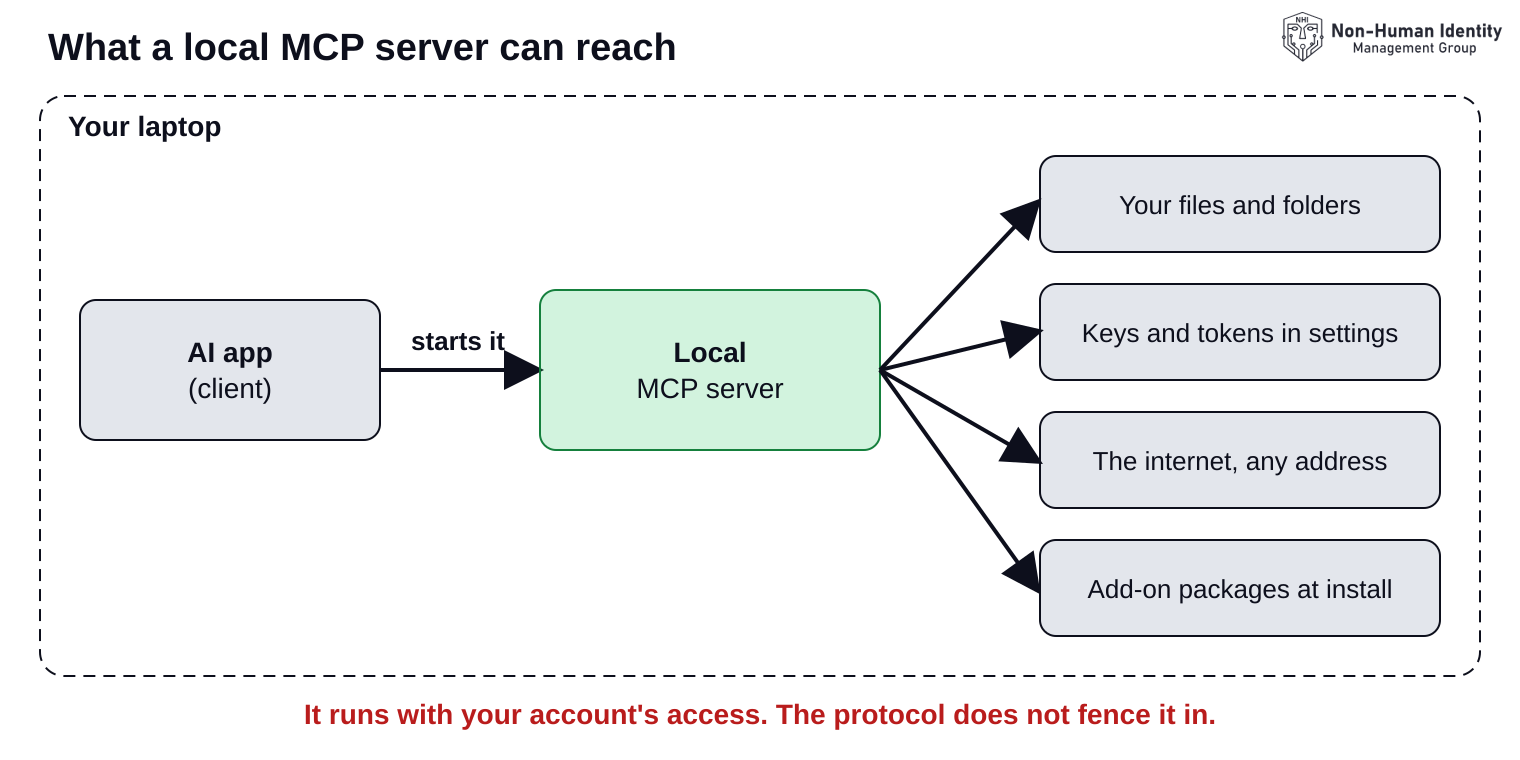
- A local MCP server runs on your computer with the same access as your own user account.
- That can include your files, the keys and tokens in your settings, and the internet.
- The real safety choices happen before it starts: where it came from and how it runs.
- Keep the list short, pin versions, give each server its own small token and fence it in where you can.
What you will learn
- Explain what a local MCP server is and how it differs from a remote one.
- Spot the risky lines in an AI app's connector settings file.
- Check where each server came from and what it can reach.
- Ask for a narrower token, folder or network setting for each server.
- AI connector (MCP server)
- a program that gives an AI app a set of tools, such as reading files or searching tickets.
- Runs on your machine (local)
- the program is started by the AI app on your own laptop, not by an online service.
- Fenced-in space (sandbox or container)
- a closed area where a program can see only what you put inside it.
What is a local MCP server?
Think of a lodger you let into your home. You asked them to water the plants, but they hold a full set of keys. They can open every drawer you can open.
A local MCP server is like that lodger. The Model Context Protocol (MCP) is a shared way for AI apps to connect to tools. The app is the client. The program that offers the tools is the server.
A server can run online, as a service someone else hosts. That is a remote server. Or the AI app can start it on your own computer. That is a local server.
Most local servers talk to the app through a private two-way pipe on the same computer, called stdio (standard input and output).[2] The official guide says the server is an ordinary program on your computer, not a plugin inside a box the protocol provides.[1]
Where the comparison stops working: a lodger is one person you met. A local server is code you downloaded, plus every add-on package it pulls in. Those packages can change each time it is installed.
Why does it matter?
The official MCP guide says a local server can read anything your account can read, including keys, cloud logins and your home folder. It can also connect out to the internet.[1] The protocol does not limit this. How you run the program does.
If you build software
What could happen: a lookalike server copies the cloud keys stored in your home folder while doing its advertised job.
Check this: confirm the exact package name and publisher before you add any server.
If you are a student or AI hobbyist
What could happen: you paste an account-wide token into a settings file, and every server you run can read it.
Check this: give each server its own token that covers only the job it does.
Next: API Keys for Beginners
If you look after laptops at work
What could happen: staff add servers the way they add browser extensions, and nobody knows what is running.
Check this: publish a short approved list and collect the settings files from managed laptops.
What does it look like?
AI apps keep a small settings file that lists each local server and how to start it. Here is a made-up one.
Example only. All values are made up.
{ "mcpServers": {
    "notes-helper": {
      "command": "npx",
      "args": ["notes-helpr-mcp@latest"],          (1)
      "env": { "NOTES_TOKEN": "FAKE-TOKEN-0000" }  (2)
    },
    "file-reader": {
      "command": "file-reader-mcp",
      "args": ["/home/example-user"]               (3)
    }
  }
}
- The name is one letter off a well-known tool, and "latest" means a new version can arrive without anyone checking it.
- In a real file, this line would contain a token typed straight into a file whose location is easy to guess.
- The server is given the whole home folder, when its job needs one project folder.
Why this is risky: each server starts with your full access. A misspelt package could be someone else's code. A plain-text token in a known file is easy to collect. The official guide notes that folder limits in settings are respected only by well-behaved servers.[1]
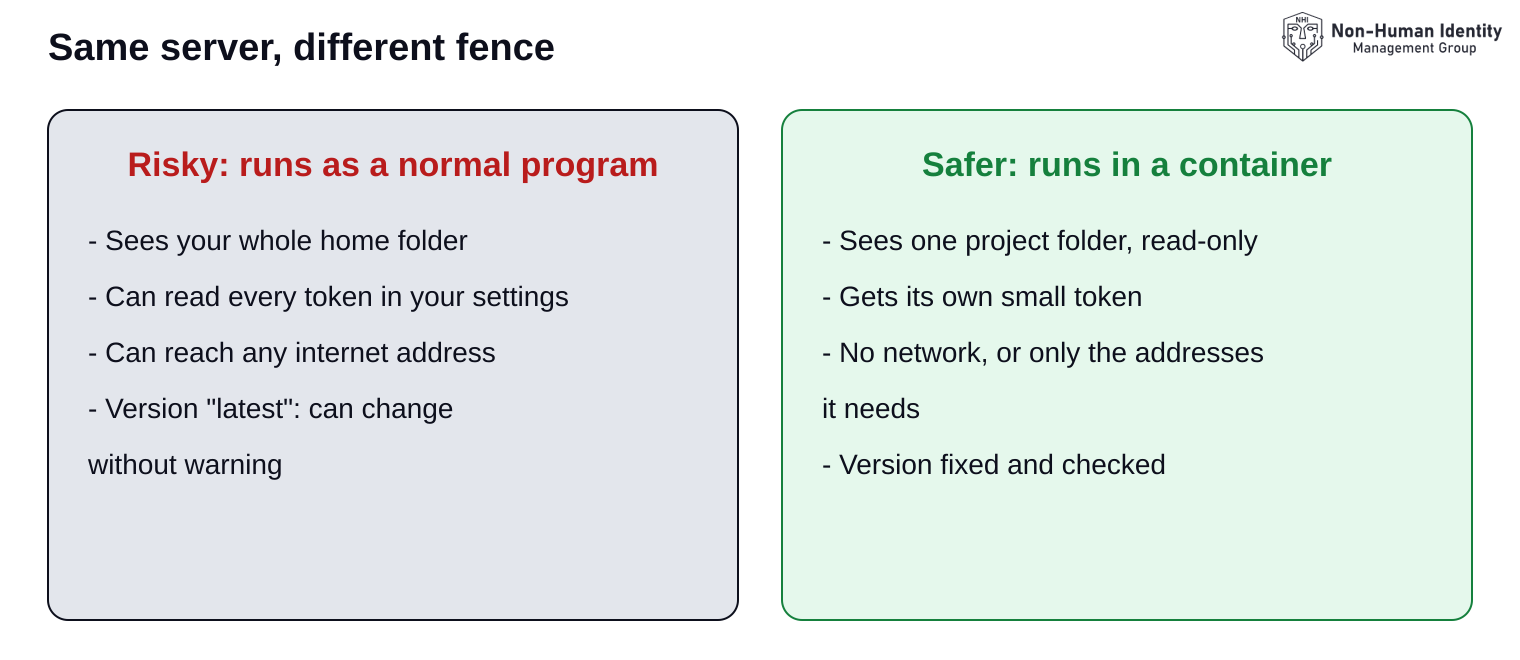
The safer way: use the exact package name from the official documentation and a fixed version number. Give the server one project folder, read-only where possible. Keep the token in your computer's secret store if the app supports it, and limit it to the one job.[1]
How does it work?
Here is what happens when you add a local server.
- You add it. You paste a line into the settings file, or click a one-click install button. Apps that offer one-click install must first show the exact command and ask you to approve it.[3]
- The app starts it. The AI app launches the server as a child program, linked to the app by stdio.[2]
- It inherits your access. The server may see your settings, including tokens, and any file your account can open.[1]
- It describes its tools. The server sends tool names and descriptions, and the AI reads them as instructions. Hidden orders in these descriptions are called tool poisoning.[1]
- The AI uses the tools. When you ask for something, the AI calls the tools, and the server acts with your access.
The official advice is to treat a third-party local server as untrusted code, and to hand it as little access as possible.[1] A container (a sealed box on your computer that holds a program and only the files you choose) is the guide's baseline for doing that.
A worked example
Yara Brandt is a fictional freelance developer. She uses an AI coding app and wants it to read her client's bug tickets.
A forum post suggests a ticket connector. It gives a one-line install. Yara remembers the lodger with a full set of keys, so she slows down.
First, she asks whether it needs to run on her laptop at all. The ticket service offers a remote MCP server, hosted by the service itself. That version runs no code on her computer and signs her in through the service's own approval screen. She picks it.
Next, she wants a local file server for one project. She looks up the package name in the official documentation. The name in the forum post is one letter different, so she ignores it.
She fixes the version number. She points the server at the single project folder, read-only. She runs it in a container with no network, because it only reads local files.
Then she opens her settings file. An old experiment still holds her account-wide code hosting token. She deletes that server, cancels the token and makes a new one limited to one repository, a project's shared folder of code.
Last, she reads each tool's description in the app. One says only what it does, with no extra instructions. Good.
It takes her about half an hour. Her laptop now runs two servers she understands, instead of five she had forgotten.
Myths and mistakes
| What people think | What is true |
|---|---|
| It is local, so it is safe. | Local means it runs with your access. The official guide says stdio is not a sandbox.[1] |
| The folder limit in settings keeps it in that folder. | Honest servers respect it. A bad one can read what the program can reach. A container enforces the limit.[1] |
| Popular packages on big registries are checked. | Registries host almost anything. A listing is not a promise of safety.[1] |
| I approved it once, so it stays the same. | Tool descriptions can change after you approve them. Prefer apps that ask again when they change.[1] |
| More servers make the AI more useful. | Every server shares the AI's attention, so one bad server can steer how the others are used.[1] |
What can I do this week?
- Open your AI app's settings file and remove every server you no longer use.
- For each one left, write down who publishes it and fix its version number.
- Swap any broad token for a new one that covers only that server's job.
- Use the remote version of any server that only talks to an online service.
- Try one outside server in a container with just its project folder.
Checklist
- I know every server in my AI app's settings and why it is there.
- Servers that need nothing from my laptop run remotely instead.
- Each server comes from a publisher I can name, with a fixed version.
- Each server has its own narrow token, and none sits in my shell's global settings.
- File access is one project folder, read-only where possible.
- Third-party servers run in a container, sandbox or virtual machine.
- Servers that need no network run without it.
- I have read each server's tool descriptions, and my app asks again when they change.
Common questions
What is the difference between a local and a remote MCP server?
A local server runs on your own computer, started by the AI app, with your account's access. A remote server runs online and is reached over the internet. The official guide says a remote server runs no code on your machine. It uses the protocol's sign-in flow, not a token in a local file.[1]
Does a one-click install make a server safe?
No. The app must show you the exact command and ask before it runs, but that only helps if you read it. Check the package name, the publisher and any folder or network access in the command. Cancel if anything looks unfamiliar or broader than the job needs.
Do I need Docker to use local MCP servers?
No, but a container is the official baseline for third-party servers. Docker and Podman are common choices. A small virtual machine or your system's own sandbox features also work. The point is that the server sees only the folder you mount, not your whole account.
What should I do if I think a server was bad?
Remove it from your settings first, so the app stops starting it. Then cancel and replace every token it could read, including ones in your shell settings. Tell your security contact if it was a work laptop. See Leaked Secret Response for Beginners.
Is it safe to write my own local server?
Mostly, yes, because you know what the code does. The add-on packages it uses still come from other people, so fix their versions too. Keep tokens out of the code, and give your own server only the folder and network access it needs.
Where next?
Ready for the detail? Read the practitioner guide: Local MCP Server Security Guide. It goes further into token handling, hardening settings and the signs to watch for in logs.
Also useful:
- Model Context Protocol for Beginners
- MCP Tool Poisoning for Beginners
- How to give MCP servers and local agents secrets without plain-text config files
- AI Coding Assistants for Beginners
- NHI Foundation Level Training
Related NHI Mgmt Group resources: Unsanctioned AI Agents and MCP Servers · MCP Security Guide · Index of MCP and Agent Protocol Guides
Key terms
- MCP server
- A program that offers tools to an AI app using the Model Context Protocol.
- stdio
- A private two-way pipe between two programs on the same computer, used by most local servers.
- Container
- A sealed box on a computer that holds a program and only the files it is given.
- Sandbox
- A closed area where a program can run without reaching the rest of the computer.
- Typosquatting
- Publishing a package or site with a name one small slip away from a real one.
- Tool poisoning
- Hiding instructions for the AI inside a tool's name or description.
- Least privilege
- Giving a person or program only the access its job needs.
Sources and further reading
- Local Server Security. Model Context Protocol documentation (version 2026-07-28). https://modelcontextprotocol.io/docs/2026-07-28/tutorials/security/local-server-security, accessed 28 Nov 2026.
- Transports: stdio. Model Context Protocol specification (version 2026-07-28). https://modelcontextprotocol.io/specification/2026-07-28/basic/transports/stdio, accessed 28 Nov 2026.
- Security Best Practices: Local MCP Server Compromise. Model Context Protocol documentation (version 2026-07-28). https://modelcontextprotocol.io/docs/2026-07-28/tutorials/security/security_best_practices, accessed 28 Nov 2026.