No-code automation tools let people link apps and build workflows without writing code.
This guide is for anyone who builds, approves or relies on these workflows at work. You do not need to be in IT to be affected: if a colleague has linked your email, files or customer list to an automation tool, that link can move your data.
In short
- Low-code and no-code tools can be used safely, but each workflow needs an owner and sensible limits.
- A workflow usually runs with the access of the person who connected each app, often with no one watching.
- If others can use that workflow, they may be acting with the builder's access.
- Give each connection only the access it needs, keep a list of workflows and switch off the ones nobody owns.
What you will learn
- Explain what a no-code workflow is in one sentence.
- Spot a workflow that has more access than it needs.
- Check who owns each workflow your team relies on.
- Ask your IT team which automation tools are approved.
- Automatic task (workflow)
- a set of steps that runs on its own when something happens, such as a new email arriving.
- App link (connection)
- a saved credential that lets the automation tool read or change data in another app.
- Start signal (trigger)
- the event that makes a workflow run.
What is no-code automation?
Think of a standing order at your bank. You set it up once, and money moves every month using your account. It keeps going until someone cancels it, even if everyone forgets it exists.
A no-code workflow works in a similar way. A person picks a start signal, called a trigger, such as "a new form is filled in". Then they pick the steps, such as "add a row to a spreadsheet" and "send a message to the team". No-code tools use drag and drop. Low-code tools add a little code for harder jobs.
To reach each app, the tool needs a connection. This is a saved credential, often set up by clicking "allow" on a sign-in screen. The workflow then acts with the access that credential gives, every time it runs.
Where the comparison stops working: a standing order moves one amount to one place. A workflow can read, copy and change data across many apps, and one change to its steps can send that data somewhere new.
Why does it matter?
Workflows are quick to build, so they spread fast. Many run with a real person's access, and no one reviews them once they work.
If you build workflows
What could happen: you share a workflow, and colleagues use it to reach data with your access, not theirs.
Check this: before sharing, look at which of your connections the workflow uses.
If you manage a team
What could happen: someone leaves, and their workflows keep running with their old access.
Check this: make workflow handover part of every leaver's checklist.
Next: Shadow IT for Beginners
If you work in IT
What could happen: customer data flows to an unapproved app through a workflow nobody listed.
Check this: ask for a list of workflows and the apps each one connects.
If you run a small business
What could happen: a free tool linked to your email gets full access to every message.
Check this: read the access screen before you click allow.
What does it look like?
Here is a made-up workflow, like the ones you see in automation tools.
Example only. All values are made up.
Workflow: New orders to sales team
Trigger:  new order email at [email protected]
Step 1:   read email (connection: owner's mailbox, full access)  (1)
Step 2:   add row to "Customers" sheet (connection: owner's files) (2)
Step 3:   post summary to EXAMPLE-chat channel                     (3)
Owner:    left the company in March                                (4)
Shared:   everyone in the company can run or edit                   (5)
- The connection opens one person's whole mailbox, not just the orders folder.
- The workflow writes customer details using one person's file access.
- Customer details are copied into a chat channel, where many more people can see them.
- Nobody owns the workflow, so nobody checks it.
- Anyone can change the steps and send the data somewhere else.
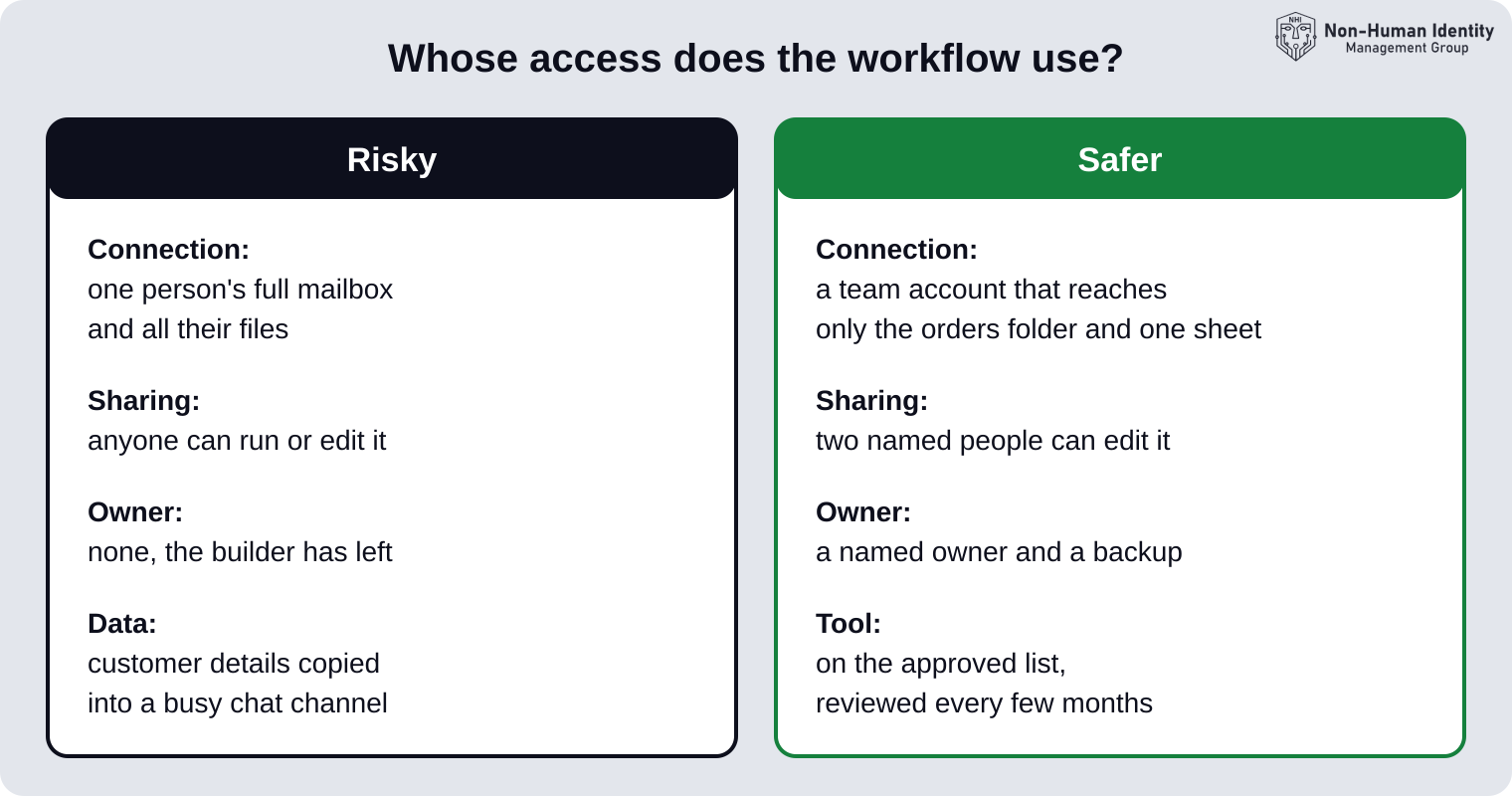
Why this is risky: the workflow can read too much. Nobody owns it, and anyone can edit it. One small change could send customer data outside the company.
The safer way: give the workflow a current owner. Link it with a team account that can reach only the orders folder, not one person's login. Let only a few people edit it.
How does it work?
Here is how a workflow usually comes to life, and where risk creeps in.
- Someone builds it. A person picks a trigger and the steps, often to save time on a dull task.
- They connect the apps. They sign in to each app and click allow. The tool saves those connections.
- It runs on its own. From now on, each trigger runs the steps with the saved access, often many times a day.
- It gets shared. Colleagues start using it. A security project that lists risks for these tools warns that users of a shared app may in effect be acting as its creator.[1]
- It is forgotten. Months later the builder changes role or leaves, and the workflow may keep running.
Many platforms give administrators controls to help. Microsoft's business automation platform, for example, lets administrators set data policies that limit which connectors, the built-in links to other apps, can be used. A flow that breaks the policy may be suspended.[2] Check your own platform's admin documentation for the controls it offers.
A worked example
This story is made up to show how it can happen.
Bilal Chaudhry runs Bramble Lane Bakery, a small bakery with a busy online order form. A year ago, his assistant built a workflow. Each new order email is copied into a shared sheet and posted to the team chat.
The assistant has since left. Bilal's new manager, Marcus Odhiambo, notices that the chat now shows customer phone numbers and addresses. He asks who set this up.
Bilal thinks of a standing order. It keeps paying long after you have forgotten it, until someone cancels it. So he and Marcus open the automation tool together.
They find three problems. The workflow still uses the former assistant's email connection, with full access to that mailbox. Anyone at the bakery can edit it. The chat step sends more detail than the team needs.
Marcus makes the fixes. He reconnects the workflow with a shared orders account that can only read the orders folder. He removes phone numbers and addresses from the chat message. He limits editing to himself and Bilal, and names himself the owner.
Next, Bilal asks IT support to remove the former assistant's access and check the account's recent activity. In the records available, the only actions are the workflow's usual ones.
Last, Marcus writes a short list of every workflow the bakery uses, with an owner for each. They agree to review it every three months.
Myths and mistakes
| What people think | What is true |
|---|---|
| No-code means no security risk. | No code to write does not mean no access. Each workflow holds credentials for real data. A security project lists ten common risk areas for these tools.[3] |
| A workflow uses the access of whoever runs it. | Often it uses the saved connection of the person who built it.[1] |
| When someone leaves, their workflows stop. | They may keep running until the connection is removed. Hand them over first. |
| Clicking allow is just a formality. | The access screen says what the tool can read and change. Read it each time. |
| Only IT can build safe workflows. | Anyone can, with an owner, narrow access and an approved tool. |
What can I do this week?
- List the workflows you built, and the apps each one connects.
- Remove any connection that has more access than the workflow needs.
- Name an owner and a backup owner for each workflow your team relies on.
- Ask IT which automation tools are approved, and move any that are not.
Checklist
- Every workflow has a named owner.
- Connections reach only the data each workflow needs.
- Important workflows use a team or service account, not one person's login.
- Only a few people can edit each workflow.
- Workflows avoid copying personal data to places where many people can see it.
- Leavers hand over their workflows before their access is removed.
- Only approved automation tools are used for company data.
- The list of workflows is reviewed on a regular schedule.
Common questions
Is low-code app building safe?
It can be, with care. The tools themselves are often well run, but the risk sits in how workflows are set up. Give each connection only the access it needs, name an owner, limit who can edit and use only tools your organisation has approved.
Whose access does a workflow use?
Usually the access of the connections saved inside it. That is often the person who built it. So when a colleague runs a shared workflow, it may act with the builder's access, not the colleague's own. Check the connections before you share.[1]
What happens to my workflows when I leave?
They may keep running with your saved connections until someone removes them. Before you leave, list your workflows, hand each one to a new owner and reconnect them with that person's or a team account. Then the old connections can be removed safely.
Can I use a free automation tool with work email?
Check with IT first. Linking a tool to work email can give it wide access to every message. Your organisation may already have an approved tool with the right settings. See Shadow IT for Beginners.
Are AI agent builders the same thing?
They are close cousins. Many automation tools now add AI steps, and some let people build AI agents with drag and drop. The same basics apply: an owner, narrow access and a list of what exists. See AI Agents for Beginners.
Where next?
Ready for the detail? Read the practitioner guide: Low-Code and No-Code Application Security Guide. It goes further into the main risk areas for these platforms, admin controls such as data policies and how to review workflows at scale.
Also useful:
- RPA Bots for Beginners
- OAuth Apps and Integrations for Beginners
- Shadow IT for Beginners
- Non-Human Identities for Beginners
Related NHI Mgmt Group resources: SaaS Security for Beginners · Third-Party Access for Beginners · API Keys for Beginners
Key terms
- No-code automation
- Building workflows that link apps by picking steps on screen, without writing code.
- Low-code platform
- A tool for building apps and workflows mostly on screen, with a little code where needed.
- Connector
- A ready-made link that lets an automation tool talk to another app.
- Webhook
- A message one app sends to another when something happens, often used as a trigger.
- OAuth scope
- The kind of access an app asks for on the allow screen, such as read only.
- Least privilege
- Giving each person or tool only the access it needs.
- Service account
- An account used by software rather than a person, so it does not depend on one employee.
- Shadow IT
- Tools and apps used for work without the organisation's approval.
Sources and further reading
- OWASP Top 10 Low-Code/No-Code Security Risks, LCNC-SEC-01: Account Impersonation. OWASP Foundation, 2022. https://owasp.org/www-project-top-10-low-code-no-code-security-risks/content/2022/en/LCNC-SEC-01-Account-Impersonation, accessed 28 Nov 2026.
- Data policies. Microsoft Power Platform documentation, Microsoft Learn. https://learn.microsoft.com/en-us/power-platform/admin/wp-data-loss-prevention, accessed 28 Nov 2026.
- OWASP Top 10 Low-Code/No-Code Security Risks. OWASP Foundation. https://owasp.org/www-project-top-10-low-code-no-code-security-risks/, accessed 28 Nov 2026.