An OAuth app, or third-party integration, is an outside application that has been given ongoing permission to read or change data in one of your cloud services, such as your email, files or customer records.
Every time someone clicks "Allow" to connect a calendar tool, a chatbot or an AI note-taker to a work account, a new access path is created. That app keeps its access after the click, often for months, and few organisations have a full list of them. This guide is for newcomers, students, career changers and managers. It treats connected apps as non-human identities that an organisation must find, review and revoke. It does not explain the OAuth protocol itself: for how OAuth and consent work, read OAuth 2.0 for Beginners first.
By the end of this guide you will be able to:
- Explain why a connected SaaS app is a non-human identity.
- Describe how to find, review and revoke connected apps.
- Understand why scopes, refresh tokens and consent settings matter.
- Identify first steps to bring connected apps under control.
Key takeaways
- Connected apps are identities. Each one holds its own credentials and permissions in your systems, so it is a non-human identity that needs an owner and reviews.
- Access outlives the click. Once a user or administrator approves an app, it keeps that access until someone removes it, even if nobody uses the app any more.
- One integration can reach many organisations. In 2025, stolen OAuth credentials for one chatbot integration were used to take data from many companies' customer records.[5]
- Admin consoles can show you the list. Common platforms let administrators see which apps have access, what they can do and remove that access.[1][3]
- Consent settings decide what comes next. Limiting which apps users can approve on their own reduces the number of new, unreviewed connections.[2]
What it is, in plain English
Most organisations now use software as a service (SaaS): email, file storage, customer records and chat that run in the provider's cloud. These services can be connected to other apps. A scheduling tool reads your calendar, a sales tool writes to your customer records, an AI assistant reads your documents.
The connection is usually made with OAuth, a standard that lets an app get permission without ever seeing your password. A person or an administrator approves a request, which is called consent. The app then receives tokens: an access token it presents with each request, and often a refresh token that lets it get new access tokens without asking again. What the app is allowed to do is set by its scopes, permission labels such as "read mail" or "read and write files".
That connected app is a non-human identity (NHI): an identity with an account and credentials that belongs to software, not a person. It sits in the software workloads family. Some platforms create an object for it in your directory; Microsoft Entra ID, for example, lists such apps as enterprise applications.[1]
A helpful comparison is giving a cleaning company a key to your office. You agreed once, at the start. The company keeps the key, its staff change over time and you rarely think about it again. If the company is burgled and your key is stolen, the thief can walk in. Where the analogy breaks down: an OAuth app's "key" is limited to the scopes you approved, and it can be cancelled centrally by an administrator without changing anyone's password.
Why it matters to you
- If you run a small business: staff may have connected dozens of free tools to your email and files. Each one is a route into your data that you did not choose and may not know about.
- If you are new to a security job: reviewing connected apps is a common task after a phishing incident or a supplier breach, and the admin consoles that show them are worth learning early.
- If you are a manager: connected apps are a form of supplier access. They should have an owner, a reason and a review date, like any contract.
The risk is that the app, or the company behind it, becomes the weak point. In the Salesloft Drift Breach 2025, Cloudflare reported that an attacker obtained OAuth credentials linked to the Drift chat agent's Salesforce integration and used them to pull data from customers' Salesforce instances. Cloudflare said the incident affected hundreds of organisations through a single integration point.[5] Its response included disabling the integration, revoking the app's credentials and disconnecting all third-party integrations from Salesforce before re-adding them with new secrets and stricter controls.[5]
Attackers can also create their own apps and trick people into approving them, which is called consent phishing. MITRE ATT&CK tracks the theft of application access tokens as technique T1528, Steal Application Access Token.[4] Microsoft recommends allowing user consent only for apps from verified publishers, to reduce the risk of malicious apps tricking users into granting access.[2]
How it works, step by step
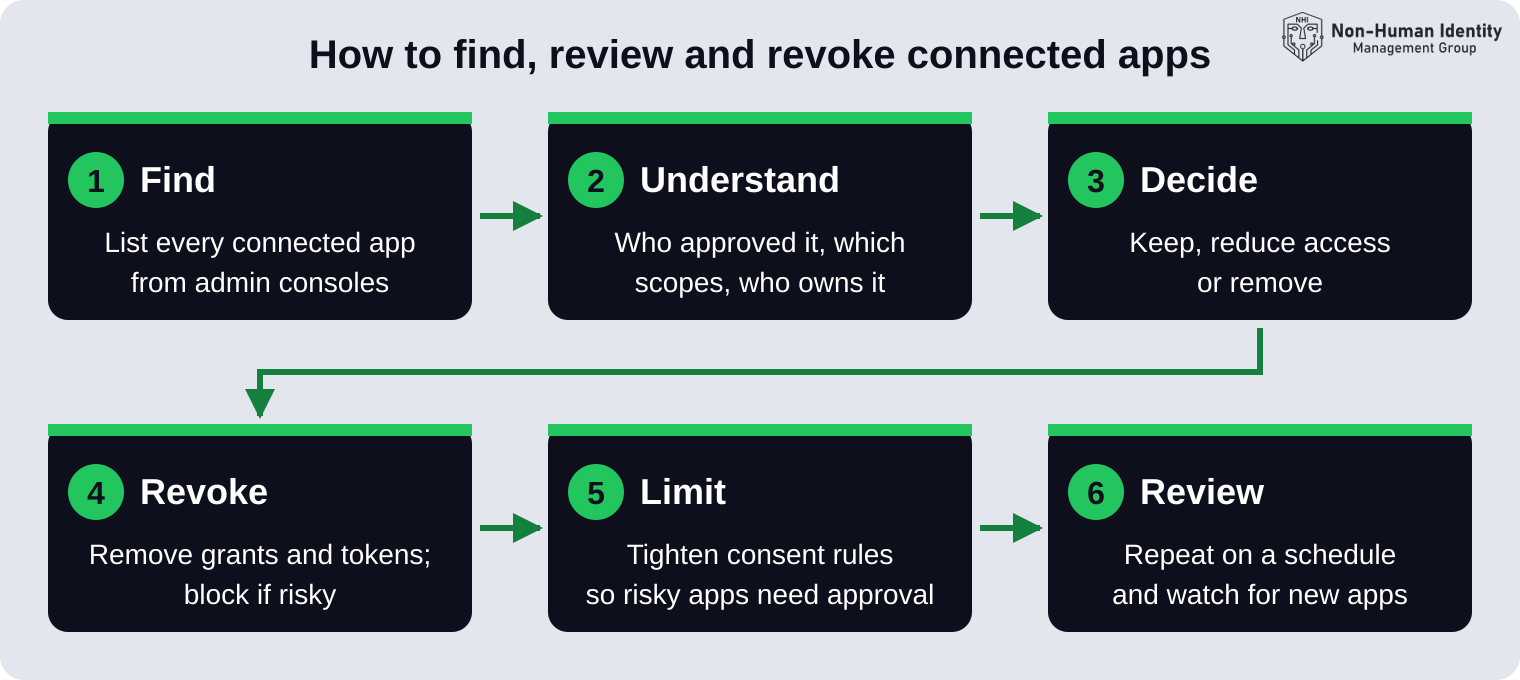
Bringing connected apps under control follows a simple cycle. The admin screens differ by platform, but the steps are the same.
- Find. Use each platform's admin console to list every app that has been granted access. Start with your email and file platform, then your customer records and chat tools.
- Understand. For each app, note who approved it (one user, or an administrator for everyone), which scopes it holds, whether it can act when no user is signed in, and which team owns the relationship.
- Decide. Keep it, reduce its access, or remove it. Apps nobody recognises, apps with broad scopes such as full mailbox or full file access, and apps no longer used are the first to question.
- Revoke. Remove the permissions or block the app. Removing a grant stops the app using it, but check the platform's notes: in Microsoft Entra ID, revoking a permission does not stop users approving the app again.[1]
- Limit new apps. Change consent settings so that risky apps need an administrator's approval before anyone can connect them.[2][3]
- Review. Repeat on a schedule, and watch for new apps and unusual activity, such as large data exports by an integration.
The table shows where two common platforms keep these controls, listed alphabetically and taken from each vendor's own documentation. It is not a comparison or a ranking.
| Platform | Where to see connected apps | How to limit or remove access | Consent controls |
|---|---|---|---|
| Google Workspace | Admin console: Security, then Access and data control, then API controls; Manage Third-Party App Access shows the accessed apps list[3] | Set each app to Trusted, Limited (unrestricted services only) or Blocked (no Google services)[3] | Settings for unconfigured third-party apps, and restrictions on services, including high-risk scopes for Gmail and Drive[3] |
| Microsoft Entra ID | Entra ID, then Enterprise apps, then All applications; select an app, then Permissions, with Admin consent and User consent tabs[1] | Revoke individual admin consent permissions in the portal; user consent grants are revoked with Microsoft Graph or PowerShell[1] | User consent for applications setting, with an option to allow consent only for verified publishers and low-impact permissions, and an admin consent workflow for requests[2] |
Useful distinctions
- User consent and admin consent are different. User consent covers one person's data; admin consent covers the whole organisation.[1] An app with admin consent deserves the closest review.
- Changing consent settings does not clean up the past. Microsoft notes that new user consent settings affect only future consent; existing grants stay in place.[2] You still need to review the apps already connected.
- Tokens are not rotated like passwords. Access tokens expire on their own, so the control is who can obtain them: the app's grant, its scopes and its refresh tokens. Revoking the grant is what ends the access.
- Connected apps are not the same as integration accounts. Some integrations use a dedicated user account with a password or API key instead of OAuth. See the OAuth Apps vs Integration Service Accounts guide.
A worked example
Meadow Design is a fictional architecture practice with 25 staff using a cloud email and file platform. After a supplier warns customers about a breach, Tom, the office manager who also looks after IT, decides to check which apps are connected.
In the admin console he finds 41 connected apps. Among them:
- A PDF converter one designer approved two years ago, with permission to read and write all of that designer's files.
- An AI meeting note-taker approved by four people, with access to their calendars and email.
- A customer survey tool with organisation-wide admin consent, approved by a contractor who has since left.
Tom asks each team which apps they still use and agrees an owner for each one they keep. He removes the PDF converter and nine other apps nobody recognises. He keeps the note-taker after the team lead confirms it is approved, and writes down its scopes. The survey tool is still needed, so he finds the vendor's newer version, which asks for fewer permissions, and replaces the old grant.
Finally, he changes the consent setting so staff can only approve apps from verified publishers with low-impact permissions, and other requests go to him for approval. This does not make Meadow Design safe from every supplier breach, because the apps it kept still hold access. But the practice now knows which apps can reach its data, who owns each one and what to revoke first if a supplier reports a problem. If a business-critical app breaks after a change, Tom's rule is a controlled exception: restore only the access needed, record who approved it and why, and set a review date.
Myths and misunderstandings
| What people think | What is true |
|---|---|
| If the app does not know my password, it cannot do much. | OAuth apps do not need your password. Their tokens and scopes decide what they can do, which can include reading all mail or files. |
| Resetting a user's password removes the app's access. | Not reliably. OAuth grants are separate from passwords, so the safe step is to revoke the app's grant itself. |
| Removing an app's permission means it is gone for good. | In Microsoft Entra ID, revoking a permission does not stop users approving the app again; you also need consent controls.[1] |
| Only big companies have this problem. | Any organisation using cloud email or files can have connected apps, and small teams often have no one checking them. |
| Well-known vendors' integrations are always safe to leave connected. | A trusted vendor can still be breached. In 2025, stolen credentials for one chatbot integration were used against many organisations.[5] |
Key terms
- OAuth app
- A software application that gets permission to access user or system data without handling the original password, using access tokens, scopes and refresh tokens.
- Non-human identity (NHI)
- A digital identity, with an account and credentials, used by software, machines or AI agents to authenticate without a person involved.
- SaaS-to-SaaS integration
- A machine-to-machine connection that lets one cloud application access another through delegated credentials.
- OAuth consent
- The approval that allows an application to access resources on behalf of a user or organisation, which can create lasting access.
- Admin consent
- The approval step that authorises an application to access organisation-wide resources under defined permissions.
- OAuth scope
- A permission string that defines what an application can do on behalf of a user, which sets how much damage misuse could cause.
- Refresh token
- A longer-lived credential that can get new access tokens without the user signing in again.
- Consent phishing
- An attack that persuades a user to approve a malicious OAuth app, giving the attacker access without stealing a password.
- Token revocation
- Cancelling a credential before it would naturally expire, because it is exposed, misused or no longer needed.
- Shadow IT
- Applications or services used outside formal approval or visibility, including unsanctioned integrations.
Common questions
What is a third-party OAuth app?
It is an application made by another company that has been given permission, through OAuth, to access data in one of your services. It keeps that access until someone removes it.
How do I see which apps are connected?
Use the admin console of each platform. In Microsoft Entra ID, the list is under Enterprise apps.[1] In Google Workspace, it is under API controls, in Manage Third-Party App Access.[3] For a guided walkthrough, see How to Inventory third party oauth apps in google workspace.
Which apps should I review first?
We suggest starting with apps that have organisation-wide admin consent, apps with broad scopes over mail or files, and apps nobody can name an owner for.
Should we stop users connecting apps at all?
Blocking everything can push people to riskier workarounds. A common middle ground is to allow low-risk apps from verified publishers and send other requests to an administrator, as Microsoft recommends for user consent.[2]
What should we do if a connected app's vendor is breached?
Revoke or disable the app's access, check what data it could reach and whether credentials were stored in that data, and only reconnect it with new credentials once the vendor confirms the issue is fixed. Cloudflare took similar steps after the Drift incident.[5] See Leaked Secret Response for Beginners.
Are AI tools connected to email and files a special case?
They are connected apps like any other, but they often ask for broad read access. Treat them with the same review. See Shadow AI for Beginners.
First steps
Three things you can do this week:
- Export the list. In your main email and file platform, list every connected app with its scopes and who approved it.
- Remove the obvious ones. Revoke apps nobody recognises or uses, starting with those holding broad mail or file access. Tell staff first, and keep a note of what you removed so a needed app can be restored as a recorded, time-limited exception.
- Tighten consent. Change user consent so that apps outside a low-risk group need administrator approval, and set up a simple way for staff to request an app.
Checklist
- We have a current list of connected apps for each major SaaS platform.
- Each app we keep has a named owner and a business reason.
- Apps with organisation-wide admin consent have been reviewed by an administrator.
- Apps with broad scopes over mail, files or customer records are justified or removed.
- Unused and unrecognised apps have been revoked.
- User consent is limited, and other requests go to an administrator.
- We know how to revoke an app quickly if its vendor reports a breach.
- Connected apps are reviewed on a regular schedule.
Check your understanding
1. Why is a connected SaaS app a non-human identity?
Answer: it holds its own credentials (tokens) and permissions (scopes) in your systems and acts without a person signing in each time.
2. What is the difference between user consent and admin consent?
Answer: user consent covers one person's data; admin consent covers the whole organisation, so it carries more risk.
3. Why is resetting a password not enough to remove an app's access?
Answer: the app's access comes from its OAuth grant and tokens, not the password, so the grant itself must be revoked.
4. Why does changing consent settings not finish the job?
Answer: new settings apply to future consent; apps already connected keep their grants until reviewed and removed.
Suggested learning pathway
- Start with the umbrella topic: Non-Human Identities for Beginners.
- For how OAuth and consent work, read OAuth 2.0 for Beginners.
- For supplier access more broadly, read Third-Party Access for Beginners.
- For the full practitioner picture, see the SaaS and OAuth App Governance Guide.
- For attacks that trick users into approving apps, see the Consent Phishing and Illicit OAuth Grants Guide.
- For Microsoft Entra ID apps and consent in depth, see the Entra ID Applications and Consent Guide.
- For Google Workspace scopes in depth, see the Google Workspace OAuth Scopes Risk Reference.
- For a structured course on NHIs, take NHI Foundation Level Training.
Standards and references
- Review permissions granted to enterprise applications. Microsoft Learn, Microsoft, last updated 6 March 2025. https://learn.microsoft.com/en-us/entra/identity/enterprise-apps/manage-application-permissions, accessed 27 Nov 2026.
- Configure how users consent to applications. Microsoft Learn, Microsoft. https://learn.microsoft.com/en-us/entra/identity/enterprise-apps/configure-user-consent, accessed 27 Nov 2026.
- Control which third-party and internal apps access Google Workspace data. Google Workspace Admin Help, Google. https://knowledge.workspace.google.com/admin/apps/control-which-third-party-and-internal-apps-access-google-workspace-data, accessed 27 Nov 2026.
- T1528 Steal Application Access Token. MITRE ATT&CK Enterprise, The MITRE Corporation. https://attack.mitre.org/techniques/T1528/, accessed 27 Nov 2026.
- The impact of the Salesloft Drift breach on Cloudflare and our customers. Cloudflare blog, Cloudflare, 2 September 2025. https://blog.cloudflare.com/response-to-salesloft-drift-incident/, accessed 27 Nov 2026.
Related NHI Mgmt Group resources: High-Risk SaaS OAuth Scopes Reference · SaaS and OAuth Integrations Health Check · Top 10 NHI Risks