SaaS security is the work of keeping the online apps your organisation rents, such as email, file sharing, chat and customer databases, safely configured, safely signed into and safely connected to other apps.
Software as a service (SaaS) means you use an app over the internet and the provider runs it for you. The provider looks after its servers and code, but you still decide who can sign in, what they can share and which other apps can reach your data. This guide is for newcomers, students, career changers and managers who are not security specialists. It explains who is responsible for what, the main SaaS risks, a simple step-by-step approach, a worked example and first steps for a small team.
By the end of this guide you will be able to:
- Explain what SaaS security means and why it is your job as well as the provider's.
- Understand the four main SaaS risk areas: sign-in, settings, connected apps and visibility.
- Describe a simple six-stage approach to securing a SaaS app.
- Identify three practical steps to take this week.
Key takeaways
- Renting an app does not hand over all the security. The provider runs the platform; you stay responsible for your data, your accounts and your settings.
- Sign-in is the front door. Single sign-on and multi-factor authentication for every account, including contractors, closes the easiest way in.
- Settings drift. Sharing, admin roles and logging settings change over time, so compare them against a written baseline regularly.
- Connected apps are a back door. Every app you allow to connect gets its own keys to your data, and those keys can be stolen from the other company.
- You cannot protect apps you do not know about. Start with a list of every SaaS app in use, including ones teams signed up for themselves.
What it is, in plain English
Most organisations now rent much of their software. Email, calendars, file storage, video calls, accounting, payroll and customer relationship management (CRM) tools usually run as SaaS. You pay a subscription, open a web page or app, and sign in.
The provider owns and runs the servers, the network and the application code. You own what you put in and how you set it up. Security people call this split the shared responsibility model. Microsoft's guidance puts it plainly: whatever kind of cloud service you use, you always keep responsibility for your data, the devices that connect, your user accounts and access management, including multi-factor authentication and access rules.[1] In its responsibility matrix, the customer data, the configuration and settings, and the identities and users in a SaaS app are marked as the customer's job.[1]
A helpful comparison is renting a flat in a managed building. The landlord maintains the roof, the lifts and the front entrance. But you decide who gets a copy of your key, whether you leave the windows open and which neighbours you let in. If you hand a key to a cleaning company and the company loses it, the landlord did nothing wrong. Where the analogy breaks down: in a SaaS app, a single setting such as "anyone with the link can view" can open thousands of files to the whole internet at once, something no flat window can do.
SaaS security sits inside the wider topic of cloud security. If you are new to the split between the provider and the customer across all types of cloud service, read Cloud Security for Beginners first. This page goes further into the apps themselves.
Why it matters to you
- If you run a small business: your email, files and customer records probably live in two or three SaaS apps. One stolen password without a second sign-in check can expose all of them.
- If you are new to a security job: SaaS apps are where much of your organisation's data and many of its accounts now live, so you will be asked about sign-in rules, sharing and connected apps early on.
- If you are a manager: teams can sign up for new SaaS tools with a credit card in minutes. You need to know which tools hold company data and who owns each one.
Two well-documented incidents show where SaaS risk really sits. In 2024, attackers signed in to the customer accounts of about 165 organisations using a data platform, using usernames and passwords stolen by malware from other computers. Mandiant found that the accounts had no multi-factor authentication, that some stolen passwords had stayed valid for years, and that there were no network allow lists limiting where sign-ins could come from. It found no evidence that the provider's own environment was breached.[5] See the Snowflake Breach 2024 page for the full story.
In August 2025, Google Threat Intelligence reported that a group it tracks as UNC6395 used stolen access tokens belonging to a chatbot app that customers had connected to their CRM. With those tokens the group exported large amounts of CRM data and then searched it for passwords and cloud keys. Google stated this was not a vulnerability in the CRM platform itself.[6] The Salesloft Drift Breach 2025 page covers the lessons. In both cases the weak point was on the customer side of the split: sign-in rules and connected apps.
How it works, step by step
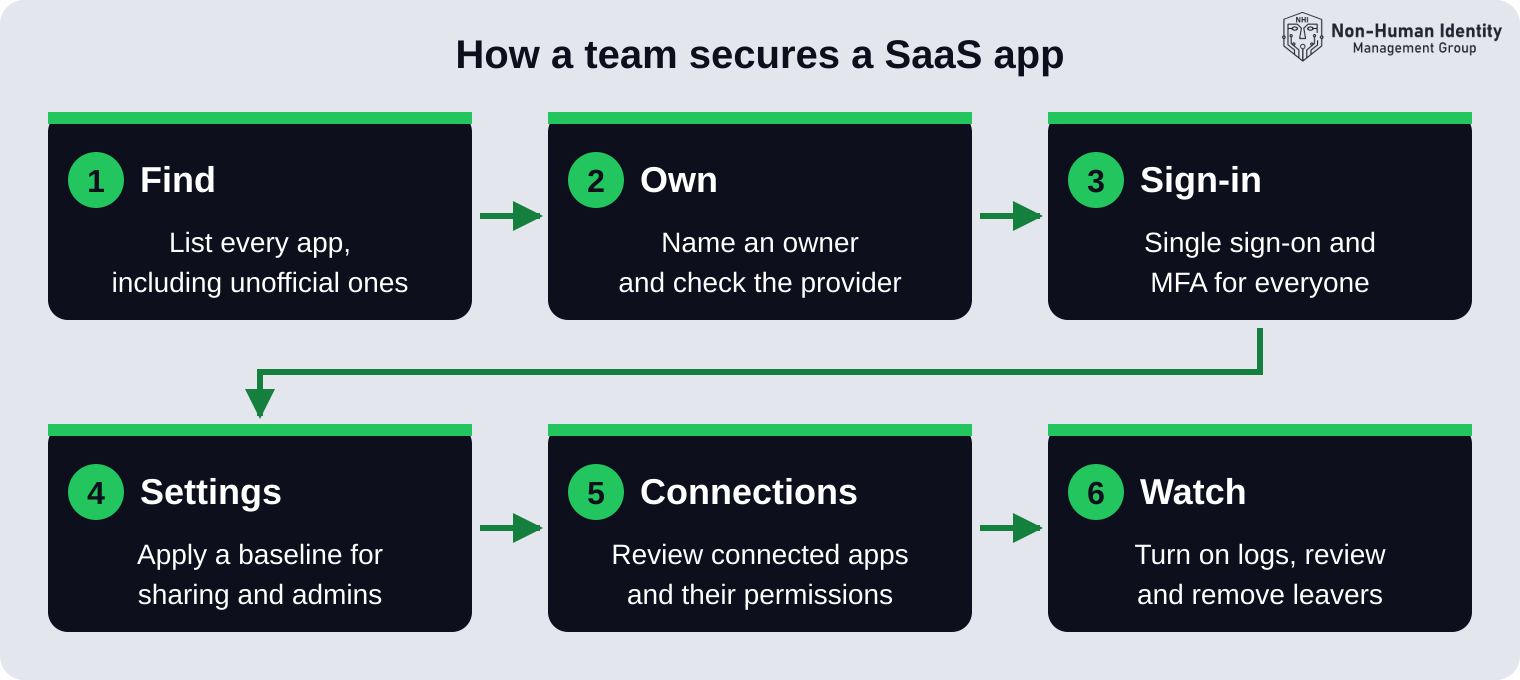
Every SaaS app is different, but a sensible approach follows the same six stages. We suggest starting with your most important app and repeating the stages for the rest.
- Find your apps. List every SaaS app in use. Include apps that teams signed up for on their own, often called shadow IT. Useful places to look are your sign-in system, expense claims and card statements, and which apps staff have allowed to connect to your email or file storage.
- Give each app an owner and check the provider. Name one person responsible for each app. For apps that hold important data, check the basics the provider offers. The UK National Cyber Security Centre (NCSC) suggests a lightweight check for services that will not hold sensitive data: encryption in transit and at rest, authentication on all internet-facing access including APIs, two-factor authentication that can be required for all users, or at least offered on high-privilege accounts, security logs made available to you, and published security guidance.[2] For sensitive data, the NCSC points to its fuller cloud security principles.[2]
- Secure sign-in. Connect the app to your main sign-in system with single sign-on (SSO), so one company account opens it and turning that account off closes it. Require multi-factor authentication (MFA) for everyone, and keep separate admin accounts for admin work.
- Apply a settings baseline. A security baseline is a written list of the settings you expect, such as who can share files outside the company, how many people hold admin rights and whether audit logging is on. Free baselines exist. For example, the US Cybersecurity and Infrastructure Security Agency (CISA) publishes Secure Cloud Business Applications (SCuBA) baselines as minimum security controls for Microsoft 365 services such as Exchange Online, SharePoint Online, OneDrive and Teams.[3]
- Review connected apps. Many SaaS apps let other apps connect through OAuth, a standard way to grant one app limited access to another without sharing a password. Check which apps are connected, what they can read or change, and whether anyone still uses them. Remove the rest.
- Watch, review and offboard. Turn on audit logs and check who holds admin rights. When someone leaves, remove their access everywhere, not only in the main sign-in system. Recheck settings for configuration drift: the slow change away from your baseline as people adjust settings over time.
Who does what
The table below shows a typical split for a SaaS app. Exact duties vary by provider and contract, so check yours.
| Area | Usually the provider | Usually you, the customer |
|---|---|---|
| Servers, network and data centres | Runs and secures them | Nothing to manage |
| Application code and updates | Writes, patches and updates it | Reads release notes for new settings |
| Accounts and sign-in | Provides sign-in features such as MFA and SSO | Turns them on, decides who gets an account and removes leavers[1] |
| Settings and sharing | Offers the settings | Chooses them and keeps them in line with a baseline[1] |
| Connected apps | Offers controls over which apps can connect | Approves, reviews and removes connections |
| Your data | Stores it as agreed | Decides what goes in, who can see it and how it is protected[1] |
| Devices people use | Not usually | Keeps laptops and phones that connect safe[1] |
Tools you will hear about
Small teams can do all six stages with the admin settings that come with each app. As the number of apps grows, organisations often add tools. Two common types:
- SaaS security posture management (SSPM): tools that connect to your SaaS apps, check their settings against a baseline and flag drift.
- Cloud access security broker (CASB): tools that give visibility and control over which cloud apps people use and what data moves into them.
Some products combine both. Microsoft's documentation, for example, describes Defender for Cloud Apps as covering basic CASB functions, SSPM, threat protection and protection for app-to-app connections made through OAuth, including discovering apps staff use from network traffic data.[4] It is one example among several products; the steps above matter more than the tool.
A worked example
Harbour Dental is a fictional group of three dental practices with 30 staff. It uses an online office suite for email and files, a cloud practice management system for appointments and patient records, and an online accounting app. Leah, the practice manager, looks after IT with help from an outside support company.
Leah works through the six stages over a month:
- Find: she checks card statements and asks each practice what they use. She finds two extra apps: a free online form builder used for patient feedback, and a file transfer service one dentist used to send X-rays to a specialist.
- Own: she names herself owner of the three main apps and asks the lead dentist to own the form builder. The file transfer service is replaced by sharing through the office suite.
- Sign-in: MFA is turned on for every office suite account. She finds that the support company signs in with a shared admin account and asks them to use named accounts with MFA instead.
- Settings: she finds that "anyone with the link" sharing is allowed for all staff. She changes it so external sharing goes only to named people, and reduces the number of full admins from five to two.
- Connections: she reviews the apps connected to the office suite. A calendar booking tool that nobody has used for a year still has permission to read every mailbox. She removes it.
- Watch: she checks that audit logging is on, adds a monthly reminder to review admins and connected apps, and adds "remove from all apps" to the leavers checklist.
None of this makes Harbour Dental immune to attack. A determined attacker could still trick a member of staff, and the practice still depends on each provider's own security. But a stolen password alone is no longer enough to open the office suite, fewer files are open to anyone with a link, and a forgotten connected app no longer holds keys to every mailbox.
Myths and misunderstandings
| What people think | What is true |
|---|---|
| The provider handles security, so we do not need to. | The provider secures the platform. Your data, accounts, access rules and settings stay your responsibility.[1] |
| A big-name provider means our account is safe. | Many SaaS incidents start with the customer's own sign-in or connected apps, not a flaw in the provider.[5][6] |
| Single sign-on means MFA is covered. | SSO joins up sign-in, but you still need MFA switched on in the sign-in system, and some apps keep local accounts or API keys that bypass SSO. |
| If we set it up properly once, we are done. | Settings drift as people change them and providers add features. Check against your baseline regularly. |
| Connected apps are just features. | Each connected app holds its own access to your data. If the other company is breached, its access can be used against you.[6] |
| We only use a few apps. | Most organisations find more apps than they expected once they check sign-ins and card statements. |
Key terms
- Software as a service (SaaS)
- A cloud model in which the provider hosts and runs the application and you use it over the internet by subscription.
- The split of security duties between the cloud provider and the customer; the customer still owns configuration, access and data.
- Shadow IT
- Apps or services used without formal approval or visibility, such as tools a department signs up for on its own.
- Single sign-on (SSO)
- A way to sign in once with one account and reach several applications.
- Multi-factor authentication (MFA)
- Signing in with two or more independent kinds of proof, so a stolen password alone is not enough.
- OAuth
- A standard that lets one application grant another limited access without sharing the owner's password.
- Third-party integration
- A connection that lets an outside service or tool reach your apps and data.
- Security baseline
- The set of expected settings and controls you use to judge whether a system is set up safely.
- Configuration drift
- The gradual change of a system's settings away from its intended secure state.
- SaaS security posture management (SSPM)
- The ongoing practice, usually supported by a tool, of finding and fixing security weaknesses in SaaS settings, access and integrations.
- Cloud access security broker (CASB)
- A control layer that gives visibility and policy control over cloud app use, including discovering unapproved apps.
Common questions
What is SaaS security?
It is the customer side of keeping rented online apps safe: who can sign in, how the app is set up, what can be shared, which other apps can connect, and whether you can see what is happening.
Is SaaS security the same as cloud security?
It is part of cloud security. Cloud security also covers renting servers and platforms, where you manage much more yourself. With SaaS you manage less, but sign-in, settings and data are still yours.[1]
Do we need a special tool?
Not to start. Each app's own admin settings are enough for a small number of apps. Tools such as SSPM and CASB help when you have many apps or need continuous checking.
What is the single most useful first step?
We suggest turning on MFA for every account in your most important app, starting with admins. Missing MFA was one of the factors in the 2024 data platform incident described above.[5]
How do we check a new SaaS provider?
For apps that will not hold sensitive data, the NCSC's lightweight questions are a good start: encryption, sign-in and access control, security logging and incident handling, and governance such as where data is stored.[2] For sensitive data, use a fuller assessment.
Where do non-human identities come in?
Connected apps, integration accounts, API keys and OAuth tokens are identities that software uses rather than people. They need owners, limited permissions and removal when no longer used, just like staff accounts. See OAuth Apps and Integrations for Beginners.
First steps
Three things you can do this week:
- Make a list. Write down every SaaS app you know about, who owns it and what data it holds. Ask each team what else they use.
- Check MFA and admins in your most important app. Turn on MFA for every account, starting with admins, and remove admin rights from anyone who does not need them.
- Review connected apps in your email and file system. Remove any you do not recognise or no longer use. If removing one breaks something, treat putting it back as a controlled exception: have it approved, recorded and reviewed by a set date.
Checklist
- We have a list of our SaaS apps, each with a named owner.
- Our important apps use single sign-on with our main company account.
- MFA is required for every account, and admins use separate admin accounts.
- Only a small number of people hold full admin rights in each app.
- External sharing is limited to named people where the app allows it.
- We review connected apps and their permissions at least every quarter.
- Audit logging is turned on and we know how long logs are kept.
- Our leavers process removes access in every SaaS app, not only the main sign-in system.
- We have written down a settings baseline for our most important app and check it regularly.
Check your understanding
1. Under the shared responsibility model, who decides who can sign in to a SaaS app?
Answer: you, the customer. The provider supplies sign-in features, but managing accounts and access is the customer's job.
2. Why is a connected app a security risk?
Answer: it holds its own access to your data. If the other company is breached, its tokens can be used to reach your data without anyone signing in as a person.
3. What is configuration drift?
Answer: the slow change of settings away from your intended secure state, as people adjust them over time.
4. What is shadow IT, and why does it matter?
Answer: apps used without formal approval. You cannot secure an app you do not know about, so finding them comes first.
Suggested learning pathway
- For the wider provider and customer split, start with Cloud Security for Beginners.
- For the sign-in basics, read Single Sign-On for Beginners and Multi-Factor Authentication for Beginners.
- For connected apps and tokens, read OAuth Apps and Integrations for Beginners.
- For the full practitioner programme, including inventory, baselines, logging and offboarding, see the SaaS Security Guide.
- For the risks ranked, see Top 10 SaaS Security Risks.
- For free Microsoft 365 baselines, see the CISA SCuBA Baselines Guide.
- For one product that combines app discovery, posture checks and connected-app controls, see the Microsoft Defender for Cloud Apps Configuration Guide.
Standards and references
- Shared responsibility in the cloud. Microsoft Learn, Microsoft, last updated 24 Aug 2026. https://learn.microsoft.com/en-us/azure/security/fundamentals/shared-responsibility, accessed 27 Nov 2026.
- SaaS security: a lightweight approach to cloud security. National Cyber Security Centre (NCSC), published 10 May 2022, reviewed 7 June 2023. https://www.ncsc.gov.uk/collection/saas-security, accessed 27 Nov 2026.
- Secure Cloud Business Applications (SCuBA) Project. Cybersecurity and Infrastructure Security Agency (CISA). https://www.cisa.gov/resources-tools/services/secure-cloud-business-applications-scuba-project, accessed 27 Nov 2026.
- What is Microsoft Defender for Cloud Apps? Microsoft Learn, Microsoft, last updated 23 Oct 2024. https://learn.microsoft.com/en-us/defender-cloud-apps/what-is-defender-for-cloud-apps, accessed 27 Nov 2026.
- UNC5537 Targets Snowflake Customer Instances for Data Theft and Extortion. Mandiant, Google Cloud Threat Intelligence, 10 June 2024, updated 17 June 2024. https://cloud.google.com/blog/topics/threat-intelligence/unc5537-snowflake-data-theft-extortion, accessed 27 Nov 2026.
- Widespread Data Theft Targets Salesforce Instances via Salesloft Drift. Google Threat Intelligence Group, 26 Aug 2025, updated 28 Aug 2025. https://cloud.google.com/blog/topics/threat-intelligence/data-theft-salesforce-instances-via-salesloft-drift, accessed 27 Nov 2026.
Related NHI Mgmt Group resources: Shared Responsibility Models Guide · CASB Guide · SaaS Security Baseline Standard Template