NotebookLM is a Google AI tool that answers questions using only the documents you give it.
This guide is for students, office workers and anyone who has been told to "just put it in NotebookLM". In July 2026 Google renamed it Gemini Notebook, so you may see either name. You do not need any technical knowledge. If your work involves reports, policies or meeting notes, someone near you is probably already using it.
In short
- You add files, web pages or notes to a notebook, and the AI answers questions from them.
- A file added from Google Drive becomes a source in the notebook, and Google's admin pages say a copy is stored with the notebook.
- Sharing a notebook can let others read your sources, not just the answers.
- Work and school accounts get stronger data terms than personal accounts, so use the account your organisation approves.
What you will learn
- Explain what a notebook, a source and an answer are.
- Spot when a document should stay out of a notebook.
- Check who a notebook is shared with, and at what level.
- Ask whether you are on a personal or a work account.
- The files you give it (sources)
- the documents, web pages, videos or notes a notebook is allowed to use.
- Answers from your own files (grounding)
- when an AI bases its answer on the material you supplied, not just on what it learned before.
What is NotebookLM?
Think of a study partner who has read only the folder you handed them. Ask a question, and they answer from those pages and point to where they found it.
NotebookLM works in a similar way. You make a notebook and add sources: Google Docs, PDFs, Word files, slides, web links, YouTube videos, audio or pasted text.[3] Then you chat with it. Its answers are based on those sources, and they often include numbered links back to the passages used. It can also turn sources into study aids, such as audio and video summaries.[1]
Google renamed the product Gemini Notebook on 16 July 2026. Google says existing notebooks and shared links keep working through automatic redirects.[2]
Where the comparison stops working: a study partner hands your folder back. A notebook may keep its own copy of what you gave it, and that copy can be shared further.
Why does it matter?
A notebook puts your files in one place with a chat box on top. That is handy. It also means one share can pass on a whole stack of files.
If you are a student
What could happen: you share a revision notebook publicly, and classmates' notes or a tutor's handouts inside it become readable by anyone with the link.
Check this: before sharing, look at the source list and ask whether everyone may see every item.
If you work in an office
What could happen: you add a private report to a notebook and share it with a big group. Everyone in it can now read the report.
Check this: use your work account, and share notebooks with named people rather than large groups.
If you manage a team
What could happen: staff use personal Google accounts for work notebooks, so company files sit outside company control.
Check this: agree which account to use and what kinds of files may go into a notebook.
Next: Shadow AI for Beginners
What does it look like?
Here is a made-up notebook, set out as plain text.
Example only. All values are made up.
Notebook: Q3 onboarding pack           (owner: [email protected])
Sources (4)
  - Staff handbook 2026.pdf
  - Salary bands EXAMPLE.xlsx                 (1)
  - https://blog.example.invalid/hr-tips      (2)
  - Pasted text: meeting notes                (3)
Sharing: Anyone with the link (public)        (4)
Feedback sent: thumbs up on 2 answers         (5)
- In a real file, this line would point to private pay data that does not belong in a shared onboarding pack.
- A web page from outside. Its text becomes part of what the AI reads.
- Pasted notes may include names or comments not meant for new staff.
- Public sharing. Anyone with the link and a Google account can open the notebook.
- On a personal account, sending feedback may let Google review the whole conversation, including uploads.
Why this is risky: one link passes on all four sources, including a file new staff should not see.
The safer way: keep only the files the readers need, share with named people as viewers, and use a work account.
How does it work?
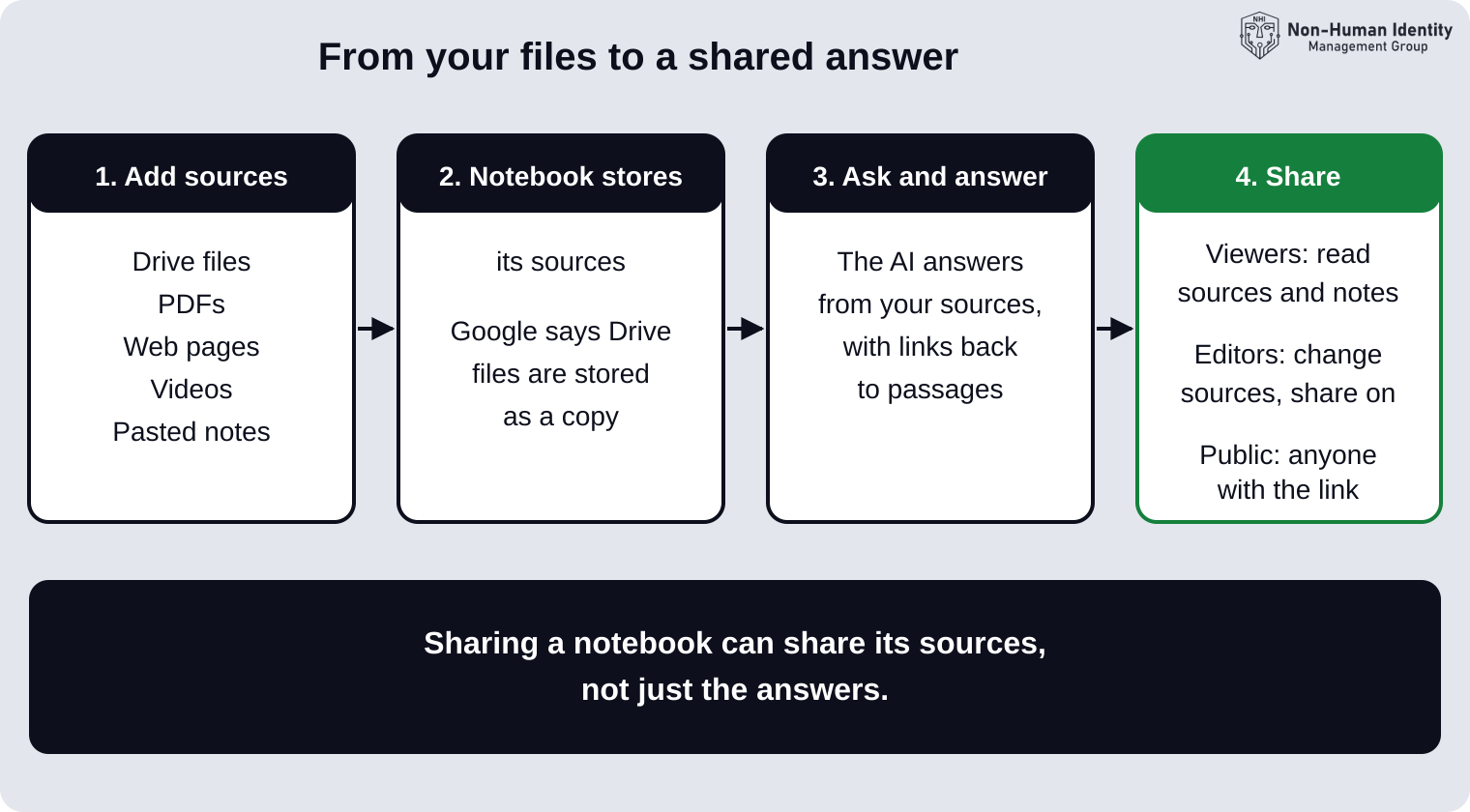
Here is the path from your files to a shared answer.
- You add sources. Each source can be large, and free users can add up to 50 sources per notebook. Files from Google Drive stay linked and sync every few minutes.[3]
- A copy is stored. Google's admin privacy page says a Drive file added as a source is stored as a new copy with the notebook's data. It also says your organisation's Drive sharing settings do not cover that copy.[4]
- You ask, it answers. The AI reads your sources and answers from them. Text in a web page source is read as well, so a page with hidden instructions could steer an answer. This trick is called indirect prompt injection.
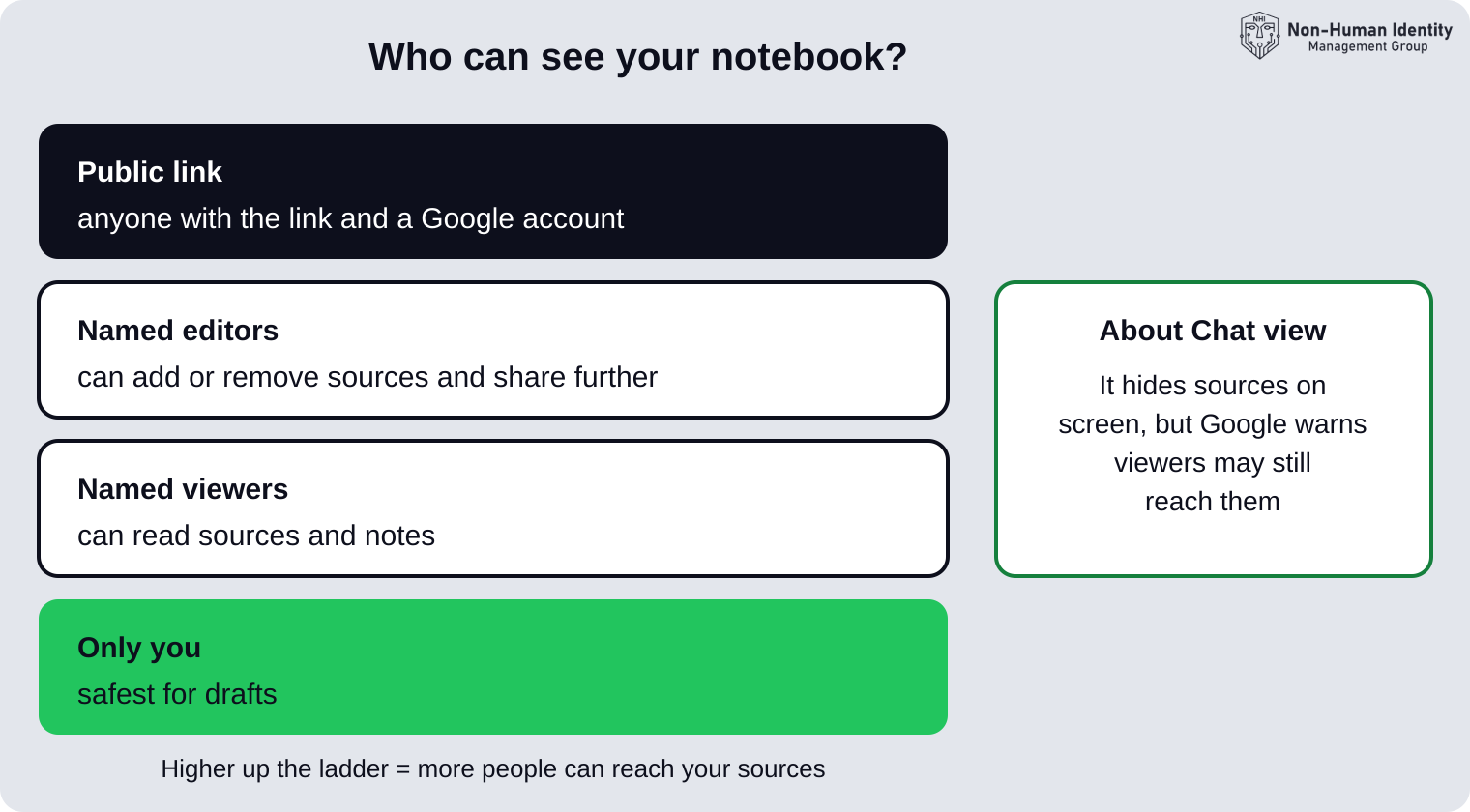
- You share. You can add people as viewers, who can read the sources and notes, or as editors, who can add or remove sources and share further. You can also make a notebook public.[5]
- The account sets the data terms. On personal accounts, Google says your data is not used to train the product unless you send feedback, and feedback may be reviewed. On work and school accounts, Google says uploads, questions and answers are not reviewed by people or used to train AI models.[6]
Google has a "Chat view" link that hides sources for a simpler screen. Its help page warns that viewers may still be able to reach sources and other material, so do not treat it as a privacy setting.[5]
A worked example
Kemal Pereira has just joined the people team at a fictional software firm. His manager, Dana Wojcik, asks him to build a notebook that answers new starters' questions about leave, expenses and IT.
Kemal signs in to Gemini Notebook with his work account. He adds the staff handbook, the expenses policy and the IT welcome guide from Drive. He also finds a spreadsheet of salary bands in the same Drive folder and adds it, thinking it might answer pay questions.
He tests the notebook. "How do I claim a train fare?" The answer comes back with a link to the right line of the expenses policy. It works well.
Before sharing, Kemal shows it to Dana. She looks at the source list first and spots the salary bands. "Anyone you share this with could read that file," she says. Kemal removes it. Dana adds that the pay file should stay where only the people team can open it.
Next they look at sharing. Kemal had planned to make the notebook public so starters could open it before their first day. Dana suggests sharing with named new starters as viewers instead, once they have work accounts. She notes that viewers can still read the sources, so every file in it must be fine for a new starter to read.
Kemal also asks about the thumbs up button. Because they are on a work account, Google's terms say their content is not reviewed by people or used for training. Even so, Dana keeps the rule simple: only put in what the readers may see.
A month later, Dana asks Kemal to check the notebook's sharing list and remove people who have left.
Myths and mistakes
| What people think | What is true |
|---|---|
| Sharing a notebook shares only the answers. | Viewers can read the sources and notes. Editors can add or remove sources and share further.[5] |
| Chat view keeps my sources private. | Google warns viewers may still be able to reach sources.[5] |
| If I lock down the Drive file, the notebook follows. | Google's admin page says Drive sharing settings do not cover the notebook's copy.[4] |
| Personal and work accounts have the same terms. | Work and school accounts come with stronger data terms, including no human review.[6] |
| The AI's answer is always right because it uses my files. | Answers can still be wrong or miss context. Check the linked passage before relying on it. |
What can I do this week?
- Open your notebooks and check who each one is shared with.
- Remove sources that the people you share with should not see.
- Check whether you are signed in with a personal or work account.
- Turn off public links where sharing with named people would work just as well.
- Delete any notebooks that you no longer need for work or study.
Checklist
- I use my work or school account for work or study notebooks.
- Every source in a shared notebook is fine for every reader to see.
- I share with named people as viewers unless they need to edit.
- Public links are used only for material meant to be public.
- I check web page sources come from places I trust.
- I check answers against the linked passage before relying on them.
- I avoid sending feedback on personal-account notebooks that hold private material.
- I review sharing and delete old notebooks every few months.
Common questions
Is NotebookLM the same as Gemini Notebook?
Yes. Google renamed NotebookLM to Gemini Notebook in July 2026. It is the same standalone product, and Google says existing notebooks and shared links keep working. You may see both names in guides, emails and settings for a while.
Does Google train its AI on my files?
Not by default, according to Google. On personal accounts, Google says your data is not used for training unless you send feedback. On work and school accounts, Google says uploads, questions and answers are not used to train AI models or read by human reviewers.
If I delete the original file, does the notebook forget it?
Not always, so check. Google's user help says a Drive source becomes unavailable if the file is deleted or you lose access. Its admin page says a copy is stored with the notebook. To be sure, remove the source from the notebook itself.
Can people I share with see my chat?
The help page describes viewers reading the sources and notes, and editors changing them. It does not set out every detail of what others see. Treat anything inside a shared notebook as something readers may be able to reach.
Is it safe to add web pages as sources?
Mostly, if you trust the site. The AI reads the page's text, and a page could hide instructions meant to steer the answer. Prefer official or well-known sites, and check answers that rely on an outside page.
Where next?
Ready for the detail? Read the practitioner guide: NotebookLM Security Guide. It goes further into admin on and off settings, external sharing controls, keeping sensitive Drive files out and the audit logs that show what is shared.
Also useful:
- Generative AI for Beginners
- Prompt Injection for Beginners
- AI Hallucinations for Beginners
- Data Loss Prevention for Beginners
Related NHI Mgmt Group resources: Gemini for Google Workspace Security Guide · How to Audit Google Drive External Sharing and Public Links · Shadow AI for Beginners
Key terms
- Notebook source
- A file, web page, video or note that a notebook is allowed to use when answering.
- Grounding
- Basing an AI's answer on material you supplied, with links back to where it came from.
- Retrieval-augmented generation
- A way of building AI tools where the AI looks up material first and then writes its answer from it.
- Indirect prompt injection
- Hidden instructions inside content an AI reads, such as a web page, meant to change what it does.
- Shadow AI
- Using AI tools for work without the organisation's approval or knowledge.
Sources and further reading
- NotebookLM is now Gemini Notebook. The Keyword, Google, 16 July 2026. https://blog.google/innovation-and-ai/products/gemini-notebook/notebooklm-gemini-notebook/, accessed 28 Nov 2026.
- NotebookLM is now Gemini Notebook. Google Workspace Updates, Google, 16 July 2026. https://workspaceupdates.googleblog.com/2026/07/notebooklm-now-gemini-notebook.html, accessed 28 Nov 2026.
- Add or discover new sources for your notebook. Gemini Notebook Help, Google. https://support.google.com/gemininotebook/answer/16215270, accessed 28 Nov 2026.
- Generative AI in Google Workspace Privacy Hub. Google Workspace Admin Help, Google. https://knowledge.workspace.google.com/admin/generative-ai/generative-ai-in-google-workspace-privacy-hub?hl=en, accessed 28 Nov 2026.
- Create a notebook in Gemini Notebook (section on sharing). Gemini Notebook Help, Google. https://support.google.com/notebooklm/answer/16206563, accessed 28 Nov 2026.
- Learn about Gemini Notebook (privacy section). Gemini Notebook Help, Google. https://support.google.com/notebooklm/answer/16164461, accessed 28 Nov 2026.