Reporting a security incident means quickly telling the right person at work when something may have gone wrong.
This guide is for anyone with a work email, laptop or phone. You do not need to work in IT to be the first to notice a problem. Early reports often decide whether a small slip stays small.
In short
- Report anything that feels wrong, even if you are not sure. Checking is the security team's job.
- Report straight away, using the route your workplace has set up, and say what you saw and when.
- Do not try to fix or investigate it yourself, and do not delete anything.
- Honest, quick reports should be thanked, not blamed. That includes your own mistakes.
What you will learn
- Spot the kinds of things that are worth reporting.
- Explain why reporting quickly matters.
- Check who you should report to at your workplace.
- Write a short, useful report.
- Something that went wrong (security incident)
- an event that puts work systems or data at risk, such as a hacked account or a lost laptop.
- Getting it to the right person (reporting route)
- the agreed way to tell your workplace, such as a report button, a service desk or a named contact.
What is reporting a security incident?
Think of smelling gas in a shared building. You do not need to find the leak or be sure it is gas. You tell the building manager straight away, because they know what to do and every minute counts.
Reporting a security incident works the same way. A security incident is anything that may put your workplace's computers, accounts or information at risk.[4] You notice it, you tell the right person, and they decide what happens next.
Your part is small but important. You are the eyes and ears. The security team, or your IT supplier in a small firm, handles the checking and the clean-up.
Where the comparison stops working: a gas smell is hard to miss. Many cyber problems are quiet, like an odd login alert or a file sent to the wrong person. You have to know what to look for.
Why does it matter?
Speed matters. Say personal details are exposed in the UK. The organisation may then have to tell the data protection regulator within 72 hours of finding out.[2][3] That clock is hard to meet if staff keep quiet for days.
If you work in an office or from home
What could happen: you type your password into a fake login page and say nothing, so the attacker keeps using it for days.
Check this: find your workplace's report button or contact today, before you need it.
Next: Phishing for Beginners
If you manage a team
What could happen: staff hide mistakes because they fear getting into trouble, and you hear about them too late.
Check this: tell your team that quick, honest reports are thanked, and mean it when one comes in.
If you run a small business
What could happen: nobody knows who to call, so a hacked email account sends fake invoices to your customers all weekend.
Check this: write down one named person and one backup for staff to tell, and share it.
What does it look like?
A good report is short and plain. Here is a made-up one sent through a workplace service desk.
Example only. All values are made up.
To: IT service desk (security report)
Subject: Possible phishing, I clicked the link     (1)
When: today, 10:05                                  (2)
What happened: email from "Payroll Team (FAKE)"
  asked me to confirm my bank details. I clicked
  and typed my work password before I noticed.     (3)
What I have done: closed the page. Not deleted
  the email. Laptop still on.                       (4)
Me: FAKE-NAME, Accounts team, desk ext 0000
- The subject says what it is in a few words, including the person's own part in it.
- The time helps the team match the report to records of logins and emails.
- In a real message, this line would describe exactly what was seen and done, without guessing.
- The email is kept and the laptop left alone, so the team can look at them.
Why this is risky: the risk is in waiting. If this person had stayed silent, the stolen password could be used for days before anyone noticed.
The safer way: report at once, even when you are embarrassed. Say what you saw, when, and what you have done since. Then follow the team's instructions, such as changing your password.
How does it work?
Each workplace has its own process, but reporting usually follows these steps.
- Notice. Something seems wrong: an odd email, an alert you did not expect, a lost device or data sent to the wrong person.
- Pause. Stop what you are doing. Do not click again, reply, forward the email to colleagues or delete anything.
- Report. Use your workplace's route, such as a report button, the service desk or a named contact. If unsure, ask your manager.
- Describe. Say what you saw, when it happened, what you did and which device or account was involved.
- Follow instructions. The team may ask you to change a password, leave a laptop on or answer questions.
- Let the team decide. They judge how serious it is and whether anyone outside must be told, such as a regulator or the police.[3]
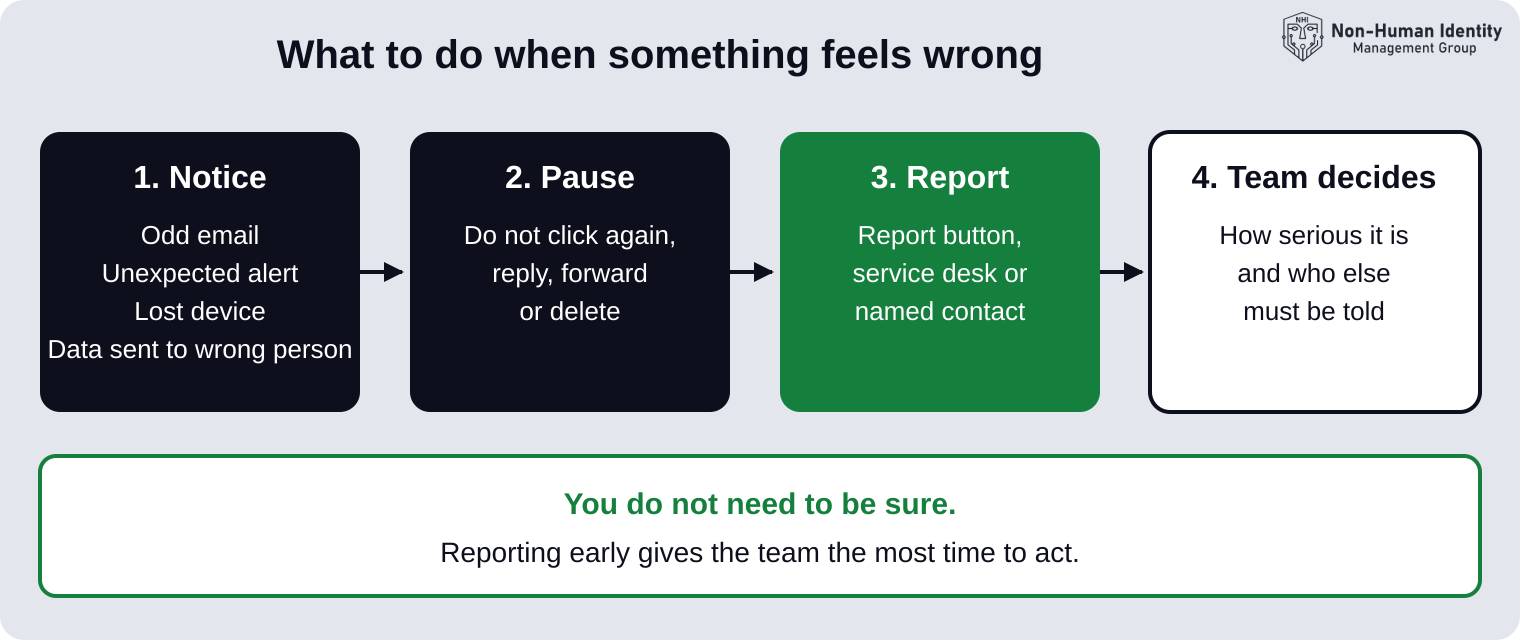
What counts as worth reporting? A US government security agency gives three broad kinds. The first is an attempt to get into a system or its data without permission. The second is unwanted disruption of a service. The third is misuse of a system or data against the rules.[4] At work, that often means a suspicious email or a login alert you did not cause. It also covers a lost phone or laptop, a virus warning, or personal data sent to the wrong person.[2]
Some workplaces add a "report phishing" button to the email app. Outside work, people in the UK can forward scam emails to the National Cyber Security Centre. It checks them and can work to take harmful links down.[1] At work, use your employer's route first.
A worked example
Mei Ling Tan works in bookings at Quayline Ferries, a fictional ferry company. On Friday afternoon she gets an email that looks like it is from the company's file sharing service. It asks her to log in to see a timetable.
She types her password. The page then shows an error. Something feels off.
Mei Ling remembers the gas smell. She does not have to be sure. She closes the page, leaves the email where it is, and presses the "report phishing" button. Then she sends a short note to the service desk saying she typed her password at 15:20.
Yusuf Demir, who looks after security at Quayline, picks it up within the hour. He resets her password and signs her out of every device. He checks the login records and sees one attempt from an unknown place, a few minutes after she typed it. The new password has already blocked it.
He also searches the mail system. Six other staff got the same email. He removes it from their inboxes before anyone else clicks.
On Monday, Yusuf thanks Mei Ling in the team update, without naming her mistake. He reminds everyone that a report in the first hour made the fix easy. Quayline also writes down what happened, in case it needs the details later.
Myths and mistakes
| What people think | What is true |
|---|---|
| I should only report it if I am sure. | Report if it feels wrong. Checking is the team's job, and a false alarm costs little.[1] |
| If I made the mistake, I will get into trouble. | Good workplaces thank quick, honest reports. Hiding a mistake is what lets it grow. |
| I should delete the email to be safe. | Keep it and report it. The team may need it to find and remove copies from other inboxes. |
| I can fix it myself by changing my password. | Changing it helps, but still report. The attacker may already have used it, and only the team can check. |
| Losing a work phone is not a security issue. | It can be. The team may be able to lock or wipe it from afar, if they know quickly. |
What can I do this week?
- Find out how to report a security problem at your workplace, and save the details somewhere you can reach without your laptop.
- Look for a "report phishing" button in your email app and learn how it works.
- Ask your manager who to tell out of hours.
- Managers: tell your team, in plain words, that quick reports are welcome.
Checklist
- I know the reporting route at my workplace, and a backup contact.
- I can reach that route even if my laptop or email is not working.
- I report odd emails, unexpected alerts, lost devices and misdirected data.
- I report straight away, not at the end of the day.
- I say what I saw, when, what I did and which device or account was involved.
- I do not delete, forward or investigate on my own.
- I follow the team's instructions after reporting.
Common questions
What if it turns out to be nothing?
That is fine, and it is still a useful report. A false alarm costs a few minutes of someone's time. A real incident that nobody reports can cost far more. Security teams would rather check ten harmless emails than miss one harmful one.
Who should I report to?
Use the route your workplace has set up, such as a report button, the IT service desk or a named security contact. If you do not know it, ask your manager now. In a very small firm, it may be the owner or your IT supplier.
How quickly should I report?
As soon as you notice, ideally straight away rather than at the end of the day. Some incidents must be reported to a regulator within set deadlines, and those deadlines often start when the organisation finds out. Your quick report gives your employer the most time to act.
Should I report it to the police or a regulator myself?
Usually not for a work incident. Tell your employer, and let them decide who outside the organisation needs to know. They will know which rules apply. For legal reporting duties, see Cyber Incident Reporting for Beginners.
What if I made the mistake myself?
Report it anyway, and say so plainly. Everyone clicks the wrong link at some point. What matters most is how fast the team hears about it. A quick, honest report usually turns a serious problem into a small one.
Where next?
Ready for the detail? Read the practitioner guide: Security Incident Report Form Template. It goes further into the fields a full report should capture, who fills in each part and how a report moves through triage, containment and review.
Also useful:
- Incident Response for Beginners
- Cyber Incident Reporting for Beginners
- Phishing for Beginners
- Security Awareness for Beginners
Related NHI Mgmt Group resources: Incident Response Plan Template · Social Engineering for Beginners · Business Email Compromise for Beginners
Key terms
- Security incident
- An event that harms or threatens computers, accounts or information, or the services they run.
- Incident report
- A written record of what happened, when it was found, what was affected and what was done.
- Phishing
- A fake message or website that tricks people into giving away passwords, money or access.
- Near miss
- A problem that was stopped before it caused full harm, but still shows a weakness worth fixing.
- Data breach
- An incident in which personal information is lost, changed or seen by someone who should not see it.
- Incident response
- The planned steps a team takes to find, contain, investigate and recover from a security problem.
Sources and further reading
- Report a scam email. National Cyber Security Centre (UK). https://www.ncsc.gov.uk/collection/phishing-scams/report-scam-email, accessed 28 Nov 2026.
- 72 hours: how to respond to a personal data breach. Information Commissioner's Office (UK), SME web hub. https://ico.org.uk/for-organisations/sme-web-hub/72-hours-how-to-respond-to-a-personal-data-breach, accessed 28 Nov 2026.
- UK GDPR data breach reporting (DPA 2018). Information Commissioner's Office (UK). https://ico.org.uk/for-organisations/report-a-breach/personal-data-breach/, accessed 28 Nov 2026.
- Report a cyber issue. Cybersecurity and Infrastructure Security Agency (US). https://www.cisa.gov/report, accessed 28 Nov 2026.