A spam filter is software that checks incoming email and moves unwanted or harmful messages away from your inbox.
This guide is for anyone who has lost an important email to the junk folder, or wondered how the filter decides. You do not need a technical background. If your business relies on email for orders, invoices or bookings, a missed message can cost you money.
In short
- A spam filter looks at who sent a message, how it was sent and what it contains, then decides where it goes.
- Most mail goes to the inbox. Doubtful mail may go to the junk folder, and risky mail may be held in quarantine, a locked holding area.
- Filters make mistakes both ways: good mail can be caught, and some bad mail gets through.
- Check your junk folder, mark good mail as "not spam" and report bad mail, so the filter learns.
What you will learn
- Explain how a spam filter decides where a message goes.
- Spot the common reasons a genuine email ends up in junk.
- Check your junk folder and quarantine the safe way.
- Ask your email provider or IT supplier the right questions about missing mail.
- Unwanted bulk email (spam)
- messages nobody asked for, often sent to many people at once.
- Holding area (quarantine)
- a locked place where risky messages wait, so nobody opens them by accident.
- Good mail wrongly caught (false positive)
- a genuine email the filter treated as spam.
What is a spam filter?
Think of the post room in a large office. A clerk sorts each letter before it reaches a desk. Most go straight through. Junk flyers go in a separate tray, and a parcel that looks dangerous is put aside for checks.
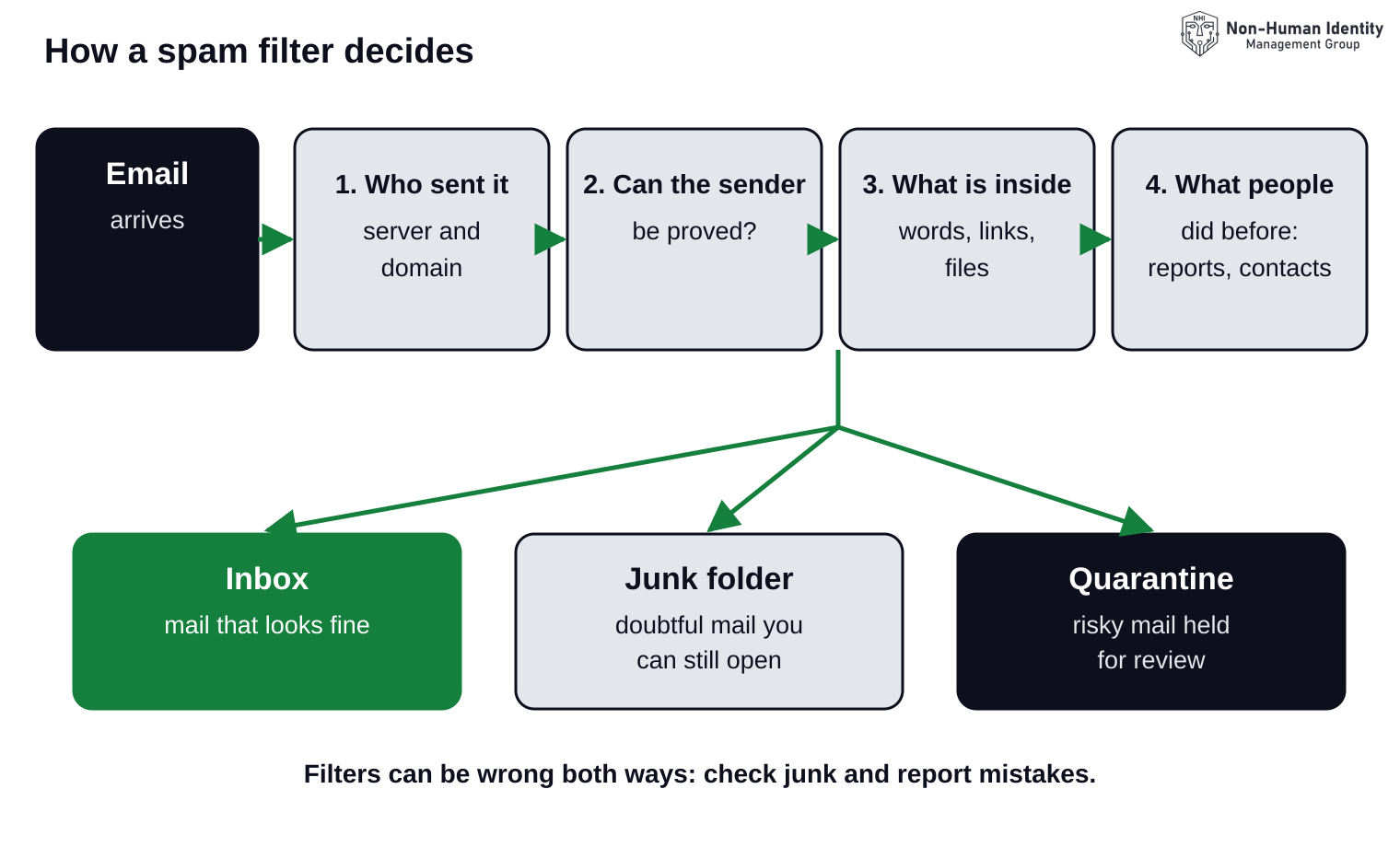
A spam filter is that clerk for email. It checks every incoming message and decides: inbox, junk folder or quarantine. Some filters can also refuse a message during the first moment of delivery, before it reaches any mailbox.[4]
Big email services such as Gmail and Microsoft 365 filter mail for you automatically. Microsoft says its filter learns from known spam and phishing, and from feedback by users and administrators.[1]
Where the comparison stops working: a clerk can open a letter and ask around. A filter judges on signals and scores in a fraction of a second, so it sometimes guesses wrong.
Why does it matter?
Filters keep a lot of rubbish and danger out of sight. But they are a trade-off. UK government guidance says that blocking all suspicious email can mean some genuine email gets lost. Sending everything to junk instead leaves people with more mail to sort.[3]
If you use email at home
What could happen: a delivery note, a bill or a password reset email sits in junk and you never see it.
Check this: look in your junk folder once a week, and mark genuine mail as "not spam".
Next: Phishing for Beginners
If you run a small business
What could happen: customer orders or supplier invoices land in junk or quarantine, and nobody checks there.
Check this: ask who reviews held mail, and how staff can ask for a message to be released.
If you send newsletters or invoices
What could happen: your own emails are filtered as spam by your customers' mail services.
Check this: make sure your email domain is set up to prove your mail really comes from you.
What does it look like?
Here is a made-up summary of why one message was sent to junk. Many services can show reasons like these to an administrator.
Example only. All values are made up.
From: Accounts <[email protected]>   (1)
Subject: (blank)                                    (2)
Sender check: could not confirm sender              (3)
Link in message: points to a different website      (4)
Verdict: SPAM, moved to Junk folder                 (5)
- The address uses the number 1 in place of the letter l. Lookalike addresses are a common warning sign.[2]
- Empty messages are sometimes sent to test whether an address works.[2]
- The receiving service could not confirm who sent it.
- The link text and the place it goes do not match.
- The decision. In a real screen, this line would show the filter's own wording.
Why this is risky: several warning signs together often mean a trick, such as a fake invoice.
The safer way: leave messages like this in junk. If you expected an invoice, contact the supplier using details you already have.
How does it work?
Each service works differently, but most filters follow the same broad steps.
- Check the sender. The filter looks at where the message came from. That includes the sending server's internet address and the domain name, which is the part after the @ sign.[3]
- Check the proof. It looks at whether the sender can be confirmed. Messages from a sender the service cannot verify are more likely to go to spam.[2]
- Check the content. It looks at the words, links and attachments for patterns seen in spam and phishing, which are fake messages that try to trick you.
- Add what people did. Your own past reports count. Gmail says mail you report as spam is moved there, and later mail from that sender may follow.[2]
- Decide. The filter gives a verdict, such as spam, phishing or bulk mail. The organisation's settings decide what happens next, for example the junk folder or quarantine.[1]
Held mail is kept only for a set time. In Microsoft 365, for example, the organisation sets how many days spam stays in quarantine, from 1 to 30. After that it is deleted and cannot be recovered.[1]
A worked example
Celia Bergmann is a bookkeeper at Elm Accountants, a made-up firm of six people. A client says she emailed her bank statements three days ago. Celia has not seen them.
She checks her junk folder. The client's email is there, with the attachment. The filter could not confirm the sender, because the client uses her own business domain and has not set it up to prove her mail.
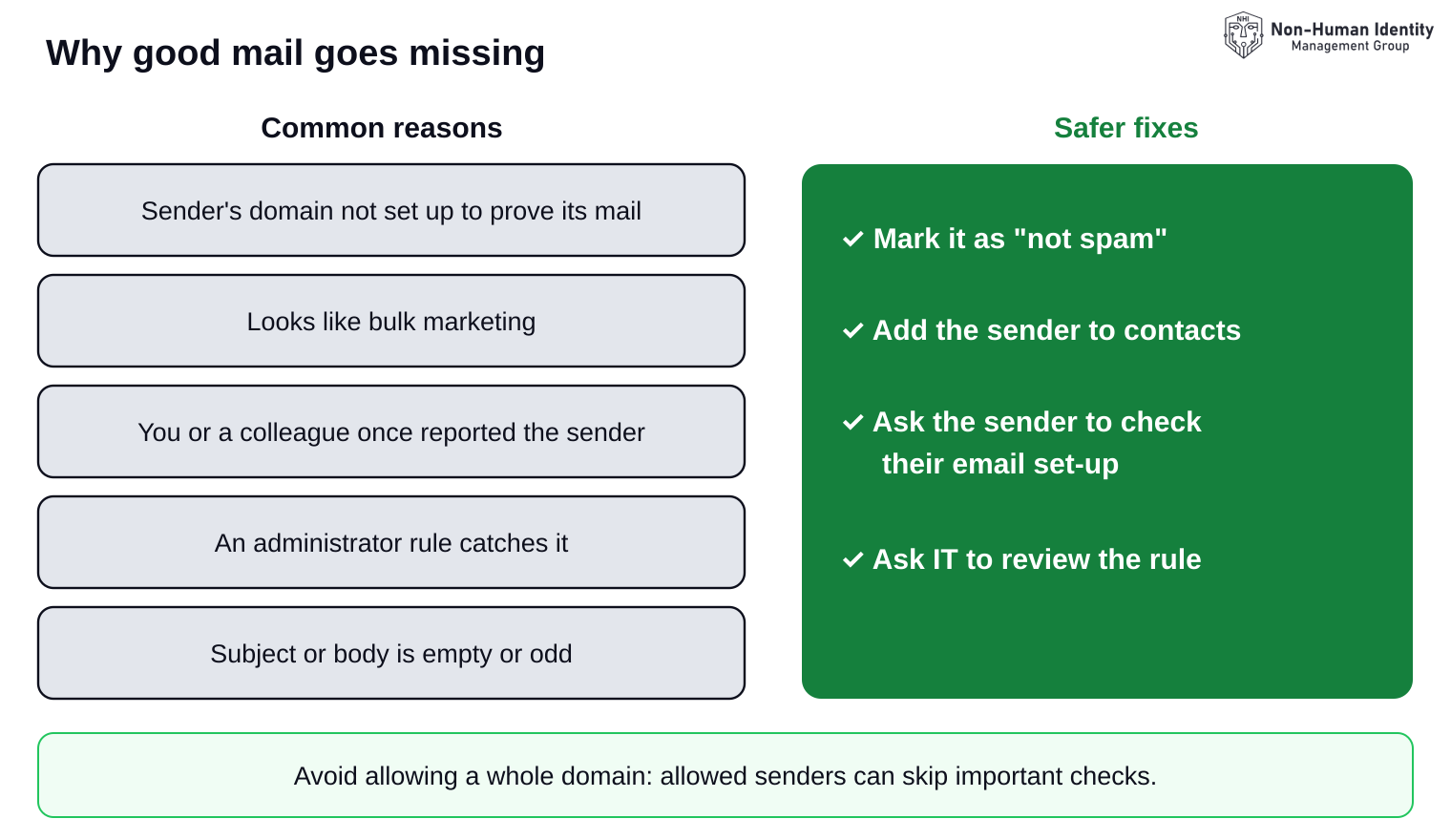
Celia marks the message as "not spam" and adds the client to her contacts. Gmail and similar services say this helps future mail from that sender reach the inbox.[2]
She also tells the client, kindly, that her email set-up may need fixing, and suggests she asks whoever looks after her website.
Next, Celia asks the firm's IT supplier to check quarantine too. It holds two more client messages, plus a fake invoice with a lookalike address. The supplier releases the two genuine ones and leaves the fake.
The supplier suggests adding the client's whole domain to an allow list. Celia asks what that would skip. Microsoft warns that allowed senders bypass most protection and sender checks, and says these lists are best for temporary testing.[1] They agree on a weekly look at junk and quarantine instead.
Myths and mistakes
| What people think | What is true |
|---|---|
| If it reached my inbox, it is safe. | Filters miss some bad mail. UK government guidance says some phishing will always get through.[3] Stay alert to odd requests. |
| Everything in junk is dangerous. | Junk often holds genuine mail too. Check it, but do not open links or files in a message you do not expect. |
| Allow-listing a sender is the easy fix. | Allowed senders can skip most checks. Use "not spam" and contacts first, and ask IT before allowing a whole domain.[1] |
| Deleting spam teaches the filter. | Deleting does not tell it much. Use the "report spam" and "not spam" buttons so it learns. |
| We can just turn the filter off. | Some services do not allow it. Microsoft says spam filtering in Microsoft 365 cannot be turned off completely.[1] |
What can I do this week?
- Open your junk folder and look for genuine mail you missed.
- Mark genuine mail as "not spam" and add regular senders to your contacts.
- Use the report button for spam and phishing in your inbox, rather than just deleting it.
- Ask your IT supplier who reviews quarantine and how long held mail is kept.
Checklist
- I know where my junk folder is and check it regularly.
- I mark genuine mail as "not spam" instead of just moving it.
- I report spam and phishing with the report button.
- Staff know how to ask for a held message to be released.
- Someone named reviews quarantine before held mail is deleted.
- Allow lists are used rarely, recorded, and reviewed.
- Our own email domain is set up so other services can confirm our mail.
Common questions
Why did a genuine email go to spam?
Usually because something about it looked like spam. The service may not have confirmed the sender, or the mail looked like bulk marketing. An earlier report or a company rule can also catch it. Mark it as "not spam" so later mail is more likely to arrive.
What is the difference between junk and quarantine?
Junk is a folder in your own mailbox that you can open. Quarantine is a holding area outside your mailbox, usually for riskier mail. In Microsoft 365, users cannot release their own high confidence phishing messages from quarantine, whatever the settings.[1]
Is spam the same as phishing?
No. Spam is unwanted mail, often advertising. Phishing is a fake message designed to trick you into giving away details, paying money or opening something harmful. Filters look for both, and treat phishing as more serious.
Is it safe to open emails in my junk folder?
Reading the text is usually lower risk than clicking. Do not click links, open attachments or reply unless you are sure the message is genuine. If in doubt, contact the sender using details you already have, not those in the email.
Where next?
Ready for the detail? Read the practitioner guide: D3-EF Email Filtering. It goes further into where filtering is set up, how to check it works, and the ways attackers try to get past it.
Also useful:
- Email Security for Beginners
- Email Authentication for Beginners
- Phishing vs Spam
- Email Headers for Beginners
Related NHI Mgmt Group resources: Email Deliverability for Beginners · Phishing for Beginners · Email Authentication Checklist
Key terms
- Spam
- Unwanted email, often sent in bulk to many people.
- Spam Filter
- Software that checks incoming mail and moves unwanted or harmful messages away from the inbox.
- Quarantine
- A holding area where risky messages wait for review instead of being delivered.
- False Positive
- Something harmless, such as a genuine email, wrongly flagged as bad.
- Phishing
- A fake message designed to trick people into giving away details or money.
- Sender Reputation
- How trustworthy a sender looks to mail services, based on its past behaviour.
- Allowlist
- A list of senders let through without the usual checks, so it needs care.
Sources and further reading
- Anti-spam protection in cloud organizations. Microsoft Learn (Microsoft Defender for Office 365 documentation). https://learn.microsoft.com/en-us/defender-office-365/anti-spam-protection-about, accessed 28 Nov 2026.
- Mark or unmark spam in Gmail. Google, Gmail Help. https://support.google.com/mail/answer/1366858, accessed 28 Nov 2026.
- Phishing attacks: defending your organisation. National Cyber Security Centre (NCSC). https://www.ncsc.gov.uk/guidance/phishing, accessed 28 Nov 2026.
- Email Filtering (D3-EF). MITRE D3FEND. https://d3fend.mitre.org/technique/d3f:EmailFiltering/, accessed 28 Nov 2026.