Removable media means storage you can plug in and carry away, such as USB sticks and memory cards.
This guide is for anyone who has found a USB stick, been handed one, or charged a phone in a public place. You do not need to be technical to be affected: one plugged-in stick can put a whole office network at risk.
In short
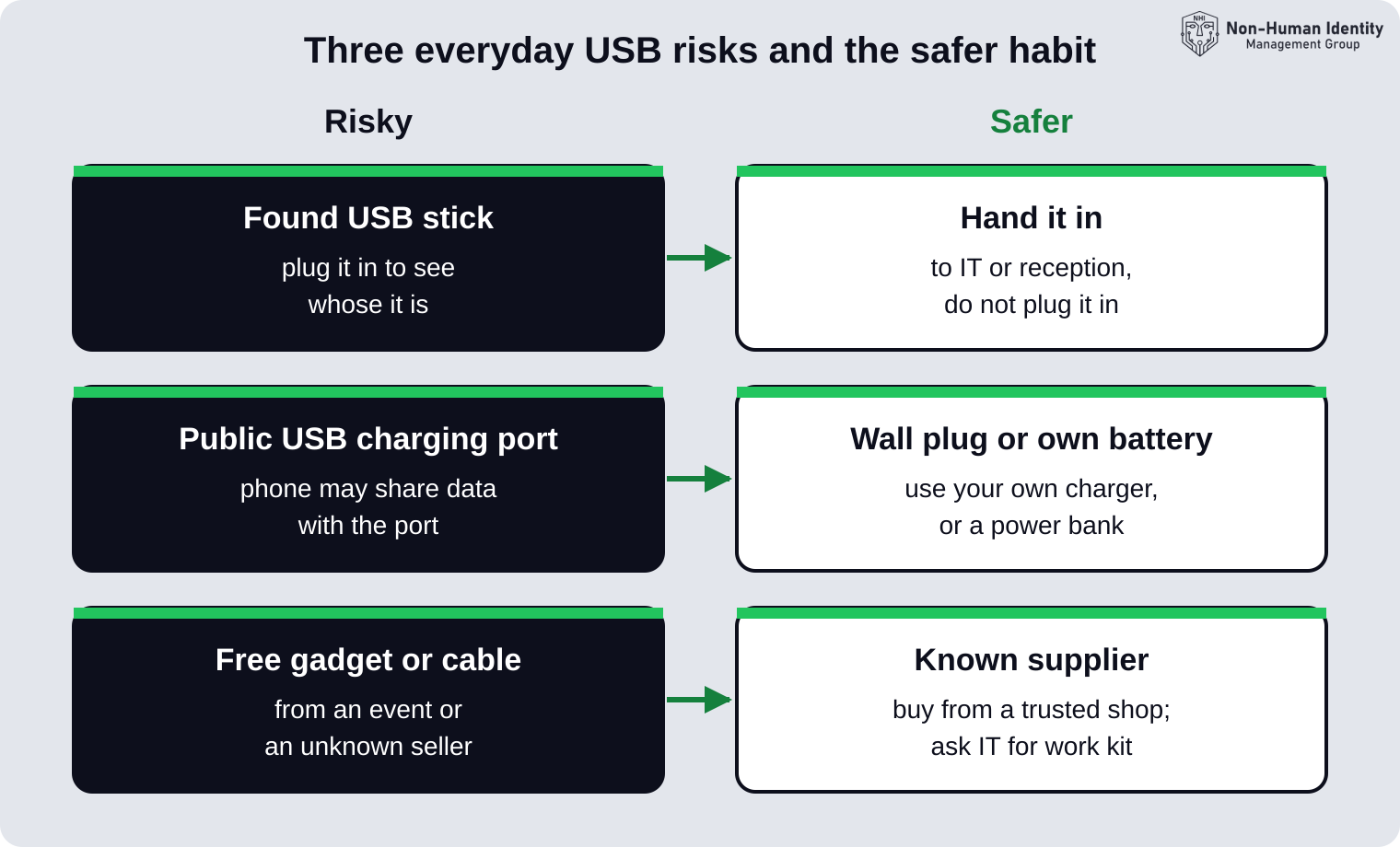
- A USB stick you did not expect can carry harmful software, so do not plug it in to see whose it is.
- Some devices that look like sticks or cables can pretend to be a keyboard and type orders to your computer.
- Public USB charging ports carry a small risk. A wall plug, your own charger or a power bank is safer.
- At work, hand found devices to IT and use only encrypted, approved drives for work files.
What you will learn
- Explain why an unknown USB stick or cable can be risky.
- Spot the three everyday situations where most of the risk sits.
- Check how your own drives and chargers are set up.
- Ask your IT team the right questions about USB rules at work.
- Plug-in storage (removable media)
- anything that stores files and plugs into a computer, such as a USB stick, memory card or external drive.
- Harmful software (malware)
- a program made to damage a device, spy on it or steal from it.
- Lock for a drive (encryption)
- scrambling the files so only someone with the password or key can read them.
What is removable media?
Think of a free sample handed to you by a stranger in the street. It looks harmless, but you cannot see what is inside until you try it. A USB stick from an unknown source works the same way for a computer.
Removable media is any storage you plug in and take away. USB is the common plug, so most people meet it as a USB stick. Memory cards, external hard drives and phones in file mode count too.
The risk comes from trust. When you plug something in, your computer reads it and may offer to open its files. If the device carries malware, opening the wrong file can let it in.
There is a second, rarer risk. A device built for attacks can tell the computer it is a keyboard, then type orders very fast. This is often called BadUSB. The computer treats it like a person typing.[5]
Where the comparison stops working: a bad sample makes only you ill. A bad stick plugged into a work laptop can spread to other computers on the same network.
Why does it matter?
People really do plug in drives they find. In one university study, researchers left 297 USB sticks around a campus. Someone opened files on at least 45% of them.[1]
If you work in an office
What could happen: a stick from the car park or the post is plugged into a work laptop. Harmful software gets onto the network.
Check this: ask IT where to hand in found devices, and what to do with drives from visitors.
If you run a small business
What could happen: staff copy customer files to a personal stick, the stick is lost, and nobody can say what was on it.
Check this: decide whether staff need USB storage at all. If they do, buy encrypted drives for work files.
If you travel with a phone
What could happen: a public USB charging port is set up to read your phone, not just charge it. The US communications regulator calls this juice jacking.[2]
Check this: carry your own plug or a power bank, and tap "charge only" if your phone asks.
If you are new to IT work
What could happen: a user brings you a found stick, and you plug it in to help them find the owner.
Check this: follow your team's process for unknown devices. Many teams check them on a spare computer kept away from the network.
Next: Malware for Beginners
What does it look like?
Example only. All values are made up.
USB DRIVE (E:)  label: SALARIES 2026        (1)
  Staff pay review        [folder]          (2)
  Photos_EXAMPLE          [folder]
  readme.txt.exe                            (3)
Found in: car park, near the front door     (4)
- A tempting label is chosen to make you curious enough to look.
- This "folder" could be a shortcut in disguise. In a real file list, this line could start a program when clicked.
- A name with a hidden second ending. It looks like a text file but is a program.
- A stick left where staff walk past is a classic lure, sometimes called baiting.
Why this is risky: by the time you see this list, the stick is already in your computer. One click on the wrong item could start harmful software.
The safer way: do not plug in a stick you did not expect. Hand it to IT or reception, and say where you found it.
How does it work?
This is a simple view so you can spot the risk. It is not a guide to doing it.
- A device arrives. It might be found on the floor, sent in the post, given away at an event, or fitted to a public charging point.
- You plug it in. The computer asks the device what it is: storage, a keyboard, a phone or something else.
- Something runs. You open a file, or a disguised shortcut starts a program. A device pretending to be a keyboard can type orders by itself.
- Harm follows. Harmful software may install itself, spread to other computers, or copy files away.
Here is a real case. In 2022 Microsoft described a worm, a kind of malware that copies itself, which spread on infected USB drives. The drives held a shortcut dressed up as a folder. Microsoft saw alerts linked to it on nearly 3,000 devices in almost 1,000 organisations in one month.[3]
Some of those drives relied on a setting called AutoRun, which starts a program as soon as a drive is plugged in. Microsoft says Windows turns this off by default, but some organisations had turned it back on.[3]
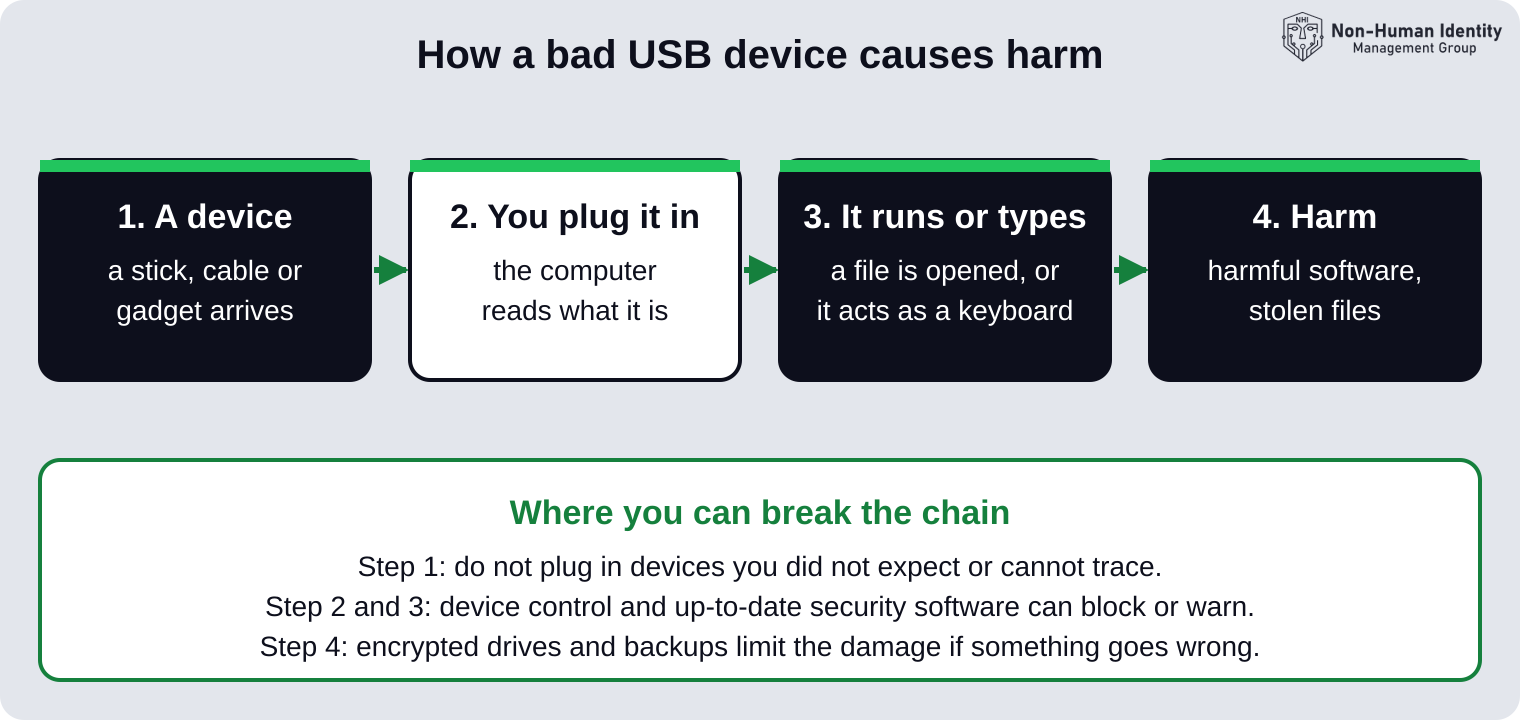
Workplaces add a second layer called device control. These are settings that decide which devices a computer will accept. For example, Microsoft's tools can block USB drives, allow only listed devices, or allow only drives protected with its encryption feature.[4]
A worked example
This story is made up to show how it can happen.
Esra Dubois manages a small accountancy office in Malmö with eight staff. One Monday, a parcel arrives with a USB stick and a printed note. The note says it holds a free tax software update from a supplier the office uses.
Her colleague is about to plug it in. Esra stops him. She has never had an update sent this way, and the note gives no name she knows.
She calls the supplier using the number on its website, not the one on the note. The supplier says it does not post USB sticks. Esra puts the stick in an envelope, labels it, and gives it to the firm that looks after the office computers.
The next day the IT firm checks the stick on a spare computer kept off the network. They tell her it looks like it was built to act as a keyboard. If it had been plugged in, it might have tried to install remote control software.
Esra takes two more steps. She asks the IT firm to block unknown USB storage on office laptops, with an approved encrypted drive for the one person who needs it. She also adds a line to the staff handbook: never plug in a device you did not ask for, and hand found devices to her.
What made the difference: Esra checked the story with the supplier, using contact details she found herself, before anyone plugged anything in.
Myths and mistakes
| What people think | What is true |
|---|---|
| I can plug in a found stick just to see whose it is. | That is exactly how baiting works. Hand it to IT, reception or lost property instead. |
| A brand new stick in sealed packaging is always safe. | It is much safer than a found one. Still buy from a trusted shop, and be wary of free sticks you did not ask for. |
| A cable is just a cable. | Most are. Some devices built for attacks look like ordinary cables. Use cables from a known source for work devices. |
| My antivirus will catch anything on a USB stick. | Security software helps, but it may not catch everything. A device acting as a keyboard is not a file to scan, so not plugging it in still matters. |
| Losing a stick only matters if it had secrets on it. | If nobody knows what was on it, you may have to treat it as a data loss. Encrypted drives make a lost stick far less worrying. |
What can I do this week?
- Decide now what you will do with a found stick: hand it in, unplugged.
- Put a small power bank or your own wall charger in your bag for trips.
- Check your USB sticks. Delete old files you no longer need, and lock any that hold personal or work data.
- Ask your IT team, or whoever looks after your computers, what the USB rules are at work.
- Throw away or hand back any free cables or gadgets from unknown sources that you use with work devices.
Checklist
- I do not plug in USB devices I did not expect or cannot trace.
- I know who to give a found USB stick to at work.
- I charge my phone from a wall plug, my own charger or a power bank when I can.
- I tap "charge only" or "do not trust" if my phone asks when I plug it in.
- Any stick holding work or personal data is encrypted.
- I keep a backup of files that matter, not just a copy on one stick.
- My computer's security software and updates are switched on.
Common questions
Is it safe to plug in a USB stick I found?
No, it is not a safe habit. A found stick may be lost by its owner, but it may also be a lure carrying harmful software. Hand it to IT, reception or lost property, unplugged, and say where you found it. Let someone with a safe test computer check it.
Is public USB charging really dangerous?
The risk is small but real enough that the US communications regulator warns about it. It advises using a wall socket, carrying a power bank or a charge-only cable, and choosing "charge only" if your phone asks.[2] Those habits cost little.
What should I do if I already plugged in an unknown stick?
Remove it, and do not open any files on it. At work, tell your IT team straight away, with the time and the computer you used. At home, run a full scan with your security software and watch for odd behaviour, such as pop-ups or slow running.
How do I lock a USB stick?
Use encryption. Windows, Mac and Linux each have built-in ways to encrypt a drive with a password, and some sticks have their own keypad. At work, ask IT which method is approved. Keep the password somewhere safe, because a forgotten one can lock you out of the files.
Why does my work laptop refuse my USB stick?
Your employer has probably turned on device control. These settings let IT block storage devices, allow only approved ones, or allow only encrypted drives.[4] Ask IT for an approved way to move the files, rather than looking for a way round it.
Where next?
Ready for the detail? Read the practitioner guide: Removable Media and USB Control Guide. It goes further into device control policies and allowlists, encrypted drive rollout, and how to detect and measure USB use across an organisation.
Also useful:
- Endpoint Security for Beginners
- Malware for Beginners
- Social Engineering for Beginners
- Data Loss Prevention for Beginners
- Encryption for Beginners
Related NHI Mgmt Group resources: Removable Media Policy Template · Endpoint Hardening Checklist · Endpoint DLP Guide
Key terms
- Removable media
- Storage you can plug into a computer and carry away, such as USB sticks, memory cards and external drives.
- Malware
- Harmful software made to damage a device, spy on it or steal data.
- Baiting
- Leaving a tempting item, such as a labelled USB stick, so someone picks it up and uses it.
- BadUSB
- A USB device changed so it acts as something else, often a keyboard, to send orders to a computer.
- Juice jacking
- Using a tampered public USB charging port to put malware on a phone or take data from it.
- AutoRun
- A Windows setting that can start a program as soon as a drive is plugged in, off by default in modern Windows.
- Device control
- Settings that decide which plug-in devices a computer will accept and what they may do.
Sources and further reading
- Users Really Do Plug in USB Drives They Find. Matthew Tischer, Zakir Durumeric, Sam Foster, Sunny Duan, Alec Mori, Elie Bursztein and Michael Bailey. IEEE Symposium on Security and Privacy, 2016. https://research.google/pubs/users-really-do-plug-in-usb-drives-they-find/, accessed 28 Nov 2026. Full paper: https://zakird.com/papers/usb.pdf.
- Juice Jacking: Don't Charge Your Phone at Public Charging Stations (consumer guide). Federal Communications Commission (FCC). https://www.fcc.gov/juice-jacking-tips-to-avoid-it, accessed 28 Nov 2026.
- Raspberry Robin worm part of larger ecosystem facilitating pre-ransomware activity. Microsoft Threat Intelligence, 27 October 2022. https://www.microsoft.com/en-us/security/blog/2022/10/27/raspberry-robin-worm-part-of-larger-ecosystem-facilitating-pre-ransomware-activity/, accessed 28 Nov 2026.
- Device control in Microsoft Defender for Endpoint (overview). Microsoft Learn. https://learn.microsoft.com/en-us/defender-endpoint/device-control-overview, accessed 28 Nov 2026.
- Hardware Additions (T1200). MITRE ATT&CK. https://attack.mitre.org/techniques/T1200/, accessed 28 Nov 2026.