A virtual desktop is a computer desktop that runs on a distant server and is shown on your screen.
This guide is for managers, new IT staff and anyone who has been told to "log in to the virtual desktop". It matters for business too: virtual desktops can keep company files off personal laptops, but only if they are set up with care.
In short
- With a virtual desktop, the programs and files run on a computer in a data centre or the cloud. Your device mostly shows the picture and sends your typing back.
- Companies use them so staff can work from many devices, and so files can stay on company systems rather than on each laptop.
- The login is the front door. Anyone who has a person's password may be able to open their whole desktop from anywhere.
- The main checks are a second login step, limits on copying files out, regular updates and no admin rights for everyday users.
What you will learn
- Explain the difference between a virtual desktop and a normal laptop.
- Spot the settings that decide whether files can leave the virtual desktop.
- Check that logins use a second step.
- Ask your IT team or supplier the right questions about a virtual desktop service.
- Remote desktop (virtual desktop)
- a Windows or Linux desktop that runs on a server and is shown on your device.
- Shared setup (VDI)
- short for virtual desktop infrastructure: the servers and software a company runs to provide virtual desktops.
- Desktop as a service (DaaS)
- virtual desktops rented from a cloud provider, who runs the servers for you.
What is a virtual desktop?
Think of watching a film on a streaming service. The film is stored and played on the provider's computers. Only the picture and sound travel to your TV.
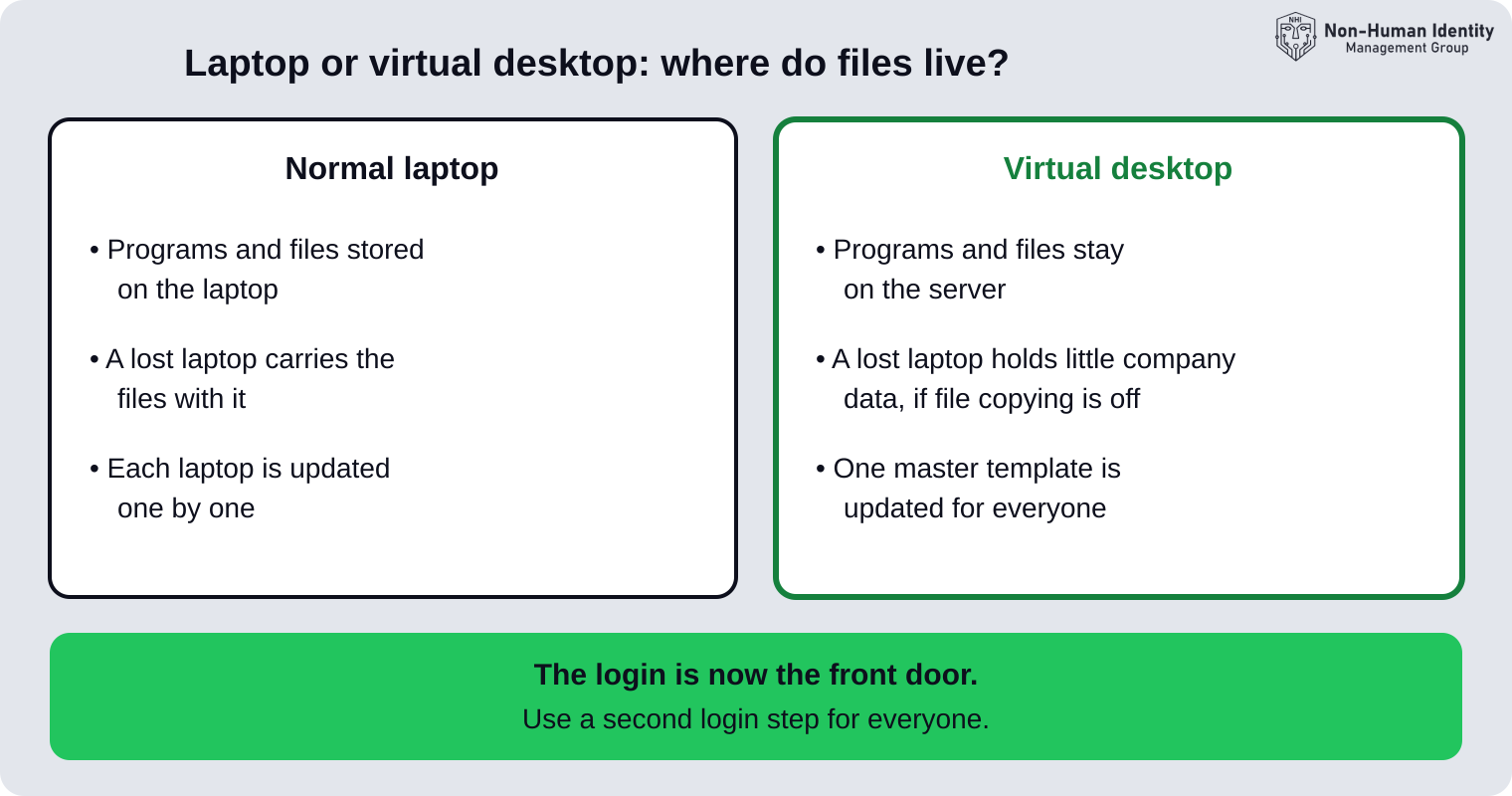
A virtual desktop works the same way. Your programs, files and settings live on a computer in a data centre or the cloud. Your laptop, tablet or web browser shows you the screen, and sends your mouse clicks and typing back. You can often connect from many kinds of device, including through a web browser.[1]
There are two common ways to get them. A company can run its own setup, called VDI (virtual desktop infrastructure). Or it can rent desktops from a cloud provider, called desktop as a service, or DaaS. Examples include Azure Virtual Desktop, Windows 365 Cloud PCs and Amazon WorkSpaces.[1][2][3]
Some desktops belong to one person, like a personal PC in the cloud.[2] Others are shared: several people work on the same server at once, in separate sessions, which saves money.[1]
Where the comparison stops working: a film only flows one way. A virtual desktop flows both ways. You can send files, copied text and printer jobs between your device and the desktop, unless those paths are switched off.
Why does it matter?
Virtual desktops can make lost laptops and home working less risky, because the files can stay on company systems. But the login becomes very valuable. If someone steals a password, they may be able to open the whole desktop from their own computer.
If you manage a team
What could happen: staff copy client files from the virtual desktop onto their home computers, and the files spread beyond your control.
Check this: ask IT whether copying files and text out of the desktop is allowed, and why.
If you are new to IT work
What could happen: one unpatched template is copied into every new desktop, so the same weakness appears everywhere.
Check this: find out how often the master template is updated, and who signs it off.
If you use a virtual desktop at work
What could happen: you get a fake login page by email, type your password, and someone else opens your desktop.
Check this: make sure your login asks for a second step, such as an app prompt.
What does it look like?
IT teams choose settings for what can pass between your device and the desktop. Here is a made-up summary for a small firm, written in plain words.
Example only. All values are made up.
# Virtual desktop settings summary: example-lettings
login:              password only                 (1)
copy and paste:     both directions, files too    (2)
local drives:       visible inside the desktop    (3)
user rights:        everyone is an admin          (4)
template updated:   EXAMPLE date, 9 months ago    (5)
idle sign-out:      off
- Only a password is needed. In a real file, this line would show whether a second login step is required.
- Files and text can be copied out to the person's own device.
- The person's own drives, such as a USB stick, can be opened from inside the desktop.
- Every user can install software and change settings.
- Every new desktop is built from a master copy that has missed months of updates.
Why this is risky: each line opens a gap. A stolen password is enough to log in. Files can leave easily. And one weak template is copied into every desktop.
The safer way: require a second login step for everyone. Microsoft advises this for all users and admins of its service.[4] Keep drive and file copying off unless there is a clear need, and use an approved file-sharing service instead. Do not give everyday users admin rights, and update the template every month.[4]
How does it work?
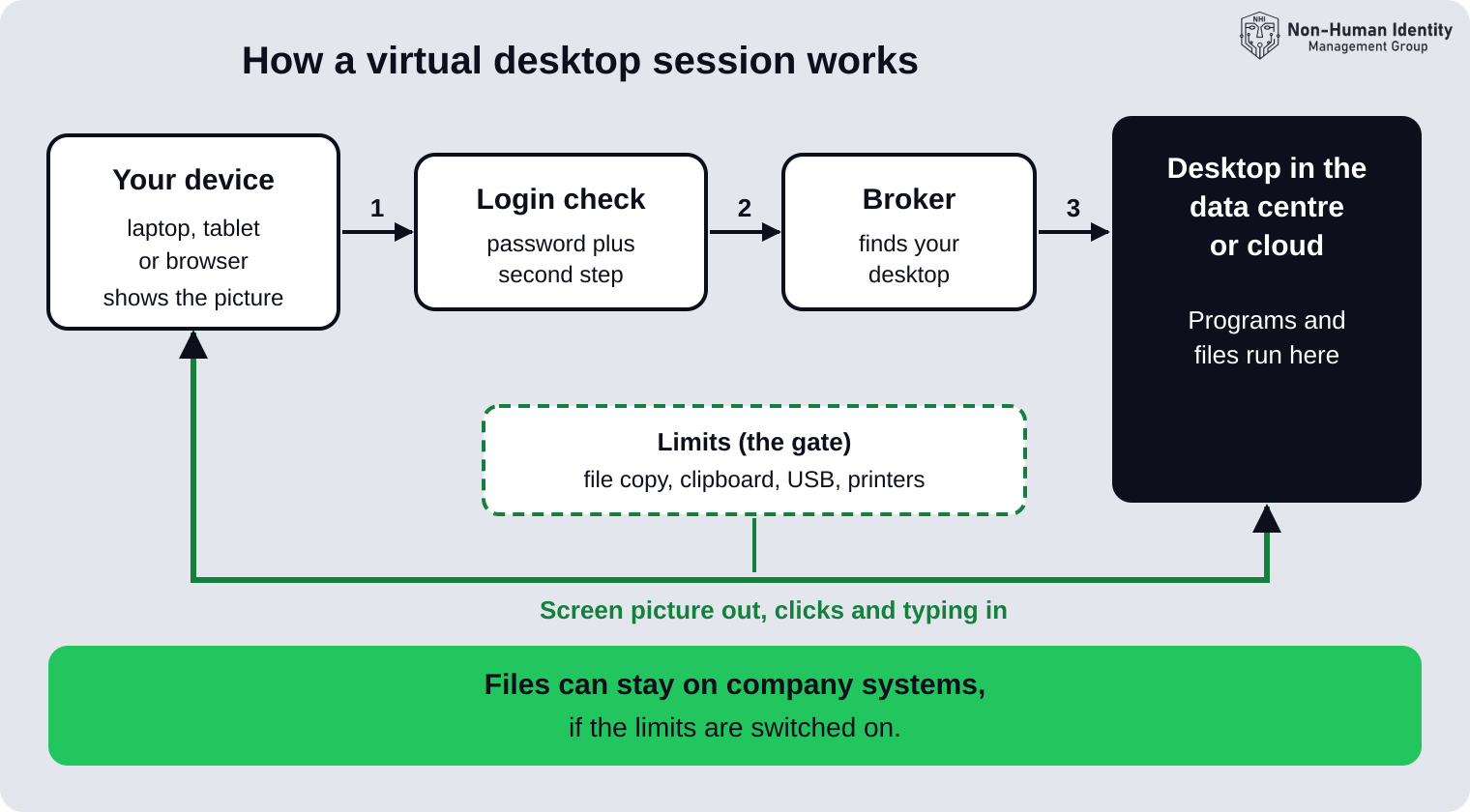
Here is what happens when someone starts work on a virtual desktop.
- Open the app. The person opens the desktop app or a web page on their own device.[1]
- Prove who you are. They log in, ideally with a password plus a second step. The service may also check the device and the place they are logging in from.[4]
- Get a desktop. A connection service, often called a broker, finds the right desktop for that person. It may be their own, or a session on a shared server.
- Stream the screen. The desktop runs in the data centre or cloud. The screen picture travels to the device, and keystrokes and clicks travel back.
- Apply the limits. Settings decide whether files, copied text, printers and USB devices can pass between the two.[4]
- Sign out. When the person leaves, or after a set idle time, the session locks or signs out.[4]
A worked example
Otto Osei runs Wren Lettings, a fictional letting agency with fifteen staff. Several staff work from home on their own laptops. Otto is worried about tenant files sitting on personal computers.
A supplier suggests rented virtual desktops. Otto asks Leila Yilmaz, the firm's new IT assistant, to look at the settings before they go live.
Leila thinks of the streaming film. The point is that the files stay on the provider's side. So she checks what is allowed to cross back to the laptops.
She finds that copy and paste is on in both directions, and staff can open their own USB drives from inside the desktop. She asks the supplier to allow text to be pasted in, but not files to be copied out. Staff will share files through the firm's approved file service instead.
Next, she checks the login. It asks for a password only. She switches on a second step with a phone app prompt for every user, including the supplier's admin account.
Then she looks at user rights. Everyone has admin rights "to save time". She removes them and sets up a simple way to ask for new software.
Last, she asks the supplier how often the master template is updated. They agree to update it every month and tell her when it is done.
Two staff grumble about the extra login step. After a week, it is routine. Otto now has a short answer when clients ask where their files are kept.
Myths and mistakes
| What people think | What is true |
|---|---|
| Files on a virtual desktop never leave it. | They can leave through copy and paste, drive sharing, printing or USB, unless those paths are limited.[4] |
| The cloud provider handles all the security. | The provider runs the servers. You still choose who can log in, what they can do and what can be copied out. |
| A password is enough because the desktop is "inside" the company. | The login can be reached from many devices and places. A second step makes a stolen password much less useful.[4] |
| Giving everyone admin rights saves time. | On shared desktops, admin rights can let one user affect other people's sessions or data.[4] |
| A virtual desktop means the personal laptop does not matter. | A laptop with harmful software can still watch the screen or record typing. Keep devices updated too. |
What can I do this week?
- Check that every virtual desktop login uses a second step, including admin and supplier accounts.
- Ask IT which copy paths are open: files, text, drives, printers and USB.
- Find out when the master template was last updated.
- Check whether everyday users have admin rights on their desktops.
- Make sure idle desktops lock or sign out after a set time.
Checklist
- All logins to virtual desktops use a second step.
- File copying, drive sharing and USB are off unless there is an approved need.
- Staff have an approved way to share files instead.
- Everyday users do not have admin rights.
- The master template and desktops are updated on a regular schedule.
- Idle sessions lock or sign out.
- Someone owns the service and reviews who has access.
- Admin and supplier accounts are listed, limited and checked.
Common questions
What is the difference between VDI and a Cloud PC?
Both give you a desktop that runs elsewhere. VDI usually means a setup the company builds and runs itself, or configures in detail. A Cloud PC, such as Windows 365, is a ready-made desktop service where the provider creates and hosts the machine for each licensed user.[2]
Is a virtual desktop the same as a VPN?
No. A VPN connects your own computer to the company network, and the work still happens on your computer. With a virtual desktop, the work happens on a remote computer, and you see its screen. See VPNs for Beginners.
Can I use a virtual desktop on my own laptop?
Often, yes. Many services work through an app or a web browser on personal devices. Your employer may still set rules for which devices can connect. Keep your own laptop updated too, because harmful software on it could see what is on screen.
Why do companies use virtual desktops?
Common reasons are letting staff work from many devices, keeping files on company systems and setting up new starters quickly. Shared desktops can also lower costs, because several people use one server at once.[1]
What happens if the virtual desktop service goes down?
Staff may be unable to work until it is back, because their programs and files are not on their own devices. Ask your IT team or supplier what the backup plan is, and how quickly the service is expected to return.
Where next?
Ready for the detail? Read the practitioner guide: Virtual Desktop (VDI) and DaaS Security Guide. It goes further into the login gateway, hardening the master template and the admin accounts behind the service.
Also useful:
- Remote Access Tools for Beginners
- Bring Your Own Device for Beginners
- Lost or Stolen Devices for Beginners
- Remote Browser Isolation vs VDI
- Security Requirements for Selecting VDI and Desktop-as-a-Service
Related NHI Mgmt Group resources: Azure Virtual Desktop Security · VDI and DaaS Health Check · If your VDI and DaaS is compromised
Key terms
- VDI
- The servers and software a company runs to give staff virtual desktops.
- DaaS
- Virtual desktops rented from a cloud provider who runs the servers.
- Session host
- A server that runs the desktops people connect to, sometimes for several people at once.
- Golden image
- The master template that new desktops are copied from.
- Virtual machine
- A computer made in software, running on a real server alongside others.
- Multi-factor authentication
- A login that asks for a second proof, such as an app prompt, as well as a password.
Sources and further reading
- What is Azure Virtual Desktop? Microsoft Learn, Microsoft. https://learn.microsoft.com/en-us/azure/virtual-desktop/overview, accessed 28 Nov 2026.
- What is Windows 365? Microsoft Learn, Microsoft. https://learn.microsoft.com/en-us/windows-365/overview, accessed 28 Nov 2026.
- What is Amazon WorkSpaces? Amazon WorkSpaces Administration Guide, Amazon Web Services. https://docs.aws.amazon.com/workspaces/latest/adminguide/amazon-workspaces.html, accessed 28 Nov 2026.
- Security recommendations for Azure Virtual Desktop. Microsoft Learn, Microsoft. https://learn.microsoft.com/en-us/azure/virtual-desktop/security-recommendations, accessed 28 Nov 2026.