Windows Hello lets you sign in to a Windows computer with your face, fingerprint or a PIN.
This guide is for anyone who uses a Windows computer at home or at work, and for people new to IT support. You do not need any technical knowledge. If your laptop asks you to "set up a PIN", this is what it means.
In short
- Windows Hello replaces typing your password with your face, a fingerprint or a short PIN.
- Your PIN and face or fingerprint data stay on that one computer and are not sent to Microsoft's servers.
- Behind the scenes, the computer proves who you are with a secret key that is designed not to leave the device.
- At work, a version called Windows Hello for Business adds company rules and management.
What you will learn
- Explain what Windows Hello is and what happens when you sign in.
- Explain why a Windows Hello PIN is different from a normal password.
- Check that Windows Hello is set up safely on your own computer.
- Help a colleague who has forgotten their PIN.
- Device-only code (PIN)
- a short code that unlocks your sign-in on one computer only.
- Security chip (TPM)
- a small chip inside many computers that keeps secret keys locked away.
- Body-based check (biometrics)
- using your face or fingerprint to prove it is you.
What is Windows Hello?
Think of a bike lock with its own combination. The numbers open your lock, and only your lock. Someone who learns them still needs your bike in front of them.
Windows Hello works in a similar way. Microsoft describes it as a more personal and secure way to sign in to your Windows device.[4] You can use your face, a fingerprint or a PIN, which is a short code made of numbers and sometimes letters.[4]
The PIN is linked to one device.[4] A normal online password works from any computer in the world. A Windows Hello PIN only unlocks the computer it was set up on.[3]
Face sign-in needs a compatible infrared camera, and fingerprint sign-in needs a fingerprint reader.[4] A PIN works on any computer that supports Windows Hello.
Where the comparison stops working: a bike thief could cut the lock. Windows Hello adds limits on wrong guesses, and the real secret is a key the computer keeps locked away, not the PIN itself.
Why does it matter?
Passwords can be guessed, reused or stolen by fake websites. Microsoft says Windows Hello for Business has no shared password to steal from a server. There is also none to trick out of a user and use elsewhere.[1]
If you use a Windows computer at home
What could happen: you use the same password everywhere, and one leak opens your computer account too.
Check this: set up a Windows Hello PIN under Settings, Accounts, Sign-in options.
If you are new to IT support
What could happen: a user forgets their PIN, and a rushed reset skips the checks that prove who they are.
Check this: learn your company's PIN reset process and follow it every time.
If you run a small office
What could happen: staff share one simple password for every laptop.
Check this: give each person their own account and ask each to set up Windows Hello.
Next: Passkeys for Beginners
What does it look like?
Here is a made-up copy of the sign-in options screen, with notes on what each line means.
Example only. All values are made up.
Settings > Accounts > Sign-in options     (user: [email protected])
Facial recognition (Windows Hello)   Set up          (1)
Fingerprint recognition              Not available   (2)
PIN (Windows Hello)                  Set up: ****    (3)
Security key                         Not set up
Password                             Set up          (4)
- Face sign-in is ready. It needs a camera that supports Windows Hello.
- This computer has no fingerprint reader, so the option cannot be used.
- A PIN is set. In a real screen, this line would never show the PIN itself.
- The account password still exists in the background. Keep it strong and private.
Why this is risky: a short, obvious PIN such as 1234 is easier for someone with your laptop to guess.
The safer way: choose a PIN that is not your birthday or a simple pattern. Add face or fingerprint where your computer supports it.
How does it work?
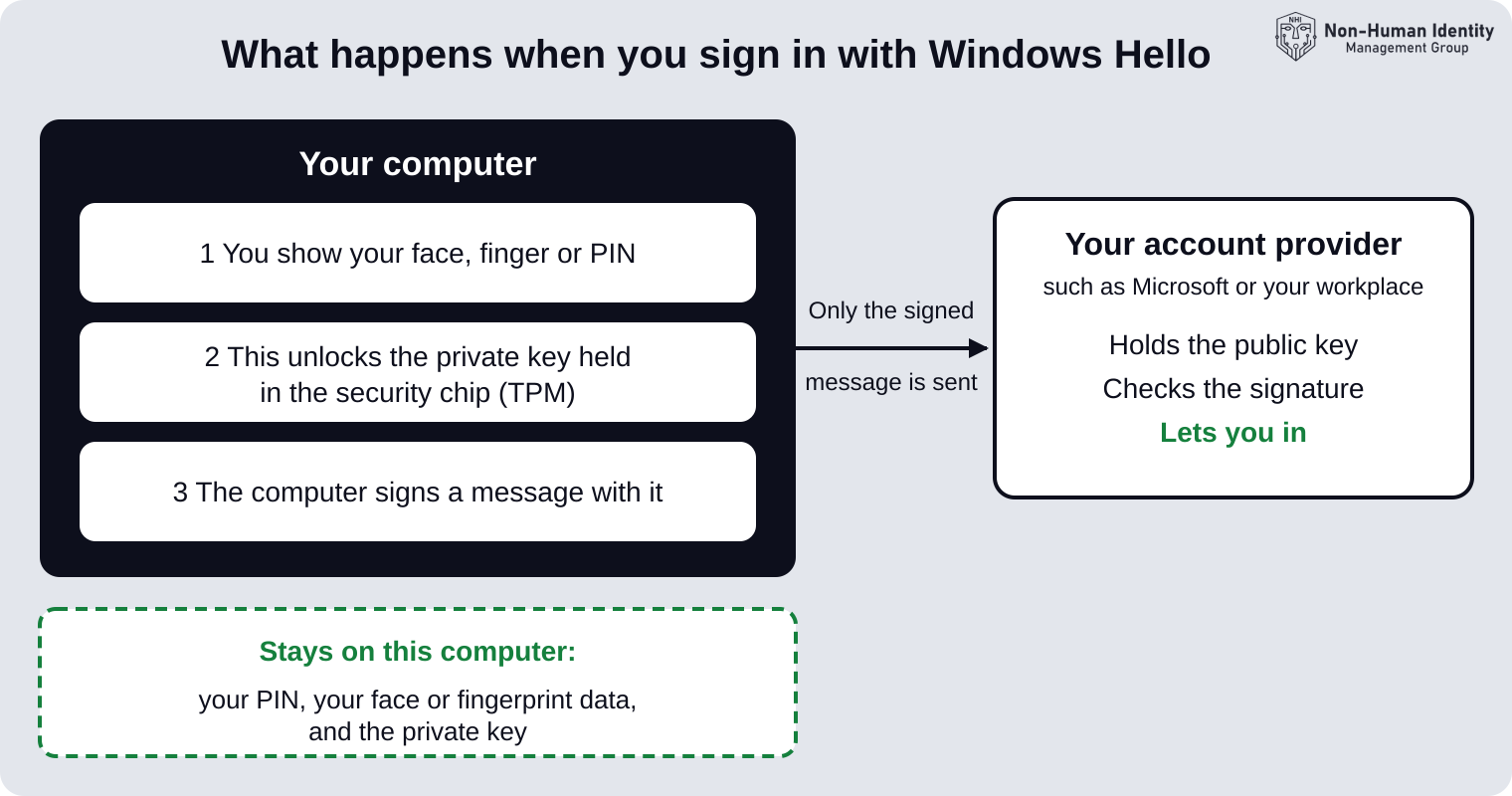
Here is what happens, in plain words, when you set up Windows Hello and then sign in.
- Setting up. The computer makes a matching pair of keys. One is private and stays on the computer. The other is public and can be shared.[2]
- Locking the private key away. If the computer has a security chip called a TPM, the chip creates and guards the private key, and the key cannot be copied out.[2]
- Telling the service. The public key is sent to your account provider, such as Microsoft or your workplace, and linked to your account.[2]
- Signing in. You show your face, touch the reader or type your PIN. This unlocks the private key on the computer.
- Proving it is you. The computer uses the private key to sign a message, a bit like a wax seal. The service checks the seal with the public key and lets you in.[2]
Microsoft says the PIN and the private key are not sent to the account provider.[2] Face and fingerprint data are stored on the local device only and are not sent to outside servers.[1]
Wrong guesses are limited too. After repeated wrong PINs, the security chip makes the computer wait before you can try again, and the waits get longer.[3] After several failed face or fingerprint attempts, that method may be switched off for a while.[3]
Windows Hello and Windows Hello for Business
The version on home computers is called Windows Hello. Workplaces often use Windows Hello for Business. Microsoft describes it as an extension that adds company-grade security and management, such as rules that IT can push to every device.[1] For you, signing in looks much the same.
A worked example
Nadia Kowal manages Cobble Nursery, a fictional plant nursery with eight staff. She buys a new Windows laptop for the office.
When she first turns it on, it asks her to set up a PIN. Nadia is unsure. "Is a PIN not weaker than my long password?"
Umar Bergmann, who has just started doing IT support for local firms, comes in to help. He explains the bike lock idea. The PIN only works on this laptop. Her password, by contrast, works on any computer.
Umar adds that Windows limits wrong guesses, and that the real secret is a key locked inside the laptop's security chip. Nadia is reassured.
Nadia chooses a six-digit PIN that is not her birthday. The laptop has a Windows Hello camera, so Umar shows her how to add face sign-in too.
A month later, Nadia forgets her PIN after a holiday. She clicks the "I forgot my PIN" link on the sign-in screen. Windows asks her to confirm who she is, then lets her set a new PIN.
Umar also checks that the laptop's disk encryption is on. That way, if the laptop is lost, the files stay locked.
Nadia now signs in with a glance most mornings. She keeps her account password in a password manager for the rare times she needs it.
Myths and mistakes
| What people think | What is true |
|---|---|
| A short PIN is less secure than a long password. | A Windows Hello PIN works only on one device and has guess limits. An online password can be tried from anywhere. |
| Microsoft stores a photo of my face. | Microsoft says face and fingerprint data stay on your device and are not sent to outside servers. |
| If someone learns my PIN, they can get into my account from anywhere. | They would also need your physical computer. |
| Once Windows Hello is on, my password no longer matters. | Your account password usually still exists. Keep it strong, private and stored safely. |
| Any webcam can do face sign-in. | Face sign-in needs a camera that supports Windows Hello. |
What can I do this week?
- Open Settings, then Accounts, then Sign-in options, and check what is set up.
- Set a PIN that is not your birthday, a year or a simple pattern.
- Add face or fingerprint sign-in if your computer supports it.
- Make sure you know how to reset your PIN before you need to.
Checklist
- Each person has their own account on the computer.
- A Windows Hello PIN is set, and it is not an easy guess.
- Face or fingerprint sign-in is added where the hardware supports it.
- Nobody shares their PIN, even with colleagues or family.
- The account password is strong and kept in a safe place.
- Disk encryption is turned on.
- Work users know the company's PIN reset process.
Common questions
Is a Windows Hello PIN safer than a password?
In many cases, yes. Microsoft explains that the PIN is tied to the device it was set up on. On its own, it does not work on another computer. Repeated wrong guesses also trigger waits that get longer each time.[3]
Does Microsoft get a copy of my face or fingerprint?
No, according to Microsoft. It says the data used for face and fingerprint sign-in is stored on your device only and is not sent to outside devices or servers.[1]
What happens if I forget my Windows Hello PIN?
You can reset it from the sign-in screen by choosing the forgotten PIN option and confirming who you are. At work, your company sets how resets happen. Microsoft offers two kinds: one replaces your sign-in keys, the other keeps them and only changes the PIN.[5]
Can someone open my laptop with a photo of me?
Windows Hello face sign-in needs a compatible camera, often an infrared one, rather than an ordinary webcam.[4] No system is perfect, though, so keep your PIN private and your laptop with you. Microsoft also warns against setting up face sign-in while wearing a mask.[3]
Is Windows Hello the same as a passkey?
They are closely related. Both use a private key kept on your device instead of a password. Windows Hello can also unlock passkeys that you use on websites, so the same face, fingerprint or PIN can sign you in there.[6]
Where next?
Ready for the detail? Read the practitioner guide: Windows Hello for Business Guide. It goes further into deployment and trust models, policy settings through company tools, and planning PIN recovery for a whole workforce.
Also useful:
- Passkeys for Beginners
- Biometrics for Beginners
- Secure Boot and TPM for Beginners
- Windows Security for Beginners
- Passwordless and Passkeys Guide
Related NHI Mgmt Group resources: FIDO2 and WebAuthn for Beginners · Phishing-Resistant MFA Guide · Lost or Stolen Devices for Beginners
Key terms
- Windows Hello for Business
- The workplace version of Windows Hello, which lets IT manage passwordless sign-in for staff.
- Trusted Platform Module (TPM)
- A small chip in many computers that creates and guards secret keys.
- Biometric authentication
- Proving who you are with a body feature, such as your face or fingerprint.
- Private key
- The secret half of a key pair, used to prove identity. It should stay on your device.
- Public key
- The shareable half of a key pair, used by a service to check your signature.
- Passkey
- A password replacement for websites and apps, based on a key pair kept on your device.
Sources and further reading
- Windows Hello for Business overview. Microsoft Learn, Microsoft, updated 29 March 2026. https://learn.microsoft.com/en-us/windows/security/identity-protection/hello-for-business/, accessed 28 Nov 2026.
- How Windows Hello for Business works. Microsoft Learn, Microsoft, updated 29 March 2026. https://learn.microsoft.com/en-us/windows/security/identity-protection/hello-for-business/how-it-works, accessed 28 Nov 2026.
- Windows Hello for Business Frequently Asked Questions (FAQ). Microsoft Learn, Microsoft, updated 8 October 2026. https://learn.microsoft.com/en-us/windows/security/identity-protection/hello-for-business/faq, accessed 28 Nov 2026.
- Configure Windows Hello. Microsoft Support, Microsoft. https://support.microsoft.com/en-us/windows/configure-windows-hello-dae28983-8242-bb2a-d3d1-87c9d265a5f0, accessed 28 Nov 2026.
- PIN reset. Microsoft Learn, Microsoft, updated 29 March 2026. https://learn.microsoft.com/en-us/windows/security/identity-protection/hello-for-business/pin-reset, accessed 28 Nov 2026.
- Support for passkeys in Windows. Microsoft Learn, Microsoft, updated 13 May 2026. https://learn.microsoft.com/en-us/windows/security/identity-protection/passkeys/, accessed 28 Nov 2026.