Zoom security means keeping uninvited people out of your meetings and setting safe defaults for your account.
This guide is for people who host Zoom meetings, new IT staff and small business owners who look after a Zoom account. You do not need to be technical: a few settings, chosen once, protect every meeting your team runs.
In short
- Most meeting disruptions start when a meeting link is shared too widely.
- A passcode, a waiting room and sign-in for guests keep most uninvited people out.
- Hosts can lock a meeting, limit screen sharing and remove people who should not be there.
- Account admins can set safe defaults for everyone, lock them in place and turn on two-step sign-in.
What you will learn
- Explain how uninvited people get into meetings.
- Spot a risky meeting invitation.
- Check the host controls to use if a meeting is disrupted.
- Ask your Zoom admin which settings are locked for everyone.
- Entry hall (waiting room)
- a holding area where people wait until the host lets them in.
- Door code (passcode)
- a code that people need, as well as the link or meeting ID, to join.
- Account manager (admin)
- a person who can change settings for every user in the organisation's Zoom account.
What is Zoom security?
Think of a meeting room with a reception desk and a door code. The code keeps casual passers-by out. The receptionist checks each visitor before they reach the room.
A Zoom meeting works the same way. The meeting link is the address of the room. A passcode is the door code. The waiting room is the reception desk, where the host decides who comes in.[1]
There are two sides to Zoom security. The host, the person running a meeting, controls what happens in that meeting. The admin, who manages the organisation's Zoom account, sets the rules for every meeting and every user.
Where the comparison stops working: a door code on a real room is seen by few people. A meeting link with the passcode built in can be forwarded to anyone in seconds, and the copy works just as well.
Why does it matter?
Uninvited guests can disrupt a meeting, listen in on private talk or record what they see. Zoom notes that disruptions usually happen when meeting details are made public.[1]
If you host meetings
What could happen: a stranger joins, shares offensive content and the meeting has to end.
Check this: know where the Security button is and how to lock the meeting.
If you look after a small firm's Zoom account
What could happen: each user turns off the waiting room, and nobody notices until a client call is disrupted.
Check this: set the safe settings at account level and lock them.
If you are new to IT work
What could happen: you give admin rights to someone who only needed to schedule meetings.
Check this: list who has admin or owner rights, and why.
What does it look like?
Here is a made-up meeting invitation, posted on a public social media page by mistake.
Example only. All values are made up.
Open lunchtime Q&A, all welcome!                (1)
Join: https://example.com/j/0000000000?pwd=FAKE  (2)
Meeting ID: 000 0000 0000                        (3)
Passcode: FAKE00                                 (4)
Host: personal meeting room, used every week     (5)
- Posted in a public place, so anyone can see it.
- In a real message, this line would contain a link with the passcode built in. One click lets anyone join.
- The meeting ID, the room's number.
- The passcode, printed in plain view.
- A personal meeting room reused every week, so the same details work again and again.
Why this is risky: anyone who sees the post can join, today and next week. The passcode gives little protection once it is published.
The safer way: send the link only to invitees, use a new meeting ID for each meeting and keep the waiting room on. For a public event with many strangers, Zoom suggests a webinar or events tool, where guests watch rather than join as equals.[2]
How does it work?
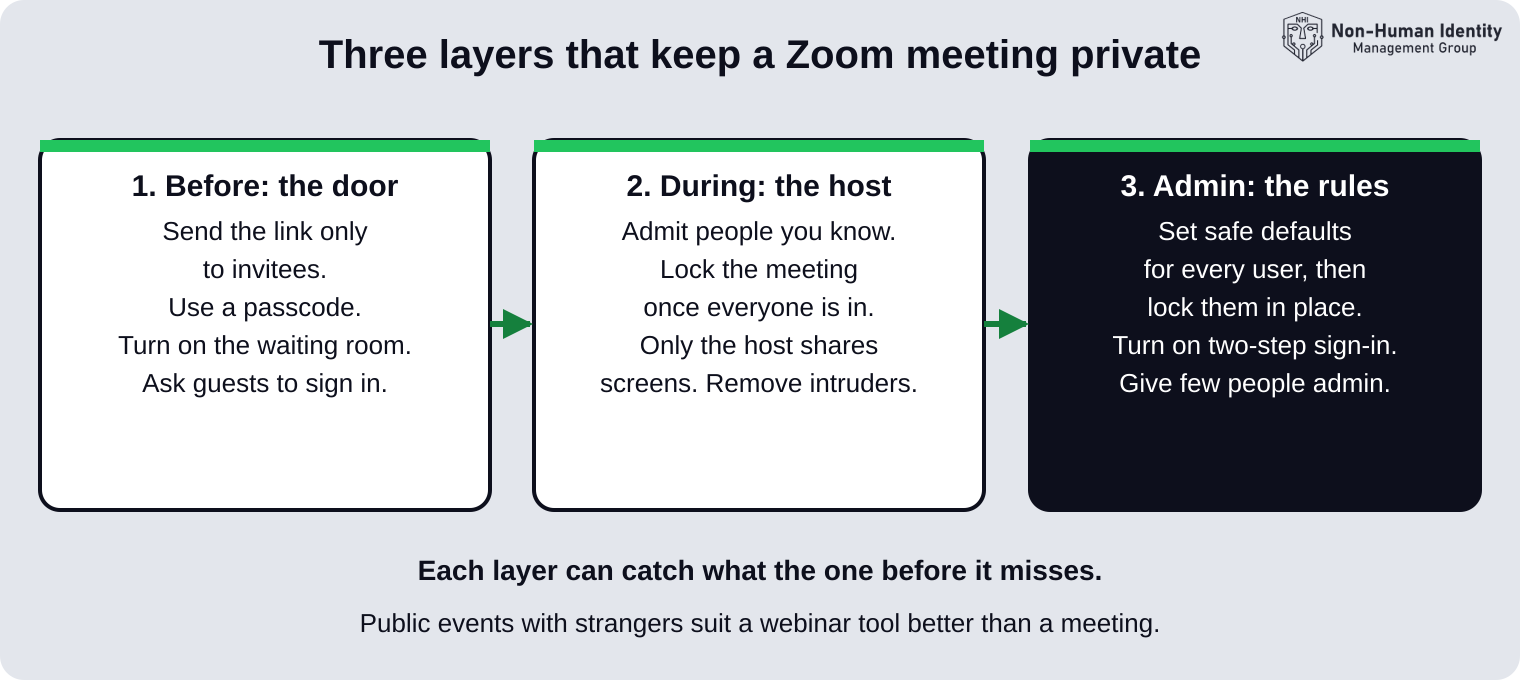
A safer meeting has three layers.
- The door. The host sends the link only to invitees. A passcode and a waiting room screen who gets near the room.[1]
- The guest list. The host can allow only people who are signed in to Zoom, or only those from certain email domains, such as your company's.[2]
- The room. Once everyone is in, the host can lock the meeting so nobody new can join. Screen sharing can be set to host only.[1]
- The emergency button. If someone disrupts the meeting, the host can pause everyone's video, sound, chat and sharing at once, then remove the intruder.[1]
- The house rules. An admin sets these choices as defaults for the whole account. A setting locked at account level cannot be changed by any user or group.[3]
- The account itself. Admins can require two-step sign-in, so a stolen password alone is not enough to get into a Zoom account.[4]
What about encryption, the scrambling that stops others reading data on its way? By default, Zoom encrypts meeting audio, video and shared screens as they travel, but Zoom's servers manage the keys. With end-to-end encryption turned on, only the people in the meeting hold the keys. In return, some features are turned off, such as cloud recording, live transcription and joining by phone.[5]
A worked example
Imani Haddad runs Wren Tutors, a fictional firm that teaches languages to adults online. She has six tutors, and each one hosts lessons on the firm's Zoom account.
One evening, a tutor called Kaia Jovanovic messages her. "A stranger joined my group lesson and shared rude pictures. I ended the meeting."
Imani thinks of the reception desk. Somebody walked straight past it. She asks Kaia how the stranger got the link. Kaia had posted it on the firm's public social media page, to save emailing twelve learners.
Kaia also checks her settings. She had turned off the waiting room weeks ago because admitting people one by one felt slow.
Imani logs in to the account's admin settings. She turns on the waiting room and passcodes for every user and locks both settings. Now no tutor can switch them off. She sets screen sharing to host only by default, so tutors can still allow it for a learner when needed.
She also turns on two-step sign-in for all tutors. She checks the admin list and finds a former tutor who still had admin rights, so she removes them.
Finally she writes a short rule for tutors: send links by email to booked learners only, and never post them publicly. She shows them where the Security button is, and how to lock a meeting once everyone is in.
Myths and mistakes
| What people think | What is true |
|---|---|
| A passcode keeps strangers out. | Only while it stays private. A link with the passcode built in works for anyone who gets it. |
| Zoom meetings are end-to-end encrypted by default. | Meetings are encrypted in transit by default, but Zoom's servers manage the keys. End-to-end encryption is a separate option.[5] |
| Each host can choose their own safety settings. | Hosts can turn settings off unless an admin locks them at account level.[3] |
| Ending the meeting is the only fix for a disruption. | The host can pause all activity, remove the person and lock the meeting.[1] |
| Reusing my personal meeting room is fine for everything. | Its details never change, so anyone who has them once can come back. Use new meeting IDs for meetings with outsiders.[2] |
What can I do this week?
- Find the Security button in your next meeting and try the lock option.
- Check that your waiting room and passcode settings are on.
- If you are an admin, lock those settings at account level.
- Turn on two-step sign-in for your own Zoom account, or for all users if you are an admin.
- Review who has admin or owner rights, and remove anyone who no longer needs them.
Checklist
- Meeting links go only to invitees, never to public pages.
- Waiting rooms and passcodes are on, and locked by the admin.
- Screen sharing is set to host only by default.
- Meetings with outsiders use a new meeting ID, not a personal room.
- Hosts know how to lock a meeting, pause activity and remove someone.
- Two-step sign-in is required for all users.
- Only a few named people have admin or owner rights.
- Public events use a webinar or events tool.
Common questions
What is zoombombing?
Zoombombing is when an uninvited person joins a video meeting to disrupt it, often by sharing offensive content. It usually happens because the meeting link was posted publicly. A waiting room, a private link and host controls make it much less likely.
Is a waiting room or a passcode better?
Use both, because they do different jobs. A passcode stops people who only have the meeting ID. A waiting room lets the host check each person before they join, even if they have the passcode.
Should I turn on end-to-end encryption?
Turn it on for meetings where privacy matters most and you do not need the features it disables. It stops Zoom's servers holding the keys, but it also turns off cloud recording, live transcription and phone dial-in. Everyone must join from the Zoom app.
How do I stop users changing security settings?
Ask your account admin to set them at account level and lock them. A locked account setting cannot be changed by any group or user. Groups can also have their own locked settings for teams with different needs.
What should a host do if someone disrupts a meeting?
Use the Security button to pause participant activity, which stops video, sound, chat and sharing. Then remove the person and lock the meeting. Tell your admin afterwards so they can check how the link got out.
Where next?
Ready for the detail? Read the practitioner guide: Zoom Security. It goes further into admin roles, single sign-on, app and API access, and the full hardening baseline for an organisation's account.
Also useful:
- Zoom Workplace Security
- Collaboration Tool Security for Beginners
- End to End Encryption for Beginners
- Workplace Chat and Meeting Encryption Compared
- AI Meeting Assistant Security Guide
Related NHI Mgmt Group resources: Security Requirements for Selecting a Video Conferencing and Collaboration Platform · Deepfakes and AI Fraud for Beginners · Working From Home Securely for Beginners
Key terms
- Zoombombing
- When an uninvited person joins a video meeting to disrupt it or listen in.
- Waiting room
- A holding area where people wait until the host lets them in.
- Meeting passcode
- A code needed, as well as the link or meeting ID, to join a meeting.
- Admin role
- A set of extra rights that lets a person change settings for other users.
- Multi-factor authentication
- Signing in with a password plus a second check, such as a code from an app.
- End-to-end encryption
- Encryption where only the people in the conversation hold the keys to unscramble it.
- Screen sharing
- Showing your screen to others in a meeting, which can reveal more than you meant.
Sources and further reading
- Securing your Zoom meetings. Zoom. https://www.zoom.com/en/products/virtual-meetings/resources/securing-your-meetings/, accessed 28 Nov 2026.
- Prevent uninvited automated meeting tools and participants with account settings. Zoom Library, Zoom. https://library.zoom.com/zoom-workplace/zoom-meetings/securing-zoom-meetings-explainer/prevent-uninvited-automated-meeting-tools-and-participants-with-account-settings, accessed 28 Nov 2026.
- Settings resolution (groups and settings management). Zoom Library, Zoom. https://library.zoom.com/admin-corner/account-and-endpoint-management/new-groups-and-settings-management-experience-explainer/settings-resolution, accessed 28 Nov 2026.
- Secure your Zoom account with two-factor authentication. Zoom blog, 10 September 2020. https://www.zoom.com/en/blog/secure-your-zoom-account-with-two-factor-authentication/, accessed 28 Nov 2026.
- Using end-to-end encryption for meetings (KB0065408). Zoom Support, Zoom. https://support.zoom.com/hc/en/article?id=zm_kb&sysparm_article=KB0065408, accessed 28 Nov 2026.