An authenticator app is a phone app that proves it is you with a short code or an approval.
This guide is for anyone asked to "set up an authenticator app", whether for a personal account or on the first day of a new job. You do not need any technical background. Many workplaces now ask staff to use one, so knowing how it works saves time and mistakes.
In short
- An authenticator app adds a second step after your password: a code that changes every 30 seconds, or a request you approve.
- The codes are made on your phone, so they work without signal and are not sent by text.
- App codes are stronger than text codes, but a fake website can still trick you into typing one.
- Only approve a request you started, and plan for a lost phone before it happens.
What you will learn
- Explain how an authenticator app makes its codes.
- Spot a sign-in request you should refuse.
- Check that you can still get in if you lose your phone.
- Choose the strongest second step your account offers.
- Changing code (one-time code)
- a short number that works for one sign-in and then stops being accepted.
- Tap to approve (push approval)
- a message on your phone asking if you are signing in right now.
- Shared secret (set-up key)
- a hidden value your app and the website both keep, used to make matching codes.
What is an authenticator app?
Think of two friends with matching watches and the same secret recipe book. Every half minute, both look up the page for that time and read out a number. Because they share the book, their numbers match.
An authenticator app works the same way. When you set it up, you scan a square barcode (a QR code) on the website. That gives your app and the website the same hidden value, called a shared secret. After that, both sides mix the secret with the current time to make a six-digit code.[2]
Some apps can also send you a push approval. Instead of a code, your phone asks "Are you trying to sign in?" and you tap to answer.
Where the comparison stops working: two friends would notice a stranger reading over their shoulder. The app cannot tell if the website you are typing into is a fake, so you have to check that yourself.
Why does it matter?
Passwords leak, get guessed and get reused. A second step means a stolen password alone is not enough to get in. The UK's National Cyber Security Centre ranks app codes above codes sent by text, call or email.[1]
If you are starting a new IT or office job
What could happen: you approve a request out of habit, and someone else gets into your work account.
Check this: approve only when you have just signed in yourself.
If you still get codes by text
What could happen: a criminal moves your phone number to their phone and gets your codes.
Check this: switch important accounts to an app, a passkey or a security key.
If you are about to change phones
What could happen: you wipe the old phone and lose every code with it.
Check this: move or back up your codes before you reset the old phone.
What does it look like?
Here is a made-up authenticator app screen and a made-up approval request.
Example only. All values are made up.
My Authenticator
  Example Mail      [email protected]     000 111   (1)
  Example Bank      orla.z               222 333
  (new codes in 18 seconds)                        (2)

Are you trying to sign in?                         (3)
  Enter the number shown on your screen: [ __ ]    (4)
  [ No, it's not me ]     [ Yes ]
- In a real screen, this line would show a six-digit code for one account. Each account gets its own code.
- The timer. When it runs out, a fresh code appears.
- A push approval. It appears when someone types your password on a sign-in page.
- Number matching. You type the number shown on the sign-in screen, which proves you are looking at that sign-in.
Why this is risky: a request you did not start means someone already has your password. Tapping Yes, or reading a code to a caller, lets them finish signing in.
The safer way: approve or type a code only when you are signing in yourself, on a site whose address you have checked. If a request arrives out of the blue, choose No and change your password.
How does it work?
- Set-up. You turn on the second step in the account's settings and scan the QR code with your app.
- The shared secret. The app and the website now both hold the same hidden value, kept inside the app on your side.
- The time. Every 30 seconds, both sides mix the secret with the current time to make a code. The standard behind this suggests 30 seconds as the usual step.[2]
- The check. You type the code, and the website makes its own code to compare with yours. A code should be accepted only once.[2]
- Push instead of a code. Some apps send a request to approve. Microsoft Authenticator asks you to type a number from the sign-in screen, so a blind tap is not enough.[4]
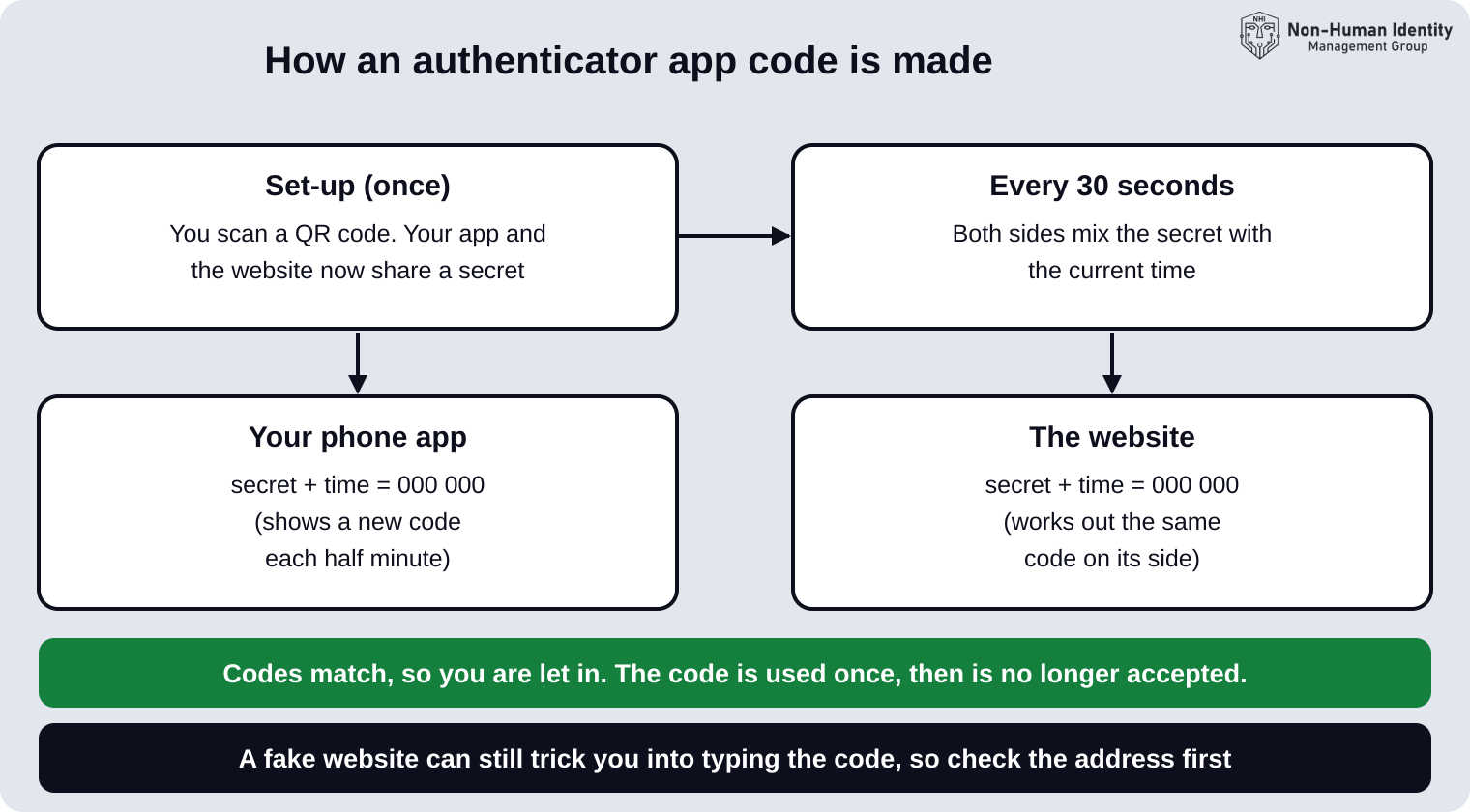
Because the code is made on your phone, Google Authenticator can make codes without an internet connection or mobile signal.[3] It does need the right time. If codes keep failing, check that your phone's clock is set automatically.[3]
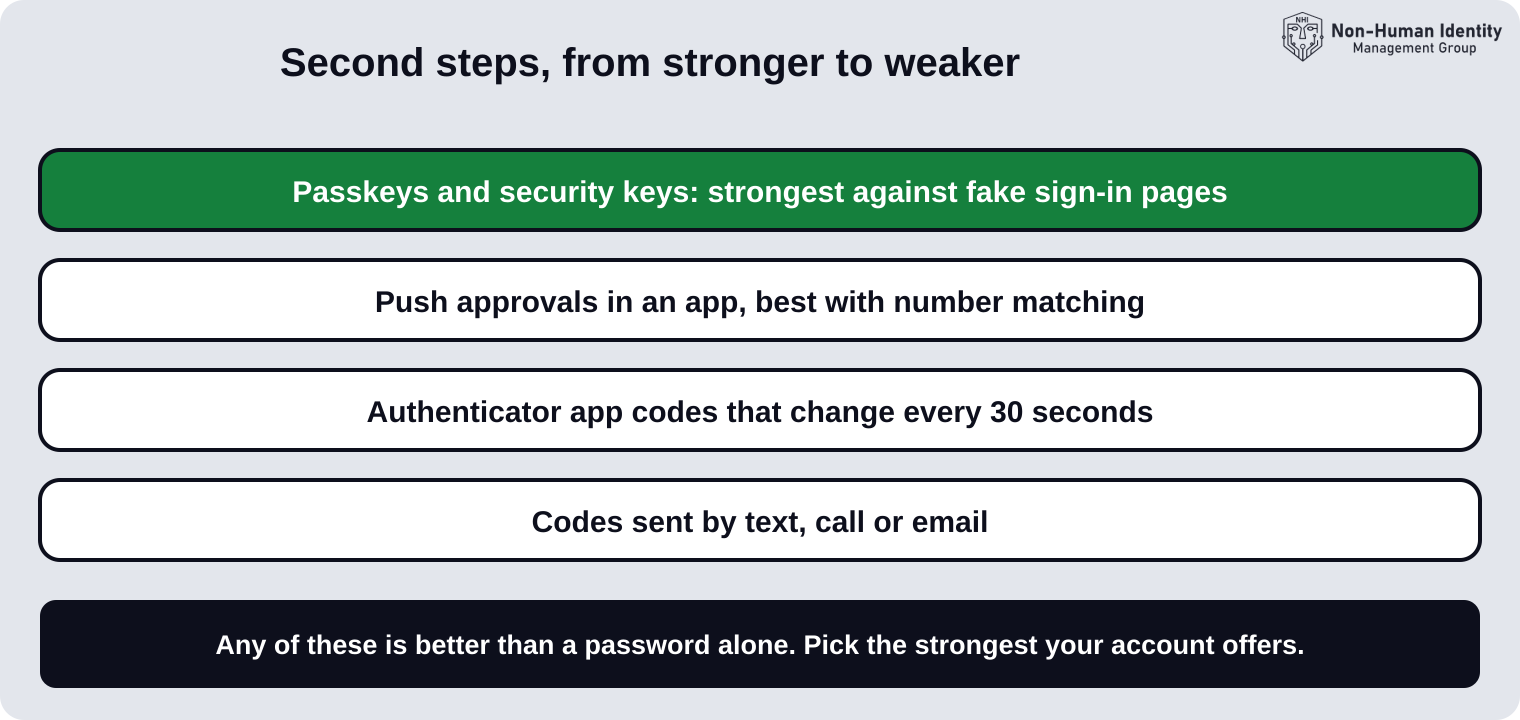
The NCSC puts passkeys and security keys first, because they resist fake sign-in pages. It notes that both push approvals and app codes can still be caught by a convincing fake page.[1] A passkey is a sign-in that uses your device's fingerprint, face or screen lock.
A worked example
Orla Zeller has just started as an office assistant at Bracken Gym, a fictional chain of three gyms. On her first morning, the IT helper asks her to set up an authenticator app for her work email.
She installs the app the company names, signs in on her laptop and scans the QR code on the screen. A six-digit code appears, and a timer counts down. She types it in, and the set-up is done.
Orla remembers the two friends with matching watches. The app and the email system now share a recipe book, so their numbers will match.
Two weeks later, at 10pm, her phone buzzes. "Are you trying to sign in? Enter the number shown." Orla is watching television. She has not signed in to anything.
She taps "No, it's not me". Next morning she tells the IT helper, who resets her work password. He checks the sign-in records. The attempt was blocked at the second step, and he finds no sign that anyone got in.
Then he asks a question Orla had not thought about. "What happens if you lose your phone?" Together they set up a second sign-in method and note who to call. Orla also turns on her app's backup, so a new phone can get her codes back.
Her refusal mattered because she checked first. The prompt was easy to ignore, but she treated it as a warning.
Myths and mistakes
| What people think | What is true |
|---|---|
| With an authenticator app, nobody can get into my account. | It makes break-ins much harder, but a fake website can still trick you into typing a code. Check the address before you type.[1] |
| Text message codes are just as good. | Google calls text and call codes the least secure option, because phone numbers can be taken over.[5] |
| If I keep getting requests, approving one will stop them. | Approving lets the other person in. Refuse, change your password and tell your IT team. |
| My codes will move to my new phone by themselves. | Only if you set up backup or sync first. Move your codes before you reset the old phone.[3] |
| Giving a code to a support caller is fine. | Treat any request for your code as a scam. A code is for typing into a sign-in page you opened yourself. |
What can I do this week?
- Pick your email account first and switch its second step from text codes to an app.
- Save the backup codes the website gives you in a safe place.
- Turn on your app's backup or sync, if it has one, before you need it.
- Check that your phone sets its clock automatically.
- Agree with yourself, or your team, to refuse any request you did not start.
Checklist
- My most important accounts use an app, a passkey or a security key, not just text codes.
- I approve requests only when I have just signed in myself.
- I check the website address before typing a code.
- I never read a code out to anyone who calls or messages me.
- I have backup codes or a second method for each important account.
- My authenticator codes are backed up or can be moved to a new phone.
- My phone's time is set automatically.
Common questions
Which authenticator app should I use?
Use the app your workplace names, if it names one. For personal accounts, most websites accept any standard authenticator app, because the codes follow a public standard. Choose one from a well-known maker, and check that it can back up or move your codes to a new phone.
Do authenticator apps need the internet?
Not for codes. The code is made on your phone from the shared secret and the time, so apps such as Google Authenticator work without signal.[3] Push approvals are different. They need your phone to be online to receive the request.
Why does my code keep being rejected?
Most often the phone's clock is wrong, or the code ran out as you typed it. Set your phone's time to update automatically and wait for a fresh code. Google says its app now uses your phone's own time setting.[3]
What if I lose my phone?
Use a backup code or a second method you set up earlier. If your app synced your codes, sign in to the app on a new phone. At work, call your IT team. They can reset your sign-in methods once they have checked who you are.
Where next?
Ready for the detail? Read the practitioner guide: Authenticator Apps and OTP Guide. It goes further into the standards behind the codes, how set-up secrets are stored and how to roll out app codes across an organisation.
Also useful:
- Multi-Factor Authentication for Beginners
- Passkeys for Beginners
- MFA Fatigue Attacks for Beginners
- Apple and Google Account Security for Beginners
Related NHI Mgmt Group resources: SIM Swap Fraud for Beginners · Account Recovery for Beginners
Key terms
- Authenticator app
- A phone app that makes sign-in codes or asks you to approve sign-ins, as a second step after your password.
- One-time password
- A short code that works for one sign-in and is then no longer accepted.
- TOTP
- Short for time-based one-time password: a code made from a shared secret and the current time.
- A hidden value that two sides both hold, here your app and the website.
- Push approval
- A request on your phone that asks you to confirm a sign-in with a tap.
- Number matching
- A push approval where you type the number shown on the sign-in screen, so you cannot approve blindly.
- MFA fatigue
- When repeated sign-in requests wear someone down until they approve one without checking.
Sources and further reading
- Recommended types of MFA. Multi-factor authentication for your corporate online services, National Cyber Security Centre (UK). https://www.ncsc.gov.uk/collection/mfa-for-your-corporate-online-services/recommended-types-of-mfa, accessed 28 Nov 2026.
- RFC 6238: TOTP: Time-Based One-Time Password Algorithm. Internet Engineering Task Force, May 2011 (Informational). https://www.rfc-editor.org/rfc/rfc6238.
- Get verification codes with Google Authenticator. Google Account Help, Google. https://support.google.com/accounts/answer/1066447, accessed 28 Nov 2026.
- How number matching works in multifactor authentication push notifications for Authenticator. Microsoft Learn, Microsoft. https://learn.microsoft.com/en-us/entra/identity/authentication/how-to-mfa-number-match, accessed 28 Nov 2026.
- Turn on 2-Step Verification. Google Account Help, Google. https://support.google.com/accounts/answer/185839, accessed 28 Nov 2026.