A cloud root account is the first, all-powerful login created when someone opens a cloud account.
This guide is for anyone who owns, pays for or is new to looking after a cloud account, such as one on Amazon Web Services (AWS). You do not need any technical background. If your business runs its website or data in the cloud, whoever controls this one login can control the lot, including the bill.
In short
- The root account is made when the cloud account is opened, and it can do almost anything, including closing the account.
- Do not use it for daily work. Give each person their own admin account with only the access they need.
- Protect it with a long, unique password and a strong second sign-in step, and do not create access keys for it.
- Use a shared business email, split the recovery routes between people and send an alert whenever it is used.
What you will learn
- Explain what a cloud root account is and why it is different.
- Spot the warning signs of a root account that is poorly looked after.
- Check who can sign in as root and how they would get back in.
- Ask your supplier or IT person the right questions about it.
- Owner's login (root account)
- the first login made with a cloud account, with full control over it.
- Program password (access key)
- a pair of codes that lets software, not a person, use a cloud account.
- Second sign-in step (MFA)
- a check after the password, such as a code, an app or a security key.
What is a cloud root account?
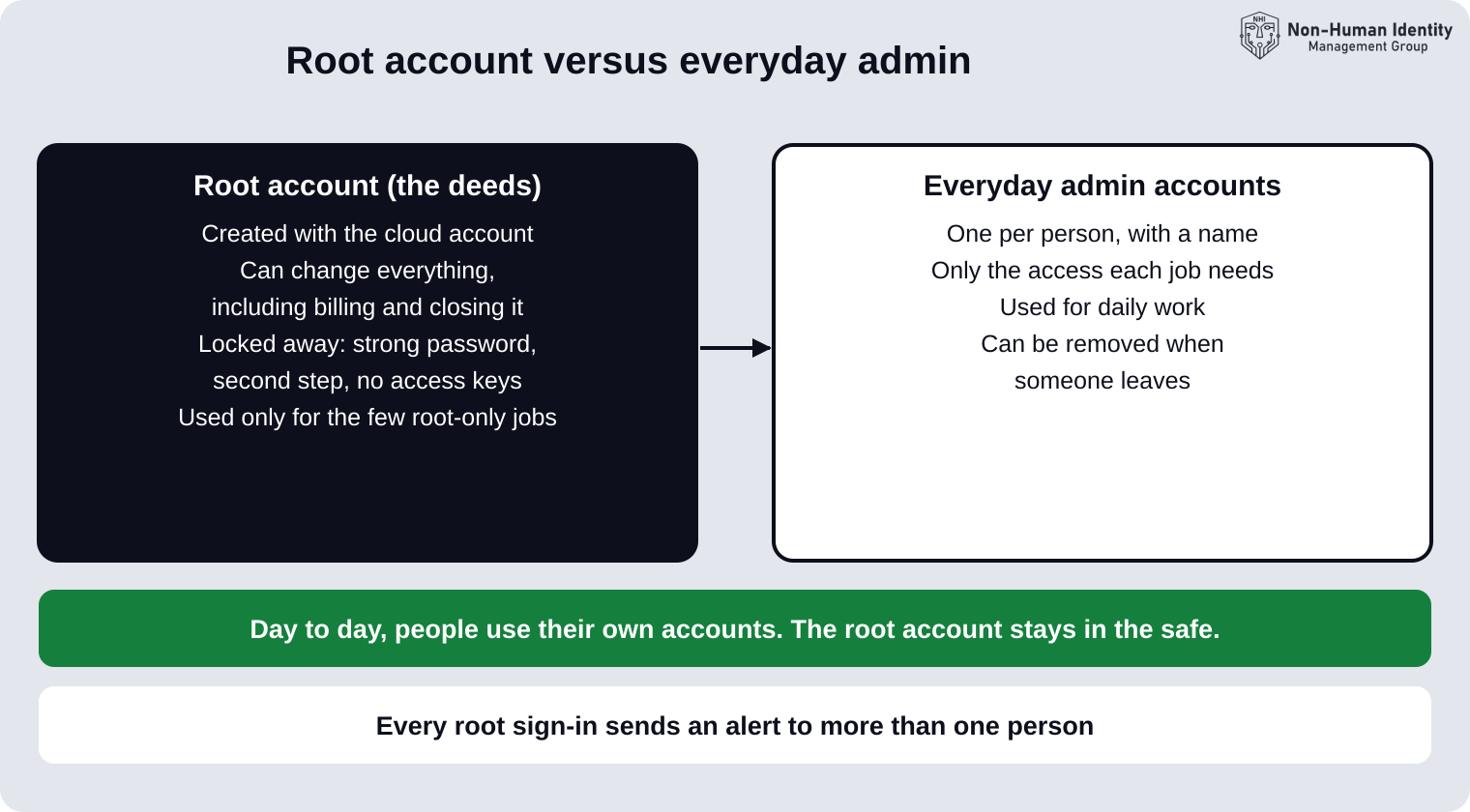
Think of the deeds to a building. The people who work there each have keys to the rooms they need. But whoever holds the deeds can change every lock, or even sell the building.
A cloud root account works the same way. When you first open an AWS account, you begin with one login that has complete access to every service and resource in it. AWS calls this the root user. It signs in with the email address and password used to open the account.[1]
Other clouds use different names and set-ups. Google Cloud's most powerful login is called a super admin.[3] Microsoft advises keeping at least two emergency access accounts with its top admin role, for the day normal admin sign-in fails.[4] The idea is the same: one login sits above all the others, so it needs the most care.
Where the comparison stops working: deeds sit in a drawer, and a thief has to break in to find them. A root login can be tried from anywhere on the internet, so its lock has to hold against strangers far away.
Why does it matter?
Whoever controls the root account can control the cloud account. That can include your data, your running services and your billing details. AWS says it strongly recommends not using the root user for everyday tasks.[1]
If you own a small business that uses the cloud
What could happen: the root login is tied to a former supplier's email, and you cannot get back in.
Check this: ask which email address and phone number the root account uses.
If you are new to cloud or IT work
What could happen: you are handed the root password to do daily jobs, and one mistake affects everything.
Check this: ask for your own named admin account instead.
If you manage an IT team
What could happen: nobody notices when someone signs in as root at 3am.
Check this: make sure every root sign-in sends an alert to more than one person.
What does it look like?
Here is a made-up check of a small firm's root account, of the kind a new IT helper might write down.
Example only. All values are made up.
Root account check: Example Studio cloud account
Sign-in email:   [email protected]      (1)
Password:        same one used since 2019        (2)
Second step:     off                             (3)
Access keys:     1 active (EXAMPLE-KEY-0000)     (4)
Last root use:   yesterday, to fix a web page    (5)
Alerts on root sign-in: none set up
- A personal email belonging to a former freelancer, not the business.
- An old password that has never been changed.
- No second sign-in step, so a password alone gets in.
- In a real file, this line would contain an access key that gives a program full root power.
- Root used for an everyday job that a normal admin account could do.
Why this is risky: one leaked password or one lost inbox could hand the whole account to someone else. Nobody would be told.
The safer way: AWS advises a business email that forwards to a group. That address should be used for nothing else.[2] It also strongly advises against root access keys, and says to add a second sign-in step.[2]
How does it work?
Here is how a well-run firm usually handles its root account.
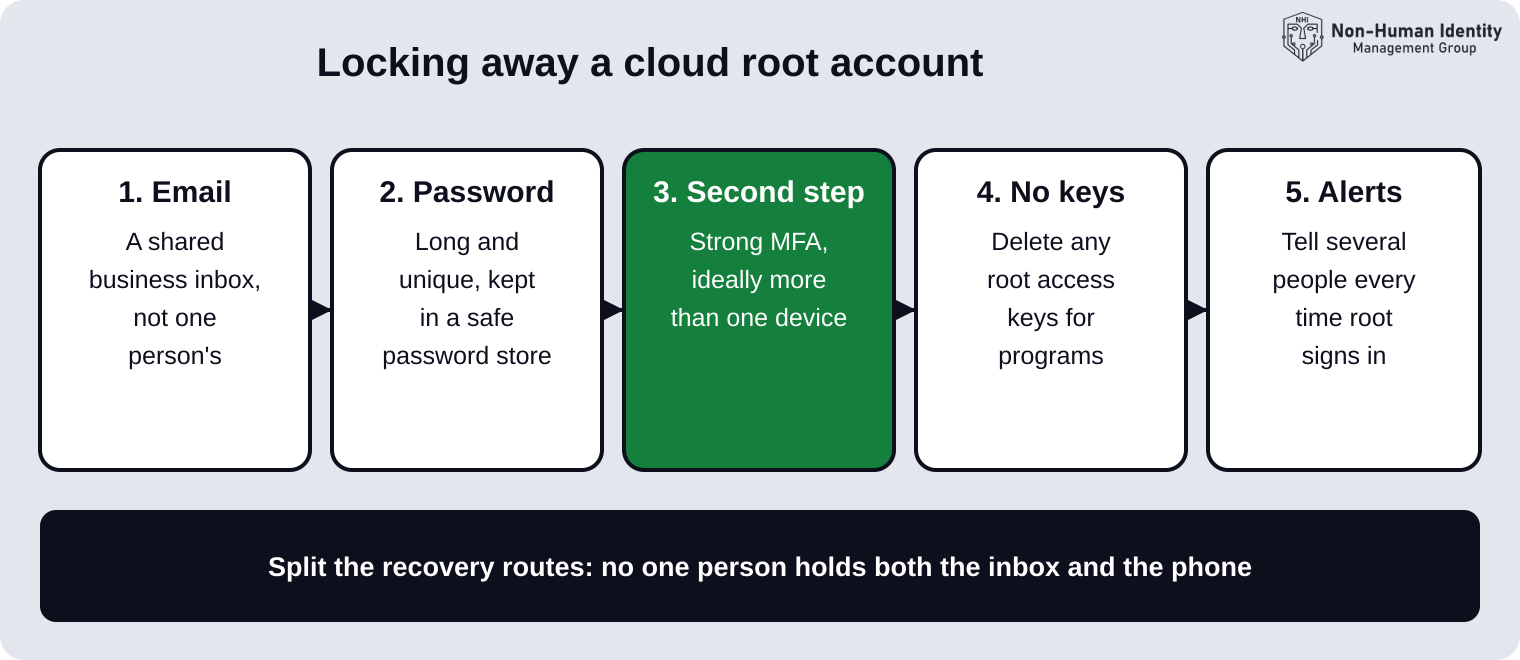
- The account is opened. The root login is created with the email and password used to sign up.[1]
- It is locked down at once. A long, unique password and a second sign-in step are set. AWS strongly recommends setting up more than one MFA device for root.[2]
- Daily admin accounts are made. Each person gets their own login with only the access they need. AWS suggests a separate admin user for daily work.[1]
- Root is put away. It is used only for the few jobs that need it, such as changing some account settings or closing the account.[1]
- Every use is watched. Each root sign-in sends an alert, so someone can check it was expected.[2]
- Recovery is split. AWS says no one person should hold both the email inbox and the phone number, since both can be used to reset the root password.[2]
Larger firms with many AWS accounts can go further. AWS lets them manage root access from one central account and remove root sign-in details from the other accounts.[2] See How to centralise root access in AWS Organizations and delete member account root credentials.
A worked example
Lars Corrigan runs Heron Studio, a fictional design firm with eight staff. Its website and client files sit in an AWS account. A freelancer opened the account five years ago and has since moved abroad.
Lars hires Milo Whitlock to look after the firm's IT. On his first day, Milo asks a simple question. "Who can sign in as root?"
Nobody is sure. Milo finds that the root login still uses the freelancer's personal email. The second sign-in step is off. There is also an old access key for the root user.
Lars thinks of the deeds to his flat. He would never leave them with a builder who had moved away.
With the freelancer's help on a video call, Milo changes the root email to a new business inbox. Two people, Lars and the office manager, receive its messages. Milo sets a long, new password and saves it in the firm's password manager. He adds two security keys as the second step and stores one in the office safe.
Next he deletes the root access key. First he checks that nothing still uses it, so no service breaks.
Milo then makes named admin accounts for himself and a backup person. He sets an alert so that any root sign-in emails both Lars and him.
Last, he writes down which jobs need root, and who must agree before anyone uses it. The root account now stays in the safe.
Myths and mistakes
| What people think | What is true |
|---|---|
| Using root for daily work saves time. | It puts the most powerful login at risk every day. AWS strongly recommends against everyday root use.[1] |
| Root access keys are handy for scripts. | AWS strongly recommends not creating root access keys at all. Programs should use their own limited access.[2] |
| The root email can be anyone's inbox. | Use a business-managed address that goes to a group, and use it for nothing else.[2] |
| One person should hold every root detail. | Split them, so no one person holds both the inbox and the phone used for recovery.[2] |
| If we never use root, we can forget about it. | Unused does not mean safe. Check its settings, recovery details and alerts on a schedule. |
What can I do this week?
- Find out which email address and phone number your root account uses.
- Check that the second sign-in step is on for root.
- Ask whether any root access keys exist, and plan to remove them safely.
- Make sure each person has their own admin account for daily work.
- Set up an alert that tells more than one person whenever root signs in.
Checklist
- The root email is a business-managed group address, used for nothing else.
- The root password is long, unique and kept in a safe password store.
- Strong MFA is on, ideally with more than one device.
- No access keys exist for the root account.
- Daily work uses named admin accounts with only the access needed.
- Every root sign-in sends an alert to more than one person.
- No one person holds both the recovery inbox and the recovery phone.
- There is a written list of root-only jobs and who must approve each use.
Common questions
When do I actually need the root account?
Rarely. AWS lists a small set of root-only jobs. Examples are changing some account settings, closing the account or restoring access if the only admin locks themselves out.[1] For everything else, use a named admin account.
Can I delete the root account?
Not on a standalone AWS account, because root comes with it. Firms using AWS Organizations can remove root sign-in details from member accounts and manage root jobs centrally.[2] New member accounts there have no root sign-in details by default.[1]
Is a root account the same as a break-glass account?
No, but they are related. A root account comes with the cloud account. A break-glass account is one you create on purpose for emergencies. Both are very powerful, so both are locked away and watched. See Break-Glass Accounts for Beginners.
What if we lose the root MFA device?
Use the second MFA device if you registered one, which is why AWS recommends more than one.[2] Otherwise follow the cloud provider's recovery steps, which use the root email and phone. See How to recover AWS root access when the MFA device or email is lost.
What should I do if I get a root sign-in alert I did not expect?
Treat it as urgent. Tell whoever looks after the account straight away, and check with the people who can sign in as root. If nobody did it, follow your incident plan. See AWS Root Account Compromise Playbook.
Where next?
Ready for the detail? Read the practitioner guide: Protecting Cloud Control-Plane Recovery Accounts and Credentials. It goes further into the top accounts in AWS, Google Cloud and Microsoft, how attackers target them and how to store and watch them.
Also useful:
- Break-Glass Accounts for Beginners
- How to centralise root access in AWS Organizations and delete member account root credentials
Related NHI Mgmt Group resources: Cloud Security for Beginners · Admin Rights for Beginners
Key terms
- Root user
- In AWS, the first login created with an account, with complete access to everything in it.
- Super admin
- Google's name for its most powerful admin login, which also needs to be kept for rare use.
- Emergency access account
- A powerful backup login kept for when normal admin sign-in fails.
- Access key
- A long-lasting pair of codes that lets a program use a cloud account.
- Multi-factor authentication
- A sign-in that needs two or more different kinds of proof, such as a password and a security key.
- Least privilege
- Giving each person or program only the access it needs, and no more.
- Management account
- The AWS account at the top of a group of accounts, which can manage the others.
Sources and further reading
- AWS account root user. AWS Identity and Access Management User Guide, Amazon Web Services. https://docs.aws.amazon.com/IAM/latest/UserGuide/id_root-user.html, accessed 28 Nov 2026.
- Root user best practices for your AWS account. AWS Identity and Access Management User Guide, Amazon Web Services. https://docs.aws.amazon.com/IAM/latest/UserGuide/root-user-best-practices.html, accessed 28 Nov 2026.
- Super admin account best practices. Google Cloud Resource Manager documentation, Google. https://docs.cloud.google.com/resource-manager/docs/super-admin-best-practices, accessed 28 Nov 2026.
- Manage emergency access admin accounts. Microsoft Entra documentation, Microsoft Learn. https://learn.microsoft.com/en-us/entra/identity/role-based-access-control/security-emergency-access, accessed 28 Nov 2026.