A hosting control panel is a web page where you manage your website, email and domain settings.
This guide is for small business owners, freelancers and anyone new to running a website. You do not need to be technical: if someone set up your site and gave you a login, that login is to a control panel.
In short
- A control panel, such as cPanel or Plesk, lets you change your site files, mailboxes and settings from a web browser.
- Whoever has the panel login can usually change or delete your whole website and email.
- Panels have different levels of login: the hosting company, a reseller such as a web agency, and you.
- Turn on a second login step, keep a list of who has access, and remove old logins and keys.
What you will learn
- Explain what a hosting control panel is and what it controls.
- Spot the logins and keys that can reach your panel.
- Check that a second login step is turned on for your account.
- Ask your hosting company or agency the right questions.
This is an independent guide from NHI Mgmt Group, based on cPanel's public documentation and Plesk's public documentation as of November 2026. It is not sponsored or reviewed by either vendor. Product features change, so confirm settings against each vendor's current documentation. Products are listed alphabetically.
- Website control room (control panel)
- a web page for managing the files, email and settings of a hosted website.
- Middle layer (reseller)
- a business, often a web agency, that sells hosting to others and manages their accounts.
- API token (non-human identity)
- a long secret code that lets a program use the panel without a person typing a password.
What is a hosting control panel?
Think of the fuse box and the main water tap in a block of flats. From one cupboard you can turn the power and water on or off for a whole home. A hosting control panel is that cupboard for your website.
Your website lives on a computer owned by a hosting company. That computer is called a server. Most people never touch the server directly. Instead, they log in to a web page called a control panel.
From the panel you can upload site files, create email addresses, manage the site's database and change domain settings. Two well-known panels are cPanel and Plesk. Many hosting companies also build their own.
Where the comparison stops working: a fuse box sits behind a locked door in your building. A control panel is a web page, so anyone on the internet can try its login screen.
Why does it matter?
One panel login can reach your website, your email and your domain settings at once. If a stranger gets it, they may be able to do everything you can.
If you run a small business website
What could happen: someone guesses your panel password, swaps your site for a fake page and reads your business email.
Check this: log in and see whether a second login step is turned on for your account.
If a web agency built your site
What could happen: the agency still holds a powerful login years later, and nobody remembers it exists.
Check this: ask the agency which logins and keys they hold for your account.
If you are new to web or IT work
What could happen: you create an API token for a quick job and leave it with full access and no end date.
Check this: give every API token only the access it needs and an end date.
Next: API Keys for Beginners
What does it look like?
Here is a made-up list of everything that can log in to one small shop's panel. Making a list like this is a good first step.
Example only. All values are made up.
Panel account: example-shop (shop.example.com)
Who or what can log in            Second step?   Last used
[email protected]                 Yes            today
[email protected]            No             2 years ago   (1)
backup-tool  (API token)          n/a            daily         (2)
  access: EVERYTHING  expires: never                           (3)
shared login "admin" / FAKE-pass0000 (in a notes file)         (4)
- A login for an agency that stopped working for the shop two years ago.
- An API token for a backup tool. Programs do not type codes, so a second step does not apply.
- The token has full access and no end date. In a real screen, this line would contain the token's access level.
- A password that several people share, kept in a plain notes file.
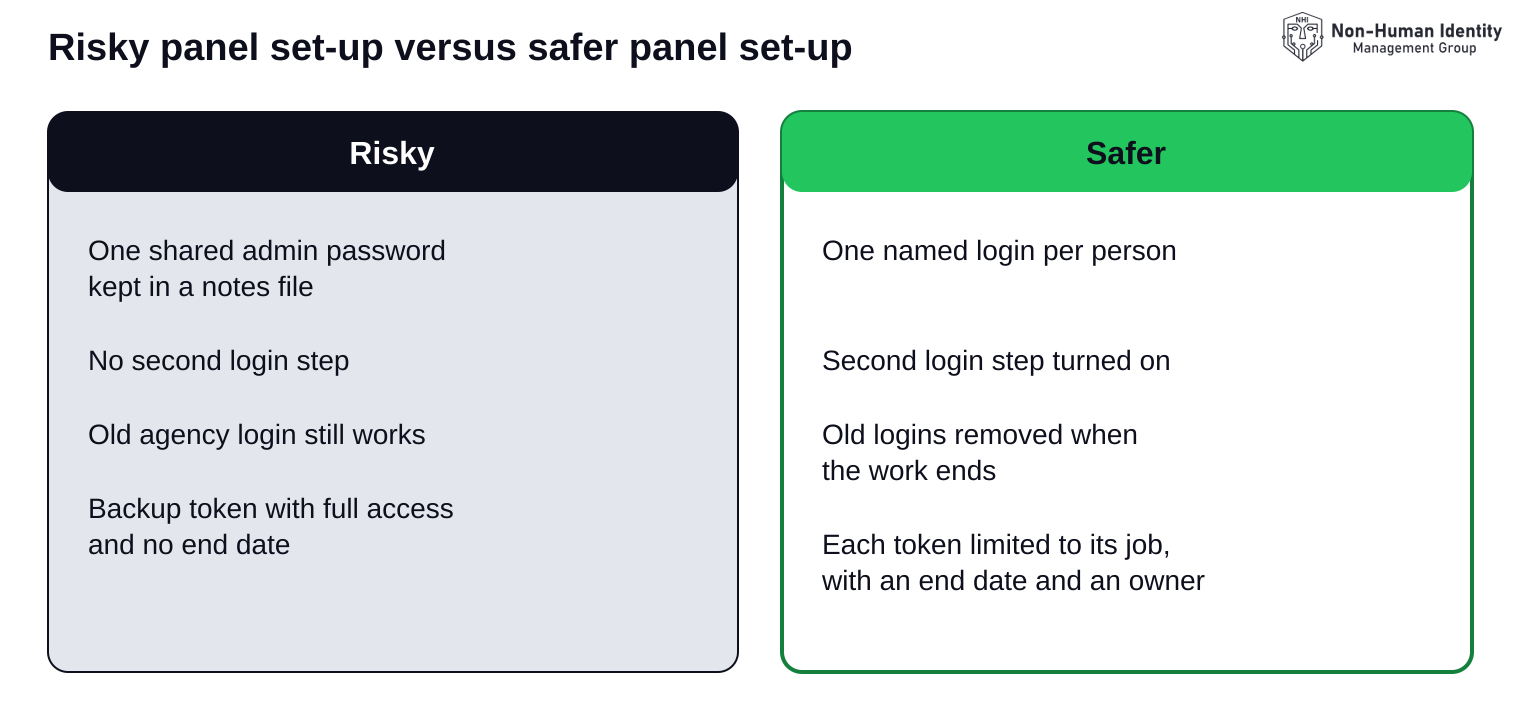
Why this is risky: each extra login is another way in, and the old ones are the least likely to be noticed if misused.
The safer way: one named login per person, each with a second step. The backup tool gets a token with limited access and an end date. The old agency login is removed.
How does it work?
Most panels share the same basic design.
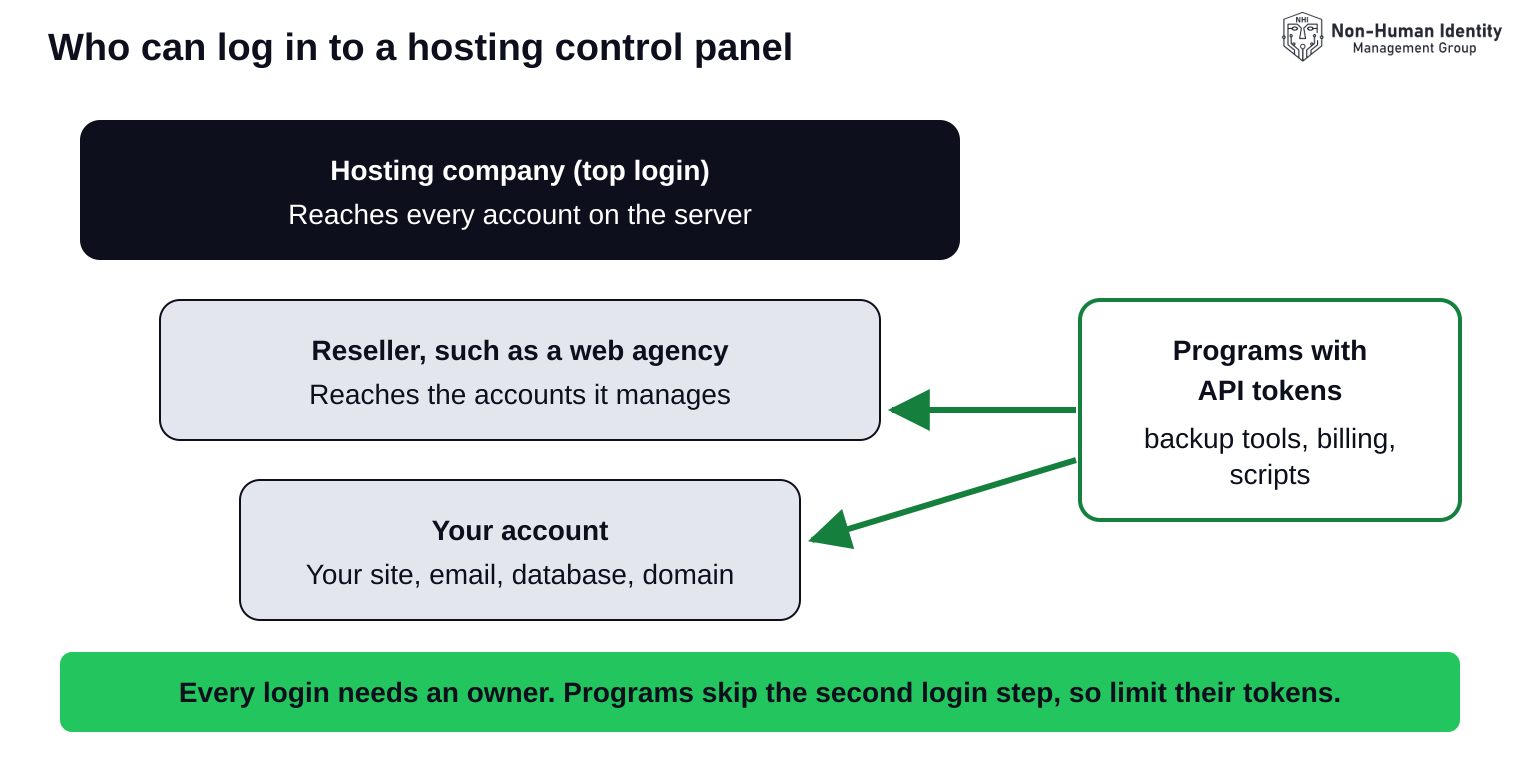
- The hosting company runs the server. It has the top login, which can reach every account on that server.
- A reseller may sit in the middle. A web agency can resell hosting and manage the accounts it sells.
- You get your own account. Your login reaches your site files, mailboxes, database and domain settings.
- Programs log in with tokens. Backup tools and other programs often use an API token. This is a long secret code that works without a person. Tokens are one kind of non-human identities (NHIs). An NHI is a digital identity, or the secret behind it, that lets a program connect to other systems without a person.
- Extra checks protect the door. A second login step, limits on repeated wrong guesses and limits on where logins can come from all make a stolen password less useful.
The second login step works differently in each product. In cPanel, the server's top administrator turns the feature on, and then each cPanel user sets it up for their own account. The administrator cannot set it up for them.[1] In Plesk, each account owner can set it up from their own profile. An administrator can also choose to make it required for everyone.[2]
Limits on wrong guesses help too. cPanel has a service called cPHulk that protects a server against brute force attacks. That means trying many passwords until one works.[3] Plesk lets an administrator turn off remote access for programs, or allow it only from listed addresses. Its documentation warns that this access could be misused to take over the server.[4]
A worked example
Umar Delmar runs Juniper Opticians, a small shop with a booking website. A local agency built the site three years ago. Umar has a panel login but rarely uses it.
One morning, a customer rings to say the booking page asks for card details. Umar never added a card form. He logs in to the panel and finds a new file he does not recognise.
His hosting company's support team helps him look at the account. The panel's login records show the agency's old login was used the night before, from an unfamiliar location. That login had no second step, and its password had been reused on other sites.
The support team removes the strange file and restores the site from a backup. Umar then works through a short list with them.
- He removes the agency's old login and asks the agency to confirm it holds no other access.
- He changes his own password to a long, unique one stored in a password manager.
- He turns on a second login step for his account and for webmail.
- He finds an old backup token with full access and replaces it with one limited to backups, with an end date.
- He warns customers who used the page in that window, following his hosting company's advice.
A month later, Umar adds a note to his diary to review the list of logins every three months. In the records available to him, he sees no further strange logins.
Myths and mistakes
| What people think | What is true |
|---|---|
| My hosting company handles all of the security. | The host looks after the server. Your logins, passwords and who has access to your account are usually up to you. |
| Changing my password removes everyone else's access. | Other people's logins and software tokens keep working until they are removed or run out. |
| The agency should keep its login for as long as the site exists. | Give access for the work, then remove it when the work ends. |
| A second login step protects every way in. | Software tokens do not use a second step, so they need limits and end dates instead. |
| Nobody would bother attacking a small site. | Automated tools try many sites at once. Size is no protection against password guessing. |
What can I do this week?
- Turn on the second login step for your own panel account, and for webmail if the panel offers it.
- List everyone and everything that can log in: people, agencies and software tokens.
- Remove logins for people or firms who no longer work with you.
- Make your panel password long and unique, and keep it in a password manager.
- Ask your host how they keep the panel up to date. Ask where you can see who logged in.
Checklist
- I know which control panel my website uses and how to log in.
- My panel login has a second login step turned on.
- Every person who can log in has their own named login.
- No shared passwords are kept in notes files, emails or chats.
- I have a list of software tokens, with an owner and an end date for each.
- Logins for past staff and agencies have been removed.
- I know where to see recent logins to my account.
- I check the list of logins at least every three months.
Common questions
How do I know which control panel I have?
Check your hosting company's welcome email or account page. The login page usually shows the panel's name or logo. If you are still unsure, ask your host's support team which panel your plan uses and where its login page is.
Is my control panel the same as my website's admin page?
No. A website admin page, such as a blog's dashboard, changes the content of one site. The control panel sits underneath and manages the files, email, database and domain settings. Both need strong logins, and the panel login usually reaches more.
What is an API token, and do I have one?
An API token is a long secret code that lets a program use your panel without a person. You may have one if a backup tool, billing system or developer connects to your account. Look for a section named API tokens or similar, or ask your host.
Should my web agency have its own login?
Yes, if it needs access. A separate named login means you can see what it does and remove it later, without changing your own password. Agree what the agency can reach and when its access will end.
What should I do if I think my panel has been accessed by someone else?
Contact your hosting company's support team first. Change your password, turn on a second login step and remove any logins or tokens you do not recognise. Your host can help you check recent changes and restore from a backup if needed.
Where next?
Ready for the detail? Read the practitioner guide: Hosting control panels security. It goes further into token settings, network limits and keeping customer accounts apart on shared servers.
Also useful:
- Website Security for Beginners
- Multi-Factor Authentication for Beginners
- Password Managers for Beginners
- Small Business Website Security Guide
Related NHI Mgmt Group resources: PHP and WordPress Security Guide · WordPress Security Checklist · API Keys for Beginners · Backup Security for Beginners
Key terms
- Hosting control panel
- A web page for managing the files, email, database and domain settings of a hosted website.
- Hosting where many customers' websites run on the same server.
- Reseller
- A business, often a web agency, that sells hosting accounts to others and manages them.
- API key
- A secret code a program uses to prove it may use another service; panels often call these API tokens.
- Two-factor authentication
- A second login step, such as a code from a phone app, on top of a password.
- Brute force attack
- Trying many passwords, usually with a tool, until one works.
- Least privilege
- Giving each person or program only the access it needs, for only as long as it needs it.
Sources and further reading
- Two-Factor Authentication for WHM. cPanel documentation. https://docs.cpanel.net/whm/security-center/two-factor-authentication-for-whm/, accessed 28 Nov 2026.
- Setting Up Multi-Factor Authentication in Plesk. Plesk Obsidian Administrator's Guide. https://docs.plesk.com/en-US/obsidian/administrator-guide/plesk-administration/securing-plesk/setting-up-multifactor-authentication-in-plesk.80028, accessed 28 Nov 2026.
- cPHulk Brute Force Protection. cPanel documentation. https://docs.cpanel.net/whm/security-center/cphulk-brute-force-protection/, accessed 28 Nov 2026.
- Restricting Remote Access via Plesk API. Plesk Obsidian Administrator's Guide. https://docs.plesk.com/en-US/obsidian/administrator-guide/plesk-administration/securing-plesk/restricting-remote-access-via-plesk-api.71930, accessed 28 Nov 2026.