Moving to the cloud securely means shifting your systems and data online without opening new gaps along the way.
This guide is for small business owners, managers and students who want to understand a cloud move. You do not need to run the move yourself: if your business is moving its files, email or apps online, you should know which safety steps to ask for.
In short
- A cloud move has three stages: before, during and after. Each one has its own risks.
- Before: list what you have, decide what moves and set up the new home safely first.
- During: send data over a protected connection, move in small steps and have a plan to go back.
- After: review the new settings, remove temporary access, then switch off and wipe the old system.
What you will learn
- Explain the three stages of a secure cloud move.
- Spot the gaps that often appear halfway through a move.
- Check that the old system is properly closed down.
- Ask your supplier the right questions before the move starts.
- The move (cloud migration)
- shifting systems and data from your own computers to a cloud provider.
- Plan to go back (rollback plan)
- written steps to return to the old system if the move goes wrong.
- Wiping old disks (sanitisation)
- removing data from old storage so it cannot easily be recovered.
What is moving to the cloud securely?
Think of moving house. You sort what to keep, pack it, carry it across town and unpack. A careful mover also changes the locks at the new place and hands back the old keys.
A cloud move works the same way. Your files, email or apps leave your own computers and go to a cloud provider. The provider looks after its buildings and machines. You still choose the settings, such as who can log in and who can see the data.
Moving securely means you plan for safety at every stage. You set up the new home before anything arrives. You protect data while it travels. And you close down the old place properly afterwards.
Where the comparison stops working: when you move house, you take the sofa with you. In a cloud move, you copy data, so the old copy stays behind until someone removes it.
Why does it matter?
A move is a busy time. Systems run in two places, extra people have access and quick fixes are common. The cloud provider secures its platform, but your settings and data stay your job.[1]
If you run a small business
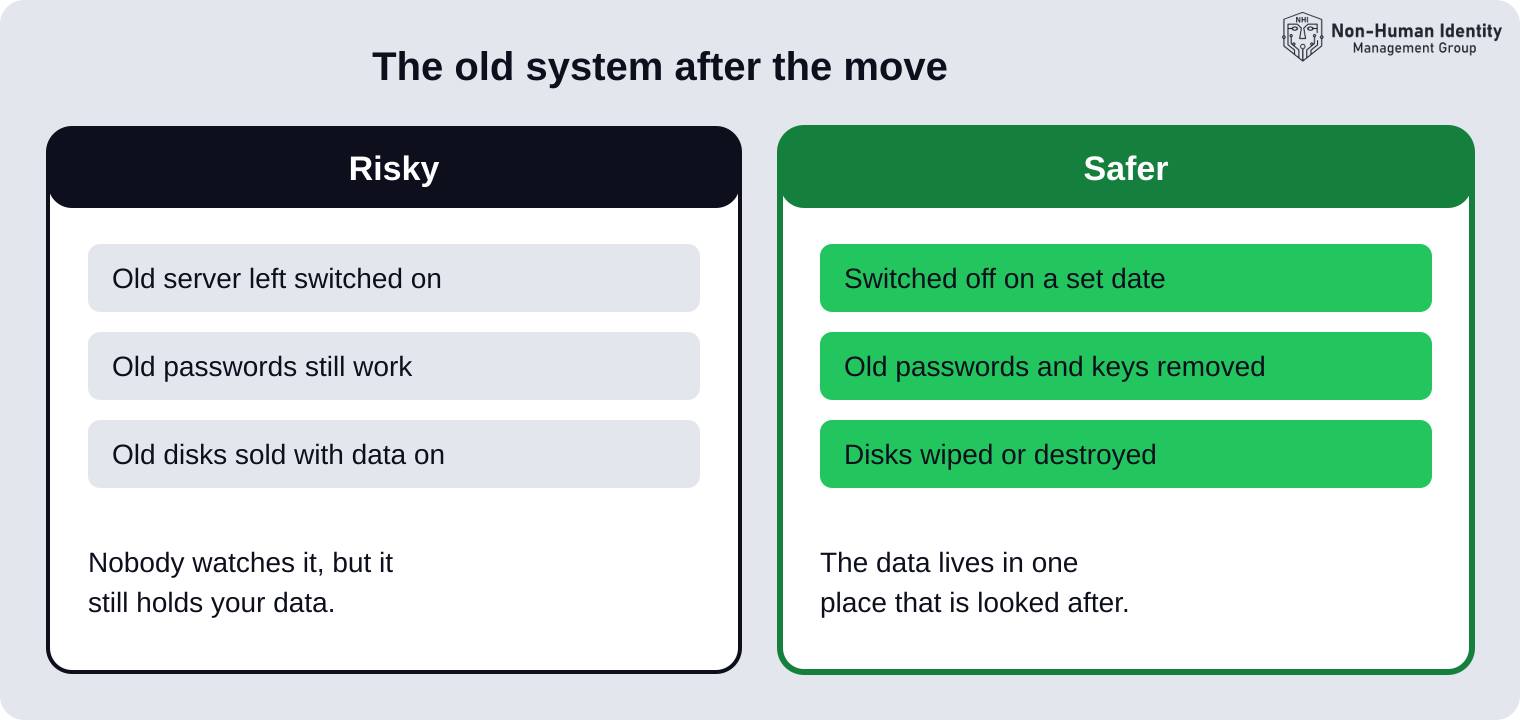
What could happen: the old office server is left on, still full of customer data, and nobody watches it.
Check this: ask your supplier for a date when the old system will be switched off and wiped.
If you are a manager
What could happen: the move overruns, and temporary access given to helpers is never taken away.
Check this: keep a list of every temporary account and password, each with an end date.
If you are new to IT work
What could happen: you copy data over an unprotected connection because it is quicker.
Check this: confirm that every transfer route is protected before you start.
What does it look like?
Here is a made-up move plan card that a small business might ask its supplier to fill in.
Example only. All values are made up.
Move plan: Birch Bakery (EXAMPLE)
What moves:   orders system, shared files     (1)
What retires: old stock app                   (2)
New home set up and checked: YES              (3)
Transfer route: protected link                (4)
Go-back plan written and tested: NO           (5)
Old server off and wiped by: 00/00/0000       (6)
- In a real file, this line would list every system and folder that is moving.
- Things you no longer need are switched off, not moved.
- The new cloud account is set up safely before any data arrives.
- Data travels over a protected connection, not an open one.
- A missing go-back plan is a warning sign. Fix it before moving.
- The old system gets a fixed date to be switched off and wiped.
Why this is risky: without a tested go-back plan, a failed move can leave the business stuck.
The safer way: every line is answered before the move starts. Someone signs off the go-back plan.
How does it work?
Cloud providers describe moves in a few simple stages.[2]
- Take stock. List what you have and who uses it. Decide for each item: move it as it is, change it, swap it for an online service, keep it for now or retire it.[3]
- Prepare the new home. Set up the cloud account safely before any data arrives. Microsoft calls this a landing zone.[2] Turn on a second sign-in check and activity records.
- Plan the way back. Write down what counts as failure and how to return to the old system. Test it first.[2]
- Move in small steps. Send data over a protected connection. Start with simple, less important things.[2]
- Tidy up. Remove temporary access. Then switch off the old system and wipe its disks.[4]
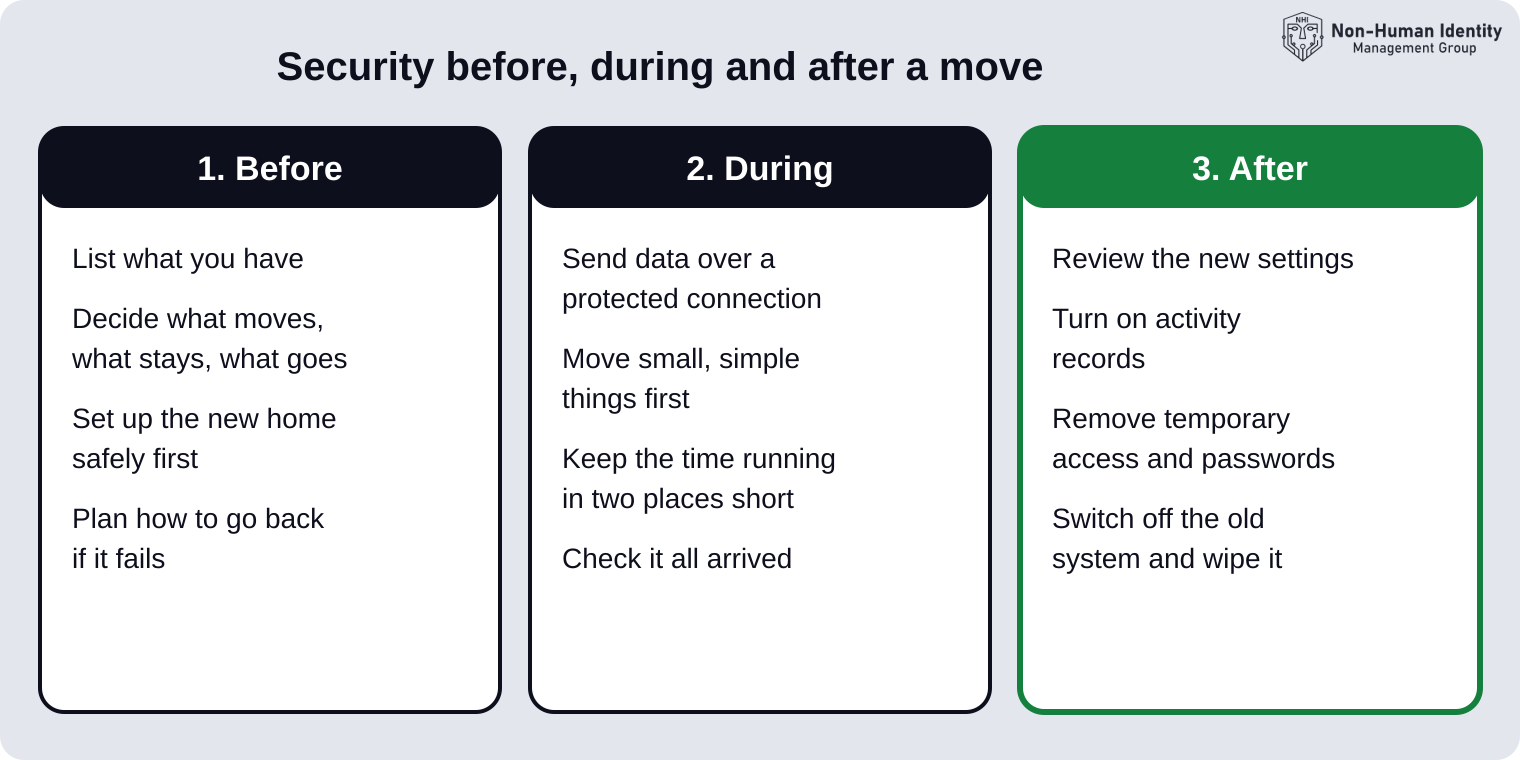
Microsoft's moving guide says the open internet is the least secure route for moving data. It suggests using it only for data that is not sensitive.[2] It also advises keeping the time that systems run in two places as short as you can.
Before you choose a provider, the UK's National Cyber Security Centre (NCSC) offers a list of cloud security principles to check it against. It also says you need to think separately about setting up the service securely.[5]
A worked example
Lina Ueda runs Birch Bakery, a fictional bakery with three shops. Orders and staff files sit on an old server in the back office. Her IT supplier, Kemal Kader, suggests moving them to the cloud.
Lina thinks of moving house, where you sort and plan before the van arrives. She asks Kemal for a simple plan card first, so she can see each step on one page.
Kemal lists everything on the server. Most of it moves. An old stock app nobody uses is retired, not moved.
He sets up the new cloud account before copying anything. Every login needs a second check. Activity records are on from day one.
Lina asks one more question: "What if it goes wrong on a busy Saturday?" Kemal writes a go-back plan. He tests it on a quiet Monday, and it works.
The move happens over two weekends. Kemal copies the files over a protected connection and checks that the totals match. Staff use the new system on Monday morning, and the orders come in as normal.
A month later, Lina asks about the old server. It is still on. Kemal's temporary helper account is still open too.
Kemal closes the helper account. He switches off the server, and the disks are wiped following a recognised method before it is recycled. Lina writes the date in her records.
Myths and mistakes
| What people think | What is true |
|---|---|
| Once it is in the cloud, the provider handles security. | The provider secures its platform. You still choose who can log in and see your data.[1] |
| We can fix the settings after the move. | Set up the new home safely first, so data never lands somewhere open. |
| Deleting the files from the old server is enough. | Deleting files may leave data behind. Wipe or destroy old disks using a recognised method.[4] |
| We should move everything. | Some old systems are better retired. Less to move means less to protect.[3] |
| A go-back plan is only for big companies. | Any business can be stuck by a failed move. A short, tested plan helps. |
What can I do this week?
- Ask your supplier for a written move plan with a go-back step.
- List every system and folder, and mark each one move, keep or retire.
- Check that a second sign-in check is on for the new cloud account.
- Agree a date for switching off and wiping the old system.
Checklist
- Everything to be moved is listed, with an owner.
- Systems you no longer need are retired, not moved.
- The new cloud account is set up with safe settings before data arrives.
- Every login uses a second check, and activity records are on.
- Data travels over a protected connection.
- A go-back plan is written and tested.
- Temporary accounts and passwords are removed when the move ends.
- The old system is switched off, and its disks are wiped or destroyed.
Common questions
Is the cloud safer than my own server?
It can be. Big providers protect their buildings and machines well. But the settings are still yours, and a wrong setting can leave data open. A careful move, with good settings from the start, is what makes the difference. See Cloud Security for Beginners.
What does "lift and shift" mean?
Lift and shift means moving a system to the cloud without changing it. It is often the quickest option. The old system's weak spots move with it, so check its settings and logins as part of the move.[3]
How long should the old system stay on after the move?
Only as long as you need it as a fallback. Agree a date before the move starts. After that date, switch it off and remove its data, so nobody has to keep watching it.
Do I need special tools to move securely?
Not usually for a small move. Cloud providers offer their own tools and guides for moving data. The bigger need is a clear plan, safe settings in the new account and someone who owns each step.
What about apps that connect to each other?
Apps that talk to each other use their own accounts and keys, called non-human identities (NHIs). An NHI is a digital identity that lets a program connect to other systems without a person. List them, move them carefully and remove the old ones. See Non-Human Identities for Beginners.
Where next?
Ready for the detail? Read the practitioner guide: Cloud Migration Security. It goes further into choosing a strategy for each system, identity design for the hybrid period and safe cutover.
Also useful:
- Cloud Misconfigurations for Beginners
- Hybrid Cloud Security for Beginners
- Cloud Account and Resource Decommissioning
- Cloud Landing Zone Security Guide
Related NHI Mgmt Group resources: Cloud Security Guide · Cloud Exit Plan Template · Hybrid Cloud Security
Key terms
- Lift-and-shift migration
- Moving a system to the cloud without changing how it works.
- The split where the provider secures the platform and the customer secures their own settings and data.
- Multi-factor authentication
- Signing in with a second check, such as a phone app, as well as a password.
- Encryption
- Scrambling data so only someone with the right key can read it, including while it travels.
- Audit logs
- Records of who did what, and when, in a system.
- Cloud misconfiguration
- A wrong setting on a cloud service that leaves data or systems more open than intended.
Sources and further reading
- Shared Responsibility Model. Amazon Web Services. https://aws.amazon.com/compliance/shared-responsibility-model/, accessed 28 Nov 2026.
- Plan your migration to Azure. Cloud Adoption Framework, Microsoft Learn. https://learn.microsoft.com/en-us/azure/cloud-adoption-framework/migrate/, accessed 28 Nov 2026.
- Migration strategies. AWS Prescriptive Guidance, Amazon Web Services. https://docs.aws.amazon.com/prescriptive-guidance/latest/large-migration-guide/migration-strategies.html, accessed 28 Nov 2026.
- Guidelines for Media Sanitization (SP 800-88 Rev. 2). National Institute of Standards and Technology, September 2025. https://csrc.nist.gov/pubs/sp/800/88/r2/final, accessed 28 Nov 2026.
- Cloud security guidance: the cloud security principles. National Cyber Security Centre (NCSC), reviewed 7 June 2023. https://www.ncsc.gov.uk/collection/cloud/the-cloud-security-principles, accessed 28 Nov 2026.