Salesforce security means controlling who can log in, what each person sees and which outside apps connect.
This guide is for new IT staff, students and small business owners who use Salesforce or are about to. You do not need to be a Salesforce expert to be affected: if your firm keeps customer details in Salesforce, a few settings decide who can copy them.
This is an independent guide from NHI Mgmt Group, based on Salesforce's public documentation as of November 2026. It is not sponsored or reviewed by Salesforce. Product features change, so confirm settings against Salesforce's current documentation.
In short
- Salesforce is a shared filing room for your customer records. Each user's pass should open only the drawers they need.
- Outside apps can be given their own passes, called connected apps. They need owners and limits too.
- Many recent Salesforce data thefts came from tricked staff and loose customer settings, not a flaw in Salesforce.
- Turn on extra login checks, trim powerful permissions, approve apps before use and run the built-in Health Check.
What you will learn
- Explain how Salesforce decides what each user can see.
- Spot the few permissions that let one account copy everything.
- Check which outside apps are connected to your Salesforce.
- Ask the right questions if a caller wants you to approve an app.
- Your company's space (org)
- your own private copy of Salesforce, with its own users, data and settings.
- Bundle of extra rights (permission set)
- a named group of permissions you can give to some users on top of their basics.
- Outside app pass (connected app)
- a link that lets another app read or change your Salesforce data.
What is Salesforce security?
Think of a shared filing room. Each member of staff has a pass that opens some cabinets and some drawers, and outside couriers carry passes of their own.
Salesforce is a website where firms keep customer details, sales deals and support cases. Each firm gets its own space, called an org. Salesforce runs the building. Your firm decides who gets a pass and what each pass opens.
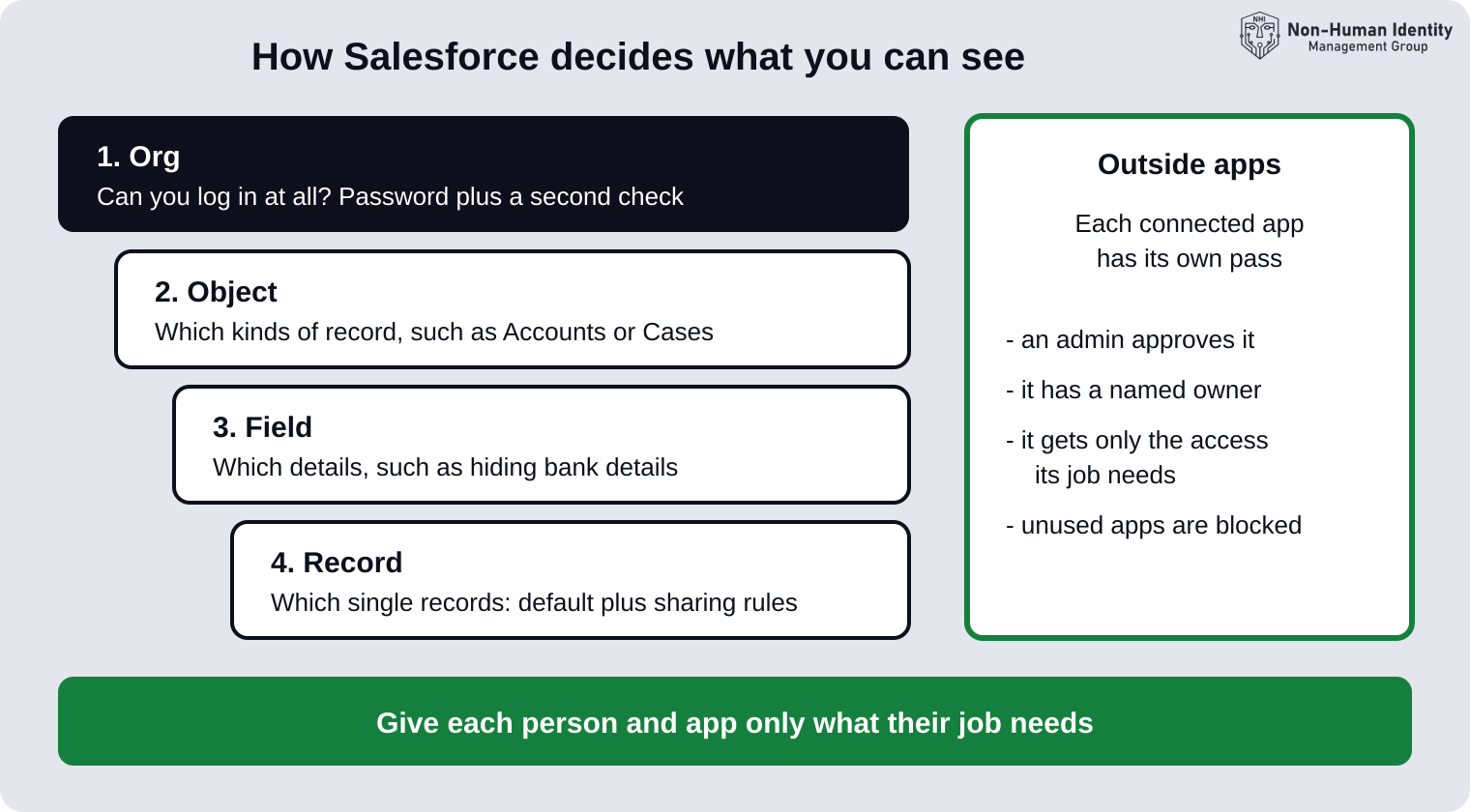
Salesforce checks access at four levels: the whole org, each type of record, each field on a record, and each single record.[1] A user might see all customer records but not the bank details field on them. Extra rights come in bundles called permission sets.
Other apps can connect too, such as an email tool or a chat bot on your website. Each one uses a connected app, which is a secure link that lets the app act inside your org.
Where the comparison stops working: a lost door pass is easy to notice. A courier's pass can be used from anywhere in the world, quietly, and copying a whole cabinet takes seconds.
Why does it matter?
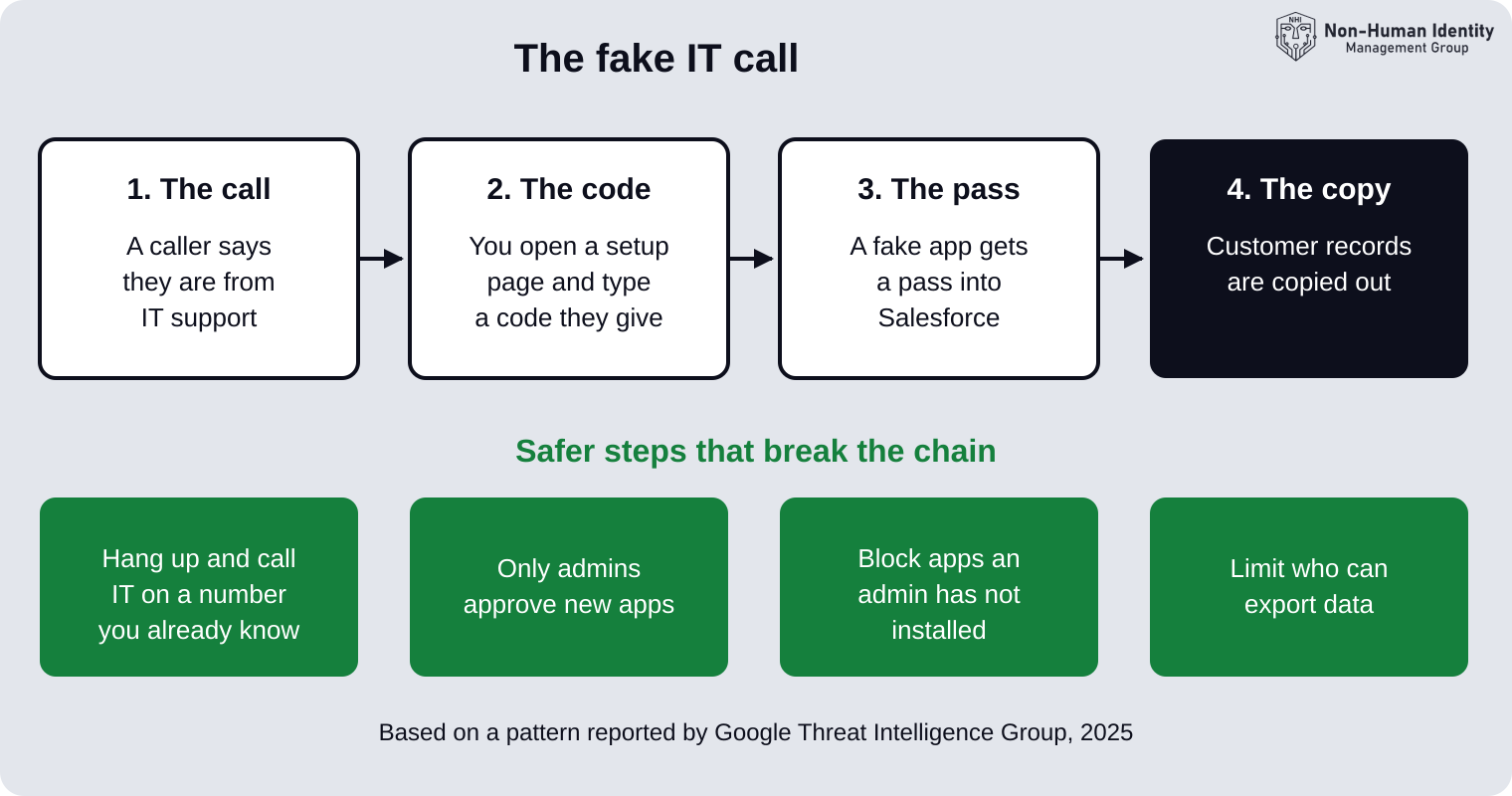
Salesforce often holds a firm's whole customer list. In 2025, Google's threat researchers reported a group that phoned staff, posed as IT support and talked them into approving a fake app. Google said no Salesforce flaw was used: the attackers relied on tricking people.[5]
If you run a small business on Salesforce
What could happen: one tricked user with wide rights lets a stranger copy your full customer list.
Check this: ask your admin how many users can export or see all records.
If you are a new Salesforce admin
What could happen: an app nobody remembers still has a working pass into your org.
Check this: open the list of connected apps and give each one an owner.
If you work in sales or support
What could happen: a friendly caller "from IT" asks you to type a code to fix your account.
Check this: hang up and call IT back on a number you already know.
What does it look like?
Here is a made-up access review for a small firm's Salesforce org. It lists users and apps with the rights that matter most.
Example only. All values are made up.
ORG: example-firm (FAKE)        Review date: 0000-00-00
USER / APP              RIGHTS                     OWNER
[email protected]  Sales bundle               Sales lead
[email protected]     Modify All Data            none     (1)
helpdesk.bot             API Enabled, View All Data none     (2)
EXAMPLE-ChatWidget       full access, never expires  ?       (3)
[email protected]       System Administrator       IT lead  (4)
- In a real file, this line would contain a temporary user who left but still has the right to change every record.
- A non-human user for a helper app. It can read every record through the back door for software, and nobody owns it.
- An outside app with the widest access and a pass that never runs out.
- An admin account. It needs extra login checks and a short list of people.
Why this is risky: three of the five rows can copy everything, and two have no owner. If any of them is misused, nobody may notice for a while.
The safer way: remove users who have left and give each software user only what its job needs. Then give every app and account a named person who reviews it.
How does it work?
Here is how Salesforce decides what someone can do, step by step.
- Login. The person signs in. Salesforce requires multi-factor authentication (a second check, such as an app on your phone) for direct logins.[2]
- Basic rights. Each user has a profile, which gives a basic set of rights. Extra rights come from permission sets, which are easier to review.[4]
- Which records. The firm sets a default for who sees whose records. Salesforce advises starting with the most closed setting and opening it with sharing rules.[1]
- Outside apps. A connected app gets its own pass. Since September 2025, apps an admin has not installed are blocked for most users.[3]
- Software users. Each link to another system should have its own user with only the rights it needs.[4] These are non-human identities (NHIs): digital identities for software that connect without a person.
- The check-up. Health Check, a page in Setup, compares your security settings with a baseline and gives a score.[7]
A worked example
Pia Yeboah is the office manager at Quarry Accountants, a fictional firm with twenty staff. She looks after its Salesforce org two days a week.
On Monday a junior colleague, Cyrus Mbeki, mentions an odd call. A man said he was from IT and asked Cyrus to type a code on a Salesforce page. Cyrus felt uneasy and said he would call back.
Pia remembers the filing room. A new courier pass should never be handed out over the phone. She thanks Cyrus and tells the partners.
Then she opens the list of connected apps. She finds six. Four are tools the firm knows and uses. One is a survey tool they stopped using last year. One has a name nobody recognises. She blocks both, which ends their sessions.[3]
Next she looks at who holds the strongest rights. Three people can see and change every record. Only one of them needs it. She moves the others to a smaller bundle.
She runs Health Check. The score is lower than she hoped, mainly because of password settings. She fixes the high-risk items first.[7]
Last, she sends a short note to all staff: IT will never ask you to type a code from a phone call. If someone does, hang up and ring the office number.
The checks take one afternoon. In the records available to her, she finds no sign that the caller got in.
Myths and mistakes
| What people think | What is true |
|---|---|
| Salesforce keeps our data safe, so security is their job. | Salesforce runs the platform. Your firm controls users, rights, apps and sharing settings. |
| Recent Salesforce thefts mean Salesforce was hacked. | Google's researchers said the group they tracked used tricked staff, not a Salesforce flaw.[5] |
| Giving the integration the admin profile saves time. | It hands the app every right. Give each integration its own user with only what it needs.[4] |
| Our public help site only shows public pages. | Visitors share a guest profile. Loose guest settings have let outsiders pull data without logging in.[6] |
| An app we stopped using is harmless. | Its pass may still work. Block or remove apps you no longer use. |
What can I do this week?
- Open Health Check in Setup and fix the high-risk items first.
- List your connected apps, give each an owner and block the ones nobody uses.
- Count who can see or change all records, and cut that list down.
- Tell staff that IT will never ask them to type a code during a phone call.
Checklist
- Every user signs in with multi-factor authentication.
- Users who have left are deactivated straight away.
- Powerful rights such as View All Data and Modify All Data sit with a few named people.
- Extra rights come from permission sets, each with an owner.
- Only admins can approve new connected apps, and unused apps are blocked.
- Each integration has its own user with only the rights it needs.
- Public site guest access is set to the minimum the site needs.
- Health Check is run at least every quarter, and the score is tracked.
Common questions
Is Salesforce secure?
The platform has strong security features, but the settings are yours. Salesforce runs the service, while your firm chooses who gets access, what they see and which apps connect. Most problems in recent reports came from customer settings and tricked staff, so your choices matter a great deal.
What is the difference between a profile and a permission set?
A profile is the basic set of rights every user has, and each user has one. A permission set adds extra rights on top, and a user can have several. Salesforce advises keeping profiles small and giving extra access through permission sets, which are easier to review.[4]
Does Salesforce require multi-factor authentication?
Yes. Salesforce says it requires multi-factor authentication when accessing its products, and it took effect in February 2022. You can use the Salesforce Authenticator app, other code apps, security keys or built-in checks such as a fingerprint. Firms using single sign-on can use their own provider's check.[2]
How do I see which apps can reach our Salesforce data?
Look in Setup for the connected apps usage page. Salesforce says it shows which apps are in use, how many users rely on them and whether each is installed. Install the ones you trust, block the rest and tell staff how to ask for a new app.[3]
What is Health Check in Salesforce?
Health Check is a Setup page that compares your security settings with a baseline and gives a score. The default baseline is set by Salesforce, and settings are grouped by risk. It is a quick way for a new admin to find the settings that need attention first.[7]
Where next?
Ready for the detail? Read the practitioner guide: Salesforce Security Guide. It goes further into the risky permissions, connected app policy settings and the logging you need to investigate a data theft.
Also useful:
- How to review Salesforce connected apps and integration users
- Salesforce Security Checklist
- SaaS Security for Beginners
- Multi-Factor Authentication for Beginners
- Non-Human Identities for Beginners
Related NHI Mgmt Group resources: Salesforce Experience Cloud Security · SaaS and OAuth App Governance Guide · How to revoke a compromised Salesforce connected app or integration token fast
Key terms
- Connected app
- An outside app that has been allowed to use your Salesforce data through a secure link.
- Permission set
- A named bundle of permissions given to some users on top of their basic access.
- Integration user
- A Salesforce user set up for another system to connect through, not for a person.
- Guest user profile
- The rights given to anonymous visitors of a public Salesforce site.
- Least privilege
- Giving each person or program only the access its job needs.
- Multi-factor authentication
- A login that needs a second check, such as a phone app or security key, as well as a password.
- Vishing
- Phone calls that trick people into giving access or information.
- Non-human identity (NHI)
- A digital identity, or the credential behind it, that lets software, a service or an AI agent connect without a person.
Sources and further reading
- Data Security: Overview of Data Security. Trailhead, Salesforce. https://trailhead.salesforce.com/content/learn/modules/data_security/data_security_overview, accessed 28 Nov 2026.
- Multi-Factor Authentication. Salesforce Security, Salesforce. https://security.salesforce.com/mfa, accessed 28 Nov 2026.
- Get Ready for Changes to Connected App Usage Restrictions. Salesforce Admins blog, Salesforce, 25 August 2025. https://admin.salesforce.com/blog/2025/get-ready-for-changes-to-connected-app-usage-restrictions, accessed 28 Nov 2026.
- Best Practices for Configuring Your Integration User. Salesforce Admins blog, Salesforce, 6 June 2023, updated 23 October 2025. https://admin.salesforce.com/blog/2023/best-practices-for-configuring-your-integration-user, accessed 28 Nov 2026.
- The Cost of a Call: From Voice Phishing to Data Extortion. Google Threat Intelligence Group, Google Cloud, 4 June 2025, updated August 2025. https://cloud.google.com/blog/topics/threat-intelligence/voice-phishing-data-extortion, accessed 28 Nov 2026.
- Protecting Your Data: Essential Actions to Secure Experience Cloud Guest User Access. Salesforce, 7 March 2026, updated 11 March 2026. https://www.salesforce.com/blog/protecting-your-data-essential-actions-to-secure-experience-cloud-guest-user-access/, accessed 28 Nov 2026.
- Health Check. Salesforce Help, Salesforce. https://help.salesforce.com/s/articleView?id=sf.security_health_check.htm&type=5, accessed 28 Nov 2026.