SharePoint and OneDrive sharing decides who, inside or outside your organisation, can open your Microsoft 365 work files.
This guide is for anyone who saves work files in Microsoft 365, and for people who look after it in a small team. You do not need to be in IT to be affected: every time you click Share, or add someone to a team, you change who can open your files.
In short
- OneDrive is your own work storage. SharePoint sites hold files for a team, and every member of the site can usually open them.
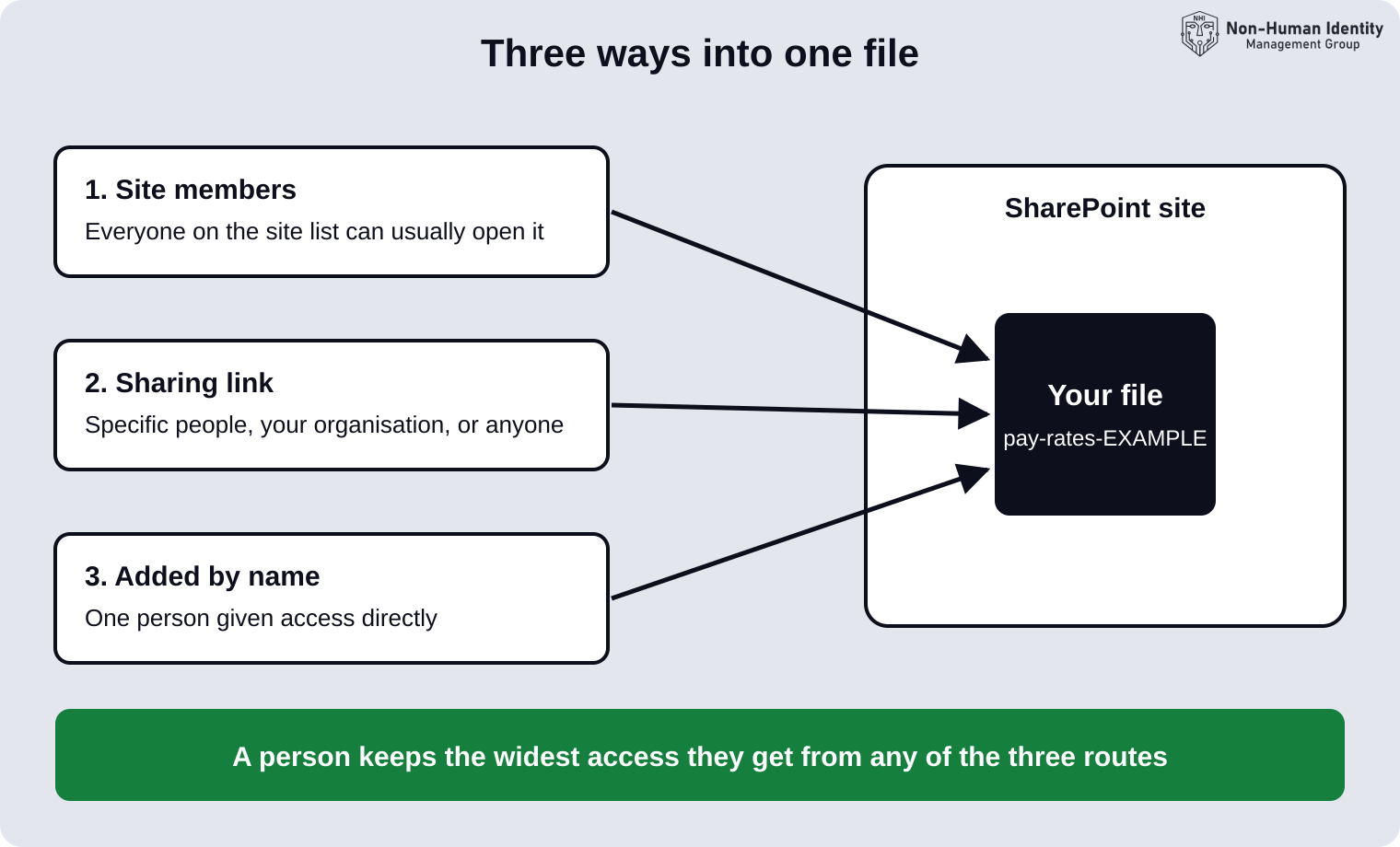
- People reach a file in three ways: by being a member of the site, by getting a sharing link, or by being added by name.
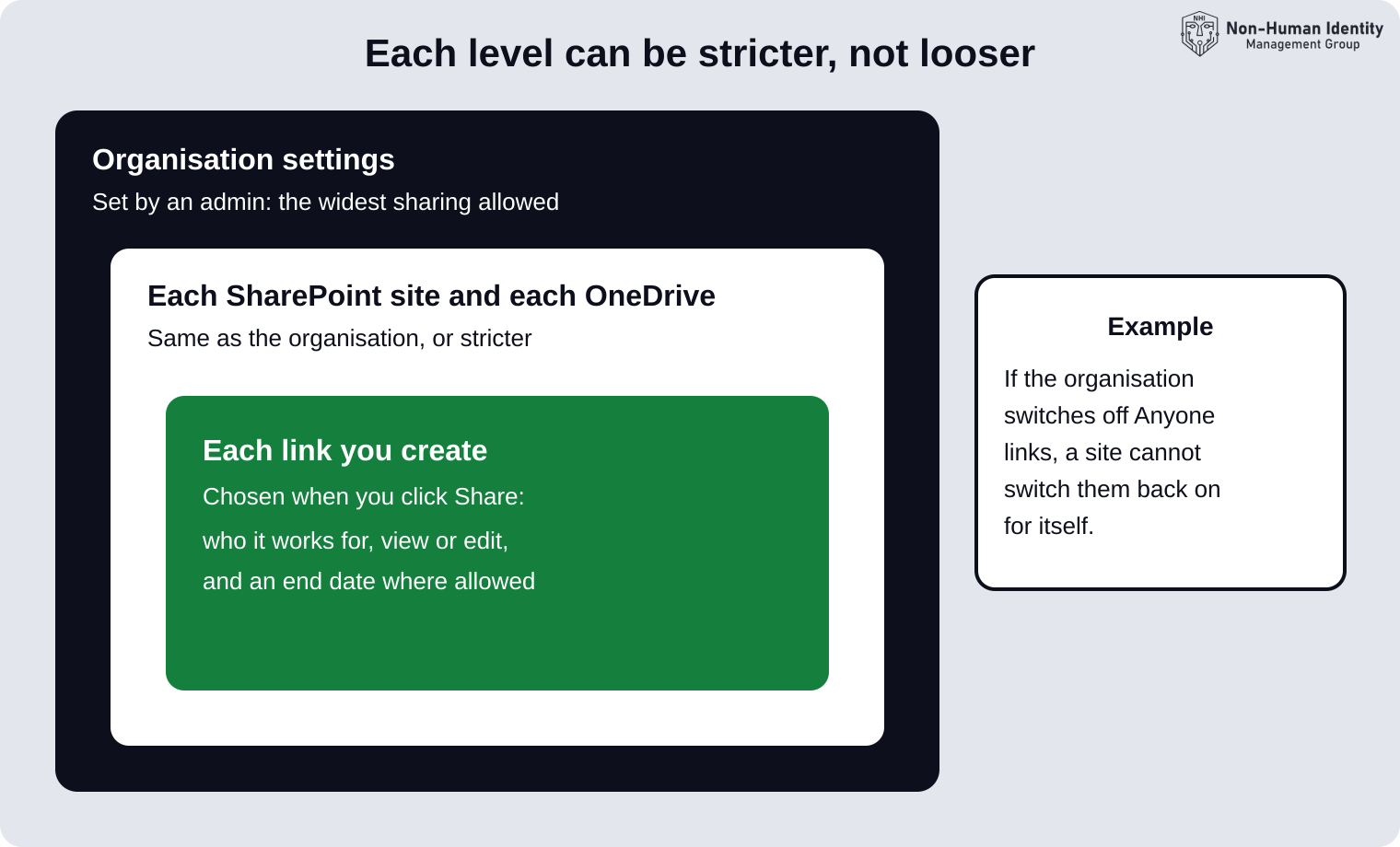
- Your organisation's settings set the widest sharing allowed. A site or a OneDrive can be stricter, but not looser.
- Use "Specific people" links for private files, and check Manage access to see who can still get in.
What you will learn
- Explain the difference between OneDrive and a SharePoint site.
- Spot the three ways a person can reach one of your files.
- Check who can open a file, and remove access you no longer want.
- Ask whoever runs your Microsoft 365 the right questions about sharing settings.
- Team file space (SharePoint site)
- a shared online area where a team keeps its files, with its own list of members.
- Personal work storage (OneDrive)
- your own online folder for work files, private until you share them.
- Outside person (guest)
- someone from outside your organisation who has been given access.
What is SharePoint and OneDrive sharing?
Think of an office building. The company sets the rules at the front door. Each team has its own room with a list of who may go in. And you can hand a visitor a pass for one document without letting them into the room.
Microsoft 365 works much the same way. Your OneDrive is like your own desk drawer: private until you share something from it. A SharePoint site is like a team room. When you join the team, you can usually open every file kept there.[2]
Microsoft Teams uses SharePoint behind the scenes. The files you see on a channel's Files tab are stored in a SharePoint site.[4] So joining a team often means joining its file space too.
Sharing is how you let someone reach a file. You can send a sharing link (a web address that opens the file), or add a person by name. Each choice sets who can open it and whether they can only view it or also change it.
Where the comparison stops working: a visitor pass is a physical thing you can take back. A sharing link can be copied and forwarded, and some link types do not ask who is using them.[2]
Why does it matter?
Most sharing problems are not hacks. They are a file, folder or site that more people can open than anyone meant. This is often called oversharing.
If you work in an office
What could happen: you save a staff review in the team site, and everyone in the team can open it.
Check this: keep private drafts in your OneDrive and share them with named people.
If you run a small business
What could happen: your Microsoft 365 allows links that work for anyone, so a payroll file is opened outside the firm.
Check this: ask your IT supplier which link type is the default, and whether "Anyone" links are switched on.
If you work with clients or suppliers
What could happen: a supplier added as a guest to a project site still has access a year after the project ends.
Check this: list the guests on each site when a project finishes, and remove the ones who no longer need it.
If your firm is turning on an AI assistant
What could happen: the assistant can find files your account can open, including ones that were shared too widely years ago.
Check this: tidy sharing on sensitive sites before the assistant is switched on.
What does it look like?
Here is a made-up "Manage access" view for one file. You see a list like this when you check who has access.
Example only. All values are made up.
Manage access: "Staff-pay-rates-EXAMPLE.xlsx"
Site: Example Ltd Team Site

Links giving access
  Anyone with the link     Can edit   expires: never   (1)
  People in Example Ltd    Can view                    (2)

People with direct access
  Sam Example              Can edit                    (3)
  guest: [email protected]   Can view      (4)

Groups
  Example Ltd Team Site Members   Can edit             (5)
- An open link. Whoever has it can change the file, without signing in.
- Anyone in the company who gets this link can open the file.
- A named person. This is the narrowest kind of access.
- An outside guest. In a real file, this line would show a supplier's address.
- Every member of the site can edit, because the file sits in the team site.
Why this is risky: a private pay file has five ways in. Strangers and an old supplier can open it.
The safer way: remove the open link and the old guest. Move the file to a site only the pay team can open. Share it with named people.
How does it work?
Here is how access to a file is decided, from the top down.
- Your organisation sets the outer limit. An admin chooses the widest sharing allowed, from "Anyone" down to "Only people in your organisation". Each site must be at the same level or stricter. OneDrive can be stricter than SharePoint, but not looser.[1]
- Each site has its members. A site usually has owners, members and visitors. Owners run it, members add files, and visitors can read.[2] Being given access to a site gives access to the content inside it.[2]
- You can share one item. A link can work for specific people, for people in your organisation, or for anyone who has it. Anyone links do not ask the person to sign in, and their use cannot be audited (checked in the records).[2]
- You choose what they can do. Options include view, edit, and a "Can't download" setting that lets people view a file without saving a copy. Extra links can have an end date or a password.[3]
- The widest route wins. A person keeps the highest access they have from any source. To reduce it, you have to change every route that gives more.[3]
If an admin makes external sharing stricter, Microsoft says guests typically lose access within one hour of the change.[1]
A worked example
This story is made up to show how it can happen.
Farah Lindahl manages Sorrel Pharmacy, a small chain with three shops. Staff use Microsoft Teams and keep shared files in the team's file space.
One afternoon a new shop assistant mentions that she can see a folder called "Staff reviews". Farah is surprised. She had saved those files in the main team so the two shop managers could read them.
She looks at the folder's access list. Every member of the main team can edit it, because the folder sits in the team's SharePoint site. Nobody shared it on purpose. It was simply saved in the wrong room.
Farah asks the pharmacy's IT supplier for help. They create a separate private site for the managers and move the reviews into it. The new site has three members.
While they are looking, the supplier finds two more things. A rota spreadsheet has an "Anyone with the link" sharing link with no end date. And a locum pharmacist who left last spring is still a guest on the main team.
They remove the open link and replace it with a link for people in the organisation. They remove the old guest. Then they change the default link type to "Specific people", so new links start narrow.
Farah tells staff one simple rule: before you save, ask who can open this room. Two months later a shop manager stops and asks where a disciplinary letter should go. The rule is working.
Myths and mistakes
| What people think | What is true |
|---|---|
| If I did not share a file, nobody else can open it. | Files in a team site can usually be opened by every member of the site, without any sharing link. |
| "People in my organisation" links are private. | If forwarded, they work for anyone in the organisation.[1] That may include people who should not see the file. |
| Deleting the email with the link removes access. | The link keeps working. Remove it in the file's sharing options. |
| Guests drop off when the project ends. | Guests can keep access until someone removes them. Review guests at the end of each project. |
| Removing one link is enough. | A person keeps the highest access from any route.[3] Check site membership and direct access too. |
What can I do this week?
- Open the sharing options on three files you care about and look at who has access.
- Remove "Anyone" links you no longer need, and add end dates to the ones you keep.
- Move private drafts out of team sites and into your OneDrive or a smaller site.
- Ask your IT team or supplier which default link type your organisation uses.
- If you own a site, check its member and guest list.
Checklist
- I know the difference between my OneDrive and a team's SharePoint site.
- I check which site a file is in before I save something private.
- I use "Specific people" links for private files.
- I give view access unless someone really needs to edit.
- Links to outsiders have an end date.
- I check Manage access on important files every few months.
- Guests are removed from sites when their work ends.
- I know who in my organisation can change the sharing settings.
Common questions
What is the difference between OneDrive and SharePoint?
OneDrive is your own work storage, private until you share from it. SharePoint holds files for a team or a whole organisation, and the site's members can usually open them. Teams channels store their files in SharePoint, so a team's Files tab is a SharePoint site underneath.
Which sharing link should I use?
Use "Specific people" for anything private. It works only for the people you name. "People in your organisation" suits general internal files. Keep "Anyone" links for files you would be happy to see in public, and give them an end date where your settings allow it.
Can I see who has access to my file?
Yes. Open the file's sharing options and choose Manage access. It lists links, people and groups that can reach the file. As the owner, you can change someone's permission, remove a person or remove a link from there.
Can I stop someone downloading a file I share?
Often, yes. Microsoft offers a "Can't download" permission that lets people view a file without saving a copy. Copies people already downloaded are outside your control, so for very private files think about whether they need a copy at all.
Who sets the sharing rules for the whole organisation?
An admin, using the SharePoint admin settings. They choose the widest sharing allowed and the default link type. Sites and OneDrive can be set stricter than that, but not looser. In a small firm this is often an IT supplier.
Where next?
Ready for the detail? Read the practitioner guide: SharePoint and OneDrive Security Guide. It goes further into admin sharing policies, controls for unmanaged devices and apps that can reach every site.
Also useful:
- Secure File Sharing for Beginners
- Microsoft 365 Security for Beginners
- How to detect mass downloads from SharePoint and OneDrive
- Data Classification for Beginners
Related NHI Mgmt Group resources: File Server to SharePoint Migration · Top 10 Microsoft 365 Copilot and AI Assistant Oversharing Risks · Accidental Data Leaks for Beginners
Key terms
- Sharing link
- A web address that opens a stored file for the people the link allows.
- Anonymous link
- A link that works for anyone who has it, without signing in; Microsoft calls it an "Anyone" link.
- Oversharing
- Files or sites that more people can open than was intended.
- A shared online space for a team's files, with its own owners, members and visitors.
- OneDrive
- A person's own work storage in Microsoft 365, private until they share from it.
- Guest
- A person from outside the organisation who has been given access to files or sites.
- Least privilege
- Giving each person only the access they need for their work.
Sources and further reading
- Manage sharing settings for SharePoint and OneDrive in Microsoft 365. Microsoft Learn, Microsoft. https://learn.microsoft.com/en-us/sharepoint/turn-external-sharing-on-or-off, accessed 28 Nov 2026.
- Sharing and permissions in the SharePoint modern experience. Microsoft Learn, Microsoft. https://learn.microsoft.com/en-us/sharepoint/modern-experience-sharing-permissions, accessed 28 Nov 2026.
- Share OneDrive files and folders. Microsoft Support, Microsoft. https://support.microsoft.com/en-us/office/share-onedrive-files-and-folders-9fcc2f7d-de0c-4cec-93b0-a82024800c07, accessed 28 Nov 2026.
- How SharePoint and OneDrive interact with Microsoft Teams. Microsoft Learn, Microsoft. https://learn.microsoft.com/en-us/microsoftteams/sharepoint-onedrive-interact, accessed 28 Nov 2026.