Secure file sharing means sending a file so that only the people you choose can open it.
This guide is for anyone who sends work files by email, link or chat. You do not need to be in IT to be affected: one wrong link can put a client's details in front of strangers.
In short
- A sharing link set to "anyone with the link" can be opened by whoever gets hold of it, often without signing in.
- Share with named people where you can, and give them view-only access unless they need to edit.
- Set an end date on links to outsiders, and remove access when the work is done.
- Check the name, the file and the link setting before you press send.
What you will learn
- Explain the difference between a named-people link and an open link.
- Spot a sharing setting that shows a file to more people than you meant.
- Check who can still open the files you have shared.
- Ask your IT team or supplier what your default sharing setting is.
- Sharing link
- a web address that opens a file stored online, such as in OneDrive, Google Drive or Dropbox.
- Open link (anyone with the link)
- a sharing link that works for whoever has it, often without signing in.
- Named-people link
- a link that only works for the people you typed in, after they sign in.
What is secure file sharing?
Think of the difference between posting a letter to one named person and leaving copies on a public table. The letter reaches one door. The copies go to anyone who walks past.
Most work files now live in online storage, often called the cloud. To share one, you usually send a sharing link (a web address that opens the file) rather than the file itself. The service asks who the link should work for.
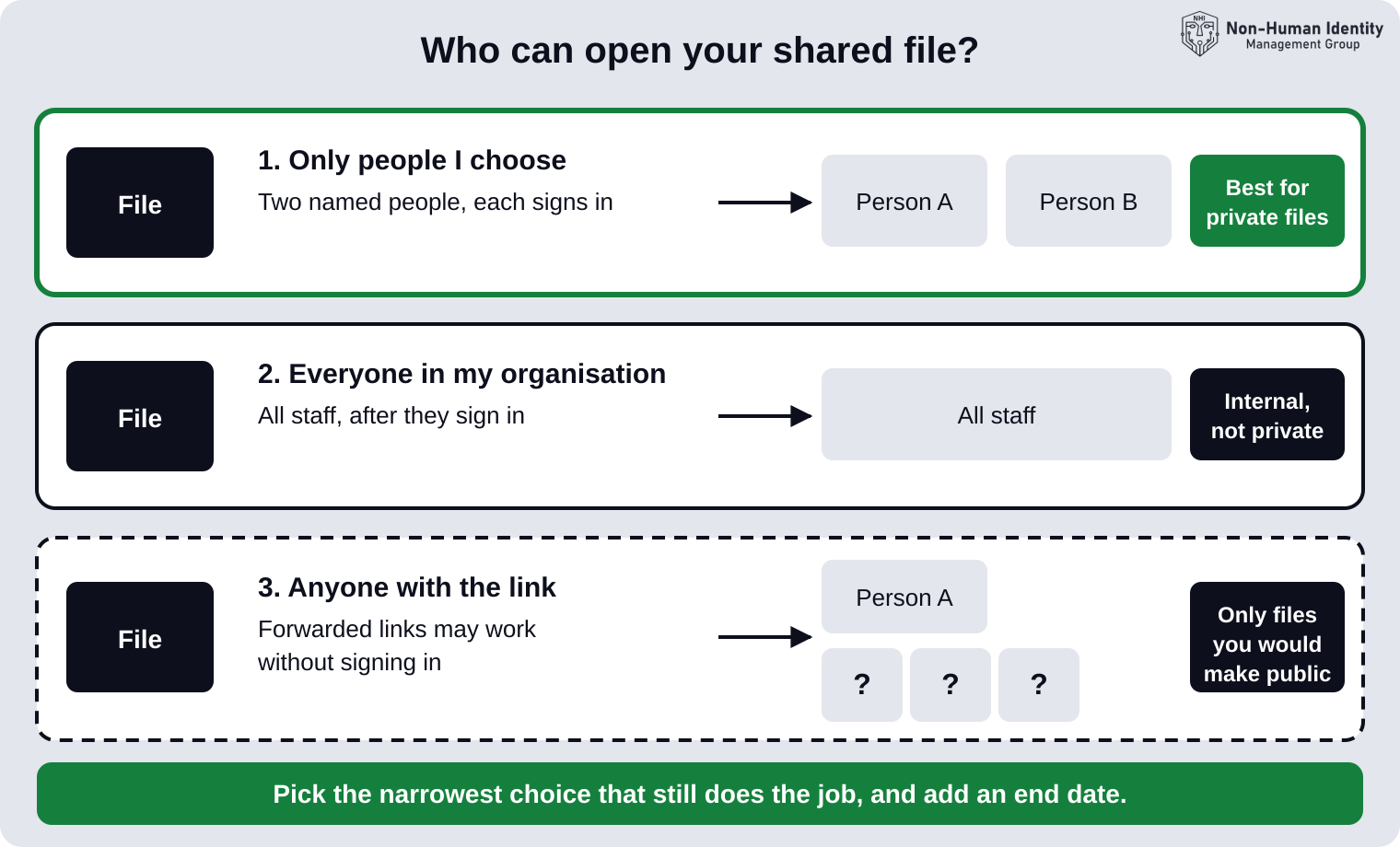
The common choices are: only named people, anyone in your organisation, or anyone who has the link. The last one is an open link. Many services let open links work without the person signing in.[1][3]
Secure file sharing is choosing the narrowest setting that still gets the job done. It also means choosing whether people can only view the file or can change it, and how long access lasts.
Where the comparison stops working: a copy taken from a table is gone, and you know it. An open link can be forwarded many times, and you may never see who used it.
Why does it matter?
A link is easy to forward, paste into a chat or post by mistake. Microsoft says that, because an open link can be copied, it is fair to assume a file with one has been shared onwards.[2]
If you work in an office
What could happen: you send an open link to a spreadsheet of customer details, and it is forwarded outside the firm.
Check this: before you send, look at who the link works for. Pick named people for anything private.
If you run a small business
What could happen: staff share files with open links by habit, and old links to payroll files still work years later.
Check this: ask whoever runs your storage to make named-people links the default.
If you work with clients or suppliers
What could happen: an outside partner keeps access to a shared folder long after the project ends.
Check this: give outsiders access with an end date, and review shared folders when a job finishes.
What does it look like?
Here is a made-up sharing box, like the one most storage services show when you click Share.
Example only. All values are made up.
Share "Client-tax-returns-EXAMPLE.xlsx"
Who can open this link?
  (x) Anyone with the link                  (1)
  ( ) People in Example Ltd
  ( ) Only people I choose
Permission:  [ Can edit ]                   (2)
Link expires: [ Never ]                     (3)
Link: https://files.example.invalid/s/FAKE0000
Send to: Sam, accounts at exarnple.invalid  (4)
- The widest setting is ticked. Whoever has the link can open the file.
- Anyone who opens it can also change or delete the contents.
- The link has no end date, so it can keep working for a long time.
- The address is spelled "exarnple", not "example". In a real message, a slip like this sends the file to a stranger.
Why this is risky: four small choices add up. A file of private client data is open, editable, never-ending and going to the wrong person.
The safer way: choose "Only people I choose", set the permission to view, add an end date, and check the address letter by letter.
How does it work?
Here is what happens, step by step, when you share a file that is kept in online storage.
- The file stays in one place. It sits in your organisation's storage. You send a link, not a copy.
- You pick who the link works for. Named people, everyone in your organisation, or anyone with the link.[1]
- You pick what they can do. View only, comment, or edit. Some services also let you stop viewers downloading or printing.[3]
- The service checks each visit. For a named-people link, the person must sign in as someone on your list. For an open link, the service may not ask who they are.
- Access lasts until it ends. That might be an end date you set, or the moment you remove the person or switch the link off.[1][3]
Once someone downloads a copy, the link settings no longer control that copy. If a file is very private, ask whether people need to download it at all.
A worked example
This story is made up to show how it can happen.
Zainab Okafor is the office manager at a small accountancy firm with eight staff. In January, the busy tax season, a client asks for copies of last year's returns.
Zainab opens the client's folder in the firm's online storage and clicks Share. The box already shows "Anyone with the link" and "Can edit". She almost presses Copy link, as she has done many times before.
Then she remembers a short talk from the firm's IT supplier. Open links are for files you would be happy to see in public. Tax returns are not those files.
She changes the setting to "Only people I choose" and types the client's email address. She sets the permission to view only and adds an end date two weeks away. She reads the address once more and spots a typo in the domain name, so she fixes it.
Afterwards, she asks the supplier to make named-people links the default for the whole firm. They also run a report of links that are still open. It lists a folder of payroll files shared with an old cleaning contractor three years ago. Zainab removes that access the same day.
What made the difference: Zainab treated the sharing box as a decision, not a step to click past. One minute of checking kept private data private.
Myths and mistakes
| What people think | What is true |
|---|---|
| Nobody will find my link because it is long and random. | A long link is hard to guess, but it is easy to forward, paste or post. Treat an open link as public. |
| Email attachments are safer than links. | An attachment is a copy you cannot take back. A named-people link can be switched off later. |
| Once a project ends, access ends too. | Access usually lasts until someone removes it or an end date passes. Set end dates and review old shares. |
| "Can edit" is fine because I trust the person. | Edit rights let anyone with the link change or delete the file. Give view-only access unless editing is needed. |
| A password on a link makes it private. | It helps, but the password often travels in the same email. Send it a different way, or use named people instead. |
What can I do this week?
- Open your storage and look at your "Shared" view. Remove any outside access you no longer need.
- Switch any open links to private files over to named-people links.
- Ask your IT team or supplier what the default link setting is, and whether it can be named people.
- Get into the habit of reading the recipient's address once more before you send.
Checklist
- I use named-people links for anything private.
- I give view-only access unless someone needs to edit.
- Links to outsiders have an end date.
- I check the recipient's address and the file name before I send.
- I review my shared files at the end of each project.
- I never send a link's password in the same message as the link.
- I know who to tell if I send a file to the wrong person.
Common questions
What should I do if I send a file to the wrong person?
Remove their access or switch off the link straight away. Then tell your manager or IT team, even if it feels small. If the file held personal data, your organisation may need to judge whether it counts as a data breach that must be reported.
Is "people in my organisation" safe enough?
For everyday internal files, often yes, because people must sign in as staff. For pay, health or client files, it is usually too wide. Those files are better shared with the few named people who need them, so a mistake reaches fewer eyes.
Can I stop someone downloading or printing a file?
Sometimes. Several storage services let you turn off downloads for viewers, and some business plans add stronger controls. These limits apply only while the file stays in the service. A screenshot or a photo of the screen can still copy what is shown.
Is it safe to share files through free personal accounts?
It is better to use the storage your workplace provides. Your organisation can then see, manage and remove shares, and it keeps the files if you leave. Files in a personal account sit outside those checks.
Where next?
Ready for the detail? Read the practitioner guide: Secure File Sharing Guide. It covers admin sharing settings for the main storage services, guest access for outside partners, and finding old sharing links across a whole organisation.
Also useful:
- Accidental Data Leaks for Beginners
- Data Classification for Beginners
- Collaboration Tool Security for Beginners
- Encryption for Beginners
Related NHI Mgmt Group resources: SharePoint and OneDrive Security Guide · Data Loss Prevention (DLP) Guide · Secure File Sharing and Virtual Data Rooms
Key terms
- Open-link sharing
- Sharing a file so that anyone who has the web address can open it, often without signing in.
- Public link
- A link that lets people outside your organisation open a file without the normal sign-in.
- Default sharing link type
- The link setting your storage picks for you when you click Share, chosen by your administrator.
- Guest account
- An account your organisation gives an outsider so they can work on shared files.
- Least privilege
- Giving each person only the access they need, for only as long as they need it.
- Data loss prevention
- Tools and rules that spot private data leaving the organisation in ways it does not allow.
Sources and further reading
- Manage sharing settings for SharePoint and OneDrive in Microsoft 365. Microsoft Learn. https://learn.microsoft.com/en-us/sharepoint/turn-external-sharing-on-or-off, accessed 28 Nov 2026.
- Use sharing auditing in the audit log. Microsoft Learn (Microsoft Purview). https://learn.microsoft.com/en-us/purview/audit-log-sharing, accessed 28 Nov 2026.
- Share files from Google Drive. Google Drive Help. https://support.google.com/drive/answer/2494822, accessed 28 Nov 2026.