A suspicious file is an attachment or download you did not expect and cannot yet trust.
This guide is for home users, small business staff and people new to IT who want to check a file without putting themselves at risk. You do not need special tools: the main skills are pausing, asking and choosing the right kind of check.
In short
- If a file was unexpected, do not open it yet. First ask the sender, using contact details you already have.
- Your own security software can scan a single file without opening it.
- Free online scanners check a file with many antivirus tools at once, but uploaded files can be shared with other people.
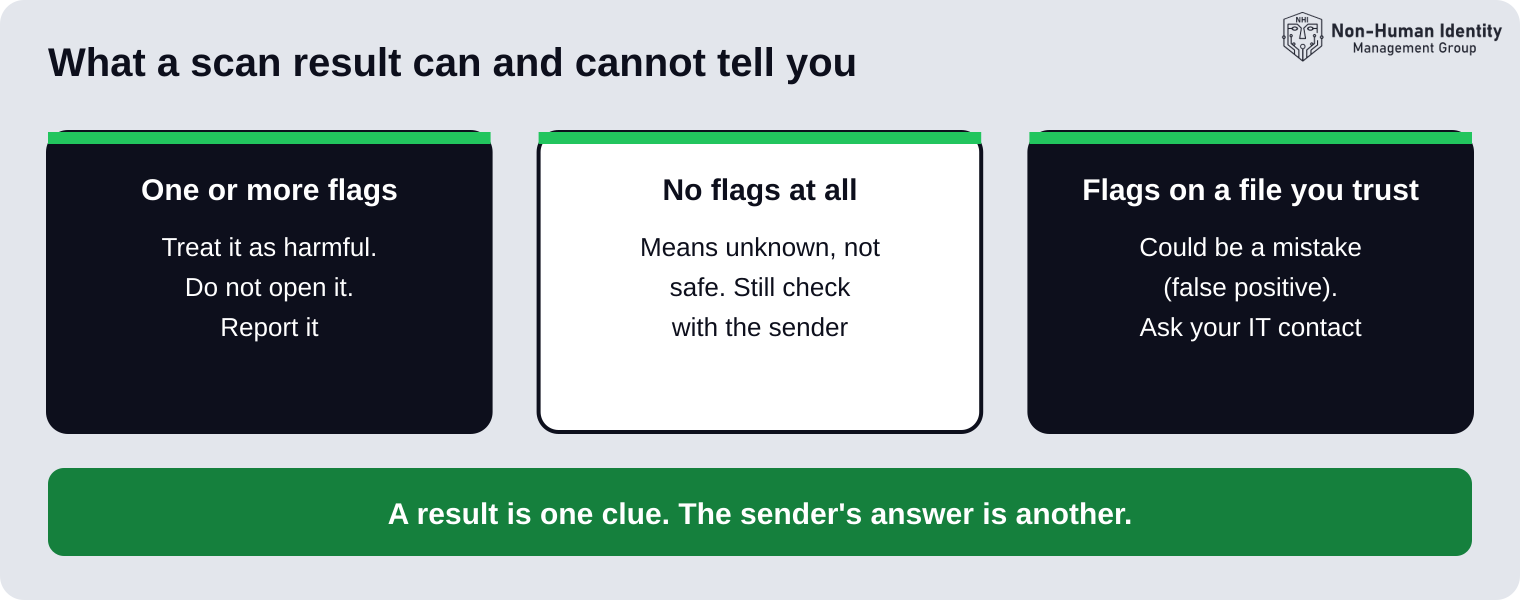
- A clean result means no tool flagged the file. It does not prove the file is safe.
What you will learn
- Spot when a file deserves a second look.
- Explain the difference between scanning on your device, looking up a fingerprint and uploading a file.
- Check a scan result without reading too much into it.
- Ask for help before a private file leaves your hands.
- Harmful software (malware)
- software made on purpose to steal, spy, lock files or cause damage.
- File fingerprint (hash)
- a short code worked out from a file's contents. The same file always gives the same code.
- Online scanner
- a website that checks a file with many antivirus tools and shows what each one found.
What is a suspicious file?
Think of a parcel left on your doorstep with no sender's name. You would not tear it open in the kitchen. You would check the label, ask who sent it, and only then decide.
A suspicious file is the computer version of that parcel. It might be an email attachment, a file in a chat, or a download from a website. It is suspicious because you did not expect it, or because something about it feels wrong. It may be harmless. It may also hide malware, which is harmful software that runs when the file is opened.
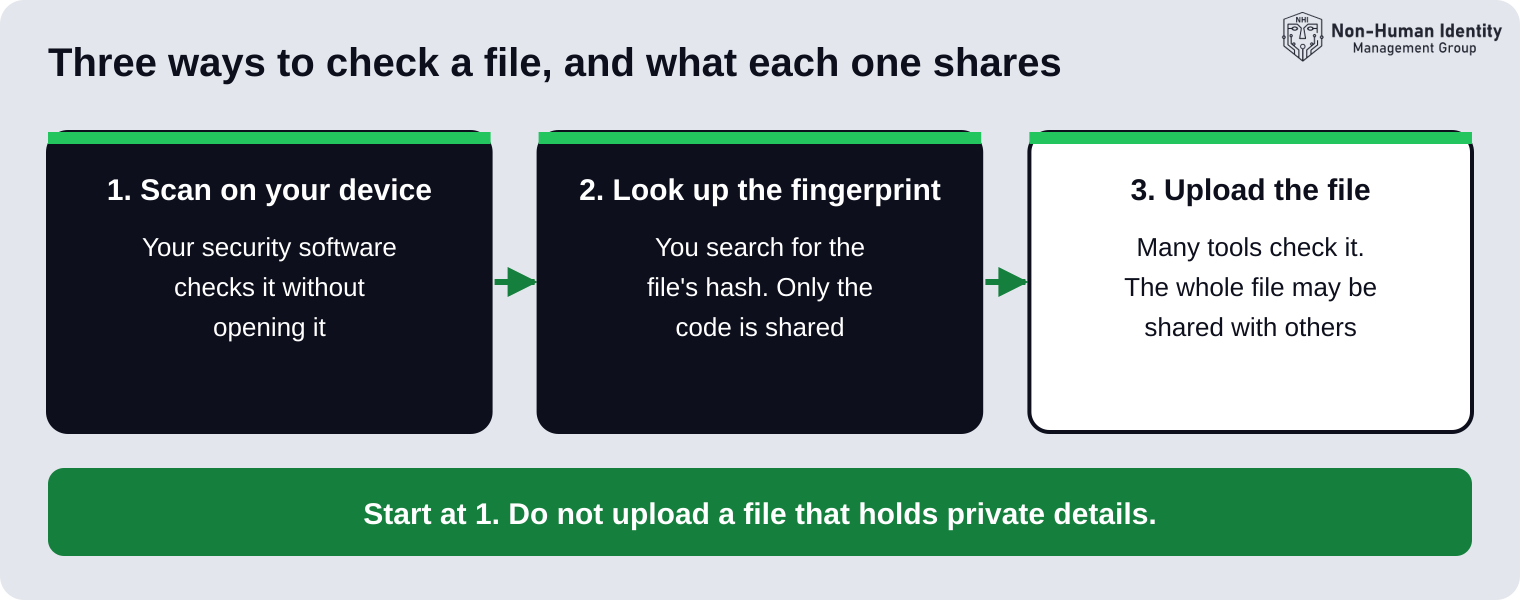
Checking a file safely means finding out more without opening it on your normal computer. There are three main ways to do that, and each one shares a different amount of information.
Where the comparison stops working: a parcel is either opened or not. A file can be copied, so sending it to a checking service can mean other people get a copy too.
Why does it matter?
Opening the wrong file can let a criminal into your device. How you check a file matters too. Some checks share the file itself.
If you use a computer at home
What could happen: you open a "parcel tracking" file and it installs software that steals saved passwords.
Check this: scan the file with your own security software before anything else.
If you work in a small business
What could happen: you upload a customer contract to a free scanner, and the file becomes visible to other users of that service.
Check this: never upload a file that holds private or customer details. Ask your IT contact instead.
Next: Malware for Beginners
If you are new to IT work
What could happen: a colleague forwards a file and asks "is this safe?", and you answer from one green tick.
Check this: give an answer like "no tool flagged it", not "it is safe", and follow your team's process.
What does it look like?
Here is a made-up result page from an online scanner.
Example only. All values are made up.
FILE REPORT (example)
Name:        delivery_note_FAKE.pdf.exe        (1)
Fingerprint: 0000EXAMPLE0000FAKE0000EXAMPLE    (2)
Result:      3 of 60 tools flagged this file   (3)
Tool A:      Trojan.Example.0000
Tool B:      Suspicious
Others:      not detected                       (4)
Shared:      file visible to service partners   (5)
- In a real file, this line would contain the file name. Two endings are a trick. The last one counts, and ".exe" is a program.
- The file's fingerprint, called a hash. You can search for it.
- A few tools flagged it. Even one flag is a reason to stop.
- "Not detected" means that tool found nothing. It does not mean "safe".
- Uploaded files may be shared with other people.
Why this is risky: people see lots of green and think the file is fine. Some also upload private files without a second thought.
The safer way: treat any flag as a stop sign. Treat a clean result as "unknown". Only upload files that hold nothing private.
How does it work?
- Pause and ask. If you did not expect the file, contact the sender using a phone number or address you already have. Do not reply to the message itself.
- Scan it on your device. On Windows, you can right-click the file and choose "Scan with Microsoft Defender". This checks the file without opening it.[1]
- Look up its fingerprint. Some online scanners let you search for a file by its hash, a short code worked out from the file. If someone checked the same file before, you see the earlier report without uploading anything.[2] Even a search can be kept by the service, so avoid searching for anything private.[2]
- Upload only if the file is not private. An online scanner runs the file past dozens of antivirus tools. One large service says the contents of uploaded files may be shared with its paying customers.[3]
- Read the result carefully. A tick means that one tool did not detect the file. The same service avoids the word "clean", because antivirus tools do not tell you whether a file is good.[4] Tools can also flag harmless files by mistake, which is called a false positive.[5]
- Report it and delete it. At work, tell your IT contact. In the UK, you can forward a suspicious email to the national cyber security agency.[6]
A worked example
Kaia Castell does the accounts at Rowan Brewery, a small brewery with eight staff. On Monday an email arrives from what looks like a hop supplier. It says an invoice is overdue and attaches a file called "invoice_0000.zip".
Kaia was not expecting an invoice. The supplier usually sends a PDF, not a zip file, which is a compressed folder that can hide other files. She does not open it.
First she rings the supplier on the number in last month's paperwork. The supplier says they sent nothing this week.
Kaia still wants to know what the file is, so she can warn the team. She right-clicks it and runs a scan with her computer's built-in security software. It flags the file as harmful and moves it to a safe holding area.
She thinks about uploading the file to an online scanner too. Then she remembers that the email also had the brewery's bank details in the text. She decides not to upload anything. The local scan and the supplier's answer are enough.
Kaia forwards the email to the UK national cyber security agency's reporting service and deletes it.[6] She sends a short note to the other staff. It says a fake supplier invoice is going round, and asks them to ring her before opening any zip file.
The next day the brewery's owner, Gideon Mbeki, gets the same email. He remembers Kaia's note and deletes it.
What made the difference was not a clever tool. It was a pause, a phone call to a known number, and a check that kept the brewery's details private.
Myths and mistakes
| What people think | What is true |
|---|---|
| If no scanner flags it, the file is safe. | No flags means no tool recognised a threat. New or custom malware can be missed. Still check with the sender. |
| Uploading a file to a free scanner is private. | Uploaded files can be shared with the service's partners or paying customers. Do not upload private documents. |
| One flag out of sixty is just noise. | It might be a mistake, but it might not. Treat any flag as a reason to stop and ask. |
| Opening a file quickly to "have a look" is fine. | Some files act as soon as they are opened. Check first, open last. |
| A file from a friend's address is trustworthy. | Accounts can be taken over. If the file was unexpected, ask them another way. |
What can I do this week?
- Find out how to scan one file with your security software.
- Set your computer to show file endings, so tricks like ".pdf.exe" are easy to spot.
- Keep your IT contact's details somewhere easy to find.
- Agree a simple rule with your team: unexpected file, ring the sender first.
- List the files that must not go to an online scanner, such as contracts or payslips.
Checklist
- I pause before opening any file I did not expect.
- I check with the sender using contact details I already have.
- I know how to scan one file with my own security software.
- I look up a file's fingerprint before I think about uploading it.
- I never upload files holding private, customer or company details.
- I read "no detections" as "unknown", not "safe".
- I report suspicious files to IT or the right agency, then delete them.
Common questions
Is it safe to upload a file to an online scanner?
Only if the file holds nothing private. The scan itself does not run the file on your computer, so that part is low risk. But the file may be shared with the service's partners or customers. A contract or payslip could end up in other hands.
What is a file hash, in plain words?
It is a fingerprint for a file. A tool reads the whole file and turns it into a short code. The same file always gives the same code, and a changed file gives a different one. Searching for that code lets you find earlier reports without sharing the file itself.
A scanner says my file is fine. Can I open it?
Not on that basis alone. A clean result means none of the tools recognised a threat. It does not prove the file is good. If the file was unexpected, confirm with the sender first. If they did not send it, delete it.
What if a file I trust gets flagged?
It may be a false positive, which is a harmless file flagged by mistake. This happens, especially with small or unusual programs. Do not decide alone. Ask your IT contact, or get the file again from the maker's official website and compare.
I already opened the file. What now?
Do not panic, and act quickly. At work, tell your IT contact straight away. At home, disconnect from the internet, run a full scan with your security software, and change important passwords from a different, trusted device.
Where next?
Ready for the detail? Read the practitioner guide: Online malware analysis services. It goes further into choosing between lookup, private analysis and public upload, setting up tool connections so they do not leak, and handling samples in a team.
Also useful:
- Malicious Attachments for Beginners
- Checking Suspicious Links for Beginners
- Malware Analysis for Beginners
- Phishing for Beginners
Related NHI Mgmt Group resources: Malware for Beginners · Software Updates at Home for Beginners
Key terms
- Malware
- Software made on purpose to steal data, spy, lock files or disrupt a device.
- File hash
- A short fingerprint worked out from a file's contents, used to recognise the same file again.
- False positive
- A harmless file or event that a security tool flags by mistake.
- Phishing
- A fake message designed to trick you into clicking, opening a file or handing over details.
- Sandbox
- A sealed-off test space where a suspicious file can run without reaching anything important.
- Online scanner
- A website that checks a file or its fingerprint against many antivirus tools and shows each result.
Sources and further reading
- Stay protected with the Windows Security app. Microsoft Support. https://support.microsoft.com/en-us/windows/stay-protected-with-windows-security-2ae0363d-0ada-c064-8b56-6a39afb6a963, accessed 28 Nov 2026.
- Searching. VirusTotal documentation. https://docs.virustotal.com/docs/searching, accessed 28 Nov 2026.
- How it works. VirusTotal documentation. https://docs.virustotal.com/docs/how-it-works, accessed 28 Nov 2026.
- What does the green circle with a white tick mark icon mean? VirusTotal documentation. https://docs.virustotal.com/docs/antivirus-greencircle, accessed 28 Nov 2026.
- False positive. VirusTotal documentation. https://docs.virustotal.com/docs/false-positive, accessed 28 Nov 2026.
- Phishing scams: how to spot and report them. National Cyber Security Centre (NCSC). https://www.ncsc.gov.uk/collection/phishing-scams/report-scam-email, accessed 28 Nov 2026.